This is a practical step-by-step guide. Learn how to get clean, ready-to-use newsletter contacts from your Firebase database into Mailchimp for powerful email marketing.
Why Import Firebase Users Into Mailchimp
If your app is alive, your newsletter should be too.
Email is still the #1 channel for engagement, onboarding, updates, and monetization.
Integrating Firebase → Mailchimp helps you:
Reach existing users instantly
Send onboarding sequences
Push updates, offers, or content
Improve retention & reactivation
Build long-term brand trust
Simple process. Huge upside.
Step 1: Open Your Firebase Firestore Database
Log in to Firebase → Navigate to Firestore Database
Inside Firestore, switch to the Query Builder.
You’re going to pull only the users you need — emails, names, preferences, etc.
Step 2: Use Query Builder to Filter the Right Users
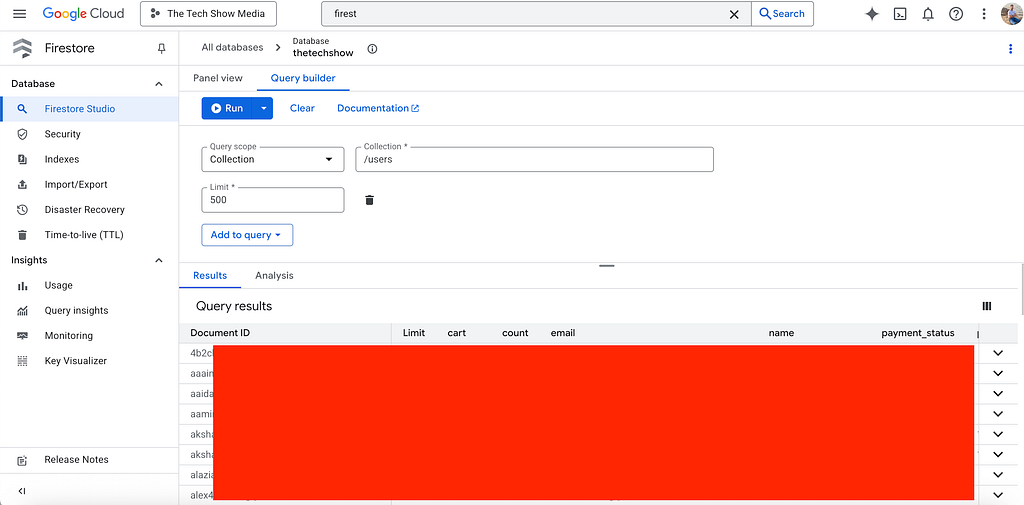
Run a query like:
- Active users/collections
- Email is not empty
- Marketing opt-in (if applicable) or any other fields filtered
- Created after a certain date
Pro tip:
Use a limit of 100 or 500 records at a time to avoid UI slowdowns.
Step 3: Copy the Exported Table
Once Firestore shows your filtered data:
➡️ Select the table
➡️ Copy it (CMD/CTRL + C)
You now have raw Firestore data.
But it’s messy.
That’s where AI comes in.
Step 4: Clean & Format the Data Using AI
Open ChatGPT or Gemini and paste:
[Paste firebase users list here]
format this in plain text –
Email address, first name , last name, address
Example –
akshaybhopani@gmail.com, Akshay, Bhopani, India
Auto-detect country from email domain if not present leave it blank
The AI will return a clean, structured version.
Mailchimp LOVES clean CSV-like text.
Step 5: Go to Mailchimp Audience Import
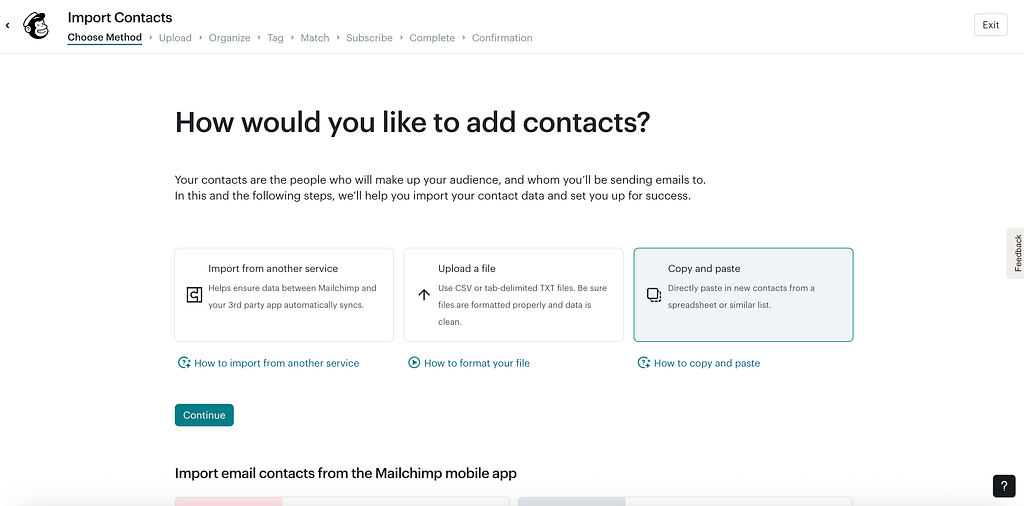
Inside Mailchimp:
Dashboard → Audience → Add Contacts → Import Contacts
Mailchimp allows:
- CSV upload
- Copy-paste
- Integration-based imports
Here we use copy-paste for speed.
Step 6: Paste & Map Your Fields
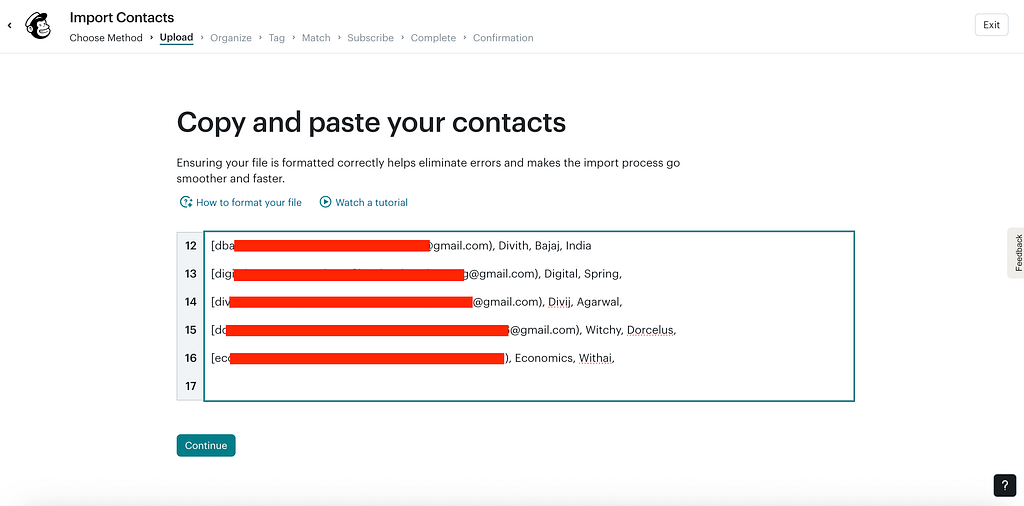
Paste your AI-cleaned data.
Mailchimp will automatically detect:
- First Name
- Last Name
- Custom attributes (optional)
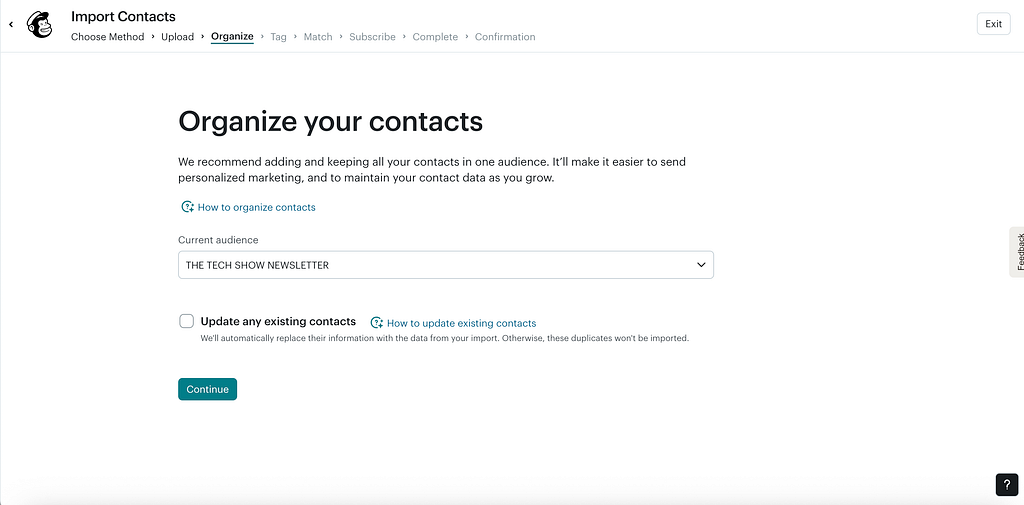
Review → Confirm mapping.
Make sure:
✔ No links
✔ No empty rows
✔ Only clean columns
Step 7: Import and Relax
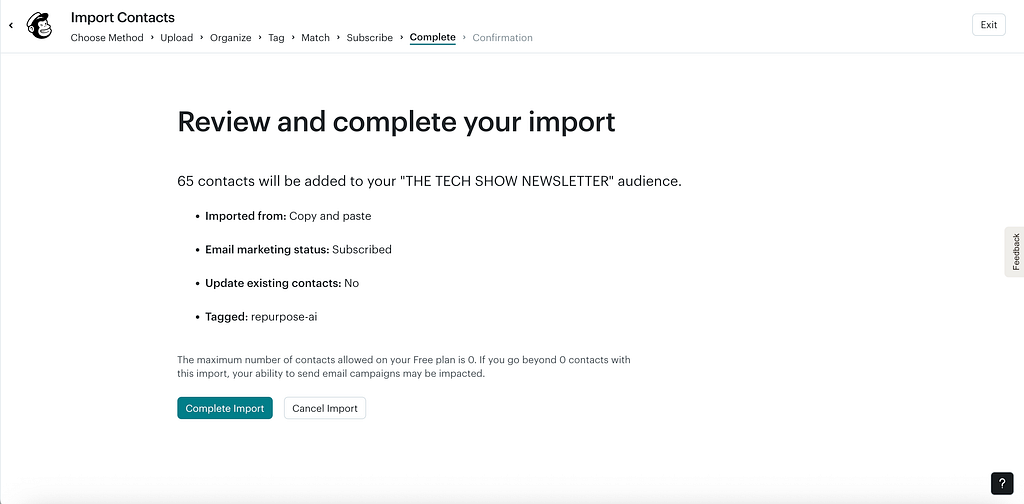
Click Import.
Mailchimp processes in the background — you don’t need to wait.
You’ll receive an import completion email once done.
Your Firebase users are now ready for:
- Newsletter blasts
- Welcome flows
- Product updates
- Promotions
- Behavioral campaigns
Congratulations — your email marketing engine is officially ON.
FAQs
1. Can I automate Firebase → Mailchimp syncing?
Yes — using Zapier, Make.com, or custom Cloud Functions.
2. Does Mailchimp remove duplicates?
Yes, Mailchimp automatically prevents duplicate email entries.
3. What format does Mailchimp prefer?
Clean text or CSV with simple column headers.
4. Is this GDPR/Privacy safe?
Only import users who opted in for communication.
Final Thoughts
You don’t need complex APIs or integrations to get started with newsletters.
A simple Firestore query + AI cleanup + Mailchimp import gives you full control over your contact list in minutes.
7 Effortless Steps to Import Firebase Users Data into Mailchimp (Complete Guide) was originally published in Google Cloud – Community on Medium, where people are continuing the conversation by highlighting and responding to this story.
Source Credit: https://medium.com/google-cloud/7-effortless-steps-to-import-firebase-users-data-into-mailchimp-complete-guide-e31f857545bf?source=rss—-e52cf94d98af—4
About the Author