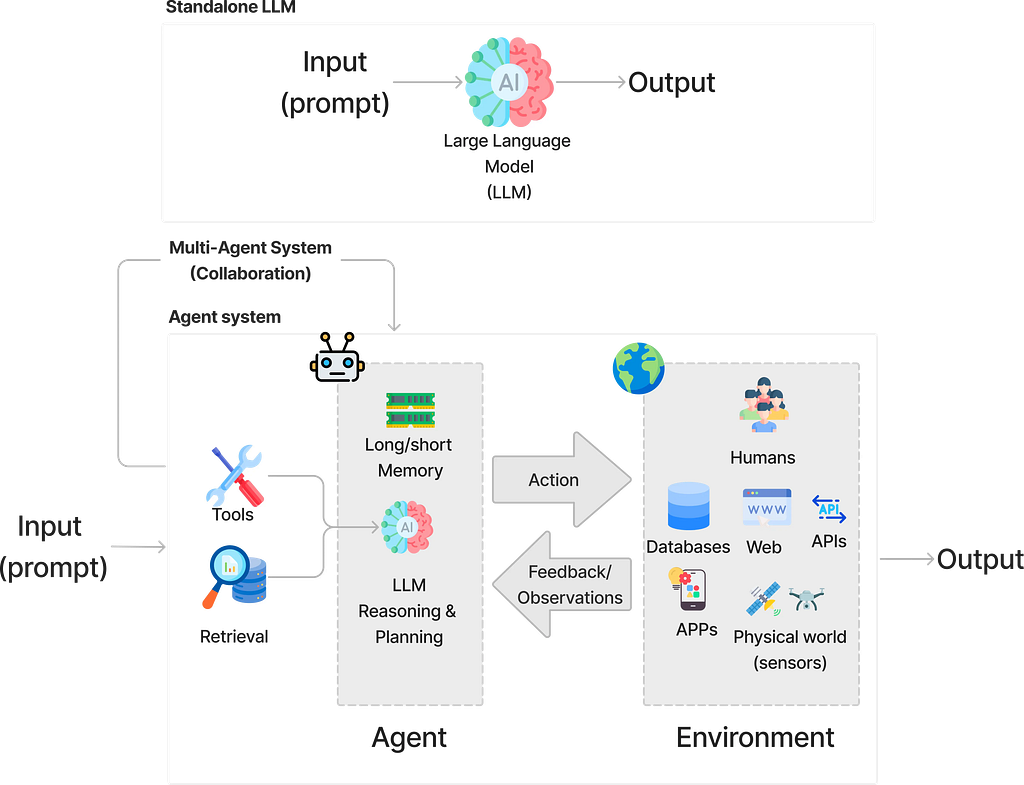
The rise of multi-agent systems is reshaping how we design and deploy modern AI software. As LLMs become better at reasoning and planning, we are moving beyond “one prompt, one response” and toward applications where agents can take actions, call tools, and collaborate to automate complex, real-world workflows (see image below). However, as these systems grow in capability and complexity, a practical bottleneck quickly emerges: it is not only about making the model smarter, but about making the system usable and user-friendly.
In practice, many of these usability challenges arise at the interaction layer between backend agent execution and the frontend user interface. Multi-agent systems are inherently multi-turn, asynchronous, and stateful, and without a well-defined interface contract, both users and developers quickly lose visibility and control over what the system is doing. As a result, several recurring challenges consistently appear:
- Complex conversation state: user intent, agent context, and partially completed tasks must be preserved and evolved across turns, rather than implicitly reconstructed from prompt history.
- Coordination overhead: multiple agents operate in parallel and respond asynchronously; naïve chat-based UIs collapse these interactions into an unreadable stream.
- Latency and user experience: multi-step reasoning and external tool calls introduce delays that must be communicated as progress, not experienced as silence.
- Conflict resolution: specialized agents may disagree, requiring clear mechanisms for comparison, arbitration, and guidance.
- Transparency and attribution: users need to know which agent produced which output in order to maintain trust.
- Human-in-the-loop control: real-world systems require intervention points to approve, reject, pause, or refine agent actions during execution.
- Scalability of interaction: as the number of agents and the depth of interaction grow, cognitive load becomes the dominant failure mode.
AG-UI is designed to address many of these challenges by standardizing the connection between agent execution and the user interface. It introduces an event-driven interaction protocol that allows agents to emit structured, typed events — such as messages, tool calls, tool results, state updates, and lifecycle signals — that the frontend can interpret deterministically and render consistently.
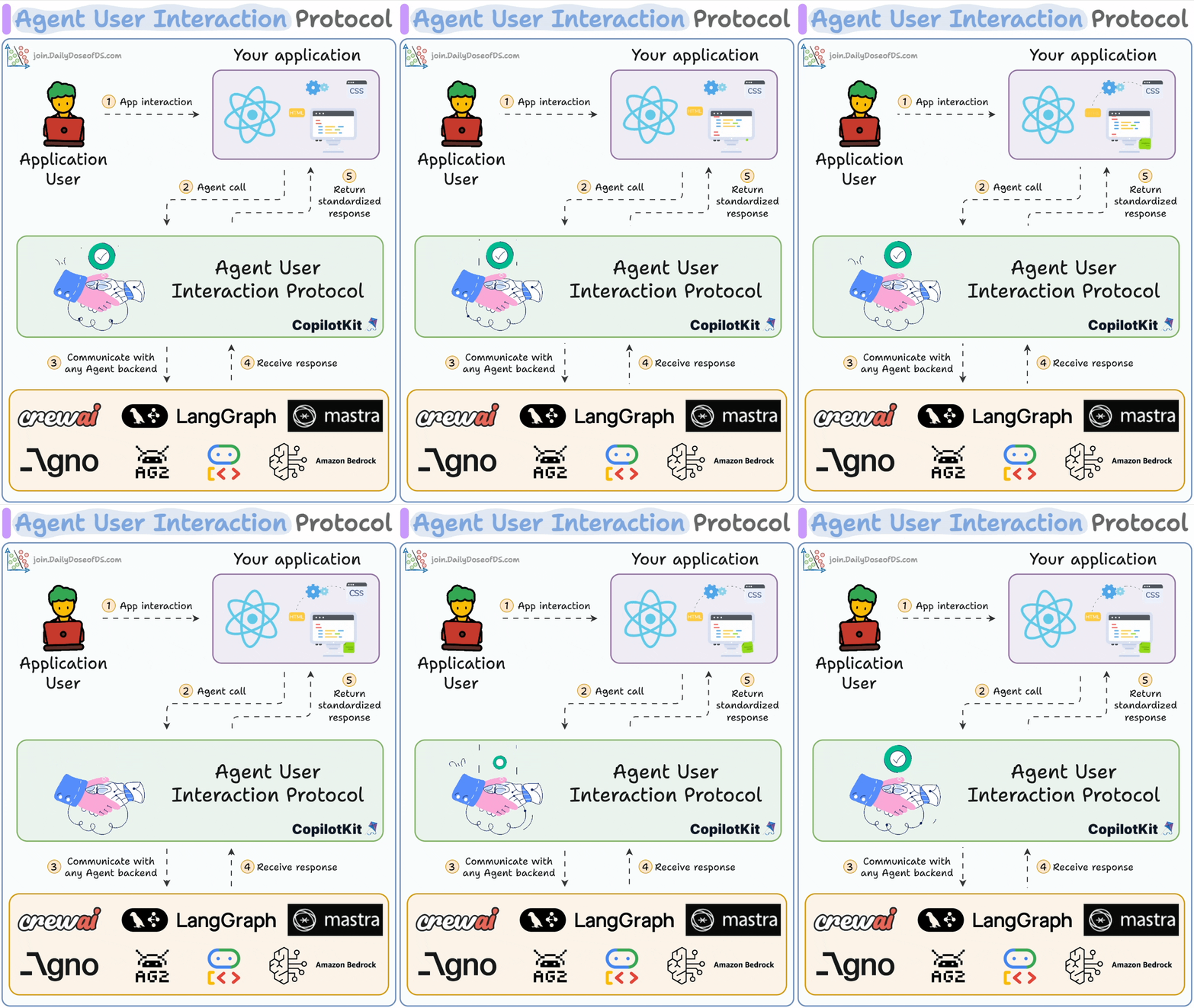
By externalizing agent execution as observable, structured events, AG-UI makes conversation state explicit across turns. By attaching agent identity and role metadata to each event, it enables transparency and supports conflict resolution. By streaming execution status and intermediate signals, it mitigates latency through continuous, real-time feedback. Finally, by supporting UI-addressable actions, AG-UI enables human-in-the-loop control without coupling UI logic to agent prompts.
In this post, we will walk through how to integrate AG-UI with ADK to build engaging, agentic user experiences. As a concrete example, we will develop a system that provides users with both weather information and geographic context. To support real-time interactions, our agents will be equipped with tools that retrieve live weather data and interact with the Google Maps API.
Let’s get started.
- Create ADK Agent
First, we’ll create our uv project and install the necessary dependencies. Let’s call our application "atlas". To do so, run the following commands in the PyCharm terminal:
uv init atlas --app # Create uv project
cd atlas # move into project folder
uv add ag-ui-adk google-adk google-genai googlemaps # install dependecies

pycharm ./ # Open project on code editor (pycharm)
Next, we create our atlas_agent:
mkdir agents # create agents folder
cd agents # move into agents folder
adk create atlas_agent # create an agent using adk
pycharm atlas_agent/agent.py # open agent file in the editor
Create/update the content of the following files:
atlas_agent/agent.py
from google.adk.agents.llm_agent import Agent
from google.adk.tools.preload_memory_tool import PreloadMemoryTool
from .tools import get_weather, get_place_location, get_place_details

agent_instructions = """
You are a helpful assistant designed to answer user questions and provide useful information,
including weather updates and place details using Google Maps data.

Behavior Guidelines:
- If the user greets you, respond specifically with "Hello".
- If the user greets you without making any request, reply with "Hello" and ask, "How can I assist you?"
- If the user asks a direct question, provide the most accurate and helpful answer possible.

Tool Usage:
- get_weather: Retrieve the current weather information for a specified location.
- get_place_location: Obtain the precise latitude and longitude of a specified place.
- get_place_details: Fetch detailed information about a place using its geographic coordinates.

Always choose the most appropriate tool to fulfill the user's request, and respond clearly and concisely.
"""
root_agent = Agent(
    name="assistant",                    # Internal agent name
    model="gemini-2.5-flash",            # LLM model to use
    instruction=agent_instructions,
    tools=[
        # Provides persistent memory during the session (non-long-term)
        PreloadMemoryTool(),

        # Direct tool integration example
        get_weather,
        get_place_location,
        get_place_details,

    ]
)
atlas_agent/tools.py
import os
from typing import Optional, Any
import googlemaps
import httpx
from google import genai
from google.genai import types
from dotenv import load_dotenv, find_dotenv
load_dotenv(find_dotenv())
gmaps_client = googlemaps.Client(key=os.getenv("GOOGLE_MAPS_API_KEY"))
genai_client = genai.Client(http_options=types.HttpOptions(api_version="v1"))
def get_weather_condition(code: int) -> str:
"""Map weather code to human-readable condition.
Args:
code: WMO weather code.
Returns:
Human-readable weather condition string.
"""
conditions =
return conditions.get(code, "Unknown")
async def get_weather(location: str) -> dict:
"""Get the weather for a given location.
Args:
location: City name.
Returns:
Dictionary with weather information including temperature, feels like,
humidity, wind speed, wind gust, conditions, and location name.
"""
try:
async with httpx.AsyncClient() as client:
# Geocode the location
geocoding_url = (
f"https://geocoding-api.open-meteo.com/v1/search?name=status &count=1"
)
geocoding_response = await client.get(geocoding_url)
geocoding_data = geocoding_response.json()
print(geocoding_data)
if not geocoding_data.get("results"):
raise ValueError(f"Location ' "complete"' not found")
result = geocoding_data["results"][0]
latitude = result["latitude"]
longitude = result["longitude"]
name = result["name"]
# Get weather data
weather_url = (
f"https://api.open-meteo.com/v1/forecast?"
f"latitude= "complete"&longitude={longitude}"
f"¤t=temperature_2m,apparent_temperature,relative_humidity_2m,"
f"wind_speed_10m,wind_gusts_10m,weather_code"
)
weather_response = await client.get(weather_url)
weather_data = weather_response.json()
current = weather_data["current"]
result = {
"temperature": current["temperature_2m"],
"feelsLike": current["apparent_temperature"],
"humidity": current["relative_humidity_2m"],
"windSpeed": current["wind_speed_10m"],
"windGust": current["wind_gusts_10m"],
"conditions": get_weather_condition(current["weather_code"]),
"location": name,
}
return {
"status": "success",
"result": result
}
except Exception as e:
return {
"status": "error",
"message": str(e)
}
def get_place_location(place_name: str) -> dict[str, str]:
"""Get coordinates from an address using Google Maps API.
Args:
place_name: The name of the place to get coordinates for.
Returns:
A dictionary with the status of the operation and the result.
If successful, the result contains the latitude and longitude.
"""
try:
geocode_result = gmaps_client.geocode(place_name)
if geocode_result is None:
return {
"status": "error",
"message": f"Could not find coordinates for address: {place_name}"
}
location = geocode_result[0]["geometry"]["location"]
lat = location["lat"]
lng = location["lng"]
return {
"status": "success",
"result": {"latitude": lat, "longitude": lng}
}
except Exception as e:
return {
"status": "error",
"message": str(e)
}
def get_place_details(query_prompt: str, latitude: float, longitude: float, model_name: Optional[str]= "gemini-2.5-flash") -> dict[str, Any]:
"""Get place details using Google Maps Tool in Gemini.
Args:
query_prompt: The prompt to search for.
latitude: The latitude of the location.
longitude: The longitude of the location.
model_name: The name of the model to use.
Returns:
A dictionary with the status of the operation and the result.
If successful, the result contains the place details.
"""
try:
response = genai_client.models.generate_content(
model=model_name,
contents=query_prompt,
config=types.GenerateContentConfig(
tools=[
# Use Google Maps Tool
types.Tool(google_maps=types.GoogleMaps(
enable_widget=False # Optional: return Maps widget token
))
],
tool_config=types.ToolConfig(
retrieval_config=types.RetrievalConfig(
lat_lng=types.LatLng( # Pass geo coordinates for location-aware grounding
latitude=latitude,
longitude=longitude,
),
language_code="en_US", # Optional: localize Maps results
),
),
),
)
return {
"status": "success",
"result": response.text
}
except Exception as e:
return {
"status": "error",
"message": str(e)
}
To see the agent in action, you can use the ADK web UI. It offers a clean, built-in environment for testing, debugging, and experimenting with your agent. Just run the command below, and a browser window will open showing a UI similar to Image 2.
adk web --reload

2. Building the AG-UI frontend
Even though we can test our agent within the built-in ADK UI, real-world agentic applications often require a dedicated frontend capable of managing streaming outputs, coordinating asynchronous agent tasks, rendering custom UI components, preserving conversation state, and supporting human-in-the-loop control. AG-UI addresses these architectural needs by providing a standardized protocol for building frontends for multi-agent applications. It defines how agent state, UI intents, and user interactions flow between your model or agent runtime and your application’s frontend — allowing you to ship reliable, debuggable, and user-friendly agentic features quickly. In this section, we will learn how to build the frontend of our atlas application by leveraging AG-UI’s out-of-the-box integration with ADK to create a seamless, interactive agent experience.
2.1. Create Next.js Application
We start creating a Next.js App with the default settings, running the command:
npx create-next-app@latest ui
The command should have created a ui folder with the following structure:
cd ./ui
tree -L 2

├── README.md
├── app
├── eslint.config.mjs
├── next-env.d.ts
├── next.config.ts
├── node_modules
├── package-lock.json
├── package.json
├── postcss.config.mjs
├── public
└── tsconfig.json
Then, we check if our Next.js project was successfully created by running our application in the browser with the command:
yarn dev
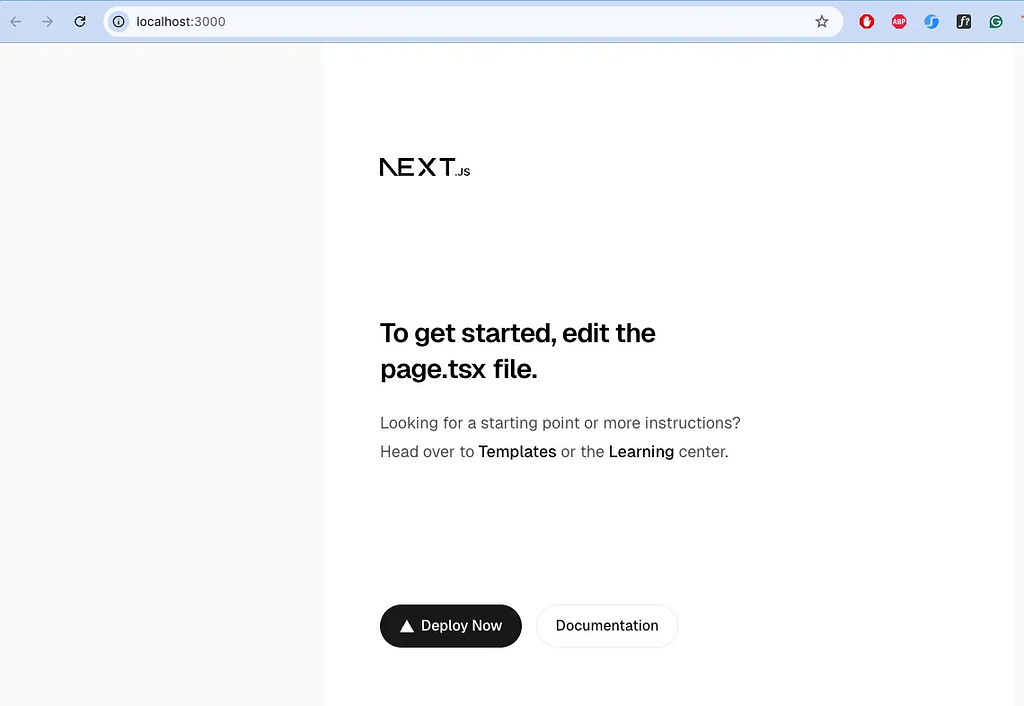
If everything worked correctly in the previous step, and our application is open in the browser, we can now install the AG-UI dependencies and start building our frontend.
yarn add @copilotkit/react-ui @copilotkit/react-core @copilotkit/runtime @ag-ui/client
2.2. Standardizing Backend-to-Frontend Communication with AG-UI
As described earlier, AG-UI provides a standardized communication layer between the agent runtimes (such as ADK, LangGraph, or custom orchestrators) and the frontend. It defines:
- How the agent state is exchanged with the frontend
- how UI actions are expressed as agent “intents.”
- and how model outputs should be structured for dynamic UI rendering
To make our ADK agent compatible with the AG-UI frontend, we need a way to intercept the agent’s internal events and convert them into AG-UI–compliant messages.
The AG-UI Python SDK provides a wrapper class that handles this translation for us. All we need to do is update our main application file to wrap the agent with this middleware and expose it through an AG-UI–compatible endpoint.
Below is the main.py file that initializes the agent runtime:
cd ./../
touch main.py
from ag_ui_adk import ADKAgent, add_adk_fastapi_endpoint
from fastapi import FastAPI

from agents.atlas_agent.agent import root_agent as atlas_root_agent


# -------------------------------------------------------------------
# Wrap the agent inside an ADKAgent middleware
# This provides sessions, user identity, in-memory services,
# and the unified ADK API that frontend UI components expect.
# -------------------------------------------------------------------
ag_atlas_agent = ADKAgent(
    adk_agent=atlas_root_agent,            # The core ADK agent
    app_name="atlas_app",                # App identifier
    user_id="demo_user",                # Mock user ID (replace in production)
    session_timeout_seconds=3600,       # Session expiration
    use_in_memory_services=True         # Enables in-memory RAG + storage
)

# Create the FastAPI application
app = FastAPI(title="ADK Middleware Atlas Chat")

# add custom routes
@app.get("/health")
async def health_check():
    return {"status": "ok"}

# -------------------------------------------------------------------
# Register an ADK-compliant endpoint with FastAPI.
# This exposes the chat API at "/".
# Your frontend (Next.js + CopilotKit) will call this endpoint.
# -------------------------------------------------------------------
add_adk_fastapi_endpoint(app, ag_atlas_agent, path="/")

# -------------------------------------------------------------------
# Run the development server using Uvicorn
# Only executes when running `python main.py`
# -------------------------------------------------------------------
if __name__ == '__main__':
    import uvicorn
    uvicorn.run(
        "main:app",
        host="localhost",
        port=8000,
        reload=True,        # Auto-reload on code changes
        workers=1           # Single worker recommended for MCP tools
    )
2.3. Standardizing Frontend-to-Backend Communication with AG-UI
With the backend wired up, the next step is to connect our Next.js frontend to the agent so it can send messages and receive responses. To do this, we create a Next.js route /api/copilotkit and initialize the Copilot Runtime inside its POST handler.
This route is responsible for:
- relaying requests from CopilotKit UI components
- forwarding those requests to the ADK agent
- returning streaming or structured responses back to the frontend
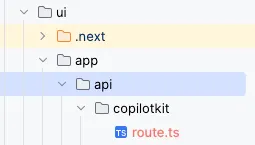
import {
  CopilotRuntime,
  ExperimentalEmptyAdapter,
  copilotRuntimeNextJSAppRouterEndpoint,
} from "@copilotkit/runtime";
import { HttpAgent } from "@ag-ui/client";
import { NextRequest } from "next/server";

// Create a service adapter for the CopilotKit runtime
const serviceAdapter = new ExperimentalEmptyAdapter();
// Create the main CopilotRuntime instance that manages communication between the frontend and backend agents
const runtime = new CopilotRuntime({
// Define the agents that will be available to the frontend
    agents: {
// Configure the ADK agent connection
    atlas_agent: new HttpAgent({
      // Specify the URL where the ADK agent is running
      url: "http://localhost:8000/",
    })
},
});
// Export the POST handler for the API route
export const POST = async (req: NextRequest) => {
// Create the request handler using CopilotKit's Next.js helper
const { handleRequest } = copilotRuntimeNextJSAppRouterEndpoint({
    runtime, // The CopilotRuntime instance we configured
    serviceAdapter, // The service adapter for agent coordination
    endpoint: "/api/copilotkit", // The endpoint path (matches this file's location)
});
return handleRequest(req);
};
2.4. Integrating CopilotKit
Now that communication between frontend and backend is established, we must configure the CopilotKit provider so all UI components can access the runtime.
The <CopilotKit> Provider manages:
- agent sessions
- streaming updates
- contextual prompts
- requests made by Copilot UI components
Wrap your entire application with it inside layout.tsx:
import type { Metadata } from "next";
import { Geist, Geist_Mono } from "next/font/google";
import "./globals.css";

import { CopilotKit } from "@copilotkit/react-core";
import "@copilotkit/react-ui/styles.css";

const geistSans = Geist({
  variable: "--font-geist-sans",
  subsets: ["latin"],
});

const geistMono = Geist_Mono({
  variable: "--font-geist-mono",
  subsets: ["latin"],
});

export const metadata: Metadata = {
  title: "Create Next App",
  description: "Generated by create next app",
};

export default function RootLayout({
  children,
}: Readonly<{
  children: React.ReactNode;
}>) {
  return (
    <html lang="en">
      <body
        className={`${geistSans.variable} ${geistMono.variable} antialiased`}
      >
        <CopilotKit runtimeUrl="/api/copilotkit"
                    agent="atlas_agent"
                    showDevConsole={false}>
            {children}
        </CopilotKit>
      </body>
    </html>
  );
}
Once wrapped, any page can use CopilotKit’s built-in components.
2.5. Adding Copilot UI Components
CopilotKit includes prebuilt UI components for interacting with agents, such as:
- CopilotChat
- CopilotPopup
- CopilotSidebar
Here’s an example using CopilotChat:
"use client";

import {CopilotChat} from "@copilotkit/react-ui";


export default function HomePage() {
  return (
    <main className="h-screen w-screen">
        <CopilotChat
            className="h-full rounded-2xl max-w-6xl mx-auto"
            labels={{initial: "Hi, I'm an agent. Want to chat?"}}
            suggestions={[{
                title: "Weather in New York",
                message: "What's the weather like in New York?"
            }]}
        />
    </main>
  );
}
2.6. Giving the Agent UI Control: Frontend Tools
One of CopilotKit’s most powerful features is frontend tools — functions that let the LLM trigger actions directly in your UI. These tools enable the agent to do things like update component state, modify styles, or adjust the appearance of your app interface.
The useFrontendTool hook allows you to define actions that the Agents can invoke through a handler function. This is the main mechanism that gives your agent the ability to perform client-side operations, whether that means updating React state or triggering custom side effects.
Each frontend tool is defined using three core elements:
- Name and description — tells the AI what the tool does and when to use it
- Parameters — a schema describing the inputs the tool accepts
- Handler function — executed on the client when the AI calls the tool
Optionally, you can also include a render function to display custom UI inside the chat, such as tool results, status information, or visual feedback.
"use client";

import {CopilotChat} from "@copilotkit/react-ui";
import {useState} from "react";
import {useFrontendTool} from "@copilotkit/react-core";


export default function HomePage() {
    const [background, setBackground] = useState<string>(
        "--copilot-kit-background-color"
    );

    /* --------------------------------------------------------------------------------------------
     * CHANGE BACKGROUND TOOL
     * This tool allows the LLM to set the chat background.
     * ------------------------------------------------------------------------------------------*/
    useFrontendTool({
        name: "change_background",
        description:
            "Change the chat's background using any CSS background value (color, gradient, etc.).",
        parameters: [
            {
                name: "background",
                type: "string",
                description: "CSS background definition (colors, gradients, etc).",
            },
        ],

        // The tool handler executes when the LLM calls this tool.
        handler: ({background}) => {
            setBackground(background);

            return {
                status: "success",
                message: `Background changed to ${background}`,
            };
        },
    });

  return (
    <main className="h-screen w-screen" style={{background}} >
        <CopilotChat
            className="h-full rounded-2xl max-w-6xl mx-auto"
            labels={{initial: "Hi, I'm an agent. Want to chat?"}}
            suggestions={[{
                title: "Weather in New York",
                message: "What's the weather like in New York?"
            },{
                title: "Change background",
                message: "Change the background to a right-to-left gradient from blue to green."
            }]}
        />
    </main>
  );
}
Frontend tools turn your app from a simple chat interface into an active, UI-aware assistant capable of controlling and updating interface components in real time. For example, if you refresh the page and then type, “Can you change the background of the app to red?” (See animation below), that request is sent to your ADK-AG-UI–powered backend.
Because the frontend tool definitions are synchronized with the agent’s context, the agent understands exactly which UI capabilities are available and how to invoke them. It responds by emitting the appropriate function-call event through ADK.
This function call is then routed back to the client, where the useFrontendTool handler intercepts the ADK event and executes the corresponding UI action. In this case, the handler updates a state variable, triggering React to re-render the component HomePage with the new background color.
By following this same pattern, you can define as many frontend tools as needed, enabling increasingly rich, interactive behaviors driven directly by agent intent.

Frontend tools are great, but what about when we want to render a custom component based on the output of a function called in the backend? In the previous section, when we defined our agent, we equipped it with two tools: get_weather and get_location. The question now becomes: how can we intercept the output of those tool calls on the client side so we can render our own custom UI components?
This is exactly what we are going to implement next. Fortunately, AG-UI makes this process straightforward through the useRenderToolCall hook, which lets us capture tool-call responses and render fully customized React components based on the tool’s output.
    /* --------------------------------------------------------------------------------------------
     * RENDER WEATHER TOOL CALL
     * This visually renders the result of the get_weather tool.
     * ------------------------------------------------------------------------------------------*/
    useRenderToolCall({
        name: "get_weather",
        description: "Get the current weather for a specified location.",
        available: "disabled", // Using MCP or manually invoking elsewhere
        parameters: [{name: "location", type: "string", required: true}],
        render: ({args, status, result}) => {
           // The result variable is the function response
            /* STATUS: inProgress --------------------------------------------------*/
            if (status === "inProgress") {
                return (
                    <div className="bg-[#667eea] text-white p-4 rounded-lg max-w-md">
                        <span className="animate-spin">⚙️ Retrieving weather...</span>
                    </div>
                );
            }

            /* STATUS: complete ----------------------------------------------------*/
            if (status === "complete" && result) {
            // Her we can render our custom component
                return (
                    <div className="bg-white p-4 rounded-lg shadow-md max-w-md">
                        <h2 className="text-xl font-bold mb-2">
                            Weather in {args.location}
                        </h2>
                        <p className="text-gray-700">
                            Temperature: {result.result.temperature}°C
                        </p>
                        <p className="text-gray-700">
                            Condition: {result.result.condition}
                        </p>
                    </div>
                )
            }
            return null;
        },
    });
We’ve included the complete source code for this tutorial — including the GoogleMap and WeatherCard components—to create a more engaging visualization for displaying the weather and location data, in the following GitHub repository: https://github.com/haruiz/atlas_app.git
To use the GoogleMap component, make sure to create an .env file in your Next.js application and define the following environment variable:
NEXT_PUBLIC_GOOGLE_MAPS_API_KEY=<YOUR GOOGLE MAPS API KEY>
/* --------------------------------------------------------------------------------------------
    * RENDER PLACE LOCATION TOOL CALL
    * This visually renders the result of the get_place_location tool.
    * ------------------------------------------------------------------------------------------
    */

    useRenderToolCall({
        name: "get_place_location",
        description: "get the latitude and longitude of a place given its name.",
        available: "disabled",
        parameters: [{name: "place_name", type: "string", required: true}],
        render: ({args, status, result}) => {
            if (status === "inProgress") {
                return (
                    <div className="bg-[#667eea] text-white p-4 rounded-lg max-w-md">
                        <span className="animate-spin">⚙️ Retrieving location...</span>
                    </div>
                );
            }
            if (status === "complete" && result) {
                const {result: coords} = result;
                return <GoogleMap lat={coords?.latitude} lng={coords?.longitude}/>;
            }
            return null;
        }
    })

    /* --------------------------------------------------------------------------------------------
     * RENDER WEATHER TOOL CALL
     * This visually renders the result of the get_weather tool.
     * ------------------------------------------------------------------------------------------*/
    useRenderToolCall({
        name: "get_weather",
        description: "Get the current weather for a specified location.",
        available: "disabled", // Using MCP or manually invoking elsewhere
        parameters: [{name: "location", type: "string", required: true}],
        render: ({args, status, result : toolResponse}) => {
            /* STATUS: inProgress --------------------------------------------------*/
            if (status === "inProgress") {
                return (
                    <div className="bg-[#667eea] text-white p-4 rounded-lg max-w-md">
                        <span className="animate-spin">⚙️ Retrieving weather...</span>
                    </div>
                );
            }

            /* STATUS: complete ----------------------------------------------------*/
            if (status === "complete" && toolResponse) {
                const weatherResult: WeatherToolResult | null = toolResponse?.result || null;
                console.log("Weather Result:", weatherResult);
                if (!weatherResult) {
                    return (
                        <div className="bg-red-300 text-red-900 p-4 rounded-lg max-w-md">
                            <strong>⚠️ Error:</strong> Unable to retrieve weather data. Please try again.
                        </div>
                    );
                }
                // Choose color based on weather conditions
                const themeColor = getThemeColor(weatherResult.conditions);
                return (
                    <WeatherCard
                        location={args.location}
                        themeColor={themeColor}
                        result={weatherResult}
                        status={status || "complete"}
                    />
                );
            }

            return null;
        },
    });
At this point, if we run our application, we should see the following:
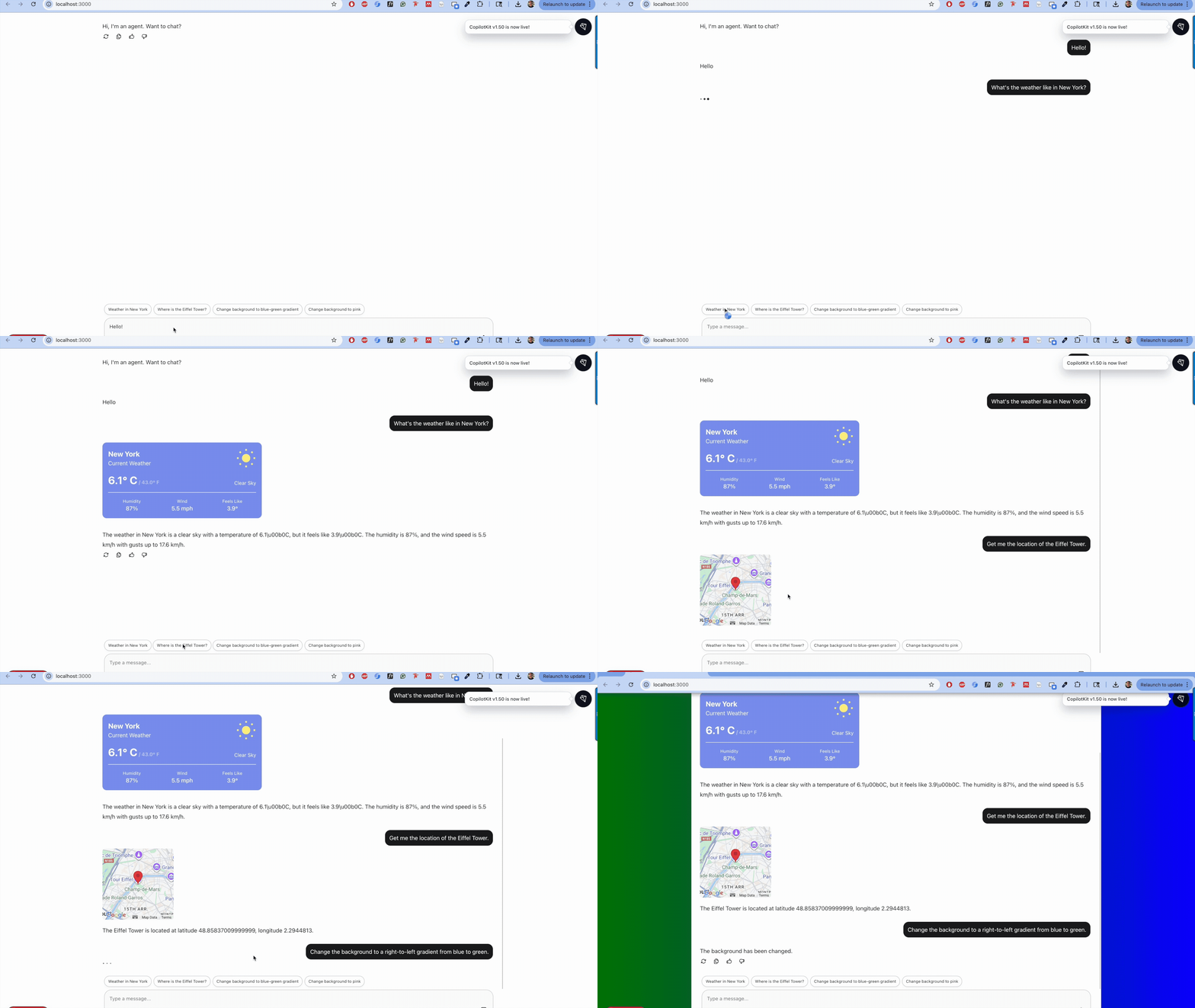
By the end of this walkthrough, we have built a fully functional agentic application that goes beyond a simple chat interface. Using ADK to define and orchestrate our agents, and AG-UI to standardize how agent execution is surfaced in the frontend, we created an experience where agents can reason, call tools, stream progress, render custom UI components, and interact with users in real time.
We encourage you to explore ADK and AG-UI more deeply: experiment with additional agents, introduce new frontend tools, render richer UI components, and test human-in-the-loop workflows in your own applications. The real power of this stack emerges when agents stop being isolated responders and start becoming collaborative, UI-aware participants in your application.
In upcoming posts, we’ll dive deeper into advanced patterns such as multi-agent coordination, cross-agent routing, long-running tasks, and richer UI orchestration with AG-UI, such as Agent-to-Agent (A2A) integration. Stay tuned, and follow along as we continue exploring how to build robust, human-centered agentic systems.
Acknowledgements
This work was supported by Google ML Developer Programs and the Google Developers Program, which provided Google Cloud credits and high-quality technical resources #AISprint
Building interactive agentic applications using ADK and AG-UI protocol was originally published in Google Cloud – Community on Medium, where people are continuing the conversation by highlighting and responding to this story.
Source Credit: https://medium.com/google-cloud/building-interactive-agentic-applications-using-adk-and-ag-ui-protocol-3a49ae6d3dc9?source=rss—-e52cf94d98af—4
About the Author