Gemini CLI Tutorial Series — Part 15: Gemini CLI Extension for Google Workspace
Welcome to Part 15 of the Gemini CLI Tutorial series.
Thank you for reading! If you found this series helpful, please consider taking this 2-minute survey. Your feedback directly helps me create more tutorials for the developer community.
Gemini CLI Tutorial Series:
Part 1 : Installation and Getting Started
Part 2 : Gemini CLI Command line options
Part 3 : Configuration settings via settings.json and .env files
Part 4 : Built-in Tools
Part 5: Using Github MCP Server
Part 6: More MCP Servers : Firebase, Google Workspace, Google Gen AI Media Services and MCP Toolbox for Databases
Part 7: Custom slash commands
Part 8: Building your own MCP Server
Part 9: Understanding Context, Memory and Conversational Branching
Part 10: Gemini CLI and VS Code Integration
Part 11: Gemini CLI Extensions
Part 12: Gemini CLI GitHub Actions
Part 13 : Gemini CLI Observability
Part 14: Gemini CLI extensions for Google Data Cloud
Part 15: Gemini CLI extension for Google Workspace (this post)
➡️ Codelab : Hands-on Gemini CLI
Before we start: Update your Gemini CLI version
If it’s been a while that you used Gemini CLI, make sure that you are running the latest version of the tool. Here’s a handy command to upgrade your Gemini CLI to the latest version (stable).
npm install -g @google/gemini-cli@latest
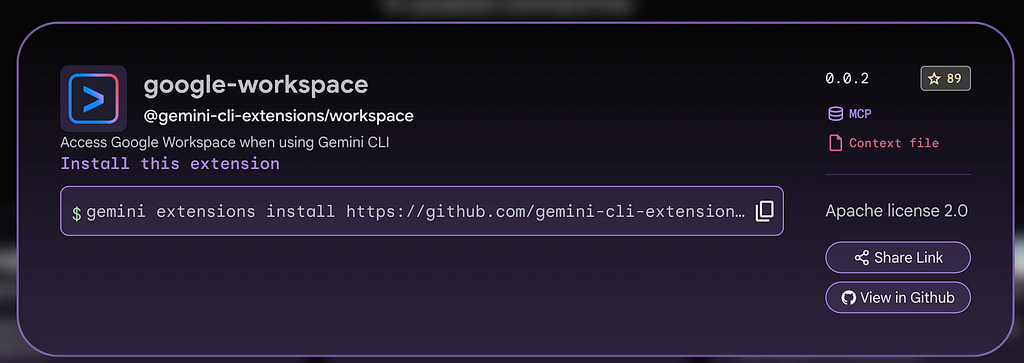
Gemini CLI extension for Google Workspace — Extension card
We have covered configuring a 3rd party Google Workspace extension for Gemini CLI in Part 6 but that was written a bit before Gemini CLI extensions were announced and recently an official Gemini CLI extension for Google Workspace was released and this episode is going to cover that.
If you visit the Gemini CLI extension gallery and put in the keyword google-workspace in the search input, you will get the extension card as shown below:
You can also visit the repository here:
GitHub – gemini-cli-extensions/workspace: Access Google Workspace when using Gemini CLI
By integrating Google Workspace directly into the Gemini CLI, the extension effectively gives the AI “senses” (the ability to read emails, search drives, check calendars) and “hands” (the ability to draft replies, create documents, send chat messages).
Installation Steps
Simply give the following command to install the extension:
gemini extensions install https://github.com/gemini-cli-extensions/workspace
This will install the extension at the user level and make it available to all. your projects/workspaces.
Authentication and Authorization
The most critical step in the setup is Authentication. Unlike a simple script that might use a static API key, the Workspace Extension acts as an authorized agent on behalf of the user, requiring access to sensitive scopes (Drive, Mail, Calendar).
Once the extension has been installed and you launch Gemini CLI, the extension initiates an OAuth 2.0 flow. Choose your account and then Google displays a list of permissions (Scopes) the extension is requesting. These are extensive and include key ones as shown below:
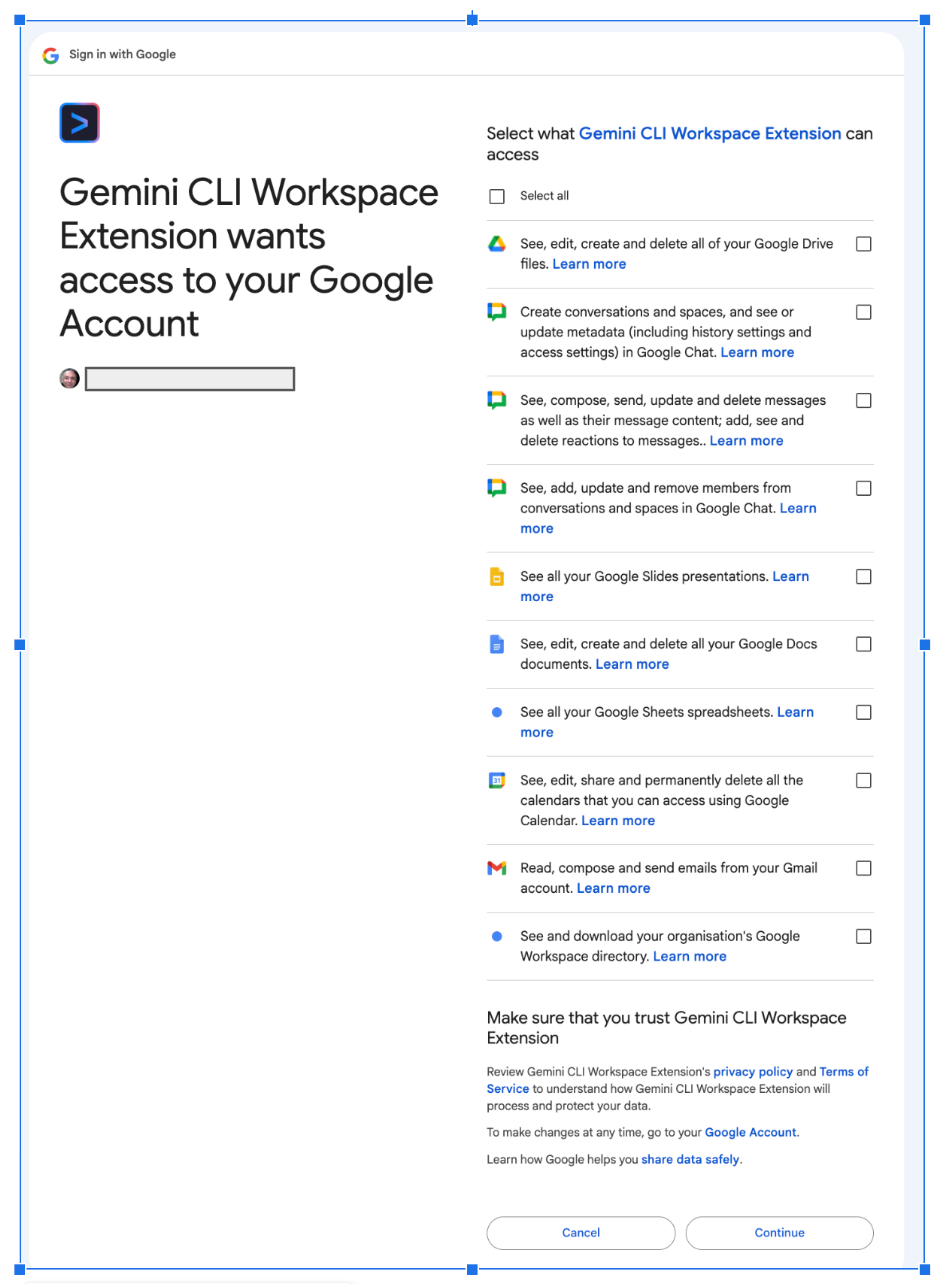
Once you complete this OAuth 2.0 dance, you are all set.
You can check if the extension has been successfully installed by launching Gemini and then using the /mcp list command. This should show that the extension is installed and the commands have been exposed as MCP tools. A screenshot of this is shown below:
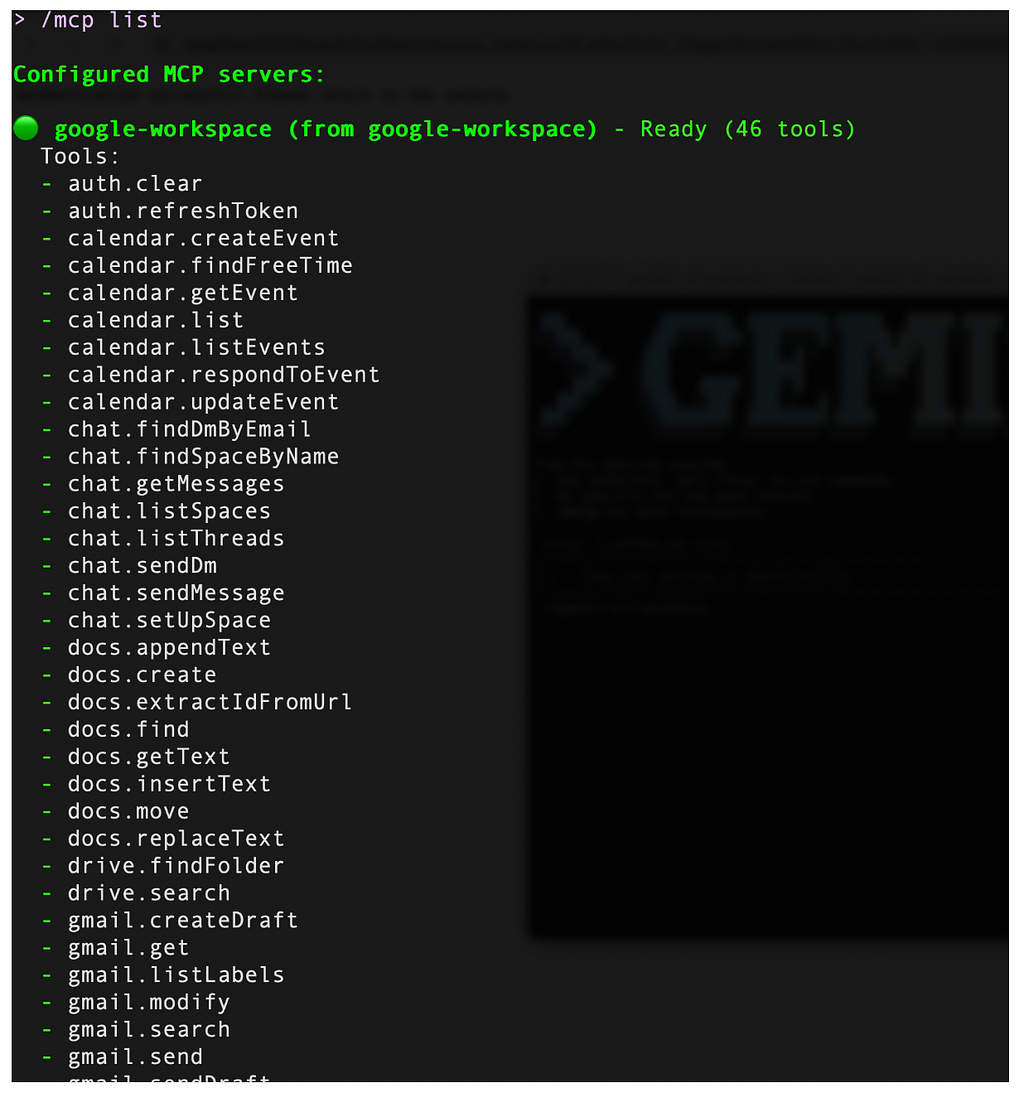
You can get a hint that various Google Workspace services that you are familiar with (Docs, Calendar, Chat, Gmail, etc) are integrated and specific capabilities have been exposed as tools.
Think of a few natural language queries like:
"What's on my calendar for today?"
"Research the topic XYZ and create a document in Google Drive"
In addition to the above, we spend a lot of time searching Gmail, Drive or Calendar. The extension also provides handy / commands to help you search through your content in these services.

Local Execution and Data Privacy
A critical architectural feature of this extension is its local execution model. The MCP Server runs on the user’s machine, not in the cloud. It uses the user’s own OAuth credentials to communicate directly with Google APIs. This means that the data flow is strictly Google Cloud <-> User's Local Machine <-> Gemini CLI. At no point does the user's private Drive data or email content pass through a third-party intermediary server/processing service. This direct connection is vital for security and latency, with a focus on privacy.
Workspace Tools
The extension maps specific Google Workspace API endpoints to “Tools” that the LLM can invoke. These tools are not random; they are curated to cover the primary modalities of knowledge work:
- File Management (Drive)
- Document Authoring (Docs)
- Time Management (Calendar)
- Communication (Gmail/Chat)
Let’s look at some examples that you can try out based on the different tools that are available.
Drive and Docs : The Knowledge Base
You’ve probably got a lot of documents in Google Drive: design documents, requirement specifications, post-mortem reports, and architectural diagrams. These artifacts usually live in Google Drive.
Think of your normal workflow. You search Google Drive, locate the file, then you open/read the file to understand it. Alternately, you might even create new documents and put them in Google Drive.
For e.g. I have the a Google Doc in my Drive folder titled “PR-001 : Event and Speakers Website Requirements”. I could do something like this:
Search for PR-001 : Event and Speakers Website Requirements in Google Drive
This prompts me to confirm invocation of a specific tool from the google-workspace extension.
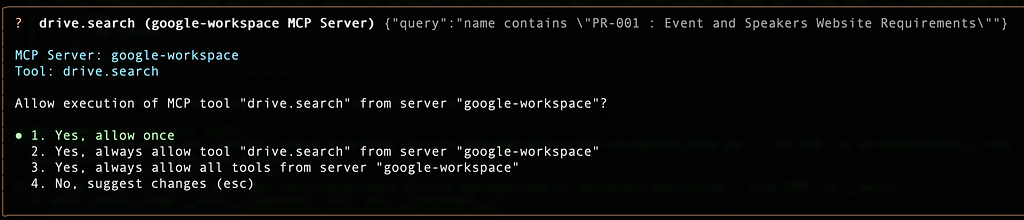
It then returns me the File with the specific Doc Id
File Name: PR-001 : Event and Speakers Website Requirements (ID: 1pH_79DrFcnGRkQ2NluDcr0fZhlpaX1d5AEw5Vg0c-3w)
I can then ask it to summarize the contents as follows:
Summarize the contents of <GOOGLE_DOCUMENT_ID>
It picks up the right tool to get the text from the document:

It then provides a summary as expected:
 The document "PR-001 : Event and Speakers Website Requirements" outlines the requirements for a conference website. The website
  will allow users to search for talks by category. Session data will be provided as a JSON list, accessible via an OpenAPI. Key
  features include searching and filtering sessions by category. Non-functional requirements emphasize performance, usability, and
  scalability. The proposed technology stack includes Python/Flask for the backend, Firestore as the database, HTML/JavaScript/CSS
  for the frontend, and deployment on Cloud Run.
Let’s do an activity that we typically do when we need some information. We search the web and then put relevant information in a Google Doc.
Think of a prompt like this one:
 Lookup information on The Richat Structure (Eye of Africa) and create a 1-pager document for me with relevant information about
  it.
This prompt first results in Gemini CLI executing the Google Search tool and then once its got hold of the information with its synthesis, it asks for permission to use the docs.create tool as shown below:

It then completes the task and provides us the status on the task, as shown below:

I visit Google Drive and view my document:

Think of various tasks around Knowledge Gathering, Understanding that you can now automate with Gemini CLI due to this extension. You can even launch Gemini CLI to work in an automated fashion and do some of these tasks at regular intervals or specific times of the day.
Calendar
Use the calendar tools available in the extension to make it function as an executive assistant that manages your time.
You can choose to use the /calendar:get-schedule or just use natural language queries to get the information.
Let’s start with the absolute basics to find out what your schedule looks like for today. I put up a dummy schedule to test it out. Don’t assume that it is my real schedule 😉
what does my schedule look like for today?
The execution of this prompt gets interesting. It first gets the time zone and current time.
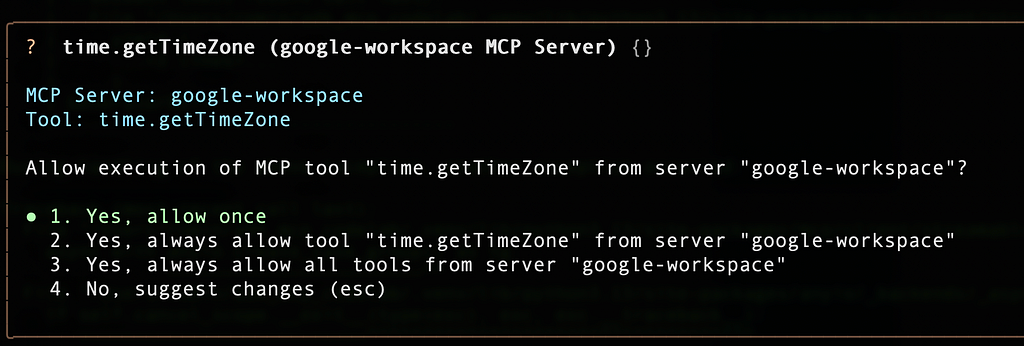
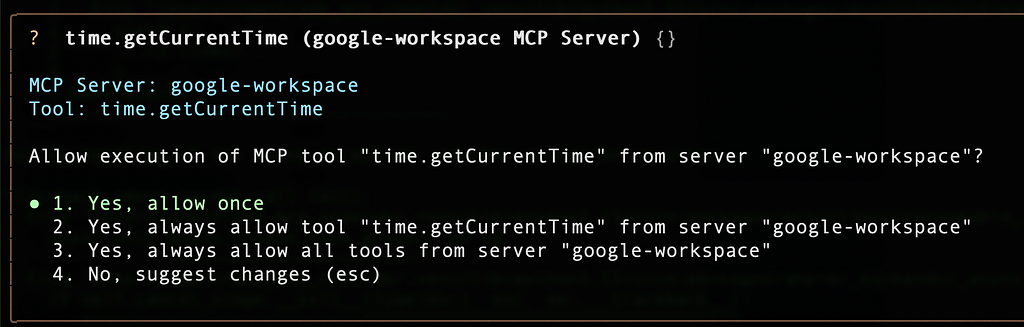
Once it gets that, it gets down to invoking the calendar.listEvents tool.
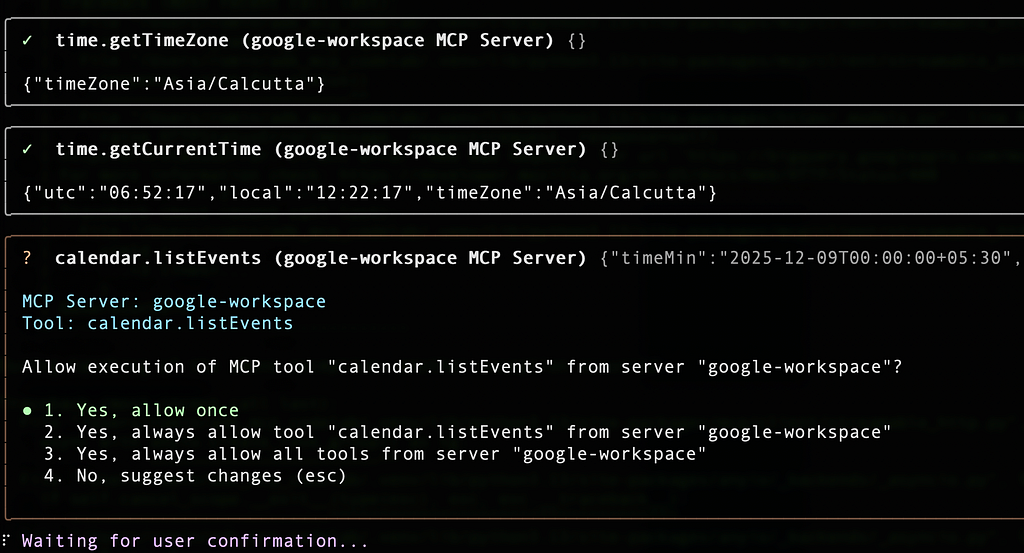
and here you go:

I could then even ask it for some empty slots. For e.g. I followed up with this prompt:
I'd like to schedule a meeting with a vendor, preferably befor 6 PM for about 30 minutes. What slots do I have?
It provided the following options:
You have the following 30-minute slots available today before 6 PM (Asia/Kolkata timezone):

   1. 12:22 PM - 12:52 PM
   2. 5:00 PM - 5:30 PM

  Which slot would you like to use for your meeting?
I asked it to pick the 5–5:30 PM slot and asked it to create an event too on the calendar:
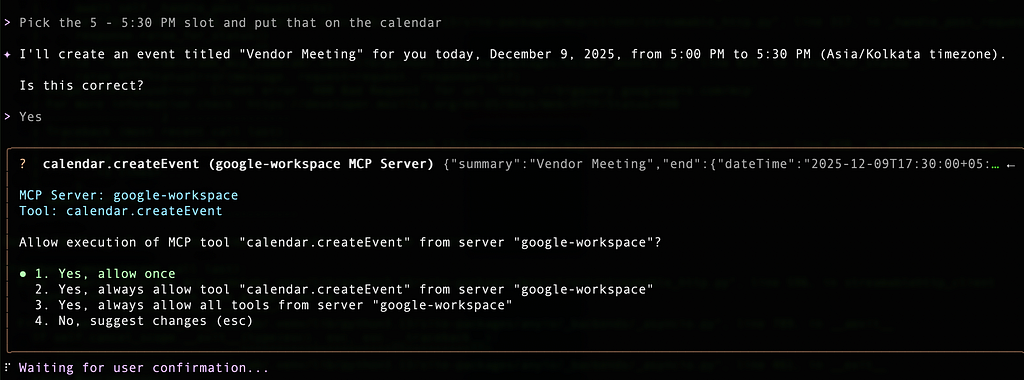
The final response was:
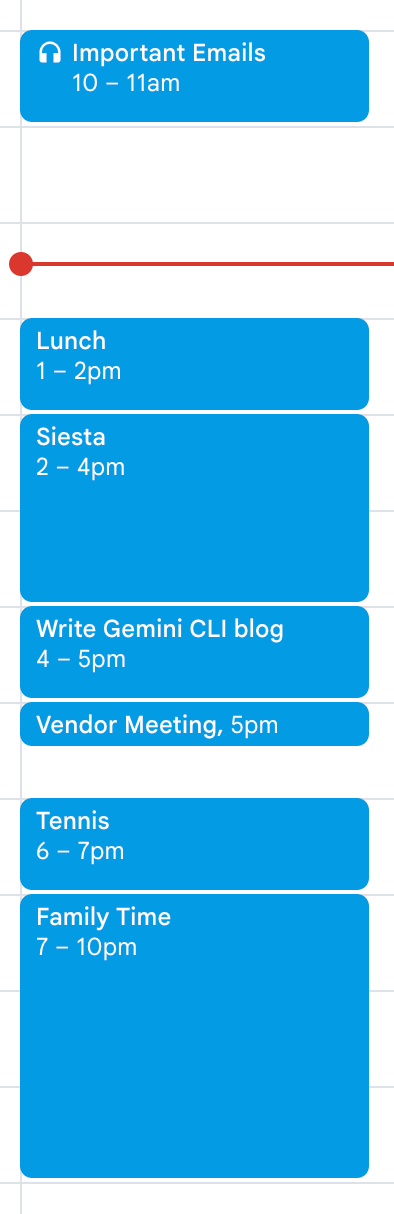
I have scheduled the "Vendor Meeting" for today, December 9, 2025, from 5:00 PM to 5:30 PM (Asia/Kolkata timezone).
I checked my calendar and the event was created at 5 PM:
Communications : Gmail and Chat
You can use the /gmail:search tool to search emails and allow retrieving context from email threads.
For e.g. I have a weekly email that comes in titled Project Phoenix — Weekly Status Update (<date>), I can search for it as follows:
/gmail:search Project Phoenix
This does a search and get and summarizes the email as follows:
───────────────────────────────────────────────────────────────────────────────────────────────────────────────────────────────╮
│ ✓  gmail.search (google-workspace MCP Server) {"query":"Project Phoenix"}                                                       │
│                                                                                                                                 │
│ {                                                                                                                               │
│   "messages": [                                                                                                                 │
│     {                                                                                                                           │
│       "id": "19b01fa460a458c6",                                                                                                 │
│       "threadId": "19b01fa460a458c6"                                                                                            │
│     }                                                                                                                           │
│   ],                                                                                                                            │
│   "resultSizeEstimate": 1                                                                                                       │
│ }                                                                                                                               │
╰─────────────────────────────────────────────────────────────────────────────────────────────────────────────────────────────────╯
╭─────────────────────────────────────────────────────────────────────────────────────────────────────────────────────────────────╮
│ ✓  gmail.get (google-workspace MCP Server) {"messageId":"19b01fa460a458c6","format":"metadata"}                                 │
│                                                                                                                                 │
│ {                                                                                                                               │
│   "id": "19b01fa460a458c6",                                                                                                     │
│   "threadId": "19b01fa460a458c6",                                                                                               │
│   "labelIds": [                                                                                                                 │
│     "CATEGORY_PERSONAL",                                                                                                        │
│     "INBOX"                                                                                                                     │
│   ],                                                                                                                            │
│   "snippet": "Please find below the weekly status update for Project Phoenix. Overall, we are making good progress, but a few   │
│ key dependencies require immediate attention to avoid further delays. Project Phoenix",                                         │
│   "subject": "Project Phoenix - Weekly Status Update (Dec 9, 2025)",                                                            │
│   "from": "Romin Irani <romin@abcde.com>",                                                                              │
│   "to": "romin@xyz.com",                                                                                    │
│   "date": "Tue, 9 Dec 2025 12:48:46 +0530",                                                                                     │
│   "body": "Please find below the weekly status update for Project Phoenix. Overall, we are making good progress, but a few key  │
│ dependencies require immediate attention to avoid further delays. Project Phoenix"                                              │
│ }                                                                                                                               │
╰─────────────────────────────────────────────────────────────────────────────────────────────────────────────────────────────────╯
✦ > From: Romin Irani <romin@abcde.com>
    Subject: Project Phoenix - Weekly Status Update (Dec 9, 2025)
    Snippet: Please find below the weekly status update for Project Phoenix. Overall, we are making good progress, but a few key
  dependencies require immediate attention to avoid further delays. Project Phoenix
  ---
I could potentially dig deeper with follow ups like:
Identify the items that are delayed and assigned to whom?
This fetches the email content again and summarizes it well:
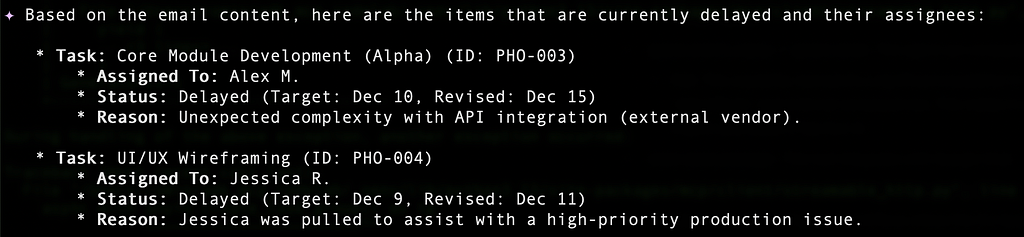
You could even send a chat message to a Chat Space, if you know the name of the Chat Space. For e.g.
Send a chat message to <SPACE_NAME> and highlight the items that are delayed.
A sample run is shown below:
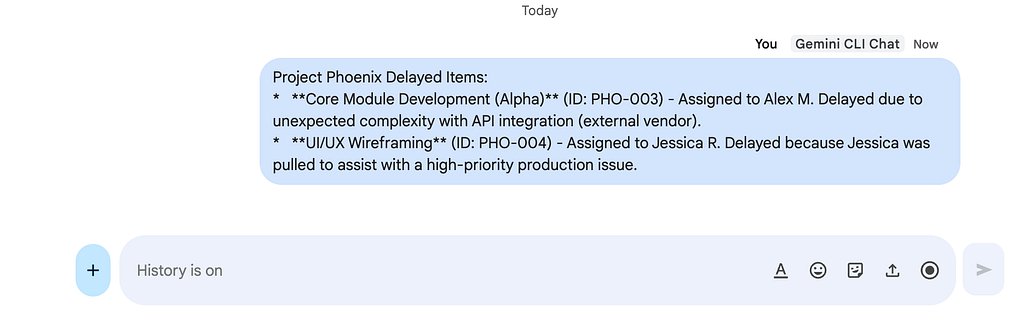
Workflow Integration
The tools described above are primitives but consider them as building blocks. The true value of the Gemini CLI Workspace Extension emerges when these blocks are combined into sophisticated, multi-step workflows.
Here are some ideas:
Contextual Coding and Architecture
A developer is tasked with building a new middleware component. The requirements are not in the ticketing system; they are buried in a 20-page “Design Doc” in Google Drive. In the traditional workflow, the developer must leave the IDE, open Chrome, search Drive, find the doc, scroll to the “API Authentication” section, copy the JSON schema, switch back to the IDE, paste it, and then begin coding. This process is manual, error-prone, and breaks flow.
The Agentic Workflow: The developer remains in the terminal and issues a high-level prompt:
Find the 'Project Phoenix Design Doc' in Drive,
read the section on API authentication,
and help me scaffold the middleware based on those specs.
Protect your time / Focus time
You need some block of time to focus on a migration task. But at the same time, you are always looking at your calendar to ensure that you don’t miss a meeting. Think about using a prompt like:
Check my calendar for the rest of the day.
Do I have any blocks of free time longer than two hours to focus
on this migration?
Team Notification / Providing Updates
If you are rolling out some changes to production and need to keep the team engaged, you could possibly focus on the logs and keep updating the team accordingly on chat
Send a message to the ‘Core Eng’ chat space letting them know the deployment is starting now.
Further Reading
The best way to use extensions like this is to try them out with your own files, calendar, gmail, etc and come up with flows that you wanted to automate or simply have a better way to avoid context switching and save your time.
Here is some suggested reading:
The first article is the original article published by the author of the extension.
Streamline Development with the Google Workspace Extension
The next one is an overview of the extension and a few other sample prompts for you to try out.
Streamline Your Daily Workflow: Integrate Gemini CLI with your Google Workspace
If you’d like to understand more of the Gemini CLI Workspace extension and are thinking of contributing features to it, definitely read this article by Franziska Hinkelmann. It covers an interesting feature in this extension called Gemini CLI Policy Engine. Think of this as a sophisticated firewall, that is defined to manage tool execution and address one of the common frustrations of users, when repeated permissions are being sought from users to execute it. The Policy Engine introduces a model of defining a granular set of rules that classify which actions can be immediately executed, which require explicity approval and which ones are just forbidden.
Extending the Brain: Building for the Gemini CLI Workspace Extension
If you come up with interesting workflows that you implemented using this Gemini CLI extension, please let me know in the comments.
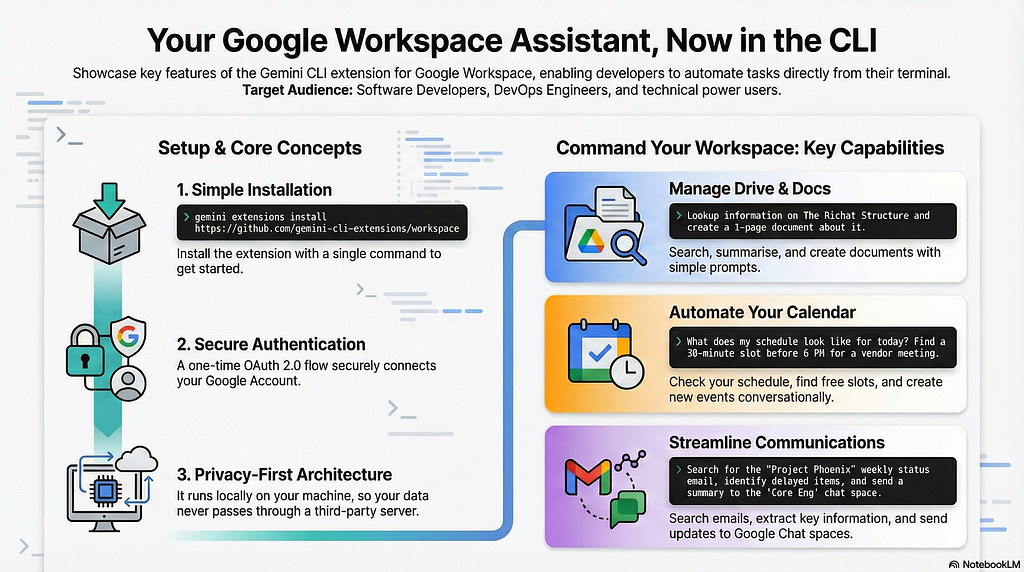
Gemini CLI Workspace extension Infographic
If you’d like a 1-page infographic on Gemini CLI Workspace extension, check this out (courtesty NotebookLM):
Please consider leaving feedback
Thank you for reading! If you found this series helpful, please consider taking this 2-minute survey. Your feedback directly helps me create more tutorials for the developer community.
Gemini CLI Tutorial Series — Part 15: Gemini CLI Extension for Google Workspace was originally published in Google Cloud – Community on Medium, where people are continuing the conversation by highlighting and responding to this story.
Source Credit: https://medium.com/google-cloud/gemini-cli-tutorial-series-part-15-gemini-cli-extensions-for-google-workspace-e62db7dc2250?source=rss—-e52cf94d98af—4
About the Author