How to Build a Simple Google Cloud Contact Center Demo To Quickly See the Value of Conversational Insights
Enable APIs
Create a new project. Use this gcloud command in Cloud Shell to enable the following APIs:
gcloud services enable contactcenterinsights.googleapis.com \
                      speech.googleapis.com \
                      dlp.googleapis.com \
                      bigquery.googleapis.com \
                      notebooks.googleapis.com \
                      dialogflow.googleapis.com \
                      storage.googleapis.com \
                      datalabeling.googleapis.com
- Contact Center AI Insights API
- Cloud Speech-to-Text API
- Cloud Data Loss Prevention (DLP) API
- BigQuery API
- Notebooks API
- DialogFlow API
- Cloud Storage API
- Data Labeling API
Create a Cloud Storage Bucket and Upload Call Recording Files
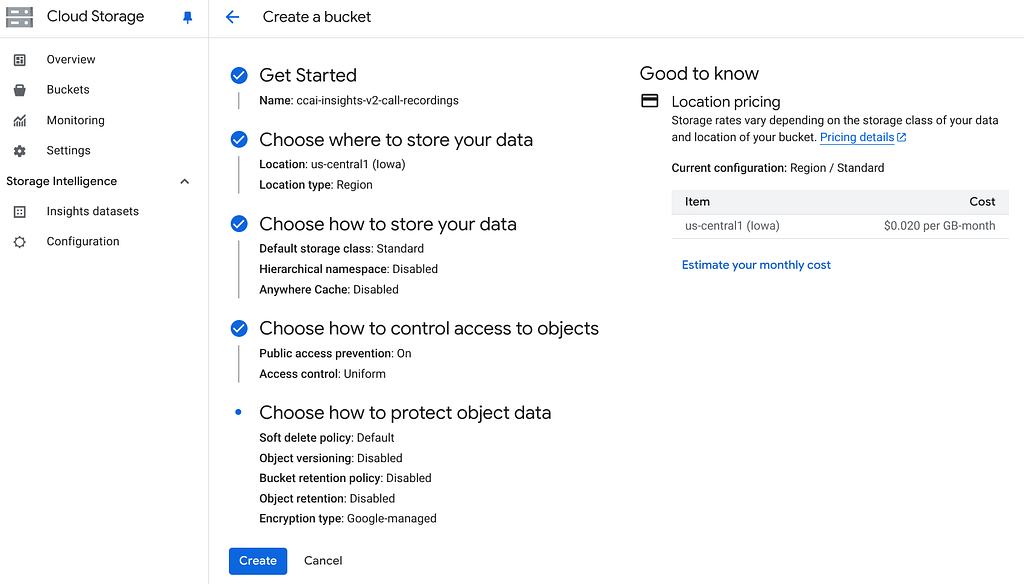
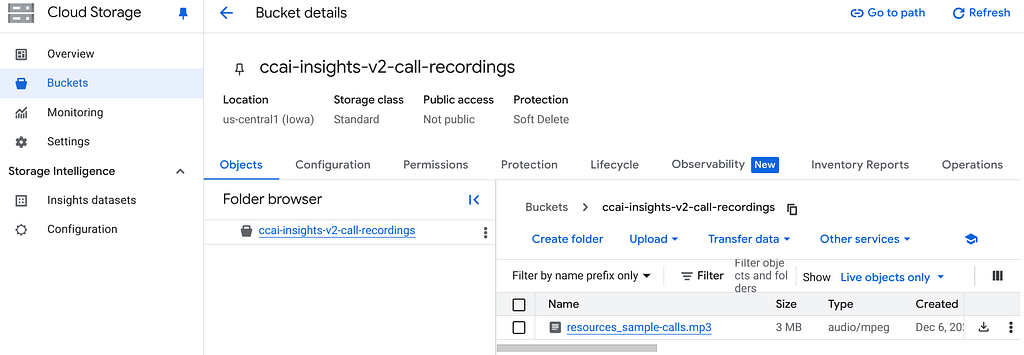
In my example, I create a storage bucket with these settings. For sample data, I found content from the RingCentral website that I uploaded into the Cloud Storage Bucket.
Enable Contact Center AI Platform API

Create De-Identify Template
- Goto Security → Sensitive Data Protection → Configuration → Templates → De-identify
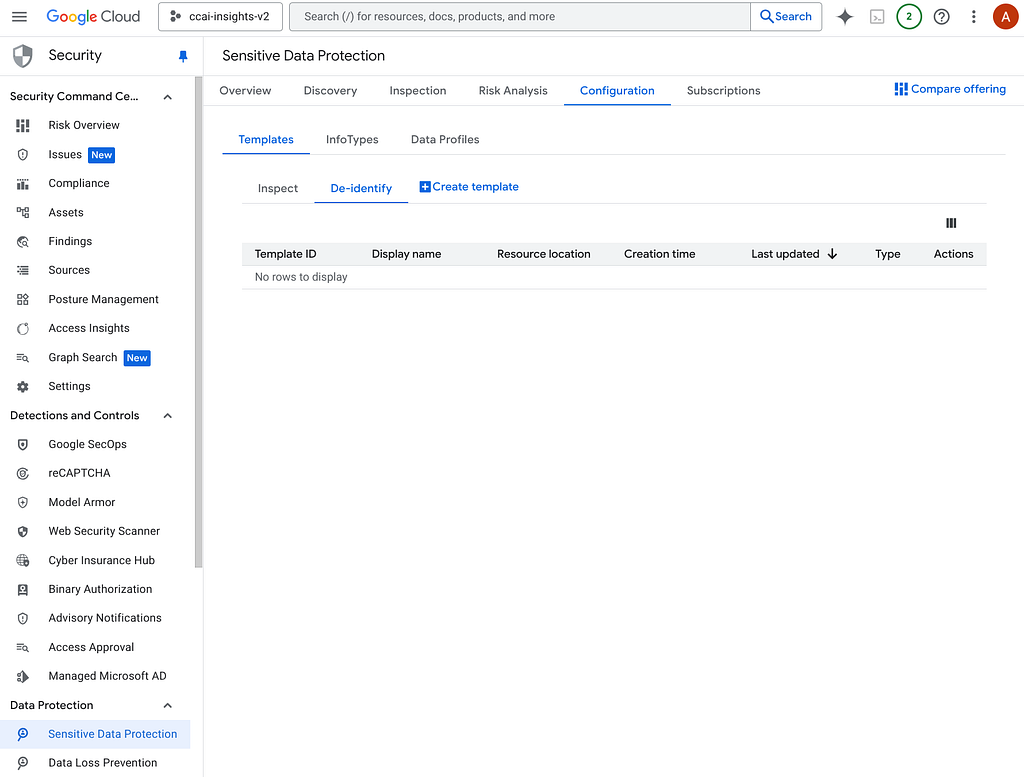
2. Select Create template
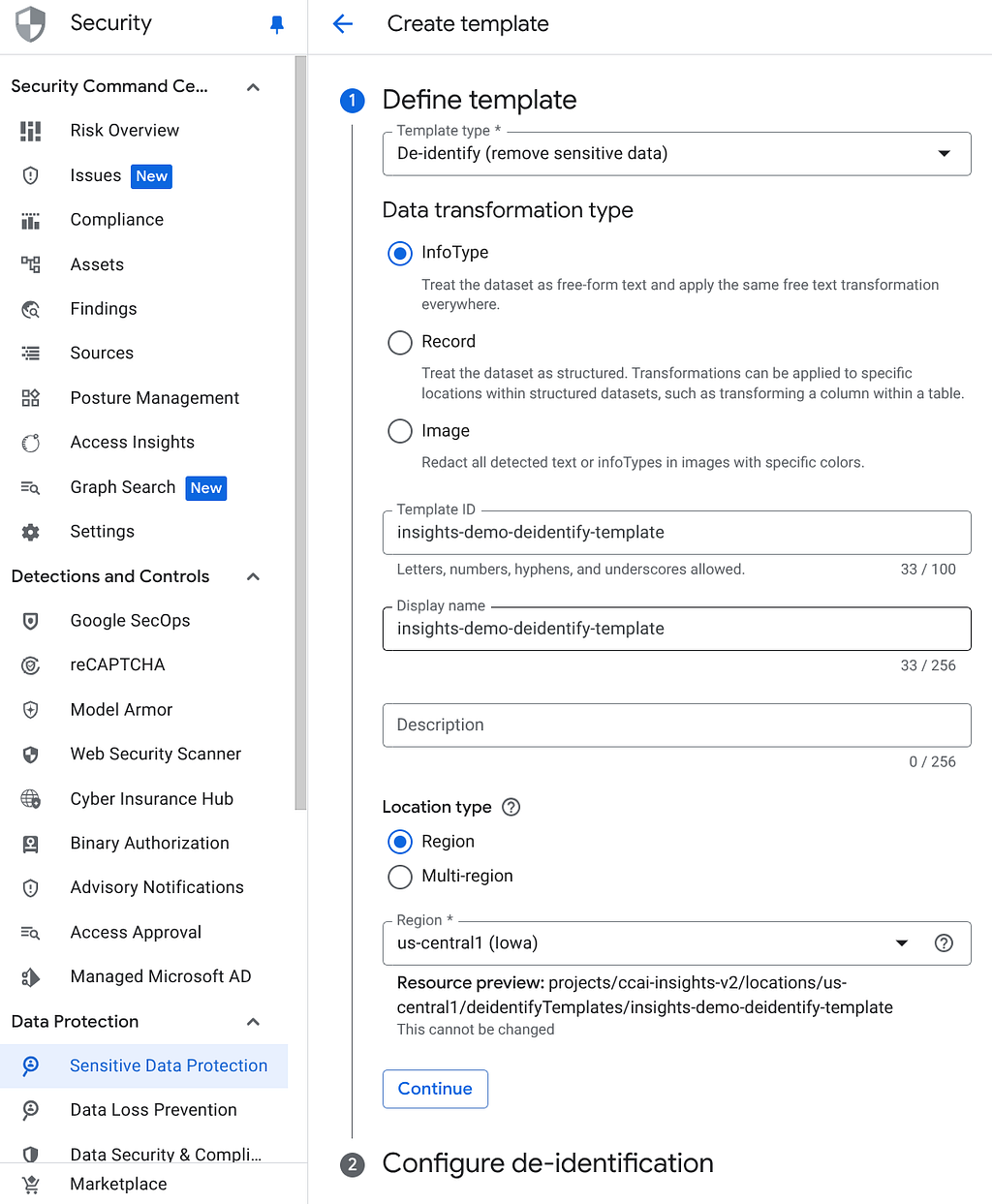
3. In the Define template section, use the configuration in the screenshot.
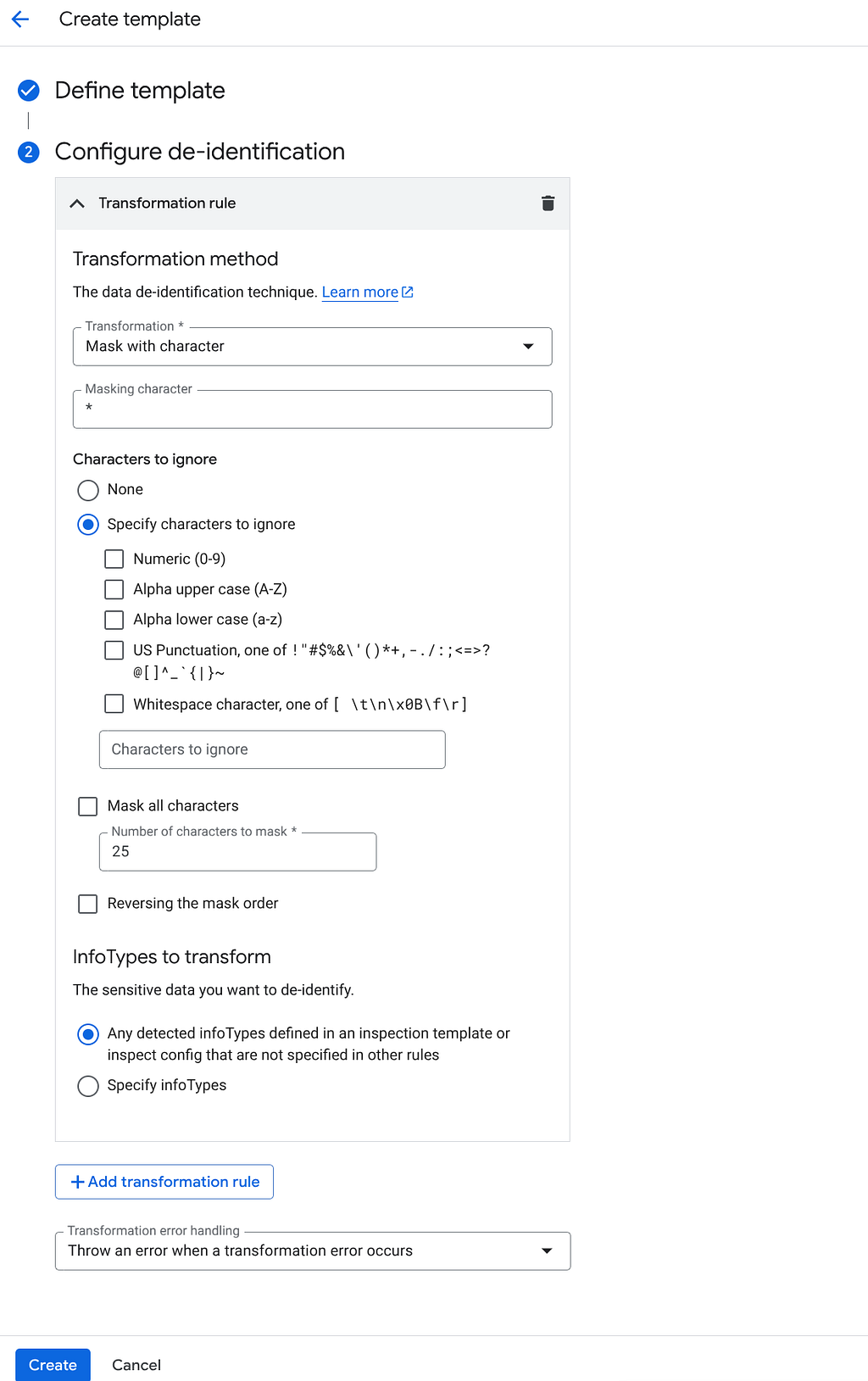
In the Configure de-identification section, update the existing Transformation rule with the configuration in the screenshot.
- Transformation: Mask with character
- Masking character: *
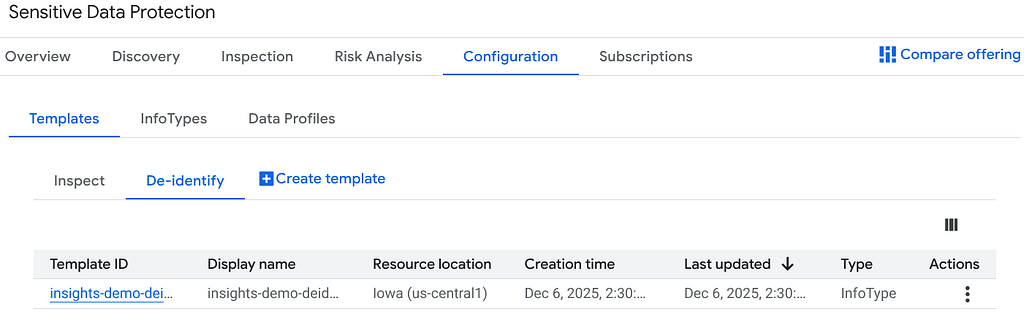
You should see the de-identify template once it’s created.
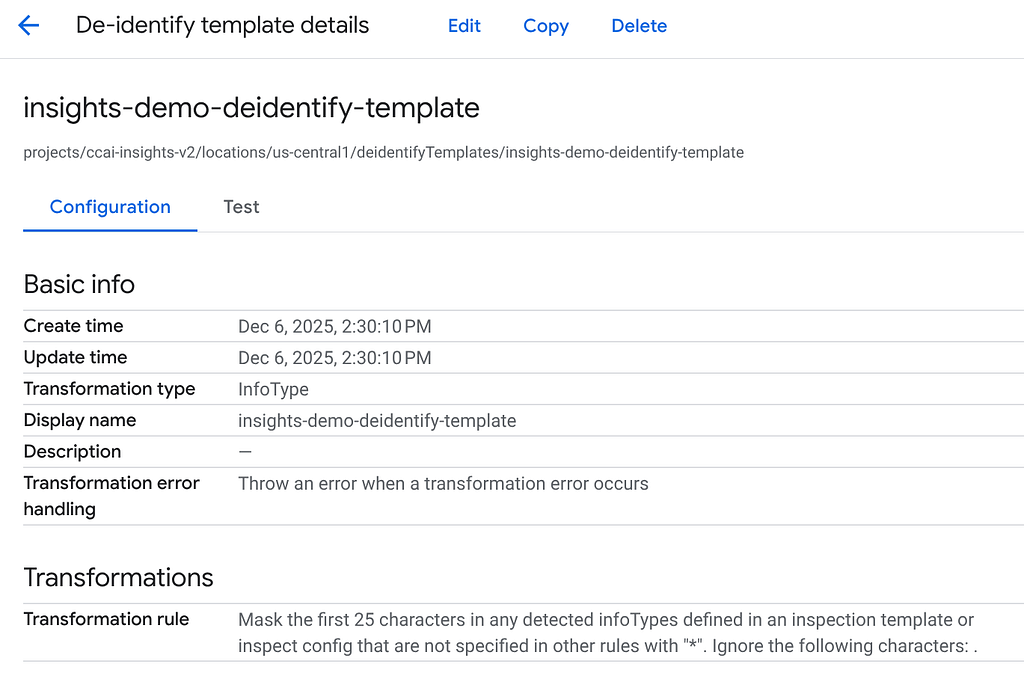
4. Take note of the qualified name as you to enter this in the CCAI Insights settings.
Create Sensitive Data Protection Inspection Template
- Goto Security → Sensitive Data Protection → Configuation → Templates → Inspect
2. Select Create template
3. In the Define template section, use the configuration in the screenshot.
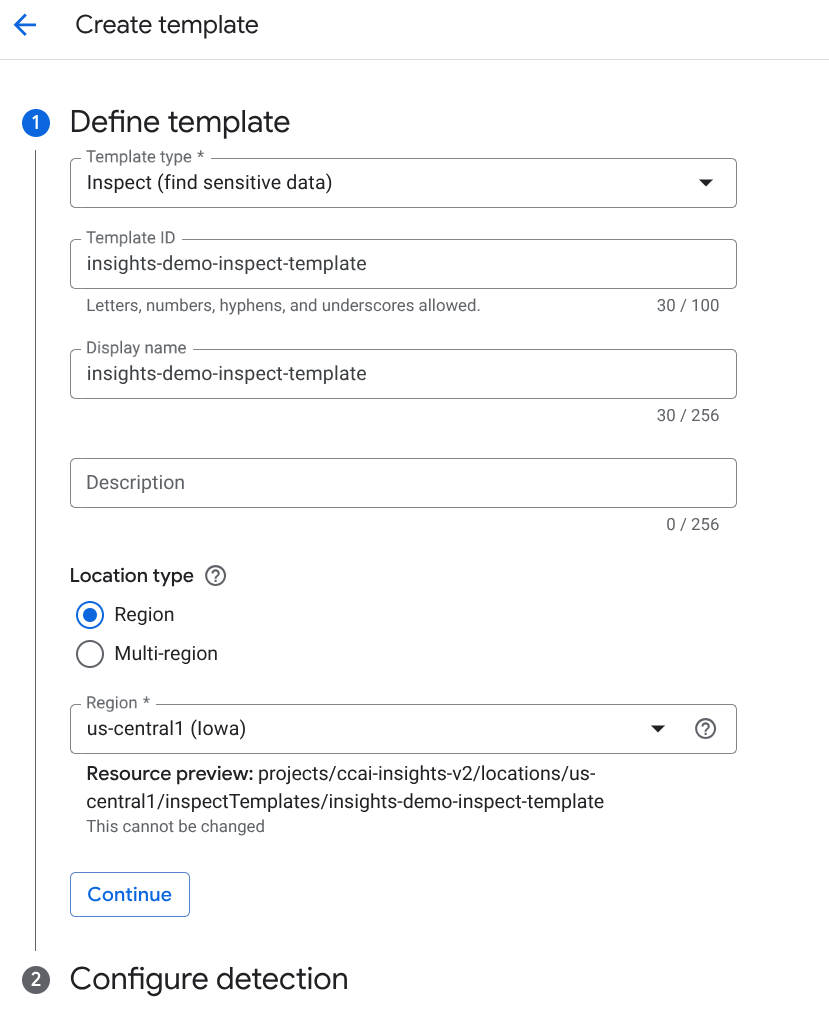
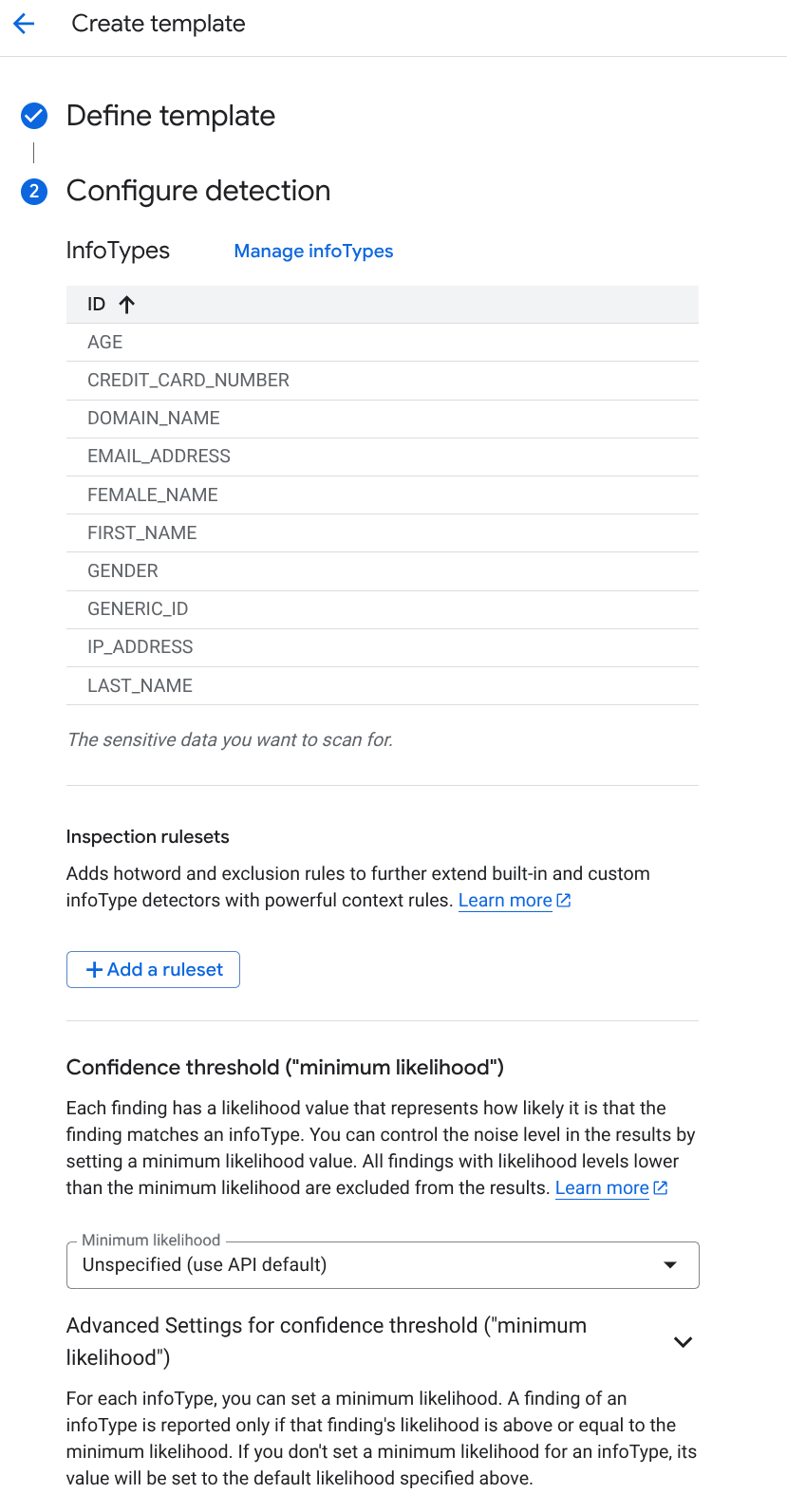
4. In the Configure detection section, select the following info types:
- AGE
- CREDIT_CARD_NUMBER
- DOMAIN_NAME
- EMAIL_ADDRESS
- FEMALE_NAME
- FIRST_NAME
- GENDER
- GENERIC_ID
- IP_ADDRESS
- LAST_NAME
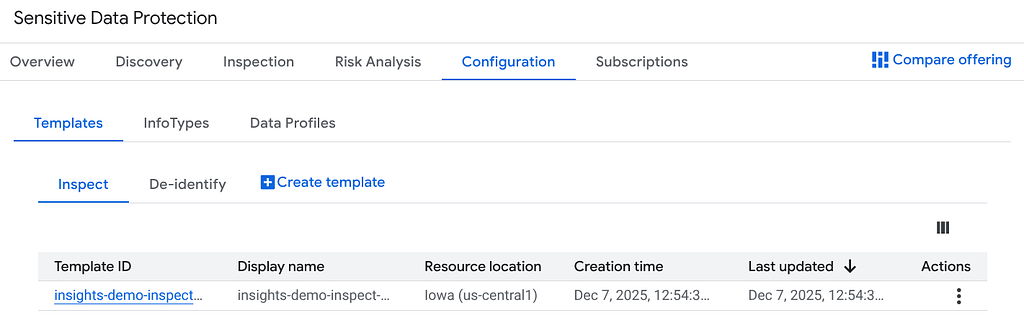
You should see the inspect template once it’s created.
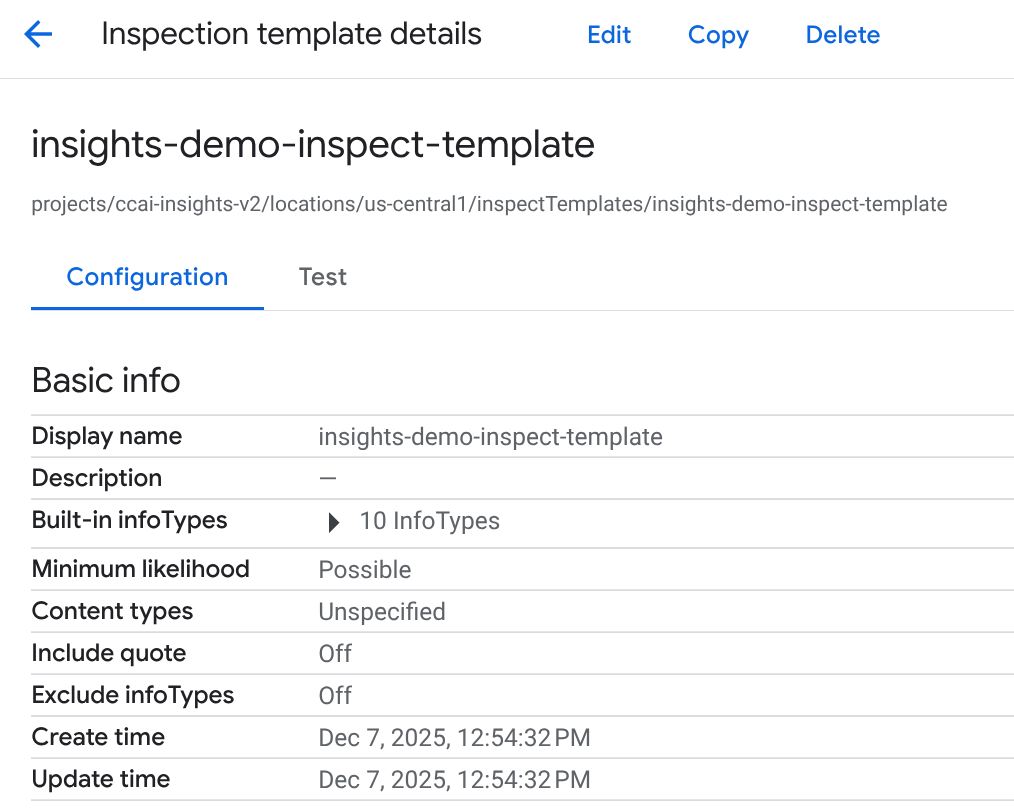
5. Take note of the qualified name as you to enter this in the CCAI Insights settings.
CCAI Insights Console
- Goto the CCAI Insights Console.
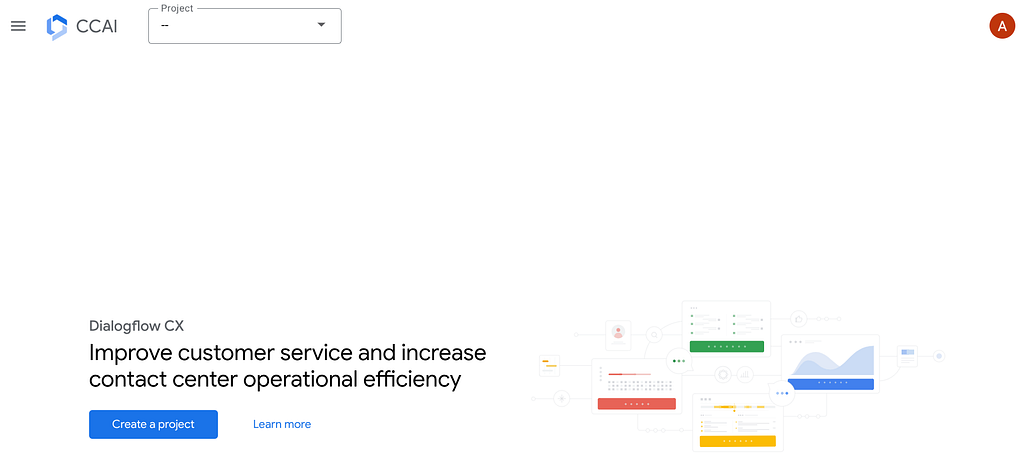
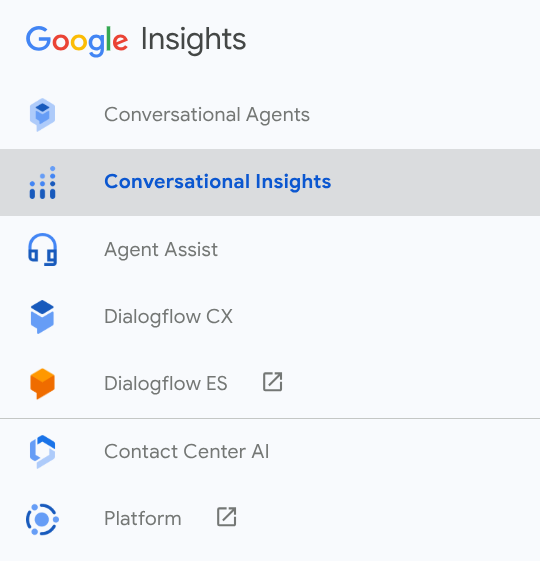
2. Select your project from the drop down menu and select Conversational Insights from the left side menu.
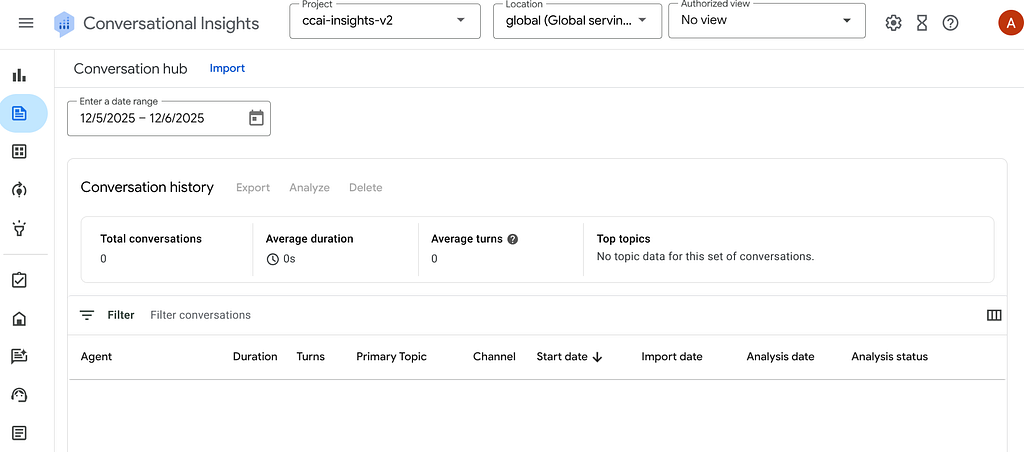
3. Click on the gear icon to go to settings.
Default Language: English (United States)
Default Redaction: Enter the qualified names for the de-identify and inspect templates you created.

4. Click Save.
Import Call Recordings into CCAI Conversational Insights
- Under Conversation hub, select Import.
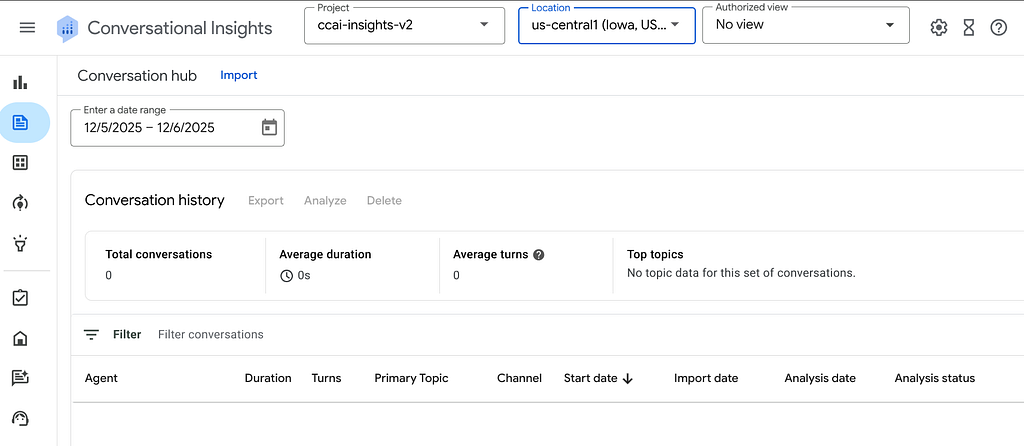
2. Enter all the information created above.e
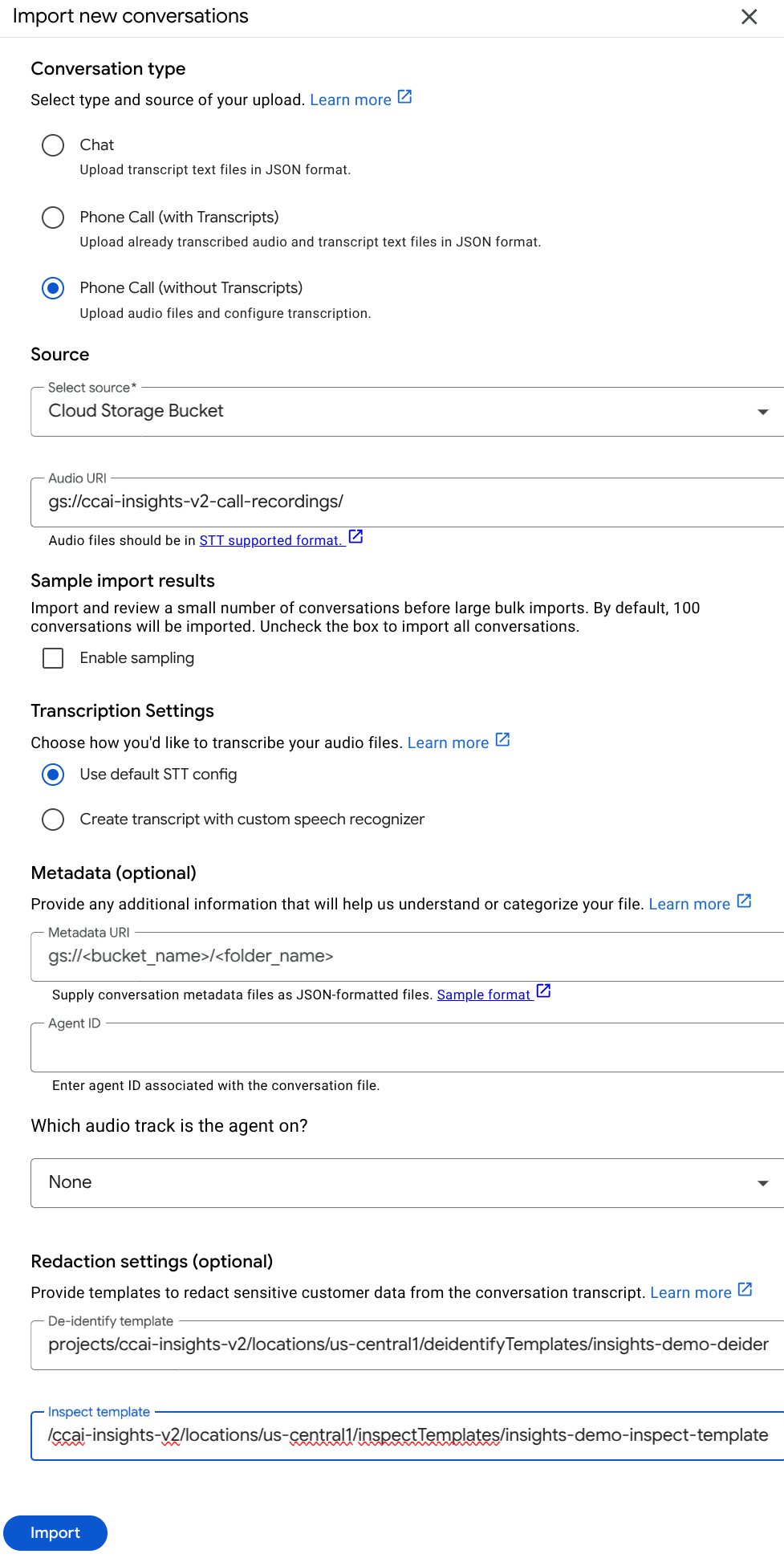
3. Select Import.
Notes: fully qualified names, cloud storage bucket must end in /
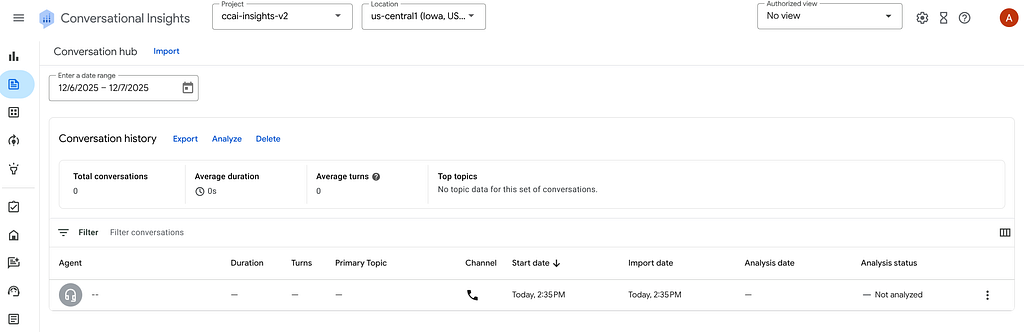
4. Refresh the browser window and you should see the imported call recording.
Analyze Call Recordings
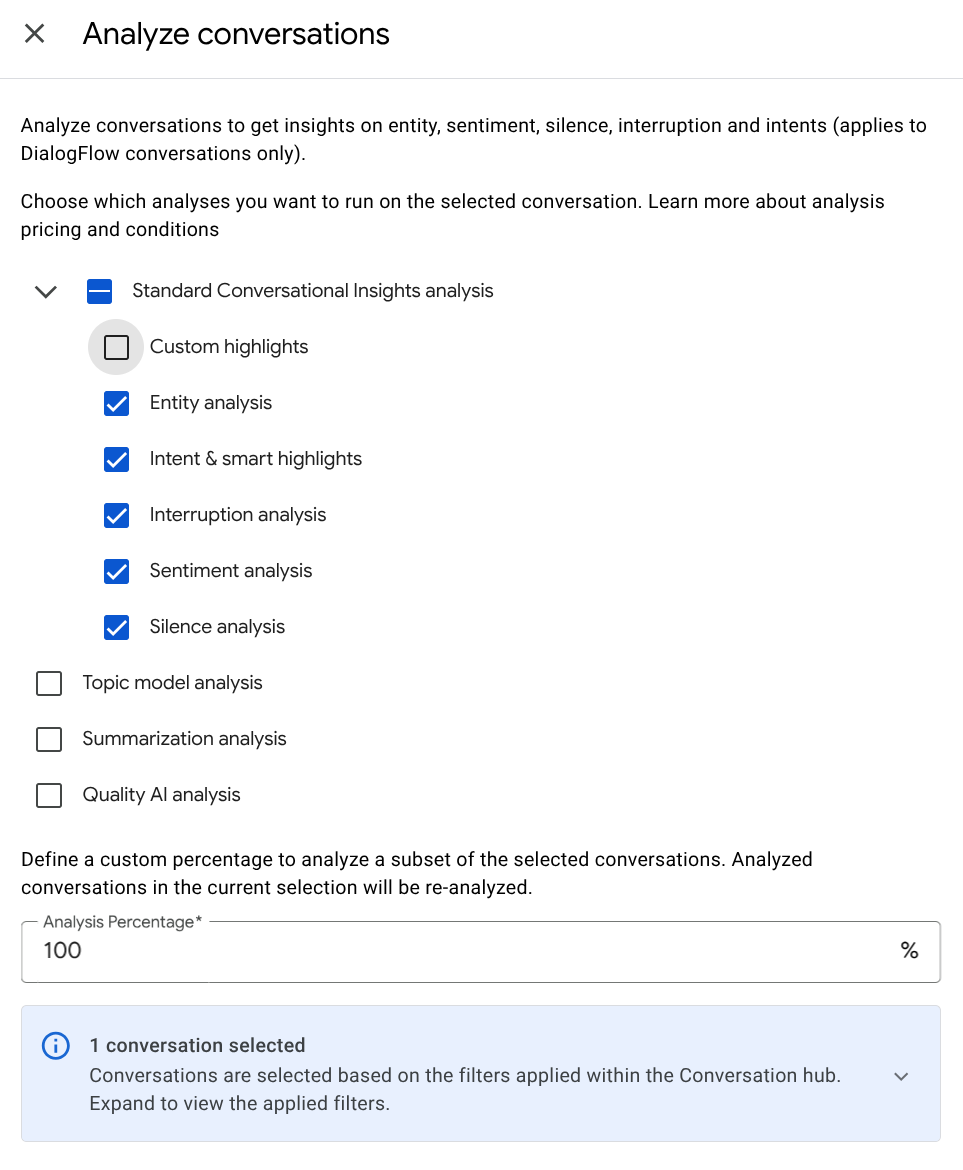
- Select Analyze.
- On the Analyze conversations, select Standard Conversational Insights Analysis and de-select Custom Highlights. The conversation will be analyzed for:
- Entity analysis
- Intent & smart highlights
- Interruption analysis
- Sentiment analysis
- Silence analysis
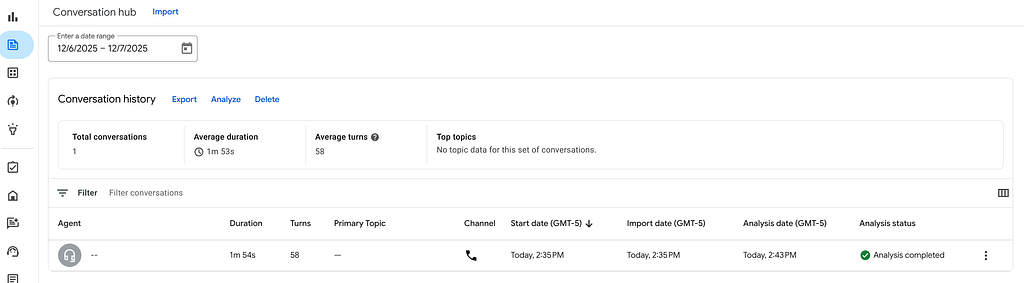
3. It takes a few minutes to analyze each conversation. Once complete, you should see a green checkbox.
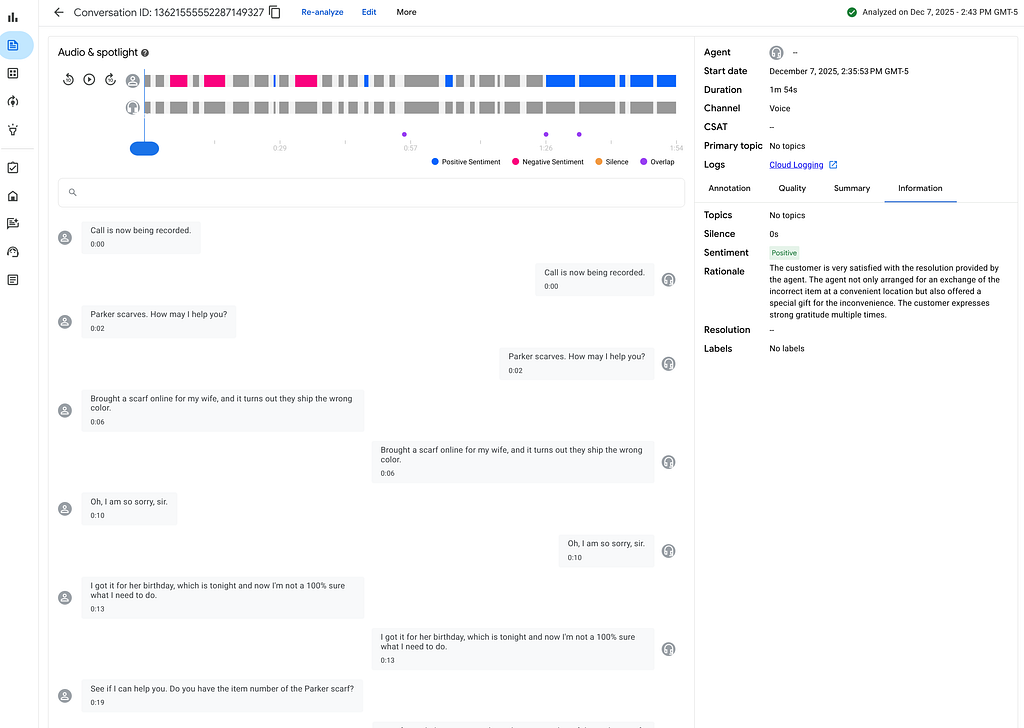
4. Click on the conversation. A detailed view will open that shows the recording, transcript, and sentiment Analysis. Also, if you click on the Information tab, you will see Analysis summary.
Summary
Conversational Insights is a Google Cloud tool designed to help businesses detect, analyze, and visualize patterns in their contact center.
Conversational Insights is delivered as a SaaS solution. In this guide, you learned how to create a simple demo to quickly demonstrate the value of Conversational Insights. You upload call recordings into a Google Cloud Storage Bucket, import them into Conversational Insights, and Analyze the call recordings for insights.
With the ability to view automated transcripts, sentiment scores, and smart highlights, you have a powerful tool for extracting immediate value from your customer interactions and can build upon this by looking at other Google Cloud Contact Center Features.
Unlock Conversational Insights: A 10-Minute Demo Guide for Google Cloud Contact Center Insights was originally published in Google Cloud – Community on Medium, where people are continuing the conversation by highlighting and responding to this story.
Source Credit: https://medium.com/google-cloud/unlock-conversational-ai-a-10-minute-demo-guide-for-google-cloud-contact-center-insights-6e005d7662cf?source=rss—-e52cf94d98af—4
About the Author