External Tool Integration via Model Context Protocol (MCP)
Building Distributed Multi-Agent Systems with Google’s AI Stack series:
- Part 1: From Monolithic AI to Distributed Intelligence: Building Your First Multi-Agent System
- Part 2: Making Agents Talk: Agent-to-Agent (A2A) Protocol Deep Dive
- Part 3: Building the Orchestrator: Coordinating Agents with the AgentTool Pattern
- Part 4: Scaling Multi-Agent Workflows: Solving the Token Limit Problem
- Part 5: External Tool Integration via Model Context Protocol (MCP) ← You are here
- Part 6: Deploying to Cloud: Cloud Run and Vertex AI Agent Engine
Welcome Back!
In Part 4, we solved the token limit problem with context compaction. Our multi-agent system now handles complex workflows beautifully.
But there’s one more capability we need: connecting to external services.
Our Project Manager agent needs to:
- Create tasks in Notion
- Link tasks to projects
- Work with any Notion database structure
- Support multilingual property names
Enter Model Context Protocol (MCP) — a standardized way to connect LLMs to external tools.
In this article, we’ll:
- Understand what MCP is and why it matters
- Integrate the official Notion MCP server
- Implement dynamic schema discovery
- Deploy MCP-enabled agents to Cloud Run
Let’s connect our agents to the real world!
What is Model Context Protocol (MCP)?
MCP is a standardized protocol for connecting LLMs to external tools and data sources, created by Anthropic.
Why MCP?
Without MCP (Traditional approach):
# Custom integration for each service
def create_notion_task(title, status, due_date):
    # Custom API client
    # Custom request formatting
    # Custom error handling
    # Custom response parsing
    ...
def create_slack_message(channel, text):
    # Different custom implementation
    ...
def query_database(query):
    # Yet another custom implementation
    ...
With MCP:
# Single standard interface for all tools
mcp_toolset = McpToolset(connection_params=...)
# Agent automatically discovers and uses tools
agent = Agent(
    name="project_manager",
    tools=[mcp_toolset]  # All tools available!
)
MCP Benefits
- Standardized: One protocol for all external tools
- Discoverable: Tools describe themselves
- Composable: Mix and match tool servers
- Secure: Controlled access and permissions
- Community-driven: Growing ecosystem of MCP servers
MCP Architecture
┌─────────────────────────────────┐
│     Agent (LLM)                 │
│                                 │
│  "I need to create a task       │
│   in Notion..."                 │
└──────────────┬──────────────────┘
               │
               ↓ Tool Discovery
┌──────────────────────────────────┐
│   MCP Toolset (ADK Integration)  │
│                                  │
│   - Discovers available tools    │
│   - Formats requests             │
│   - Handles responses            │
└──────────────┬───────────────────┘
               │
               ↓ Stdio/HTTP
┌──────────────────────────────────┐
│   MCP Server                     │
│   (@notionhq/notion-mcp-server)  │
│                                  │
│   - Exposes Notion API as tools  │
│   - Handles authentication       │
│   - Provides tool descriptions   │
└──────────────┬───────────────────┘
               │
               ↓ HTTPS
┌──────────────────────────────────┐
│   Notion API                     │
│                                  │
│   - Actual database operations   │
└──────────────────────────────────┘
Setting Up Notion for MCP
Step 1: Create Notion Integration
- Go to notion.so/my-integrations
- Click “New integration”
- Name it “AI Creative Studio”
- Select your workspace
- Click “Submit”
- Copy the Internal Integration Token (starts with secret_)
Step 2: Create Two Notion Databases
We need TWO databases: Projects and Tasks
Projects Database:
Properties:
- Project name (Title) ← required
- Status (Status: Not started, In progress, Completed)
- Priority (Select: High, Medium, Low)
- Dates (Date with start and end)
- Summary (Rich text)
Tasks Database:
Properties:
- Task name (Title) ← required
- Status (Status: Not started, In progress, Done)
- Priority (Select: High, Medium, Low)
- Due (Date)
- Project (Relation → Projects database)
Step 3: Share Databases with Integration
- Open each database
- Click “…” menu → “Add connections”
- Select your “AI Creative Studio” integration
- Repeat for both databases
Step 4: Get Database IDs
Projects Database:
URL: https://www.notion.so/workspace/abc123...
                                     ^^^^^^^^
                                     This is the database ID
Tasks Database:
URL: https://www.notion.so/workspace/def456...
                                     ^^^^^^^^
                                     This is the database ID
Step 5: Configure Environment Variables
# .env
NOTION_API_KEY=secret_abc123...
NOTION_DATABASE_ID=abc123...  # Projects database
TASKS_DATABASE_ID=def456...   # Tasks database
Installing Notion MCP Server
The Project Manager needs Node.js to run the Notion MCP server:
Local Development
# Install Node.js (if not already installed)
# macOS:
brew install node
# Ubuntu/Debian:
sudo apt install nodejs npm
# Verify
node --version  # Should be 18+
npm --version
Cloud Run (Dockerfile)
FROM python:3.12-slim
WORKDIR /app
# Install Node.js for MCP server
RUN apt-get update && apt-get install -y \
    nodejs \
    npm \
    curl \
    && rm -rf /var/lib/apt/lists/*
# Install Python dependencies
COPY requirements.txt .
RUN pip install --no-cache-dir -r requirements.txt
# Copy agent code
COPY agent.py .
# ... rest of Dockerfile
Integrating MCP with Project Manager Agent
Step 1: Import MCP Tools
# agents/project_manager/agent.py
import os
import logging
from google.adk.agents import Agent
from google.adk.tools.mcp_tool import McpToolset, StdioConnectionParams
from mcp import StdioServerParameters
from dotenv import load_dotenv
load_dotenv()
logger = logging.getLogger("ai_creative_studio.project_manager")
Step 2: Configure Notion MCP Server
def create_project_manager():
    """Create Project Manager agent with Notion MCP integration"""
    # Get configuration
    notion_api_key = os.getenv("NOTION_API_KEY")
    projects_db_id = os.getenv("NOTION_DATABASE_ID")
    tasks_db_id = os.getenv("TASKS_DATABASE_ID", "2ceb1b31123181508894ddb3c597dc48")
    if not notion_api_key or not projects_db_id:
        logger.warning("⚠️  Notion credentials not set - agent will work without Notion integration")
        notion_toolset = None
    else:
        logger.info("✅ Configuring Notion MCP integration")
        # IMPORTANT: Notion MCP server expects NOTION_TOKEN, not NOTION_API_KEY
        mcp_env = {
            "NOTION_TOKEN": notion_api_key,  # ← Note: NOTION_TOKEN
            "PATH": os.environ.get("PATH", "/usr/local/bin:/usr/bin:/bin")
        }
        # Configure Notion MCP server using globally installed version
        server_params = StdioServerParameters(
            command="notion-mcp-server",  # Use globally installed version
            args=[],
            env=mcp_env
        )
        # Create MCP toolset
        notion_toolset = McpToolset(
            connection_params=StdioConnectionParams(
                server_params=server_params,
                timeout=30.0  # 30 second timeout for MCP server startup
            )
        )
        logger.info("✅ Notion MCP toolset configured")
    # Create agent with MCP tools
    agent = Agent(
        name="project_manager",
        model="gemini-2.5-flash",
        instruction=get_system_instruction(projects_db_id, tasks_db_id),
        description="Project manager for creating timelines, tasks, and organizing deliverables",
        tools=[notion_toolset] if notion_toolset else []
    )
    logger.info("✅ Project Manager agent created")
    return agent

root_agent = create_project_manager()
Key points:
- Uses globally installed @notionhq/notion-mcp-server (pinned to v1.9.1 in Dockerfile)
- Passes NOTION_TOKEN (not NOTION_API_KEY) to MCP server
- Stdio transport (communication via stdin/stdout)
- 30-second timeout for server startup
Note: We use the globally installed version instead of npx -y to control the exact MCP server version (see Version Pinning Considerations section below).
Dynamic Schema Discovery
Here’s the problem: Hardcoded property names break easily.
The Hardcoded Approach (Fragile)
INSTRUCTION = """
Create a page in Notion:
properties = {
    "Name": {"title": [{"text": {"content": "Project X"}}]},
    "Status": {"status": {"name": "In progress"}},
    "Priority": {"select": {"name": "High"}}
}
Problems:
- Breaks if property names change
- Doesn’t work with multilingual databases (“Nom”, “Statut”, “Priorité”)
- Requires code changes for different databases
- No flexibility
Dynamic Schema Discovery (Robust)
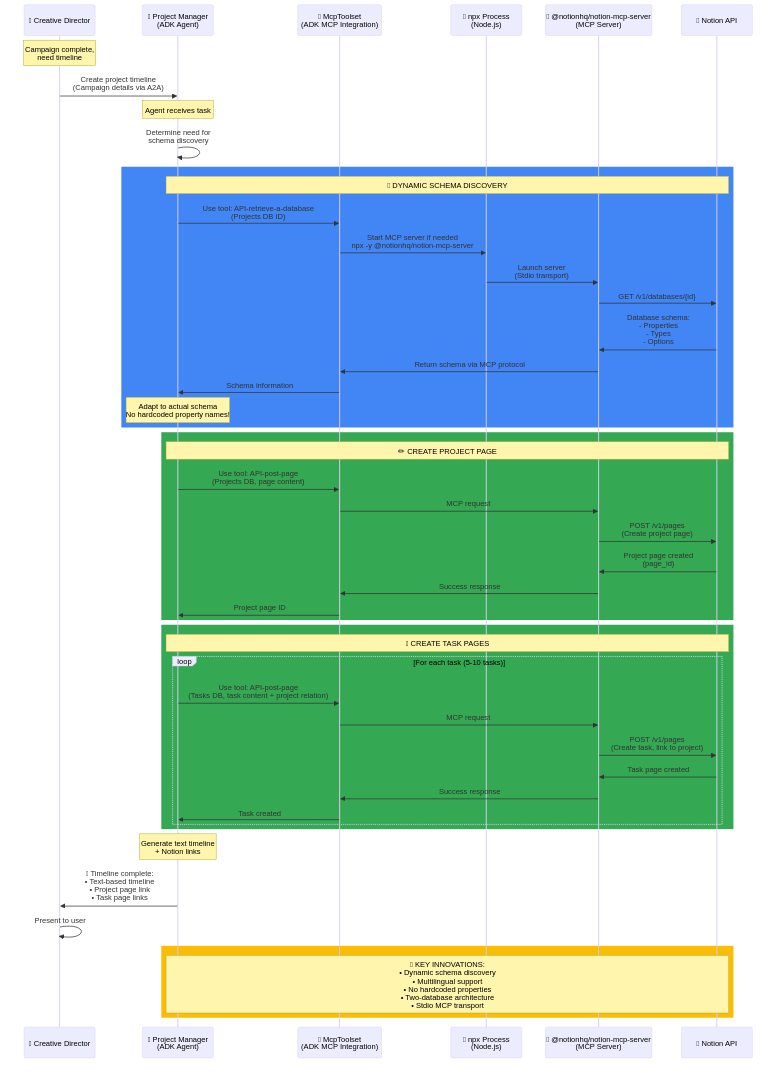
Instead, we discover the schema at runtime:
def get_system_instruction(projects_db_id: str, tasks_db_id: str) -> str:
    return f"""You are a Project Manager with Notion MCP integration.
**CRITICAL: Dynamic Schema Discovery**
Before creating any pages, you MUST discover the actual database schema.
**Step 1: Discover Projects Database Schema**
Use: API-retrieve-a-database
Database ID: {projects_db_id}
This returns:
- Actual property names (might be "Project name", "Nom du projet", etc.)
- Property types (title, status, select, date, etc.)
- Available options for status and select properties
- Relation configurations
**Step 2: Adapt to Actual Schema**
DO NOT assume property names! Use the discovered schema:
Example response:
{{
    "properties": {{
        "Project name": {{"type": "title"}},  ← Could be different!
        "État": {{"type": "status"}},         ← French!
        "Priorité": {{"type": "select"}},     ← French!
        "Dates": {{"type": "date"}}
    }}
}}
Create pages using the ACTUAL property names from the schema.
**Step 3: Create Project Page**
Use: API-post-page
Database ID: {projects_db_id}
Properties: [Use discovered names]
**Step 4: Extract Project ID**
From the response, extract the page ID:
{{
    "id": "abc-123-def-456",  ← Save this!
    ...
}}
**Step 5: Discover Tasks Database Schema**
Use: API-retrieve-a-database
Database ID: {tasks_db_id}
**Step 6: Create Task Pages**
Use: API-post-page (multiple times)
Database ID: {tasks_db_id}
Properties: [Use discovered names from tasks schema]
Link to project using the relation property:
{{
    "[Relation Property Name]": {{
        "relation": [{{"id": "abc-123-def-456"}}]  ← Project ID from step 4
    }}
}}
**Example Workflow:**
1. Discover Projects DB → Get actual property names
2. Create project page → Get project ID
3. Discover Tasks DB → Get actual property names
4. Create task 1 → Link to project ID
5. Create task 2 → Link to project ID
... (5-10 tasks total)
**IMPORTANT RULES:**
- NEVER hardcode property names like "Name", "Status", "Priority"
- ALWAYS use API-retrieve-a-database first
- ALWAYS adapt to the actual schema
- Property names can be in any language
- Relation properties link databases together
**Your Primary Output:**
Create a text-based project timeline with:
- Milestones
- Tasks and deadlines
- Team responsibilities
- Budget breakdown
THEN (if Notion credentials available):
- Create project and tasks in Notion
- Provide links to created pages
"""
How It Works in Practice
Agent: "I need to create a project in Notion"
    ↓
Step 1: Call API-retrieve-a-database (Projects DB)
    ↓
Response: {
    "properties": {
        "Nom du projet": {"type": "title"},     ← French!
        "Statut": {"type": "status"},
        "Priorité": {"select": {
            "options": [
                {"name": "Haute"},
                {"name": "Moyenne"},
                {"name": "Basse"}
            ]
        }}
    }
}
    ↓
Step 2: Agent adapts - uses "Nom du projet", "Statut", "Priorité"
    ↓
Step 3: Create page with ACTUAL property names
    ↓
✅ Works with any database structure!
Benefits:
- Language-agnostic: Works with French, Spanish, Japanese databases
- Flexible: No hardcoded property names
- Resilient: Adapts to schema changes
- Portable: Same code works with different Notion workspaces
Available MCP Tools
The Notion MCP server exposes these tools:
API-retrieve-a-database
# Get database schema
{
    "name": "API-retrieve-a-database",
    "description": "Retrieve database schema and properties",
    "parameters": {
        "database_id": "abc123..."
    }
}
API-post-page
# Create a new page
{
    "name": "API-post-page",
    "description": "Create a new page in a database",
    "parameters": {
        "parent": {"database_id": "abc123..."},
        "properties": {
            "Title Property": {"title": [...]},
            "Status Property": {"status": {"name": "In progress"}},
            ...
        }
    }
}
API-patch-page
# Update an existing page
{
    "name": "API-patch-page",
    "description": "Update page properties",
    "parameters": {
        "page_id": "page-123...",
        "properties": {...}
    }
}
API-post-database-query
# Query database with filters
{
    "name": "API-post-database-query",
    "description": "Query database with filters and sorts",
    "parameters": {
        "database_id": "abc123...",
        "filter": {...},
        "sorts": [...]
    }
}
Testing MCP Integration Locally
Test Script
# agents/project_manager/test_local_notion.py
import asyncio
from agent import root_agent
from google.adk import Runner
from google.adk.sessions import InMemorySessionService
from google.genai import types
async def test_notion_integration():
    """Test Project Manager with Notion MCP"""
    brief = """
    Create a project timeline for the EcoFlow Instagram campaign.
    Campaign details:
    - Product: EcoFlow smart water bottle
    - Target: Millennials 25-34
    - Budget: $5,000
    - Duration: 2 weeks
    - Deliverables: 5 Instagram posts, visuals, timeline
    Please create:
    1. A text-based project timeline
    2. Project and tasks in Notion (if available)
    """
    print("📋 Testing Project Manager with Notion MCP\n")
    print(f"Brief: {brief}\n")
    session_service = InMemorySessionService()
    runner = Runner(
        app_name="project_manager",
        agent=root_agent,
        session_service=session_service
    )
    session_id = "test_notion"
    user_id = "test_user"
    try:
        await session_service.create_session(
            app_name="project_manager",
            user_id=user_id,
            session_id=session_id
        )
        print("project_manager > ", end='', flush=True)
        async for event in runner.run_async(
            user_id=user_id,
            session_id=session_id,
            new_message=types.Content(parts=[types.Part(text=brief)])
        ):
            if hasattr(event, 'text') and event.text:
                text = event.text
                # Highlight MCP tool calls
                if "API-retrieve-a-database" in text:
                    print("\n[MCP] Discovering database schema...", end='')
                elif "API-post-page" in text:
                    print("\n[MCP] Creating page in Notion...", end='')
                print(text, end='', flush=True)
        print("\n\n✅ Project Manager test complete!")
    finally:
        await runner.close()

if __name__ == "__main__":
    asyncio.run(test_notion_integration())
Expected Output
📋 Testing Project Manager with Notion MCP
project_manager > I'll create a project timeline for your EcoFlow campaign.
[MCP] Discovering database schema...
I've discovered the Projects database schema.
[MCP] Creating page in Notion...
✓ Created project: "EcoFlow Instagram Campaign"
Project URL: https://notion.so/...
[MCP] Discovering database schema...
I've discovered the Tasks database schema.
[MCP] Creating page in Notion...
✓ Created task: "Market Research"
[MCP] Creating page in Notion...
✓ Created task: "Content Creation (5 posts)"
[MCP] Creating page in Notion...
✓ Created task: "Visual Design"
... (more tasks)
**Project Timeline:**
Week 1:
- Days 1-2: Market Research & Strategy
- Days 3-5: Content Creation (5 Instagram posts)
- Days 6-7: Visual Design & Image Generation
Week 2:
- Days 1-2: Review & Revisions
- Days 3-5: Final Approvals
- Days 6-7: Campaign Launch
**Notion Pages Created:**
✅ Project: EcoFlow Instagram Campaign
✅ 8 tasks created and linked to project
✅ Project Manager test complete!
Two-Database Architecture
Why Two Databases?
Projects Database: High-level campaigns
- One project = one campaign
- Contains overview information
- Has dates, budget, status
Tasks Database: Granular work items
- Multiple tasks per project
- Detailed action items
- Assigned to team members
- Has deadlines, priorities
Relation: Tasks link to Projects via relation property
Creating the Relation
# In Tasks database, create "Project" relation property:
1. Add property → Relation
2. Name: "Project" (or any name)
3. Select: Projects database
4. Save
# Now tasks can link to projects:
{
    "Project": {
        "relation": [{"id": "project-page-id"}]
    }
}
Deploying MCP-Enabled Agent to Cloud Run
Updated Dockerfile
FROM python:3.12-slim
WORKDIR /app
# Install Node.js for MCP server
RUN apt-get update && apt-get install -y \
    gcc \
    curl \
    && curl -fsSL https://deb.nodesource.com/setup_20.x | bash - \
    && apt-get install -y nodejs \
    && rm -rf /var/lib/apt/lists/*
# Install Notion MCP server globally (pinned to 1.9.1)
RUN npm install -g @notionhq/notion-mcp-server@1.9.1
# Verify installations
RUN node --version && npm --version
# Copy and install Python dependencies
COPY requirements.txt .
RUN pip install --no-cache-dir -r requirements.txt
# Copy agent code
COPY agent.py .
# Create non-root user
RUN useradd -m -u 1000 appuser && chown -R appuser:appuser /app
USER appuser
# Environment
ENV PORT=8080
ENV HOST=0.0.0.0
EXPOSE 8080
CMD ["python", "agent.py"]
Deployment with Notion Credentials
# deploy.sh
# Deploy with Notion environment variables
gcloud run deploy project-manager \
    --source=. \
    --region=us-central1 \
    --set-env-vars=NOTION_API_KEY=$NOTION_API_KEY,NOTION_DATABASE_ID=$NOTION_DATABASE_ID,TASKS_DATABASE_ID=$TASKS_DATABASE_ID \
    --memory=1Gi \
    --cpu=1 \
    --timeout=300
echo "✅ Project Manager deployed with Notion MCP integration"
Troubleshooting MCP
Issue 1: MCP Server Won’t Start
Error: TimeoutError: MCP server did not start within 30 seconds
Solutions:
# Increase timeout
connection_params=StdioConnectionParams(
    server_params=server_params,
    timeout=60.0  # Increase to 60 seconds
)
# Verify Node.js is installed
# docker exec -it container bash
# node --version
Issue 2: Notion Authentication Fails
Error: unauthorized
Solutions:
- Verify NOTION_API_KEY is correct (starts with secret_)
- Ensure databases are shared with integration
- Check environment variable name: NOTION_TOKEN for MCP server
Issue 3: Property Not Found
Error: Property "Name" does not exist
Solution: Use dynamic schema discovery!
# Don't hardcode "Name"
# Instead, discover the actual property name
MCP Version Pinning Considerations
The Problem with Latest Versions
When deploying to cloud environments, you might encounter this issue:
# ❌ DON'T DO THIS in cloud deployment
server_params = StdioServerParameters(
    command="npx",
    args=["-y", "@notionhq/notion-mcp-server"],  # Downloads latest version!
    env=mcp_env
)
Why this is risky:
- npx -y downloads the latest version every time
- Version 2.0.0 introduced a UUID reformatting bug
- Database IDs like 2ceb1b311231… get reformatted to 2ceb1b31-1231-… with hyphens
- This breaks Notion API calls → 404 errors
The Solution: Version Pinning
1. Install specific version in Dockerfile:
# ✅ Pin to known working version
RUN npm install -g @notionhq/notion-mcp-server@1.9.1
2. Use globally installed version:
# ✅ Use the pinned version
server_params = StdioServerParameters(
    command="notion-mcp-server",  # Uses globally installed 1.9.1
    args=[],  # No npx needed!
    env=mcp_env
)
Why Version 1.9.1?
- Stable: No UUID reformatting bugs
- Tested: Works with all Notion database IDs
- Reliable: Consistent behavior across deployments
- Predictable: Same version every time
Testing Different Versions
To test a new MCP server version before pinning:
# Install specific version locally
npm install -g @notionhq/notion-mcp-server@2.0.0
# Test with your agent
cd agents/project_manager
python test_notion_local.py
# Check logs for errors
# If stable, update Dockerfile version pin
Best Practice: Always pin to specific versions. Only upgrade after thorough testing.
We’ve built all the agents and integrated external tools. Now it’s time to deploy everything to the cloud!
Get ready to go from localhost to the cloud!
Code Repository: https://github.com/Saoussen-CH/ai-creative-studio-adk-a2a-mcp-vertexai-cloudrun
Next: Part 6: Deploying to the Cloud →
Thanks for reading! I hope this helps you on your journey. If you found value in this, please clap, leave a comment, and star the GitHub repo. Hit the Follow button to get notified about my next article, so don’t forget to Subscribe to the email list and let’s connect on LinkedIn!
Building Distributed Multi-Agent Systems with Google’s AI Stack: Part 5 was originally published in Google Cloud – Community on Medium, where people are continuing the conversation by highlighting and responding to this story.
Source Credit: https://medium.com/google-cloud/building-distributed-multi-agent-systems-with-googles-ai-stack-part-5-25882d2e722e?source=rss—-e52cf94d98af—4
About the Author