AI workloads need fast networking. That is where Remote Direct Memory Access comes in. Google makes this available in the form of RDMA over converged ethernet v2 and Falcon which is the topic of a different discussion.
There are a few ways to deploy a RDMA ready network they are:
- ClusterToolkit
- Via script /console
- Cluster Director
But today we focus on Google Kubernetes Engine managed (GKE) DRANET
Why DRANET?
I find DRANET particularly interesting because it leverages native Kubernetes Dynamic Resource Allocation (DRA). The GKE managed version is based upon the open-source DRANET. You simply enable the correct flags, create a ResourceClaimTemplate, and attach the right tags. GKE then automatically handles the allocation of network resources for your nodes.
If these resources aren’t assigned correctly, your expensive nodes won’t utilize the high-bandwidth, dedicated GPU NICs. This throttles GPU-to-GPU traffic and kills performance. GKE Managed DRANET also supports TPUs.
In this demo, we will set up a GKE cluster to facilitate GPU communication on the A4 VM family with B200 GPUs.
Phase 1: Environment Setup
First, let’s define our variables. Replace the Placeholder values with your specific project details.
p.s. # A4/B200 resources are scarce; you typically need a reservation
export PROJECT=$(gcloud config get project)
export REGION="us-central1"           # Replace with your region
export ZONE="us-central1-c"           # Replace with your zone
export CLUSTER_NAME="dranet-cluster"
export NODE_POOL_NAME="b200-pool"
export GVNIC_NETWORK_PREFIX="dranet-net"
export RESERVATION_NAME="my-reservation"
export BLOCK_NAME="my-block"

# Enable required APIs
gcloud services enable networkservices.googleapis.com --project=$PROJECTexport PROJECT=$(gcloud config get project)
Phase 2: Network Plumbing
We need a dedicated VPC with specific secondary ranges for our Pods and a proxy-only subnet.
gcloud compute --project=${PROJECT} \
    networks create ${GVNIC_NETWORK_PREFIX}-main \
    --subnet-mode=custom \
    --mtu=8896

gcloud compute --project=${PROJECT} \
    networks subnets create ${GVNIC_NETWORK_PREFIX}-sub \
    --network=${GVNIC_NETWORK_PREFIX}-main \
    --region=${REGION} \
    --range=172.16.0.0/12 \
    --secondary-range="pods-range=10.4.0.0/14"

gcloud compute --project=${PROJECT} \
    networks subnets create ${GVNIC_NETWORK_PREFIX}-proxy-sub \
    --purpose=REGIONAL_MANAGED_PROXY \
    --role=ACTIVE \
    --region=${REGION} \
    --network=${GVNIC_NETWORK_PREFIX}-main \
    --range=10.129.0.0/23


gcloud compute --project=${PROJECT} firewall-rules create ${GVNIC_NETWORK_PREFIX}-allow-ssh \
    --network=${GVNIC_NETWORK_PREFIX}-main \
    --allow=tcp:22 \
    --source-ranges=0.0.0.0/0 \
    --description="Allow SSH from any source." \
    --direction=INGRESS \
    --priority=1000

gcloud compute --project=${PROJECT} firewall-rules create ${GVNIC_NETWORK_PREFIX}-allow-rdp \
    --network=${GVNIC_NETWORK_PREFIX}-main \
    --allow=tcp:3389 \
    --source-ranges=0.0.0.0/0 \
    --description="Allow RDP from any source." \
    --direction=INGRESS \
    --priority=1000

gcloud compute --project=${PROJECT} firewall-rules create ${GVNIC_NETWORK_PREFIX}-allow-icmp \
    --network=${GVNIC_NETWORK_PREFIX}-main \
    --allow=icmp \
    --source-ranges=0.0.0.0/0 \
    --description="Allow ICMP from any source." \
    --direction=INGRESS \
    --priority=1000

gcloud compute --project=${PROJECT} firewall-rules create ${GVNIC_NETWORK_PREFIX}-allow-internal \
    --network=${GVNIC_NETWORK_PREFIX}-main \
    --allow=all \
    --source-ranges=172.16.0.0/12 \
    --description="Allow all internal traffic within the network (e.g., instance-to-instance)." \
    --direction=INGRESS \
    --priority=1000gcloud compute — project=${PROJECT} \
Phase 3: Cluster Deployment
Now we deploy the GKE cluster. Note that we are enabling Ray Operator and various monitoring tools to support AI workloads out of the box.
(This deploys the cluster and assigns the standard VPC to be used and creates a default non GPU node)
gcloud container clusters create $CLUSTER_NAME \
    --location=$ZONE \
    --num-nodes=1 \
    --machine-type=e2-standard-16 \
    --network=${GVNIC_NETWORK_PREFIX}-main \
    --subnetwork=${GVNIC_NETWORK_PREFIX}-sub \
    --release-channel rapid \
    --enable-dataplane-v2 \
    --enable-ip-alias \
    --addons=HttpLoadBalancing,RayOperator \
    --gateway-api=standard \
    --enable-ray-cluster-logging \
    --enable-ray-cluster-monitoring \
    --enable-managed-prometheus \
    --enable-dataplane-v2-metrics \
    --monitoring=SYSTEM
Connect to cluster
gcloud container clusters get-credentials $CLUSTER_NAME - zone $ZONE - project $PROJECTgcloud container clusters get-credentials $CLUSTER_NAME — zone $ZONE — project $PROJECT
Phase 4: The A4 Node Pool & DRANET
This is the critical step. We create a node pool using the A4 HighGPU machine type (powered by NVIDIA B200s).
Crucially, we apply the gke-networking-dra-driver label. This label tells GKE to prepare the node for Dynamic Resource Allocation.
gcloud beta container node-pools create $NODE_POOL_NAME \
  --cluster $CLUSTER_NAME \
  --location $ZONE \
  --node-locations $ZONE \
  --machine-type a4-highgpu-8g \
  --accelerator type=nvidia-b200,count=8,gpu-driver-version=latest \
  --enable-autoscaling --num-nodes=1 --total-min-nodes=1 --total-max-nodes=3 \
  --reservation-affinity=specific \
--reservation=projects/$PROJECT/reservations/$RESERVATION_NAME/reservationBlocks/$BLOCK_NAME \
   --accelerator-network-profile=auto \
--node-labels=cloud.google.com/gke-networking-dra-driver=truegcloud beta container node-pools create $NODE_POOL_NAME \
Phase 5: Resource Claim Template
In Kubernetes DRA, we need a template that defines the device we want to claim. Here, we request the mrdma.google.com device class.
Create a file called all-mrdma-template.yaml then add the following to the manifest.
apiVersion: resource.k8s.io/v1
kind: ResourceClaimTemplate
metadata:
  name: all-mrdma
spec:
  spec:
    devices:
      requests:
      - name: req-mrdma
        exactly:
          deviceClassName: mrdma.google.com
          allocationMode: AllapiVersion: resource.k8s.io/v1
Apply it:
kubectl apply -f all-mrdma-template.yaml
Phase 6: Verification (NCCL Test)
To verify the RDMA speed, we will run the standard NCCL benchmark.
# 1. Create SSH Keys and secret
# 1. Generate a new SSH keypair (no passphrase)
ssh-keygen -t rsa -f ./id_rsa -N ""

# 2. Upload the keys to the cluster as a Kubernetes Secret
kubectl create secret generic mpi-keys \
  --from-file=id_rsa=./id_rsa \
  --from-file=id_rsa.pub=./id_rsa.pub \
  --from-file=authorized_keys=./id_rsa.pub

# 3. Clean up local keys
rm ./id_rsa ./id_rsa.pub # 1. Generate a new SSH keypair (no passphrase)
#2. Deployment Benchmark Workload
This 2 pod StatefulSet mounts the RDMA resource claim (rdma-claim) and the NVIDIA drivers.
Create a file called nccl-hybrid-test.yaml then add the following to the manifest
# --- Headless Service ---
apiVersion: v1
kind: Service
metadata:
  name: nccl-node
  labels:
    app: nccl
spec:
  clusterIP: None
  selector:
    app: nccl
  ports:
  - port: 2222
    name: ssh
---
# --- NCCL Workload ---
apiVersion: apps/v1
kind: StatefulSet
metadata:
  name: nccl
spec:
  serviceName: "nccl-node"
  replicas: 2
  selector:
    matchLabels:
      app: nccl
  template:
    metadata:
      labels:
        app: nccl
        gke.networks.io/accelerator-network-profile: auto
    spec:
      hostNetwork: false

      # Allow scheduling on Tainted GPU Nodes
      tolerations:
      - key: "nvidia.com/gpu"
        operator: "Exists"
        effect: "NoSchedule"

      containers:
      - name: test
        image: us-docker.pkg.dev/gce-ai-infra/gpudirect-gib/nccl-plugin-gib-diagnostic:v1.1.0
        command: ["/bin/bash", "-c"]
        args:
          - |
            # Setup SSH for MPI
            mkdir -p /run/sshd; mkdir -p /root/.ssh
            cp /etc/secret-volume/* /root/.ssh/
            chmod 600 /root/.ssh/id_rsa
            echo "StrictHostKeyChecking no" >> /root/.ssh/config
            /usr/sbin/sshd -p 2222
            sleep infinity

        securityContext:
          privileged: true
          capabilities:
            add: ["IPC_LOCK", "NET_RAW"]

        resources:
          limits:
            nvidia.com/gpu: 8
          # Bind the RDMA Network Claim
          claims:
            - name: rdma-claim

        # Mount Host Drivers (Required for NVML/SMI access)
        volumeMounts:
        - name: driver-lib
          mountPath: /usr/local/nvidia/lib64
          readOnly: true
        - name: gib
          mountPath: /usr/local/gib
        - name: shared-memory
          mountPath: /dev/shm
        - name: secret-volume
          mountPath: /etc/secret-volume
          readOnly: true

        env:
        - name: LD_LIBRARY_PATH
          value: /usr/local/nvidia/lib64

      # Link Pod to Network Template
      resourceClaims:
      - name: rdma-claim
        resourceClaimTemplateName: all-mrdma

      volumes:
      - name: driver-lib
        hostPath:
          path: /home/kubernetes/bin/nvidia/lib64
      - name: gib
        hostPath:
          path: /home/kubernetes/bin/gib
      - name: shared-memory
        emptyDir:
          medium: "Memory"
          sizeLimit: 250Gi
      - name: secret-volume
        secret:
          secretName: mpi-keys
          defaultMode: 0400# — — Headless Service — -
Apply it:
kubectl apply -f nccl-hybrid-test.yaml
#2. Execute the test
Paste teh following. This run teh test and save output to a file called nccl_linear_test.log
echo "Starting NCCL Benchmark (Linear 1GB Increments)..."

kubectl exec -it nccl-0 -- /bin/bash -c "
  export LD_LIBRARY_PATH=/third_party/nccl/build/lib:/usr/local/nvidia/lib64

  # 1. Resolve IPs
  IP1=\$(python3 -c \"import socket; print(socket.gethostbyname('nccl-0.nccl-node'))\")
  IP2=\$(python3 -c \"import socket; print(socket.gethostbyname('nccl-1.nccl-node'))\")

  # 2. Create Hostfile
  echo \"\$IP1 slots=8\" > /tmp/hostfile
  echo \"\$IP2 slots=8\" >> /tmp/hostfile

  # 3. Run MPI with Linear Increment (-i 1G)
  # -b 1G: Start at 1GB
  # -e 8G: End at 8GB
  # -i 1G: Add 1GB each step (Linear) instead of multiplying
  mpirun --allow-run-as-root \
    --hostfile /tmp/hostfile \
    -mca plm_rsh_args '-p 2222 -o StrictHostKeyChecking=no' \
    -x LD_LIBRARY_PATH \
    -np 16 \
    --bind-to none \
    /third_party/nccl-tests/build/all_gather_perf \
      -b 1G \
      -e 8G \
      -i 1G \
      -g 1
" | tee nccl_linear_test.log
Clean up
# 1. Delete the NCCL workload and service
# 1. Delete the NCCL workload and service
kubectl delete statefulset nccl
kubectl delete service nccl-node
kubectl delete secret mpi-keys

# 2. Delete the DRA Resource Claim Template
kubectl delete resourceclaimtemplate all-mrdma
Next — Delete the two networks that were attached. Go to VPC network and search for the networks that were created. Select and delete both. Example

Once those VPCs are deleted proceed to delete your cluster
gcloud container clusters delete $CLUSTER_NAME \
    --zone $ZONE \
    --project $PROJECT \
    --quiet
Next search for your standard VPC look under firewall rules and remove all, you may see some that are automatically created.
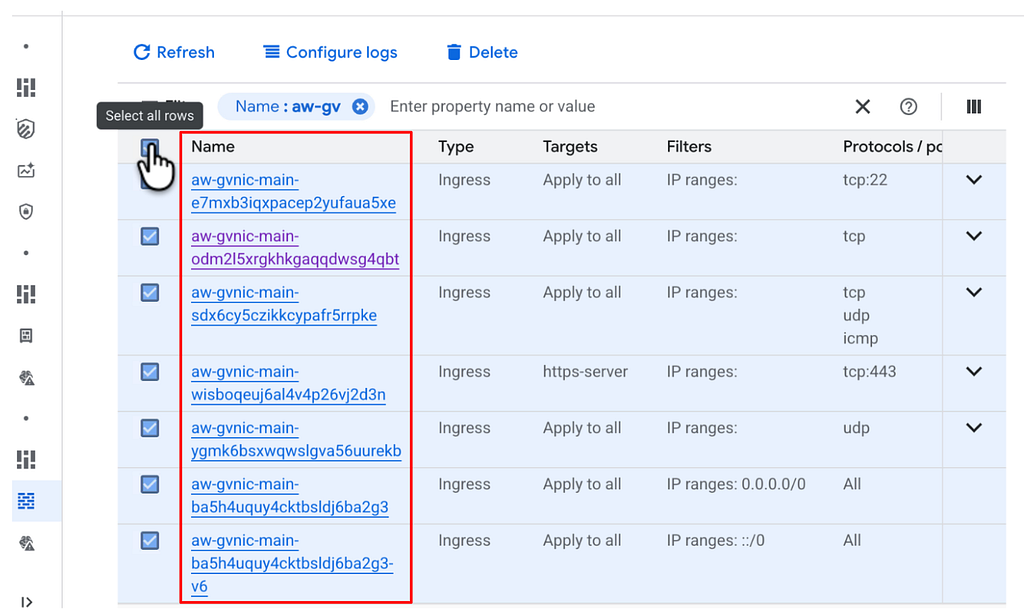
Then delete the VPC
gcloud compute networks subnets delete ${GVNIC_NETWORK_PREFIX}-sub \
    --region=${REGION} --project=$PROJECT --quiet

gcloud compute networks subnets delete ${GVNIC_NETWORK_PREFIX}-proxy-sub \
    --region=${REGION} --project=$PROJECT --quiet

# 3. Delete the VPC Network
gcloud compute networks delete ${GVNIC_NETWORK_PREFIX}-main \
    --project=$PROJECT --quiet
DRANET is currently in preview and supports TPU also. You can check out the following documentation.
- Configure automated networking for accelerator VMs
- AI Hypercomputer
Part I— Exploring DRANET on GKE with B200 GPUs and NCCL test was originally published in Google Cloud – Community on Medium, where people are continuing the conversation by highlighting and responding to this story.
Source Credit: https://medium.com/google-cloud/part-i-exploring-dranet-on-gke-with-b200-gpus-and-nccl-test-c4674ec10659?source=rss—-e52cf94d98af—4
About the Author