Wubba Lubba Dub Dub! Welcome to another installment of Rickbot! You don’t need to have read the rest of the series to benefit from this latest article.
Today I’m going to show you the cool Gemini File Search Tool. This product is not particularly well named, because it’s actually a file RAG built-in to the Gemini API itself.
I’ll cover what it is, when we should use it, and how it compares to other services.
The Rickbot Series — Where We Are
But just for orientation, here’s where we are in the series:
- Creating a Rick & Morty Chatbot with Google Cloud and the Gen AI SDK
- Adding Authentication and Authorisation to our Rickbot Streamlit Chatbot with OAuth and the Google Auth Platform
- Building the Rickbot Multi-Personality Agentic Application using Gemini CLI, Google Agent-Starter-Pack and the Agent Development Kit (ADK)
- Updating the Rickbot Multi-Personality Agentic Application — Integrate Agent Development Kit (ADK) using Gemini CLI
- Guided Implementation of Agent Development Kit (ADK) with the Rickbot Multi-Personality Application (Series)
- Productionising the Rickbot ADK Application and More Gemini CLI Tips
- Get Schwifty with the FastAPI: Adding a FastAPI to our Agentic Application
- Introducing ADK Artifacts for Multi-Modal File Handling (a Rickbot Blog)
- Using Gemini File Search Tool for RAG (a Rickbot Blog) — YOU ARE HERE
The Problem We Need to Solve
Large Language Models (LLMs) and multi-modal foundation models (like Google Gemini) are trained on huge amounts of data. But there are limitations:
- The model is always out of date. This is because a given model was trained with data that was available at a specific point in time. When you interact with a model, its training data is typically going to be months old, at best.
- Though models are huge and have billions of data points, they don’t know everything.
- Foundational models are fairly generic in how they’ve been trained. This means they have broad knowledge, but often lack deep knowledge about specialist or proprietary topics.
Without this specific knowledge, if you ask a model something it doesn’t know the answer to, you’ll typically get an incorrect or even made-up answer. Often, the model will spew out this answer confidently. This is what we refer to as hallucination.
There are many techniques to increase the accuracy and quality of responses, and to reduce hallucination. And one of the easiest and cheapest techniques is… RAG.
RAG: What It Is and Why We Need It
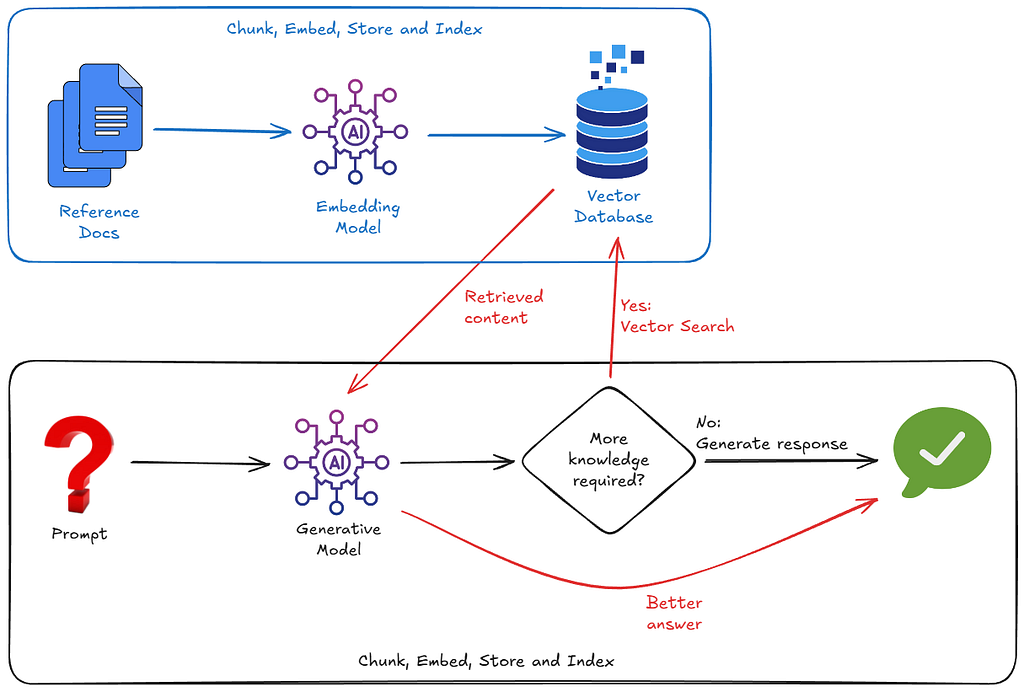
RAG is the acronym for Retrieval Augmented Generation. This is not really an article about RAG; there are already a bazillion articles talking about RAG. So I’ll keep my RAG description super brief here. But in a nutshell:
RAG is a technique that enhances the capabilities of LLMs by grounding their responses in external knowledge sources rather than relying solely on their pre-existing (and inherently out-of-date) training data.
RAG typically involves importing external data, chopping the data into chunks, converting the data into vector embeddings, then storing and indexing those embeddings into a suitable vector database.
Now that’s all done, when a user submits their prompt to the model, the model first asks itself: “Do I have the right information to answer this question?” If the answer is no, the model retrieves appropriate chunks of data from the vector database, and adds this additional data alongside the original user prompt. Thus, the prompt has been augmented with the external grounding data.
By looking up facts before generating an answer, RAG ensures the model’s output is grounded in reality. This improves accuracy and dramatically reduces hallucination.
Can’t We Just Stuff the Required Data into the Context?
In some cases, the answer is: yes.
Let’s look at Rickbot… It has several personas. Most of those personas are just fun, qwirky personalities, like Rick Sanchez, Yoda, Donald, and Jack Burton.
But the “Dazbot” persona is intended to be a senior architect and software engineer, with strong opinions about IT strategy, architecture, cloud and engineering. How should I provide Dazbot with appropriate personality and knowledge, such that it gives high quality answers to questions on these topics?
Essentially, there are two things I need to do:
- Provide a good system prompt which gives Dazbot its character, its opinionation, and its guiding principles.
- Provide a load of grounding data. Specifically: documents, articles and blogs I’ve written. (Like the one you’re reading now.)
If you only have a small number of such grounding docs — maybe half a dozen PDF documents — then you could absolutely upload those PDFs directly to the model, straight into its context. And Gemini makes this a breeze because:
- Gemini has its famous 1 million token context window — which means you can stuff a LOT of data into its context window.
- Gemini provides context caching, meaning that if it repeatedly retrieves the same tokens from its context window, it is likely to cache the data, which reduces your token costs by about 90%.
But this is still only good if you only have a small amount of such reference content. Eventually, your context window is going to get quite large. And as the context usage increases, you get these problems:
- Latency: slower and slower responses from the model.
- “Signal rot”, aka “lost-in-the-middle”: where the model is no longer able to sort the relevant data from the junk. Much of the context gets ignored by the model.
- Cost: because tokens cost money.
- Context window exhaustion. At this point, Gemini will not action your requests.
So if you need to ground your data on dozens or hundreds of documents, thousands of pages, or lots of very dense information — maybe in the form of diagrams and code — you’re going to need to operate more efficiently. RAG is probably the best answer here.
So What Is The Gemini File Search Tool?
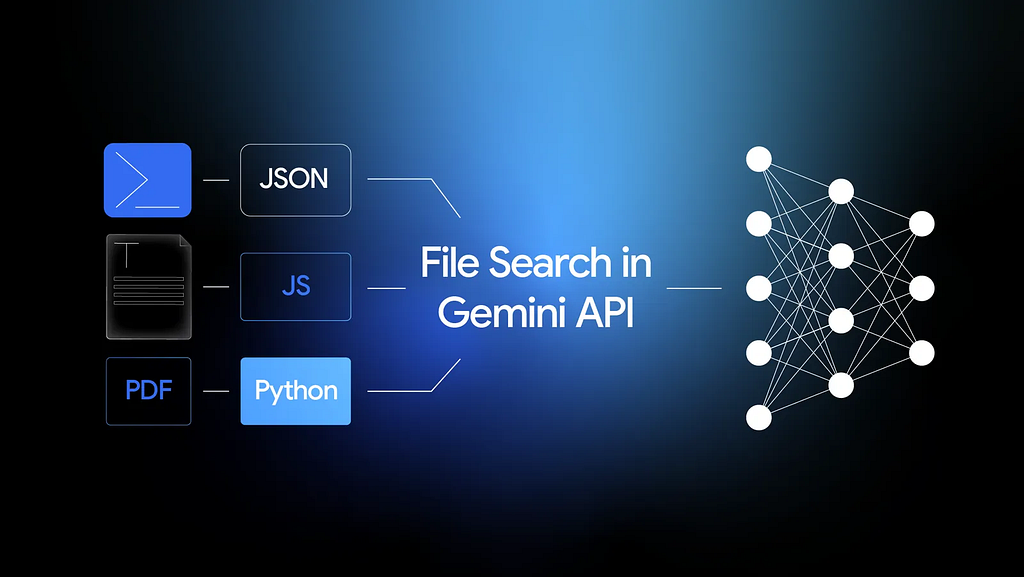
The Gemini File Search Tool is essentially a combination of two things:
- A fully-managed RAG system: you provide a bunch of files, and Gemini File Search Tool handles the chunking, embedding, storing and vector indexing for you.
- A “tool” in the agentic sense: where you can simply add Gemini File Search Tool as a tool in your agent definition, and point the tool to a File Search Store.
But crucially: it’s built into the Gemini API itself. That means you don’t need to enable any additional APIs or deploy any separate products to use it. So it really is… out-of-the-box.
Here are some of the features:
- The details of chunking, embedding, storing and indexing are abstracted from you, the developer. This means you do not need to know (or care) about the embedding model (which is Gemini Embeddings, by the way), or where the resulting vectors are stored. You do not have to make any vector database decisions.
- It supports a huge number of document types out-of-the-box. Including, but not limited to: PDF, DOCX, Excel, SQL, JSON, Jupyter notebooks, HTML, Markdown, CSV, and even zip files. You can see the full list here. So, for example, if you want to ground your agent with PDF files that contain text, pictures and tables, you don’t need to do any pre-processing of these PDF files. Just upload the raw PDFs, and let Gemini handle the rest.
- We can add custom metadata to any uploaded file. This can be really useful for subsequently filtering which files we want the tool to use, at run time.
Where Does the Data Live?
Okay, so you’ve uploaded some files. Gemini File Search Tool has taken those files, created the chunks, then the embeddings, and put them… somewhere. That somewhere: a File Search Store. This is a fully-managed container for your embeddings. You don’t need to know (or care) how this is done under-the-hood. All you need to do is create one (programmatically) and then upload your files to it.
Sounds Expensive!
It sounds it. But it’s not!
The storing and querying of your embeddings is free. So you can store embeddings for as long as you like, and you don’t pay for that storage!
In fact, the only thing you do pay for is the creation of the embeddings at upload/indexing time. At the time of writing, this costs $0.15 per 1 million tokens. That’s pretty cheap.
How Do We Use It?
There are two phases.
- Create and store the embeddings, in a File Search Store.
- Query the File Search Store from your agent.
Phase 1 — Create and Store the Embeddings
This phase is something you would do initially, and then whenever you want to update the store — for example, when you have new documents to add, or when the source documents have changed.
Note: this phase is not something you need to package into your deployed agentic application. Sure, you could if you want to. For example, if you want to create some sort of UI for admin users of your agentic application. But it may be perfectly adequate just to have a bit of code that you run on-demand. And for me, the perfect place to put this code is in a Jupyter notebook. (If you’re not familiar with notebooks or how to run them, check out my guide: Six Ways to Run Jupyter Labs and Notebooks.)
In the Rickbot GitHub repo I’ve created a notebook specifically for creating and managing File Search Stores. And if you want to try it out: you can download it and run it locally, or just open it in Google Colab using the link in the notebook itself. Super easy!
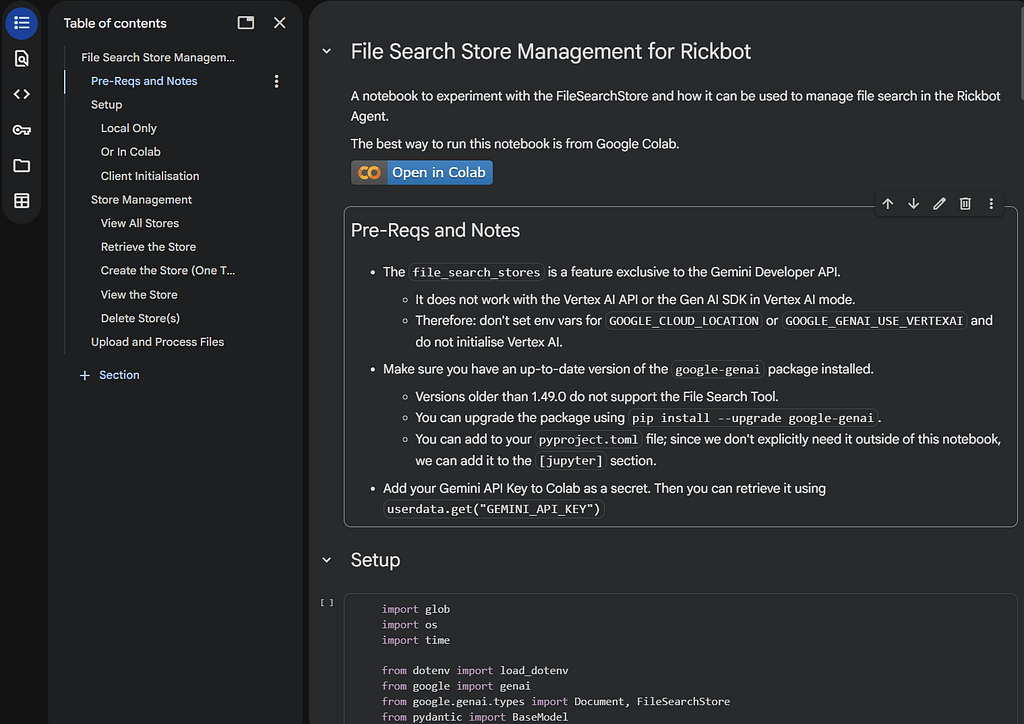
The notebook is well documented and provides a lot of inline explanation. But let me walk you through it briefly.
First, you’re going to need your Gemini API key. The Gemini API endpoints for creating and managing File Search Stores are only available through the Gemini Developer API, which means you need to authenticate to the API using a key. So you can’t, for example, use the GOOGLE_GENAI_USE_VERTEXAI environment variable that you might be used to if you’re running ADK agents. (At least, this is my conclusion. If you think I’m wrong, let me know!)
If you haven’t already got a Gemini API key, check out this page for how to get one.
If you’re running the notebook locally in your development environment, set an environment variable called GEMINI_API_KEY, or alternatively set this in a .env file, which the notebook will load automatically.
If you’re running in Google Colab, you can easily import your existing Gemini API key as a secret, by clicking on the Secrets button here and then clicking on Gemini API keys, like this:
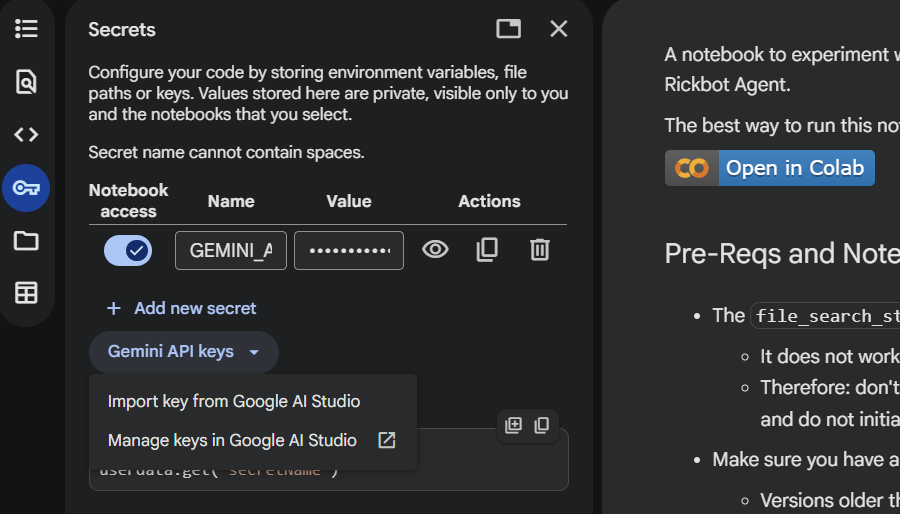
Then we load the key from the secret:
from google.colab import userdata

os.environ["GEMINI_API_KEY"] = userdata.get('GEMINI_API_KEY')
Next we initialise the Gen AI client and specify our File Search Store name:
client = genai.Client()
DAZBO_STORE_NAME = "rickbot-dazbo-ref"
We then create the store like this:
# Be careful not to create more than one store with the same display name
file_search_store = client.file_search_stores.create(config={'display_name': DAZBO_STORE_NAME})
print(file_search_store)
The newly created store will have a unique name allocated by the create() function. But be careful: it’s possible to create multiple stores with the same display name. And you probably don’t want to do that!
You can view your stores like this:
for a_store in client.file_search_stores.list():
    print(a_store)
Here’s what the output looks like:
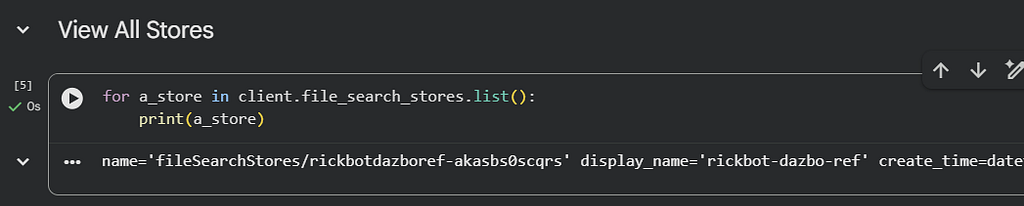
If you want to retrieve a single store by display name, here’s a way you can do that:
def get_store(store_name: str) -> FileSearchStore | None:
    """ Retrieve a store by display name """
    for a_store in client.file_search_stores.list():
        if a_store.display_name == store_name:
            return a_store

    return None
Now we’re ready to upload our reference files to the store. Here’s my code to do this:
UPLOAD_PATH = "/content/upload-files/"

class DocumentMetadata(BaseModel):
    title: str
    author: str
    abstract: str

def delete_doc(doc: Document, file_search_store):
    """ Delete document(s) from the file search store """
    print(f"♻️  Deleting duplicate: '{doc.display_name}' (ID: {doc.name})")
    client.file_search_stores.documents.delete(
        name=doc.name,
        config={'force': True}
    )
    time.sleep(2) # small throttle and allow propagation

def generate_metadata(file_name: str, temp_file) -> DocumentMetadata:
    """ Generate metadata for a document """

    print(f"Extracting metadata from {file_name}...")
    response = client.models.generate_content(
        model="gemini-2.5-flash",
        contents=[
            """Please extract title, author, and short abstract from this document.
            Each value should be under 200 characters.

            Abstracts should be succinct and NOT include preamble text like `This document describes...`

            Example bad abstract:
            Now I want to cover a key consideration that can potentially
            save you more in future IT spend than any other decision you can make:
            embracing open source as a core element of your cloud strategy.

            Example good abstract:
            How you can significantly reduce IT spend by embracing open source
            as a core component of your cloud strategy.

            Example bad abstract:
            This article discusses how you can design your cloud landing zone.

            Example good abstract:
            How to design your cloud landing zone according to best practices.
            """,
            temp_file
        ],
        config={
            "response_mime_type": "application/json",
            "response_schema": DocumentMetadata,
        },
    )

    metadata: DocumentMetadata = response.parsed
    print(f"Title: {metadata.title}")
    print(f"Author: {metadata.author}")
    print(f"Abstract: {metadata.abstract}")

    return metadata

def upload_doc(file_path, file_search_store):
    """ Upload a document to the file search store """

    file_name = os.path.basename(file_path)

    print(f"Uploading {file_name} for metadata extraction...")
    temp_file = client.files.upload(file=file_path)

    # Verify file is active (ready for inference)
    while temp_file.state.name == "PROCESSING":
        print("Still uploading...", end='\r')
        time.sleep(2)
        temp_file = client.files.get(name=temp_file.name)

    if temp_file.state.name != "ACTIVE":
        raise RuntimeError(f"File upload failed with state: {temp_file.state.name}")

    # Now let's check if this is a replacement of an existing file
    # If so, we should delete the existing entry first
    # Iterate through all docs in the store
    for doc in client.file_search_stores.documents.list(parent=file_search_store.name):
        should_delete = False

        # Match by Display Name
        if doc.display_name == file_name:
            should_delete = True

        # Match by Custom Metadata (Robust Match)
        # This catches docs where display_name was set to the Title
        elif doc.custom_metadata:
            for meta in doc.custom_metadata:
                if meta.key == "file_name" and meta.string_value == file_name:
                    should_delete = True
                    break

        if should_delete:
            delete_doc(doc, file_search_store)

    metadata = generate_metadata(file_name, temp_file)

    # Import the file into the file search store with custom metadata
    operation = client.file_search_stores.upload_to_file_search_store(
        file_search_store_name=file_search_store.name,
        file = file_path,
        config={'display_name' : metadata.title, # or we could determine the title
                # 'chunking_config' : chunking_config["chunking_config"],
                'custom_metadata':[
                    {"key": "title", "string_value": metadata.title},
                    {"key": "file_name", "string_value": file_name},
                    {"key": "author", "string_value": metadata.author},
                    {"key": "abstract", "string_value": metadata.abstract},
                ],
        }
    )

    # Wait until import is complete
    while not operation.done:
        time.sleep(5)
        print("Still importing...")
        operation = client.operations.get(operation)

    print(f"{file_name} successfully uploaded and indexed")
Let’s break this down:
- The Data Contract — DocumentMetadata: We define a strictly typed structure using Pydantic. This forces the LLM to give us exactly what we need — title, author, and abstract — rather than something unpredictable.
- The Cleanup Crew — delete_doc: This function takes a specific document and nukes it from the store with force=True. This is vital because you can’t just overwrite files in these stores. So without running this you can end up with multiple entries for the same source file.
- The Intelligence Layer — generate_metadata: Here I’m asking Gemini (in this case, the gemini-2.5-flash model) to read the document and extract key metadata, i.e. the title, author, and a short abstract. I use few-shot prompting to provide examples of “good” vs “bad” abstracts.
Crucially, we explicitly return the parsed object. (I may have missed that in a previous iteration — my bad!). This step is entirely optional. But it’s trivial to get Gemini to generate this metadata for us. - We pull it all together with upload_doc. In this function we start by uploading the local file to a temporary in-memory file. We need to do this because we then pass the file to Gemini for the metadata extraction. Once uploaded, we then check the File Search Store to see if a document with the same file name already exists. If it does, we delete the old version before indexing the new version.
Finally, we just run this code for all the local files we want to upload and index:
file_search_store = get_store(DAZBO_STORE_NAME)
if file_search_store is None:
    print(f"Store {DAZBO_STORE_NAME} not found.")
else:
    print(f"Uploading files to {file_search_store.name}...")
    files_to_upload = glob.glob(f'{UPLOAD_PATH}/*')
    if files_to_upload:
        for file_path in files_to_upload:
            print(f"Uploading {file_path}")
            upload_doc(file_path, file_search_store)
    else:
        print(f"No files found in {UPLOAD_PATH}")
I’ve copied a PDF file to the /content/upload-files folder of my Colab environment, and now I can run the cell. And this is the output:
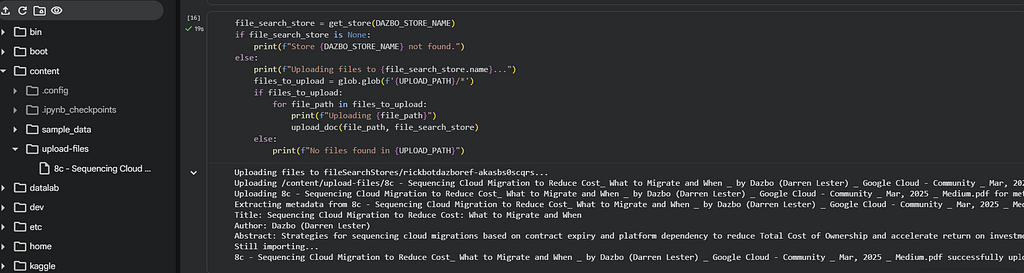
After running this we can check what’s in our File Search Store with this code:
file_search_store = get_store(DAZBO_STORE_NAME)
if not file_search_store:
    print(f"Store {DAZBO_STORE_NAME} not found.")
else:
    print(file_search_store)
    print(f"Docs in {DAZBO_STORE_NAME}: {file_search_store.active_documents_count}")

    # List all documents in the store
    # The 'parent' argument is the resource name of the store
    docs = client.file_search_stores.documents.list(parent=file_search_store.name)
    if not docs:
        print("No documents found in the store.")
    else:
        for i, doc in enumerate(docs):
            section_heading = f"Document {i}:"
            print("-" * len(section_heading))
            print(section_heading)
            print("-" * len(section_heading))
            print(f"  Display name:{doc.display_name}")
            print(f"  ID: {doc.name}")
            print(f"  Metadata: {doc.custom_metadata}")
Here’s what the output looks like, after uploading a couple of files to the store:
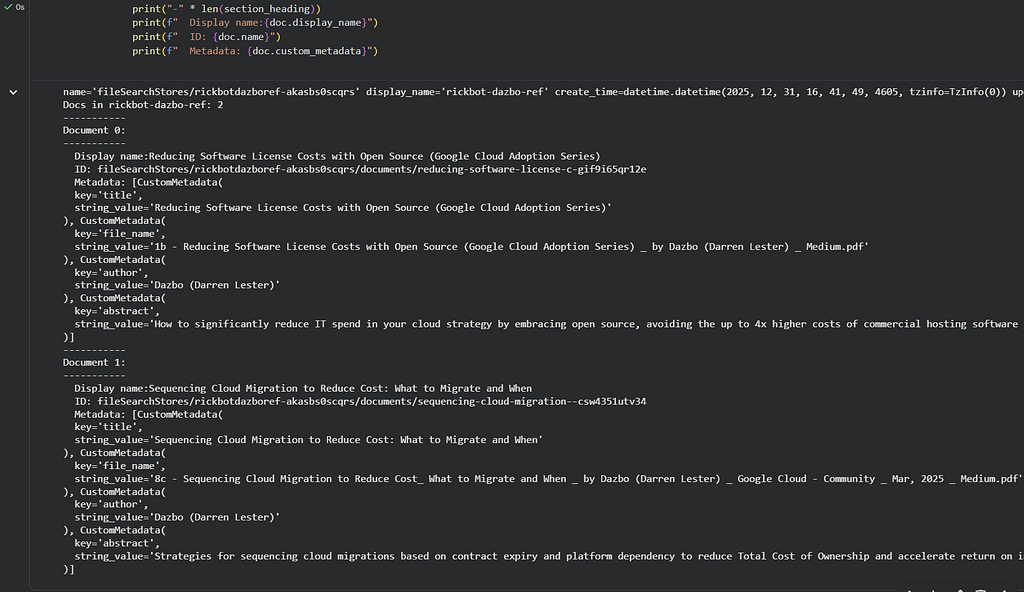
Marvellous!
Phase 2 — Query From The Agent
So we’ve got our reference data in the file search store. Now we need to get our agent to actually use it.
This is where things get a bit interesting, and the coding wasn’t quite as trivial as I was expecting. The Google File Search Tool documentation only gives examples of how to use the File Search Tool with the Google GenAI SDK, like this:
response = client.models.generate_content(
    model="gemini-2.5-flash",
    contents="""Can you tell me about [insert question]""",
    config=types.GenerateContentConfig(
        tools=[
            types.Tool(
                file_search=types.FileSearch(
                    # Use the full name of the store, not the display name
                    file_search_store_names=[file_search_store.name]
                )
            )
        ]
    )
)
But Rickbot is using the Google Agent Development Kit. And the File Search Tool isn’t a standard integrated tool like google_search or even a Python function that you just reference. It’s a built-in feature of the Gemini API. To make this work with Google ADK, I had to create a custom tool that acts a bit like middleware. Its job is to intercept the request before it goes to the model and inject the specific file_search configuration.
Here’s my custom tool definition, src/rickbot_agent/tools_custom.py:
class FileSearchTool(BaseTool):
    """
    A custom ADK tool that enables the Gemini File Search (retrieval) capability.
    This attaches the native 'file_search' tool configuration to the model request.
    """

    def __init__(self, file_search_store_names: list[str]):
        """
        Initialize the FileSearchTool.

        Args:
            file_search_store_names: The resource name of the File Search Store.
                    e.g. ["fileSearchStores/mystore-abcdef0pqrst", ...]
        """
        super().__init__(name="file_search", description="Retrieval from file search store")
        self.file_search_store_names = file_search_store_names

    async def process_llm_request(
        self, *, tool_context: ToolContext, llm_request: LlmRequest
    ) -> None:
        """
        Updates the model request configuration to include the File Search tool.
        """
        logger.debug(f"Attaching File Search Store: {self.file_search_store_names}")

        llm_request.config = llm_request.config or types.GenerateContentConfig()
        llm_request.config.tools = llm_request.config.tools or []

        # Append the native tool configuration for File Search
        llm_request.config.tools.append(
            types.Tool(file_search=types.FileSearch(file_search_store_names=self.file_search_store_names))
        )
It’s pretty simple. It just grabs the file_search_store_names you pass at run time, and stamps them onto the llm_request configuration.
Now we need to tell our agent when to use this tool. In src/rickbot_agent/agent.py, I’ve added some logic to check if a given personality has a file_search_store_id configured. (I’ve externalised this into the application’s persona configuration.) If it has, we do two things:
- Update the system prompt (instruction) to firmly request the model to use the tool.
- Add the tool to the agent’s toolbox.
if personality.file_search_store_id:
    logger.debug(f"Adding FileSearchTool for personality: {personality.name}")
    instruction += """
    IMPORTANT: required_action: You MUST start by searching your reference materials
    using the 'file_search' tool for information relevant to the user's request.
    Always use the 'file_search' tool before answering."""

    tools.append(FileSearchTool(file_search_store_names=[personality.file_search_store_id]))
That prompt addition is crucial. Without it, the model might just try to answer from its own training data. (Hallucination alert!) We want it to be grounded in our facts.
Trying It Out
I’ll test it by asking Dazbot to answer a question that requires it to have read this blog, in order to give a high quality answer. I know that a Google search is not going to give the specific answer I want, because this blog is behind a paywall.
Sample prompt:
Give me a four point plan for how I can optimise migration sequencing from on-prem to cloud, to achieve the best ROI and lowest TCO. Keep the points brief.
Without the tool configured, Dazbot gives me this answer:
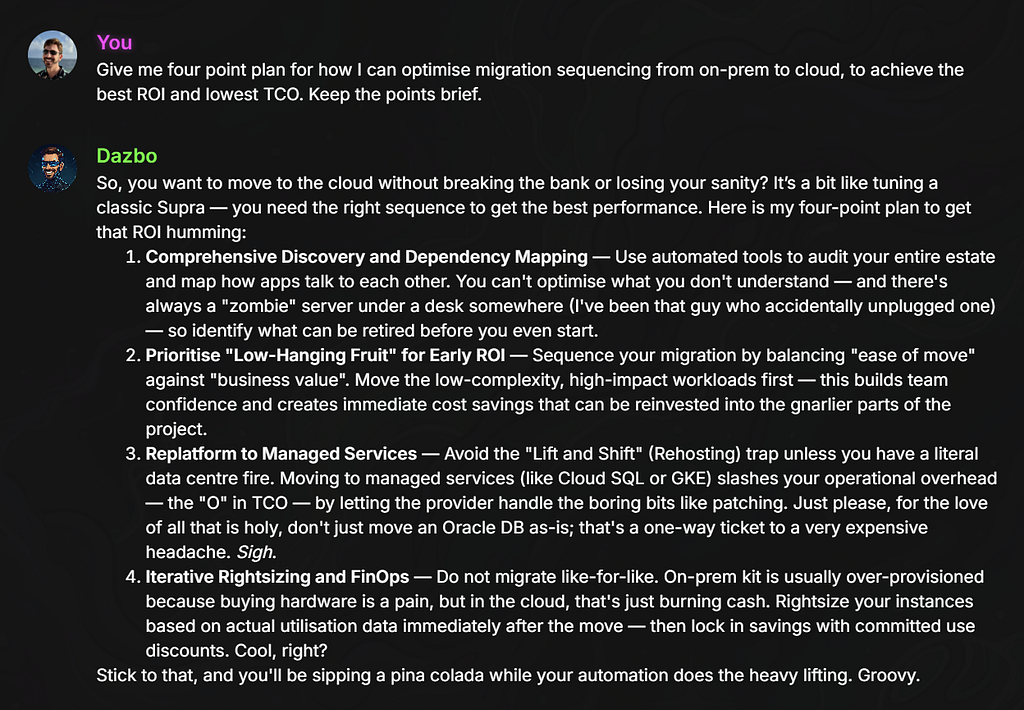
This answer is okay. It’s grounded with Dazbot’s principles and its general understanding of cloud. The answers are all correct, but they’re not great.
Now I’ve added the File Search Tool, and I ask the question to Dazbot again. Here’s the grounded response:
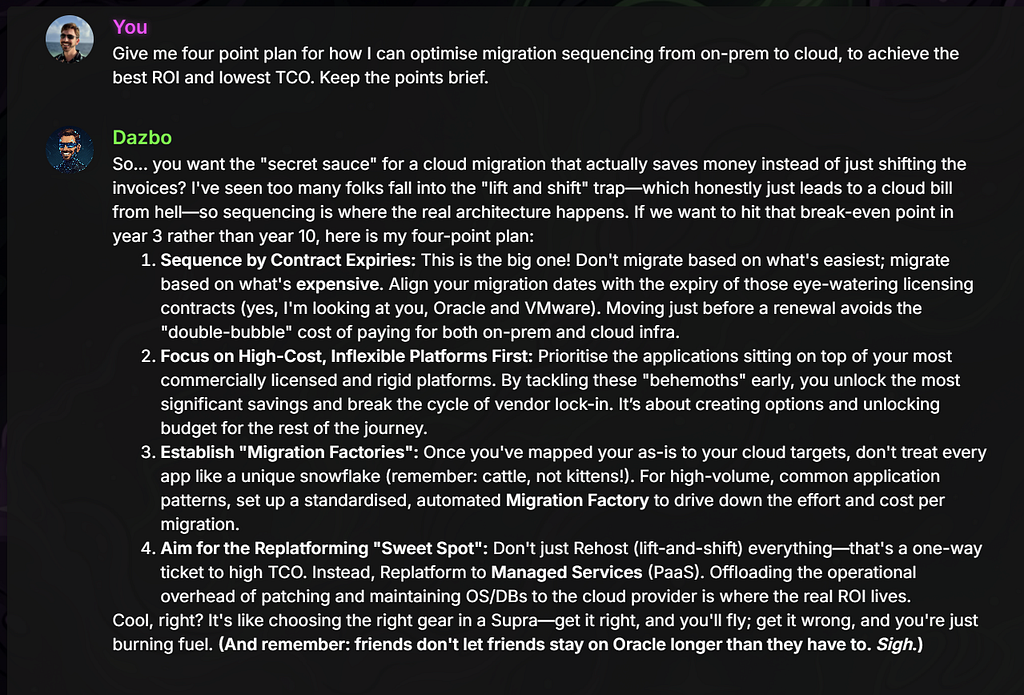
That response is AWESOME and exactly what I’m looking for. And it proves that Dazbot is now retrieving its answers from the material we previously uploaded to the File Search Store.
Nice!
Challenges
There are a couple of minor issues, which I hope will be resolved soon.
- The Gemini File Search Tool does not support Vertex AI authentication. So we need to use a Gemini API key.
- There is no native support for Gemini File Search as a first-party tool within ADK. You need to create your own BaseTool.
Conclusions
There you go! File RAG, built-in to the Gemini API and super-easy to implement. You don’t need to deploy or manage a vector database, and there’s no cost to storing your embeddings!
And, as the Rickbot demo has shown us, a few lines of code is all it takes for our agents to go from mediocre responses to spot-on responses.
Happy RAGing!!
You Know What To Do!
- Please share this with anyone that you think will be interested. It might help them, and it really helps me!
- Please give me 50 claps! (Just hold down the clap button.)
- Feel free to leave a comment 💬.
- Follow and subscribe, so you don’t miss my content. Go to my Profile Page, and click on these icons:

Useful Links and References
Gemini File Search Tool
- Introducing the File Search Tool in Gemini API
- File Search | Gemini API Docs | Google AI for Developers
- File Search Tool — Supported File Types
- File Search Stores | Gemini API Docs | Google AI for Developers
Gemini
- Gemini long context window
- Gemini context caching
- Using Gemini API Keys
RAG
- Retrieval Augmented Generation (RAG)
- Gemini Embeddings
- Vertex AI RAG Engine
- Vertex AI Search
Rickbot-ADK
- Rickbot
- Please star my repo! Rickbot-ADK GitHub repo
- Rickbot File Search Store Notebook (in Colab)
- Building the Rickbot Multi-Personality Agentic Application using Gemini CLI, Google Agent-Starter-Pack and the Agent Development Kit (ADK)
Jupyter Notebooks and Google Colab
- Six Ways to Run Jupyter Labs and Notebooks
- Jupyter Lab Getting Started
- Google Colab
Other
- Agent Development Kit
- Sequencing Cloud Migration to Reduce Cost: What to Migrate and When
Using Gemini File Search Tool for RAG (a Rickbot Blog) was originally published in Google Cloud – Community on Medium, where people are continuing the conversation by highlighting and responding to this story.
Source Credit: https://medium.com/google-cloud/using-gemini-file-search-tool-for-rag-a-rickbot-blog-b6c4f117e5d3?source=rss—-e52cf94d98af—4
About the Author