In the world of institutional research, the friction between security and collaboration is a constant battle. Your researchers need to share massive datasets with peers at other universities, but your compliance team requires that every single login is backed by Multi-Factor Authentication (MFA).
How do you allow a researcher from “University B” into your Google Cloud environment while ensuring they aren’t just using a compromised password?
The answer lies in Workforce Identity Federation (WIF) and a little-known standard called RFC 8176.
Note on Setup: This guide assumes you already have a functional federation between Google Cloud WIF and Okta. If you are starting from scratch, please follow the official Google documentation for Okta federation.
The Challenge: Visibility into the IdP
When you federate identities, Google Cloud normally trusts the Identity Provider (IdP) to handle authentication. However, by default, Google doesn’t know how that user authenticated. Did they use a MFA or a simple password?
To force adherence to your institution’s security policy, you need to inspect the Authentication Method Reference (AMR).
Disclaimer: While this methodology works with any modern IdP like Microsoft Entra ID or Ping Identity, for the sake of this blog, we are focusing on Okta.
Step 1: Passing Dynamic Context with Okta
To force adherence, we rely on Okta’s ability to reference user session properties. Unlike static user profile data, session properties allow you to pass dynamic authentication context to SAML apps using custom attributes.
The “Add Expression” Logic
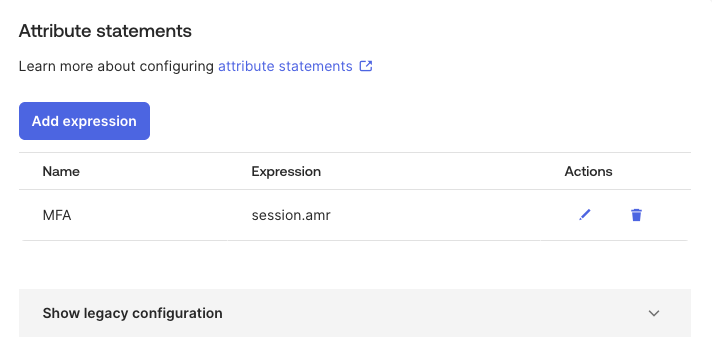
In your Okta SAML App integration, you no longer just pick a field from a dropdown. You use the Okta Expression Language to “Add expression” feature to map attributes:
- Custom Attribute Name: MFA
- Expression: session.amr
By referencing session.amr, Okta resolves the attribute to an array of values representing every factor the user cleared during that specific session. This is a direct implementation of RFC 8176.
Password Only["pwd"]
Password + Security Question["mfa", "pwd", "kba"]
Password + Okta Verify["mfa", "mca", "pwd", "okta_verify"]
Step 2: The “Hard Gate” in Google Cloud
Now that Okta is sending the evidence, we need Google Cloud to act on it. While there are several ways to handle custom attribute mapping, we have selected the following method for its simplicity, clean logging, and ease of implementation.
1. Mapping the Attribute
In your Workforce Identity Provider configuration in the Google Cloud Console, navigate to Attribute Mapping. Because session.amr arrives as an array (list), we use a CEL (Common Expression Language) expression to convert it into a simple STRING that Google Cloud can store:
- Google Attribute: attribute.mfa_present
- SAML Attribute (CEL): assertion.attributes.MFA.exists(val, val in ['mfa', 'otp', 'okta_verify']) ? "true" : "false"
2. Setting the Condition
Finally, we apply the Attribute Condition. This is the authentication-level blocker. If this evaluates to false, the user is rejected before they ever reach the console.
- Attribute Condition (CEL): attribute.mfa_present == "true"
Step 3: Testing the “Hard Gate”
To prove this works, we perform a “functional” test by deliberately attempting a password-only login.
- Configure a Bypass in Okta: Create an Authentication Policy that requires “Password Only” and switch the policy of your Google Cloud app.
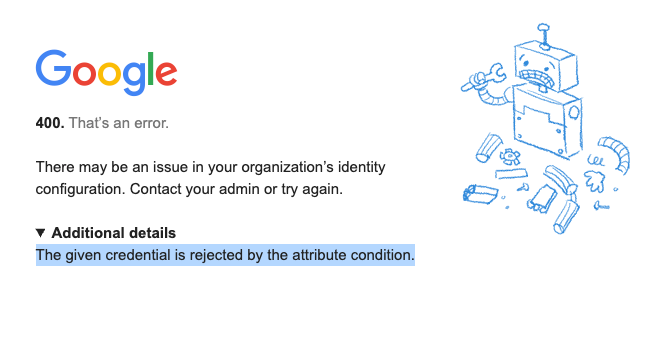
- The Expected Failure: Attempt to log in. Because the MFA attribute now only contains ["pwd"], the CEL condition fails.
The Result: You will be greeted with a “400: Bad Request” error.
Step 4: Verification via Cloud Logging
You don’t have to guess why a user was blocked. The Security Token Service (STS) logs capture the exact reason. Head to Logs Explorer and run this query:
Plaintext
protoPayload.serviceName="sts.googleapis.com"
protoPayload.resourceName:"workforcePools/okta-saml-mfa"
protoPayload.status.code=3
protoPayload.status.message:"The given credential is rejected by the attribute condition."
Status Code 3: Indicates an INVALID_ARGUMENT, meaning the token was validly signed but failed your CEL security rules.
Status Message: Confirms the “Attribute Condition” was the gatekeeper that denied entry.
Conclusion
By leveraging RFC 8176 and CEL expressions in WIF, institutions can open their “digital doors” to the research community while ensuring that every researcher has been strictly verified via MFA.
Zero Trust Research: Enforcing Institutional MFA in Google Cloud with Workforce Identity Federation was originally published in Google Cloud – Community on Medium, where people are continuing the conversation by highlighting and responding to this story.
Source Credit: https://medium.com/google-cloud/zero-trust-research-enforcing-institutional-mfa-in-google-cloud-with-workforce-identity-federation-6b64af71caed?source=rss—-e52cf94d98af—4
About the Author