This guide explains how to build a reliable workflow for Google Cloud Platform (GCP). Based on a real session, we will walk through the initial challenges one can come across, the failures, and how we can iterate on those failures to build a smarter, safer final product using custom “Skills.”
My AI Agent of choice while working on this was Gemini CLI. The goal was to transform Gemini CLI (which is a highly capable, general-purpose AI ) into a specialized, cautious cloud operator that follows strict rules or ensures that the mandatory parameters are provided, reviewed and then given the go ahead while working with Google Cloud.
The First Challenge: Solving Vague Requests
The process of building the workflow started with a very typical, yet highly problematic, user request:
“I am looking to deploy an application to Google Cloud. How can I do that?”
For a human engineer, this request prompts a conversation. For an AI agent aimed at automation, this level of vagueness is dangerous.
“Deploy an app” could mean pushing a containerized Go application to Cloud Run, deploying a static React site to Firebase Hosting, or setting up a legacy Python application on Compute Engine. Each path requires entirely different tools, permissions, and commands.
If the AI attempts to guess the user’s intent, it will likely guess wrong, leading to frustration or faulty deployments.
The ask_user tool in Gemini CLI
But let’s just see what happened in Gemini CLI, when I tried to give the following command:
“I am looking to deploy an application to Google Cloud. How can I do that?”
I got the following response in Gemini CLI:
✦ I will ask you a few quick questions to determine the best
Google Cloud service and provide you with the exact deployment steps
for your application.

╭───────────────────────────────────────────────────────────────────────────────────────────────────────────────────────────────────────────────────────╮
│ Answer Questions                                                                                                                                      │
│                                                                                                                                                       │
│ ← □ App Type │ □ Docker │ ≡ Review →                                                                                                                  │
│                                                                                                                                                       │
│ What type of application are you looking to deploy?                                                                                                   │
│                                                                                                                                                       │
│ ▲                                                                                                                                                     │
│ ● 1.  Backend API                                                                                                                                     │
│       Node.js, Python, Go, Java, etc.                                                                                                                 │
│   2.  Frontend/Static                                                                                                                                 │
│       React, Angular, Vue, HTML/CSS                                                                                                                   │
│ ▼                                                                                                                                                     │
│                                                                                                                                                       │
│ Enter to select · ←/→ to switch questions · Esc to cancel                                                                                             │
╰───────────────────────────────────────────────────────────────────────────────────────────────────────────────────────────────────────────────────────
Instead of guessing or initiating a tedious, open-ended chat, Gemini CLI played it smart and used an internal tool called ask_user. This tool is interesting because when faced with an ambiguous deployment request, the agent stops and presents a structured, multiple-choice questionnaire (e.g., "What programming language is the application built in?", "Do you need a database connection?", "Which GCP service do you prefer to use?").
Ask User Tool
This approach immediately gathers the exact technical parameters the agent needs to proceed. It eliminates guesswork and ensures the AI is operating on concrete, user-verified requirements before a single command is even considered.
To summarize, when Gemini CLI needs to gather specific preferences or clarify requirements, it calls the ask_user tool with a structured set of questions (such as multiple-choice options or yes/no toggles). The Gemini CLI then interprets this tool call and renders it as an interactive terminal UI for you to navigate using your keyboard.
This is fantastic. It can definitely provide us the means to ensure that before we hit a Google Cloud Resource, we can translate the ambiguous statement into a series of questions, get the input from the user and once its all reviewed and verified, we can then issue the command.
The need to ground AI
So far our journey looks promising. Gemini CLI is prompting us with required questions that take our inputs and will proceed only once it has those inputs. But is this enough?
The main question to ask here is “How did Gemini CLI determine what the missing parameters or information is”? It based this on its internal knowledge and while that is fine, the internal knowledge for all models has a cut-off date and the information could be outdated.
This is all the more important when dealing with Google Cloud resources, especially creating/updating/deleting the resources. You cannot make assumptions on the values, a few parameters might have changed, a new one could have been added and so on.
So it is absolutely essential, that if Gemini CLI is going to gather the information from us to execute commands against our Google Cloud Project, it should be the latest truth. But what do we currently have access to that could give the latest in terms of commands, documentation, etc. ?
The Developer Knowledge MCP Server
To reiterate the problem, if you ask an AI for a specific cloud command, it might recall a syntax that was deprecated two years ago. In a live cloud environment, an outdated command isn’t just a typo; it’s a potential outage.
To solve this, we cannot rely on the AI’s internal memory. We must connect the agent to live, frequently updated developer documentation. Enter the Developer Knowledge MCP Server.
If you would like to get an introduction on the Developer Knowledge MCP Server, check out my deep dive tutorial.
Tutorial: Mastering the Google Developer Knowledge MCP Server
What is the Developer Knowledge MCP Server? Its a Google Managed MCP Server that provides AI-powered development tools the ability to search Google’s official developer documentation and retrieve information for Google’s products such as Firebase, Google Cloud, Android, Maps, and more. By connecting your AI application straight to our official library of documentation, it ensures the code and guidance you receive are up-to-date and based on authoritative context. (Reference)
It has 2 specific tools of interest (search_documents and get_documents) that the agent can actively use to search and read the latest, official Google Cloud documentation, tutorial pages, and API references in real-time.
This fundamentally shifts how the agent operates. Our core rule now becomes: The agent must always consult the official documentation (via MCP) before proposing or executing any command that modifies our cloud environment. It is no longer “guessing from memory”; it is “researching and applying.”
Installing the Developer Knowledge MCP Server
The next step then was to install the Developer Knowledge MCP Server in Gemini CLI.
The steps are straightforward and provided here. In summary:
- Create the Developer Knowledge API key in your Google Cloud project
- Enable the Developer Knowledge MCP server in your Google Cloud project
- Configure Gemini CLI with the Developer Knowledge MCP Server via the following command:
gemini mcp add -t http -H "X-Goog-Api-Key: YOUR_API_KEY" \
           google-developer-knowledge \
           https://developerknowledge.googleapis.com/mcp --scope user
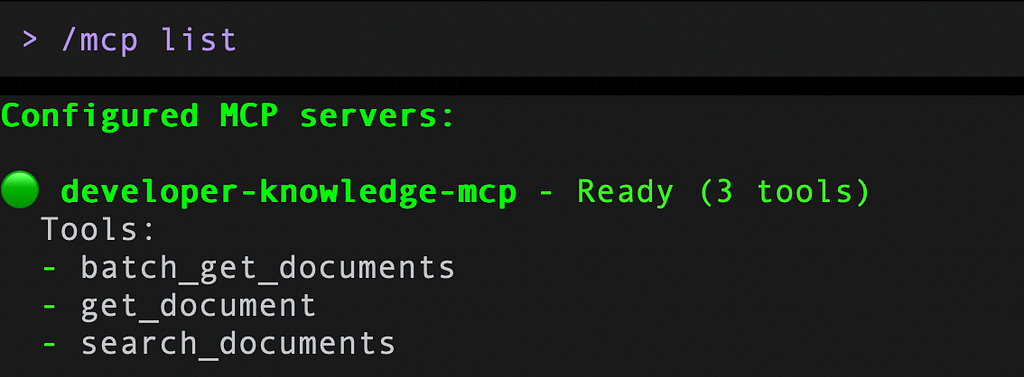
Once we have the following, you can validate via the mcp list command in Gemini CLI, if the MCP Server is setup and the tools are available:
Now, one could write a prompt that goes like this:
You are an expert Google Cloud ....
You must always use the Developer Knowledge MCP Server to retrieve the latest
gcloud command and determine the parameters to be used ... etc, etc.
Establishing this “always verify” rule is great for one conversation, but we needed to make this safe workflow repeatable across every session. A simple, long-winded text prompt copied and pasted every morning isn’t durable. We needed to create a “Skill.” something that we’d like to call a “GCP Safety Verification” workflow.
Let’s create a Gemini CLI Skill.
What is a Gemini CLI Skill?
A Skill is essentially a permanent playbook for the AI. It is primarily contained in a file named SKILL.md that gives the Gemini CLI agent specific, step-by-step instructions on how to handle tasks within a certain domain. It acts as a set of guardrails, turning a general AI into a domain expert.
Skills are powerful because of where they live. They can exist in two scopes:
- User Scope (~/.gemini/skills/): These are global skills available in any project directory on your machine. This is perfect for our general "GCP safety verification" workflow, as we want that protection everywhere.
- Workspace Scope (./.gemini/skills/): These are local skills tied to a specific project folder. This is ideal for project-specific instructions, such as a unique build script or testing protocol that only applies to a single repository.
Building the always-verify-gcp Skill (Version 1)
I used the CLI to generate a blank template skill and wrote our first set of instructions in the SKILL.md file. The logic felt comprehensive and safe:
- Analyze the Request: Look at the user’s GCP-related task.
- Identify the Tool: Assume the standard gcloud command-line tool is required.
- Draft the Command: Create a preliminary version of the command.
- Consult the Source of Truth: Use the MCP search_documents tool to look up the official documentation for that specific gcloud command to verify syntax and required flags.
- Gather Variables: If the documentation shows required flags that the user didn’t provide (like a –project ID or –region), ask the user for them.
- Propose and Execute: Present the final, verified command to the user for human approval before executing it in the terminal.
This logic felt solid. It enforced our core rule of checking documentation. However, a massive assumption in Step 2 was about to break the workflow entirely.
The First Test: A Necessary Failure
With Version 1 active, we gave the agent a specific scenario to test its new constraints:
“I would like to create a BigQuery dataset named my_orders.”
The agent woke up and followed its new playbook perfectly. It recognized this as a GCP task. Moving to Step 2, it assumed gcloud was the tool to use, because gcloud handles 90% of Google Cloud tasks.
It then attempted to consult the documentation for something like gcloud bigquery datasets create. It failed. The command structure it was trying to verify didn't exist in the way it expected.
When we allowed the agent to dig deeper into the documentation to diagnose its own error, it learned a critical lesson: while gcloud is the primary CLI for Google Cloud, the BigQuery service specifically requires its own, entirely separate command-line tool called bq.
Our V1 skill had failed. We had successfully taught the agent when and how to check the official documentation, but we had failed to give it the architectural wisdom to know which underlying tool it should be researching in the first place.
Iterating to Success (Version 2)
In AI agent development, this type of failure is the perfect learning opportunity. We didn’t scrap the skill; we refined it. We went back to our SKILL.md playbook and added a crucial "routing" step to the very beginning of the instructions.
We updated the playbook to look like this:
Step 1: Select the Correct CLI Tool (The Routing Layer)
- Before attempting to build a command, analyze the requested GCP service.
- Based on the recognized service, explicitly choose the correct underlying tool:
- If the service is BigQuery, you MUST use the bq tool.
- If the service is Cloud Storage, you MUST use the gsutil (or modern gcloud storage) tool.
- For all other general services (Compute Engine, Cloud Run, VPCs), default to gcloud.
We saved the file, reloaded the skill in the CLI, and issued the exact same request: “I would like to create a BigQuery dataset named my_orders.”
This time, the agent worked flawlessly. The new routing layer caught the word “BigQuery.” The agent immediately bypassed gcloud and identified the need for the bq tool. It then searched the documentation specifically for bq mk (the actual command to make a dataset), verified the syntax, confirmed the project ID, and successfully constructed the accurate, safe command for our approval.
The always-verify-gcp skill
The always-verify-gcp skill is a workflow designed to ensure all Google Cloud Platform (GCP) resource management tasks performed by the Gemini CLI agent are safe, accurate, and based on the most current information.
Its core principle is Trust but Verify. Instead of acting immediately on a user’s request, the skill instructs the agent to follow a rigorous, multi-step process that involves selecting the correct command-line tool, verifying the command against official documentation, previewing the impact of the command (if possible), and intelligently diagnosing common errors.
Folder Structure
The skill is composed of a main instruction file and a set of reference guides, organized as follows:
always-verify-gcp/
├── SKILL.md
└── references/
    ├── tool_selection_guide.md
    └── error_handling_playbook.md
This modular structure follows the “Progressive Disclosure” design principle. The main SKILL.md contains the high-level workflow, and it delegates specific, detailed logic to the files in the references/ directory. This makes the skill easier to read, manage, and update.
Let’s break down the files now.
SKILL.md (The Core Workflow)
This is the main entry point and playbook for the skill. It defines the high-level, step-by-step process the agent must follow for any GCP resource management task.
This file acts as the central controller, orchestrating the overall process and telling the agent when to consult the more detailed reference guides.
https://medium.com/media/9e9dfce33cd85acf5413459f9d764323/href
You can check out the repository here for the main SKILL.md file and the. other reference files too.
antigravity-skills/gemini-cli-skills/always-verify-gcp at main · rominirani/antigravity-skills
Installing the Skill
You can install the always-verify-gcp skill from the Github folder as given below:
gemini skills install https://github.com/rominirani/antigravity-skills.git \
       --path gemini-cli-skills/always-verify-gcp \
       --scope user
This will install the skill at the user level and you should see it listed among the skills as per the gemini skills list command:
Discovered Agent Skills:

always-verify-gcp [Enabled]
  Description: A workflow skill for all Google Cloud resource management
  tasks (create, delete, modify).
  This skill ensures that the correct CLI tool (`gcloud`, `bq`, `gsutil`)
  is chosen and that its commands are verified against the latest official
  documentation before execution.

Location:    /Users/romin/.gemini/skills/always-verify-gcp/SKILL.md
Workflow in Practice: An Example
To see how these files work together, consider the request to “create a BigQuery dataset.”
- The agent’s active always-verify-gcp skill is triggered.
- It reads SKILL.md, starting at Step 1.
- Step 1 instructs it to consult references/tool_selection_guide.md. The agent reads this file and determines that for a BigQuery task, the correct tool is bq.
- The agent returns to SKILL.md, moving to Step 2. It identifies bq mk as the correct command.
- It proceeds through the verification, gathering, and dry run steps as outlined in SKILL.md.
- If, upon execution, the command fails with a permission error, the agent proceeds to the final step in SKILL.md.
- This step instructs it to consult references/error_handling_playbook.md. The agent reads this file, matches the PERMISSION_DENIED pattern, and follows the steps to diagnose and suggest a solution.
A sample run is given below, when I ask it to create a BigQuery dataset:
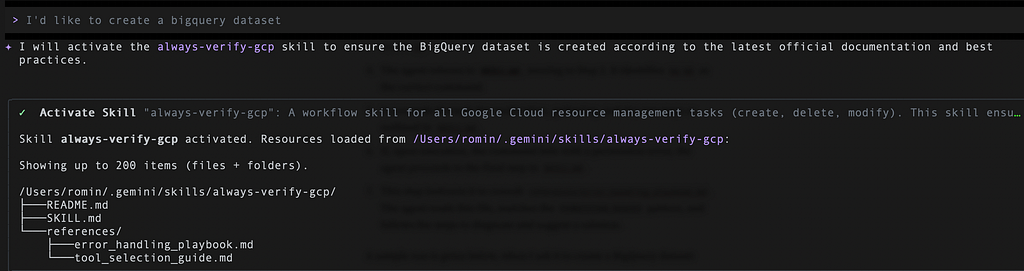
It first asked me to activate the skill, which I went ahead with. It then reads the tool_selection_guide.md that asked it to use the bq tool. It then wants to use the search_documents tool of the Developer Knowledge MCP server that we have configured to ensure that it gets the latest syntax for this command.
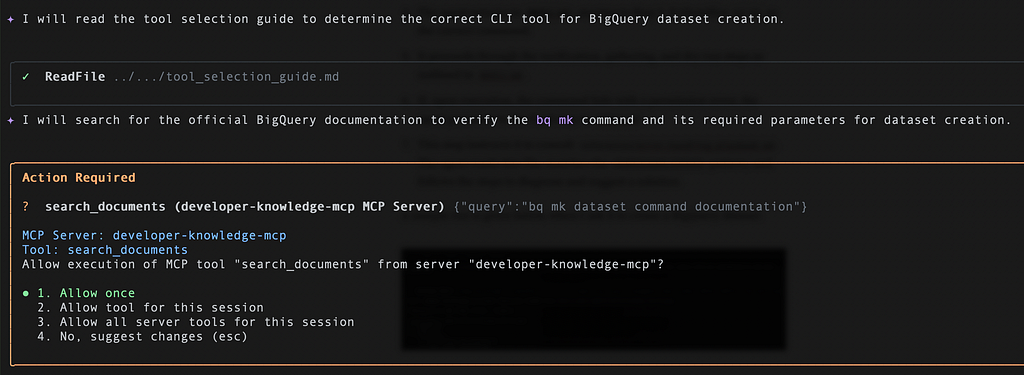
It then used the gcloud config command to get the Google Cloud Project Id and then determined from the documentation that I will need to provide a Dataset ID, Location and more information and review my values first. Gemini CLI nicely did that via the ask_user tool. The output is shown below:
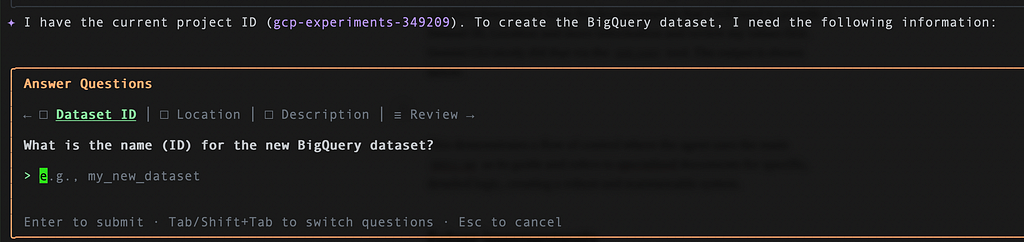
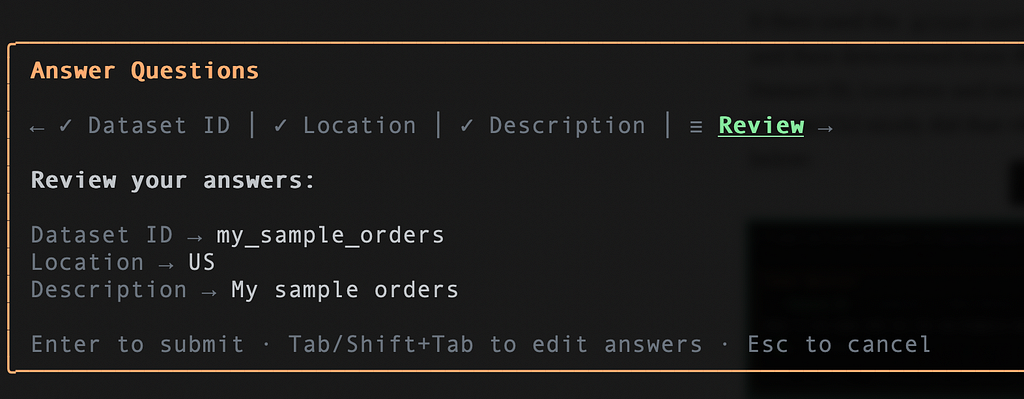
I provide it all the information and its waiting for my final review check:
It then attempts to see if a –dry-run parameter is available for the command. If not, it presents a final command that it will execute:
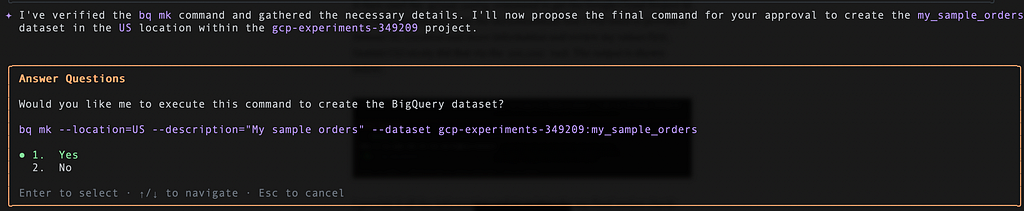
If all goes well, one gets the following output (similar to this):
I've successfully created the my_sample_orders dataset in the
US location within the <PROJECT_ID> project.
You can now use it for BigQuery operations.
This demonstrates a flow of control where the agent uses the main SKILL.md as its guide and refers to specialized documents for specific, detailed logic, creating a robust and maintainable system.
Future Improvements
We took care to iterate on this skill and make it robust but this is definitely not full proof. We are likely to discover edge cases, how the skill should handle different kinds of error scenarios and more. Let me know if you have specific suggestions on this. The goal was to highlight how you would incrementally build such a skill.
Infographic
The article summarized by NotebookLM:

Conclusion
Building reliable AI workflows is not about writing the perfect conceptual prompt on the first try; it is a process of multiple iterations.
By starting with a general operational problem, providing the agent with tools to clarify human ambiguity, anchoring its knowledge to live official documentation, and methodically encoding those lessons into a persistent, reusable Skill folder, we successfully turned a highly capable general AI into shall I say a cautious, reliable, and specialized cloud assistant?
Let me know in the comments.
Automating GCP Safely: How the Developer Knowledge MCP Server Powered Our Gemini CLI Skill was originally published in Google Cloud – Community on Medium, where people are continuing the conversation by highlighting and responding to this story.
Source Credit: https://medium.com/google-cloud/automating-gcp-safely-how-the-developer-knowledge-mcp-server-powered-our-gemini-cli-skill-8f9a57ee6752?source=rss—-e52cf94d98af—4
About the Author