If you are like me, you’ve probably lost count of the number of times, you’ve spun up one of the following Google tools: Gemini, Google Antigravity, Gemini CLI or AI Studio, vibe coded an application and you’ve finally got AI to do exactly what you wanted. It’s a great feeling.
But then, most builders hit a wall. Taking that next step, making it a real website or app that other people can actually use, is often the hardest part. You have to set up cloud billing, figure out hosting, and suddenly, your fun project feels like a complicated chore.
I am with you, if you say that the process is complex, not clear enough, too many hoops, billing setup and a host of similar reasons.
Google has changed things to fix this “missing link” from Prototype to Production.
What’s changing?
To solve this, Google has officially “graduated” the Google Developer Program (GDP) Premium tier by folding its high-value benefits directly into Google AI Pro and Google AI Ultra subscriptions as of January 27, 2026.
Specific in the benefits were Google Cloud Credits that are now available to Google AI Pro and Google AI Ultra subscribers. It’s not just Google Cloud Credits but even higher limits for the Gemini CLI, Google Antigravity and more.
If you are still confused, as I was, when I first heard this, that’s fine. Let me break this down for you, depending on your current status:
Path 1: You Have Nothing (New Users)
If you are starting fresh, you no longer need to look for a separate “Developer” subscription. You simply join the Google AI ecosystem.
- Step 1: Pick a Plan: Subscribe to either Google AI Pro ($19.99/mo) or Google AI Ultra ($249.99/mo). You might see local pricing and discounts when you visit that page.
- Step 2: Activate Benefits: Once subscribed, visit the Google Developer Program portal to enable your premium developer perks.
- Step 3: Access Credits: Your monthly Cloud credits ($10 for Pro, $100 for Ultra) will automatically appear in your entitlement dashboard.
Path 2: You Already Have Google AI Pro or Ultra
If you are already a subscriber, you essentially just received a “free upgrade” with these developer perks.
- What to do: Go to the “My Benefits” section of the Google Developer Program.
- Activation: You must manually activate the benefits one time to link your consumer AI subscription to the developer tools.
- What you get: Immediate access to the higher limits for the Gemini CLI, Google Antigravity, and your monthly Cloud credits.
Path 3: You Have a Standalone GDP Premium Subscription
This path is for those who were paying for the $299/year (or monthly equivalent) developer-only plan before the January 27, 2026 launch.

By combining, its developer tools with its main AI subscriptions, you get monthly Cloud credits to help you put your projects online. To be specific, this is what you get in terms of Google Cloud Credits for the two subscriptions:

This consolidation provides a clear, unified path to help hobbyist builders, developers and everyone to move from experiments to live production workloads. And it need not be live production workloads, you could just use this as a test environment at the start.
How to Go from “Hello” to “Live”
You would still have the question in terms of how to actually build and deploy my application to Google Cloud. Fair enough and we have some excellent starter guides.
Prashanth Subrahmanyam has laid out a simple path using the new Gemini 3 models.
The “Hello World” Moment
The first hurdle is simply learning how to talk to the model. In his guide, “Hello World with Gemini 3 Flash”, Prashanth shows how quickly you can acquire an API key from Google AI Studio and use the Google GenAI SDK to write your first piece of code. It’s the simplest way to prove your idea works.
Getting Started with Gemini 3: Hello World with Gemini 3 Flash | Google Cloud Blog
The “One-Click” Launch
Once your code is ready, the next step is getting it off your computer. In his second guide, “Deploy Your First Gemini 3 App to Google Cloud Run”, Prashanth highlights the Build mode in Google AI Studio.
- The Workflow: You describe your app idea in plain English (like a city fact multiple-choice game), watch Gemini build the code, and then deploy it directly to Google Cloud Run.
- The Connection: This is where your new monthly credits come in — they cover the costs of hosting these apps on Cloud Run or Vertex AI, ensuring your “vibe-coded” creations are instantly accessible to anyone via a public URL.
Getting Started with Gemini 3: Deploy Your First Gemini 3 App to Google Cloud Run | Google Cloud Blog
Ready to use Infographics
NotebookLM has helped with a nice summary if you’d like:
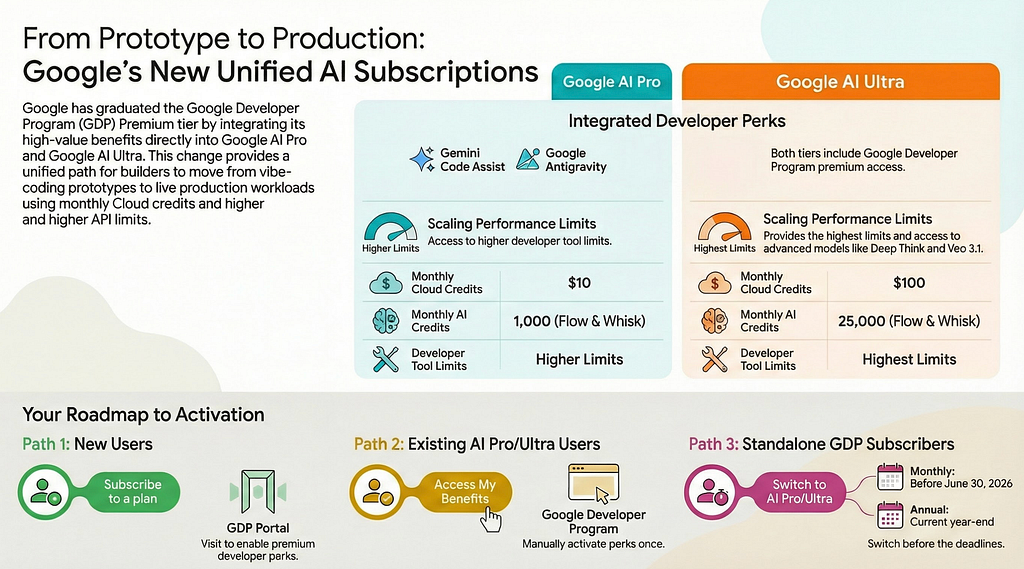
and here’s one from Nano Banana for the whole article:
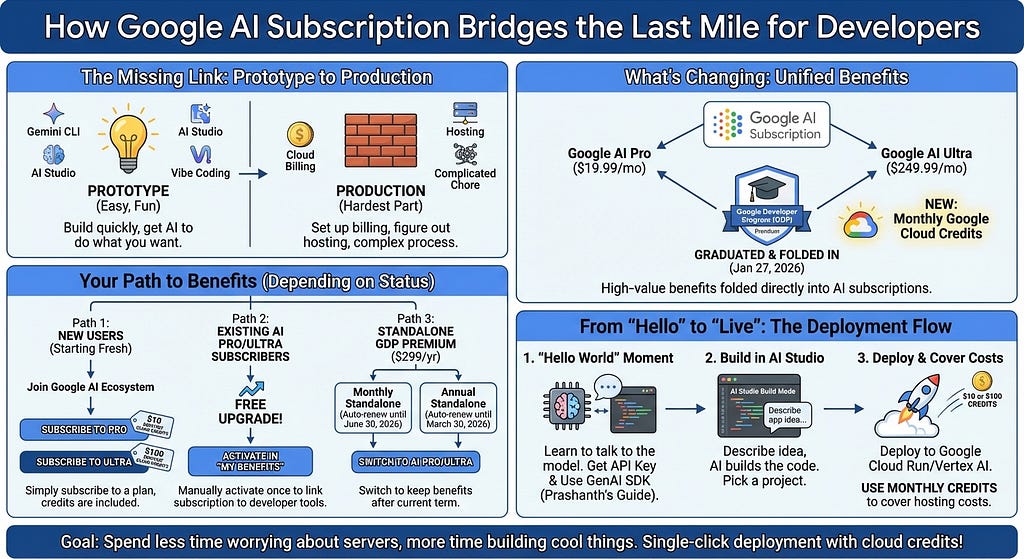
Feel free to use these infographics in your community.
Ready to Start?
If you already pay for a Google AI plan, you don’t have to wait.
- Activate your perks: Go to your “My Benefits” page (at developers.google.com/program/my-benefits) to turn on your credits.
- Pick a project: Use the guides mentioned above to build something small even just a simple bot or a one-page web app.
- Deploy it: Use your new credits to push it to the cloud and see it live.
The goal here is simple: spend less time worrying about servers and more time building cool things.
By folding developer perks into consumer plans and providing $1,200/year in cloud infrastructure for top-tier users, the impossible last mile has been. turned into a single-click deployment.
It’s your turn now.
From Prototype to Production: How Google AI Subscription bridges the last mile for AI Developers was originally published in Google Cloud – Community on Medium, where people are continuing the conversation by highlighting and responding to this story.
Source Credit: https://medium.com/google-cloud/from-prototype-to-production-how-google-ai-subscription-bridges-the-last-mile-for-ai-developers-dd80bb149a3e?source=rss—-e52cf94d98af—4
About the Author