How to Manage Your Firestore Database with Natural Language via Firestore MCP Server: Step-by-Step Examples
Imagine being able to manage your Firestore database, update records, and even perform data migrations, all through natural language commands. This is where Google Cloud’s Firestore MCP Server comes in.
This guide will walk you through how to get started with the Firestore MCP Server, and then demonstrate its capabilities with several practical, step-by-step scenarios.
Introducing the Firestore MCP Server
The Firestore MCP Server is your gateway to managing your Firestore databases with natural language. As a core part of the Firebase platform, Firestore is a flexible, scalable NoSQL document database, and with the MCP server, it becomes an interactive part of your AI-driven workflow.
Use the Firestore remote MCP server | Firestore in Native mode | Google Cloud Documentation
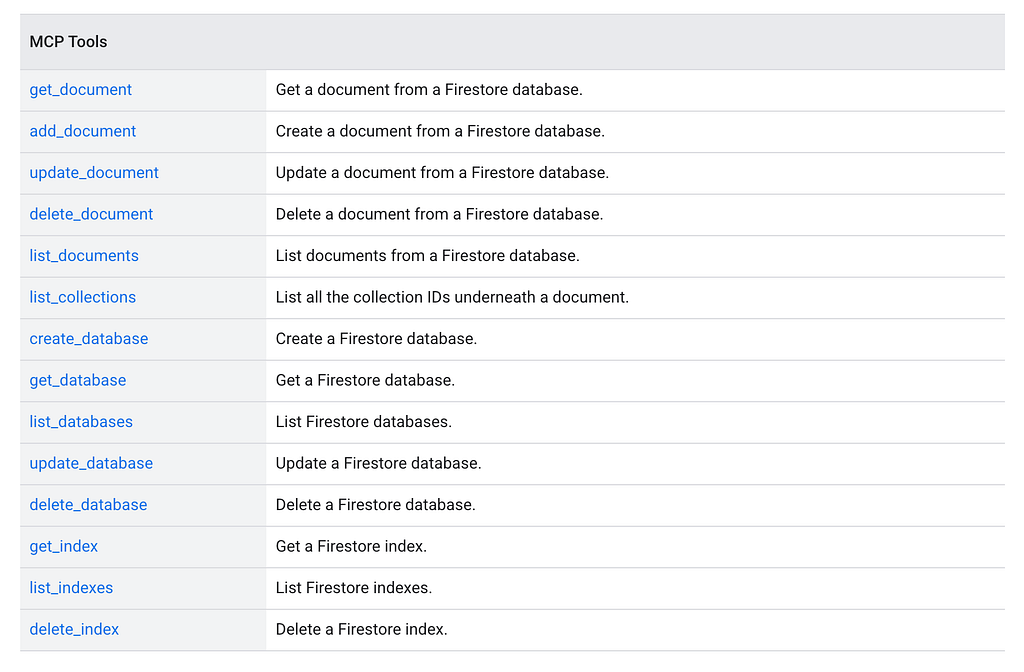
At the time of writing, the Firestore MCP Server comes along with the following tools:
While these tools are self-explanatory, we will look at some practical scenarios that will save you a lot of time if you have been working with Firestore databases.
Let’s get started.
Configuring the Firestore MCP Server
Assuming that you have a Google Cloud Project , have the Firestore API
( firestore.googleapis.com ) enabled for the project, and are using Google Cloud Shell or your own setup with gcloud CLI installed and setup, we can do a few things at the start as shown below (make sure that you replace the YOUR_PROJECT_ID with your actual Google Cloud Project ID):
gcloud config set project "YOUR_PROJECT_ID"

gcloud auth application-default login
Enable the Firestore MCP Server
The next step is to enable the Firestore MCP capability in your project via the following command:
gcloud beta services mcp enable firestore.googleapis.com --project=[YOUR_PROJECT_ID]
Configure Gemini CLI
Finally, we have to configure the AI Agent (in our case Gemini CLI) with the Firestore MCP Server.
Just add the following snippet in the HOME/.gemini/settings.json file for Gemini CLI. Do replace YOUR_PROJECT_ID with your Google Cloud Project ID.
"firestore-mcp": {
      "httpUrl": "https://firestore.googleapis.com/mcp",
      "authProviderType": "google_credentials",
      "oauth": {
        "scopes": [
          "https://www.googleapis.com/auth/cloud-platform"
        ]
      },
      "timeout": 30000,
      "headers": {
        "x-goog-user-project": "YOUR_PROJECT_ID"
      }
    }
If you launch Gemini CLI and do a \mcp list , you should see the Firestore MCP Server setup and ready with the tools. A sample screenshot is shown below:
🟢 firestore-mcp - Ready (14 tools)
  Tools:
  - add_document
  - create_database
  - delete_database
  - delete_document
  - delete_index
  - get_database
  - get_document
  - get_index
  - list_collections
  - list_databases
  - list_documents
  - list_indexes
  - update_database
  - update_document
Validate the Setup
Let’s validate the setup first.
To make sure everything is working correctly, you can ask your AI agent to perform a simple, read-only operation:
Please list all the Firestore databases in my project.
If the setup is correct, the agent should return a list of your databases.
Initial Setup: Creating Your Scenario Database
Before we dive into the scenarios, let’s create a dedicated Firestore database to work in. This ensures that our examples won’t interfere with any of your existing data.
Setup Prompt:
Please create a new Firestore database with the ID mcp-scenarios-db
in the nam5 location.
Once this is done, you will have a clean database (mcp-scenarios-db) to work with. For all the following scenarios, we will explicitly tell the AI to use this specific database.
Firebase MCP Server in Action
Now, let’s dive into a few practical scenarios. For each of the scenarios, we will describe the use case, then the initial data that we may need to setup and then we perform the specific scenario via a prompt. Both the setup and final scenario will make use of prompts that will invoke the appropriate tool in the Firebase MCP Server.
Scenario 1: Moving a Document
Managing the lifecycle of a task by moving it from a pending collection to a completed collection.
Setup Prompt:
In the mcp-scenarios-db database, please add a new document to the
pending_tasks collection with the ID task_101 and
the data: {'title': 'Write blog post', 'priority': 'high'}.
Execution Prompt:
In the mcp-scenarios-db database, I need to mark a task as complete.
Get the document with ID task_101 from the pending_tasks collection,
create a new document with the same data in the completed_tasks collection,
and then delete the original document from pending_tasks.
Expected Result:
The task_101 document is removed from pending_tasks and created in completed_tasks.
Scenario 2: Conditional Batch Updates
Managing a product inventory and flagging products that are running low on stock.
Setup Instructions:
In the mcp-scenarios-db database, add the following documents to a new products collection:
1.  Document ID prod_abc, data: {'name': 'Laptop', 'stock_quantity': 5}
2.  Document ID prod_def, data: {'name': 'Mouse', 'stock_quantity': 25}
3.  Document ID prod_ghi, data: {'name': 'Keyboard', 'stock_quantity': 8}
Execution Prompt:
In the mcp-scenarios-db database, I want to update the status of my products.
Go through each document in the products collection,
and if the stock_quantity is less than 10, add a new field status
with the value low_stock.
Expected Result:
The prod_abc and prod_ghi documents are updated with a new field status: low_stock.
Scenario 3: Data Aggregation and Reporting
Calculating a value from one collection (e.g., sales) and storing the result in another for reporting.
Setup Instructions:
In the mcp-scenarios-db database, add these documents to a sales_records collection:
  1.  {'product_id': 'prod_xyz', 'sale_amount': 1200}
  2.  {'product_id': 'prod_abc', 'sale_amount': 1500}
  3.  {'product_id': 'prod_xyz', 'sale_amount': 800}

Now, in the same database, add a document with ID prod_xyz_summary
to a product_summaries collection with the data {'total_sales': 0}.
Execution Prompt:
In the mcp-scenarios-db database, calculate the total sales for product
prod_xyz. Go through all documents in sales_records, and for each
document where product_id is prod_xyz, add the sale_amount to a running total.
Finally, update the total_sales field in the prod_xyz_summary document
in the product_summaries collection with this total.
Expected Result:
The prod_xyz_summary document is updated with a total_sales value of 2000.
Scenario 4: Managing Hierarchical Data (Chat App)
Creating a chat room and posting a welcome message, showcasing Firestore’s ability to handle subcollections.
Setup Instructions:
(No setup is needed for this scenario.)
Execution Prompt:
In the mcp-scenarios-db database, create a new document
in the chat_rooms collection with ID general and
data {'name': 'General Discussion'}.

Then, in the messages subcollection of this new document,
add a new document with the data:
{'sender': 'system', 'text': 'Welcome to the room!'}.
Expected Result:
A general chat room is created, containing a messages subcollection with one welcome message.
Scenario 5: Performing a Data Schema Migration
Evolving your data model, such as changing a field’s data type for better efficiency.
Setup Instructions:
In the mcp-scenarios-db database, add these documents to a users collection:
1.  Document ID user_a, data: {'username': 'Alice', 'status': 'active'}
2.  Document ID user_b, data: {'username': 'Bob', 'status': 'inactive'}
Execution Prompt:
In the mcp-scenarios-db database, I'm migrating my user schema.
Iterate through all documents in the users collection.
If status is active, add a new field is_active with the value true.
Otherwise, set is_active to false. After adding the new field,
remove the old status field from the document.
Expected Result:
The status string field is replaced by the is_active boolean field in all user documents.
Scenario 6: Data Validation and Cleanup
Ensuring data integrity by finding and flagging documents that are missing critical information.
Setup Instructions:
In the mcp-scenarios-db database, add these documents to a new orders
collection:
1.  Document ID order_001, data: {'item': 'Laptop', 'shipping_address': '123 Main St'}
2.  Document ID order_002, data: {'item': 'Mouse', 'shipping_address': ''}
3.  Document ID order_003, data: {'item': 'Keyboard'}
Execution Prompt:
In the mcp-scenarios-db database,
clean up my orders collection. Go through all documents and
check if shipping_address exists and is not empty.
If it's missing or empty, add a field requires_review with the value true.
Expected Result:
order_002 and order_003 are updated with the requires_review: true field.
Scenario 7: Cross-Collection Data Synchronization
When a piece of data changes (like a username), you want to update it in all related documents to maintain consistency.
Setup Instructions:
In the mcp-scenarios-db database, add a document with ID user_a to users
with data: {'username': 'Alice'}.
Then, in the same database, add these to a posts collection:
1.  ID post_1, data: {'title': 'Post 1', 'author_id': 'user_a', 'author_username': 'Alice'}
2.  ID post_3, data: {'title': 'Post 3', 'author_id': 'user_a', 'author_username': 'Alice'}
Execution Prompt:
In the mcp-scenarios-db database, user user_a has changed their username
to Alice_new. First, update the username for user_a in the users collection.
Then, go through all documents in the posts collection,
and for every post where author_id is user_a,
update the author_username field to Alice_new.
Expected Result:
The username is updated in both the users collection and in the two posts authored by that user.
Scenario 8: Managing Access with Array Fields
Using an array to manage a simple role-based access control list for a document.
Setup Instructions:
In the mcp-scenarios-db database, add a document with ID project_alpha
to a projects collection with the data:
{'name': 'Project Alpha', 'access_list': ['user_a', 'user_b']}.
Execution Prompt:
In the mcp-scenarios-db database,
I need to grant user_c access to the document project_alpha
in the projects collection. Please add the string user_c to
the access_list array field.
Expected Result:
The access_list array in the project_alpha document is updated to ["user_a", "user_b", "user_c"].
Conclusion
The Firestore MCP Server represents an interesting way in how we interact with our cloud databases. By enabling natural language as a primary interface, it lowers the barrier to entry for managing data, empowers developers to work more efficiently, and opens up new possibilities for creating sophisticated, AI-driven applications.
The scenarios we’ve explored are just the beginning. You could combine this in more powerful ways with other Google MCP Servers like Developer Knowledge MCP Server and more.
If you come up with a few interesting scenarios, do let me know in the comments.
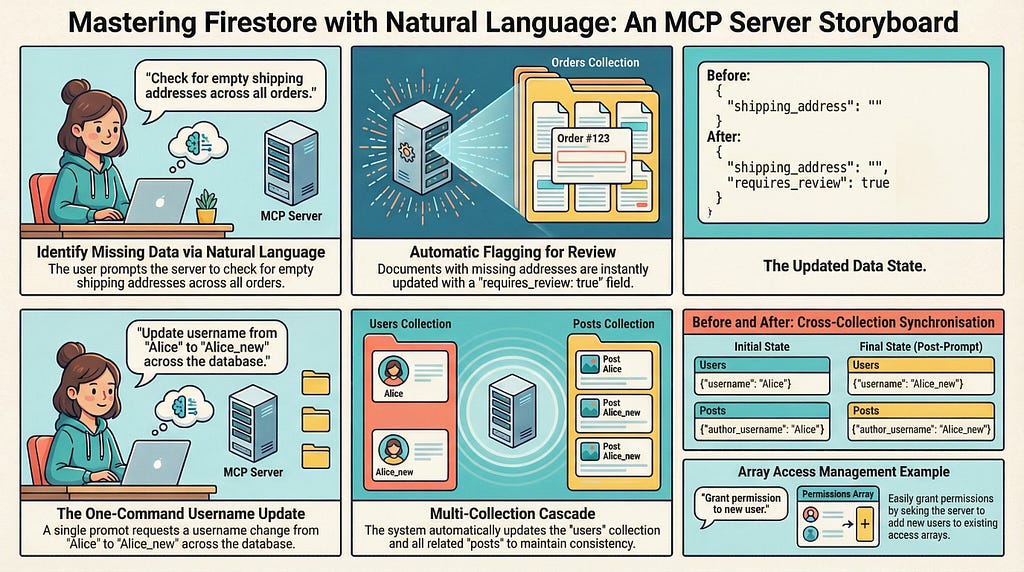
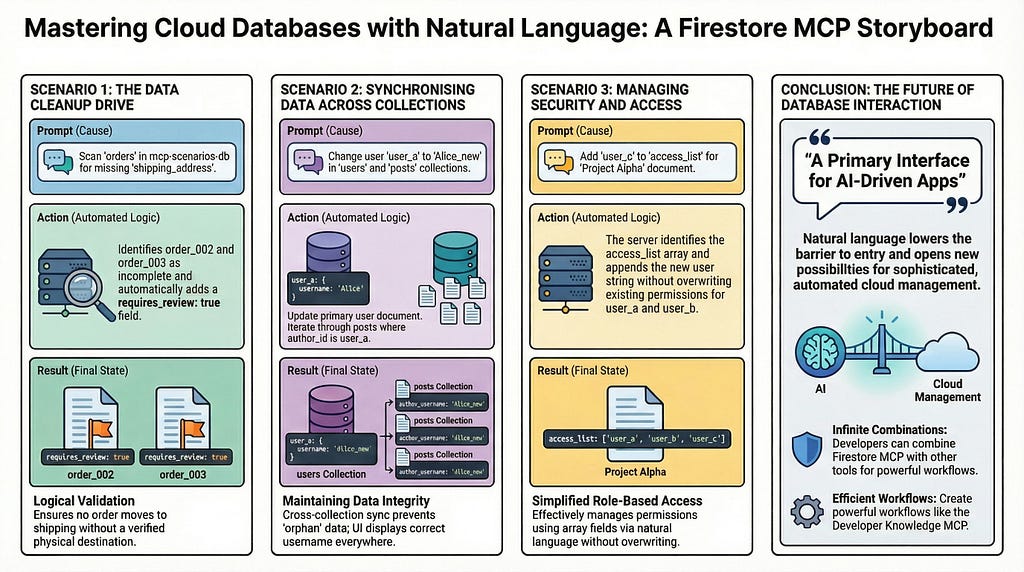
Article Infographic
Here are a few article infographics captured by NotebookLM
Google MCP Server Tutorials
If you looking to get started with Google MCP Servers, I recommend a few tutorials that I have been writing in this area:
- Tutorial : Getting Started with Google MCP Services
- Tutorial: Mastering the Google Developer Knowledge MCP Server
- Troubleshooting Google Cloud with Google Cloud Logging and Developer Knowledge MCP Servers
- Automating GCP Safely: How the Developer Knowledge MCP Server Powered Our Gemini CLI Skill
How to Manage Your Firestore Database with Natural Language via Firestore MCP Server: Step-by-Step… was originally published in Google Cloud – Community on Medium, where people are continuing the conversation by highlighting and responding to this story.
Source Credit: https://medium.com/google-cloud/how-to-manage-your-firestore-database-with-natural-language-step-by-step-examples-bbc764f93d70?source=rss—-e52cf94d98af—4
About the Author