How I replaced manual spreadsheets with an automated, cost-effective reporting pipeline using Cloud Asset Inventory and BigQuery.
We’ve all been there. It’s the first Monday of the month. Your notifications are buzzing, and the security compliance team is asking for the “IAM Access Review.”
If you’re managing a growing GCP organization, you know the drill: jumping between projects, clicking through the IAM console, and desperately trying to copy-paste member lists into a spreadsheet that’s outdated the moment you hit “Save.”
It’s tedious, prone to human error, and honestly a waste of an engineer’s time.
Hence I wanted a solution that was “set it and forget it.” So, I built an automated, serverless IAM Audit Report Generator. Here’s how it works and why you might want to steal it for your own stack.
The Problem: The “Audit Fatigue”
In a medium-to-large GCP environment, permissions are fluid. Service accounts get created for quick tests and never deleted. New team members are onboarded, and old ones leave.
Standard tools give you the current state, but they don’t always give you a clean, human-readable report that a compliance officer can actually understand. I needed something that could:
- Scan everything: Reach across the entire Organization.
- Be Smart: Distinguish between a regular user and a “Privileged” (Owner/Editor) user.
- Be Serverless: No standing infrastructure to manage or pay for as much as possible.
The Architecture: Keeping it Lean
I chose a purely serverless approach to keep costs near zero and maintenance even lower.
- Cloud Scheduler: The “Alarm Clock.” It triggers the process on the 1st of every month.
- Cloud Run Functions (2nd Gen): The “Brain.” It runs a Python script that talks to the Cloud Asset Inventory API. I opted for 2nd Gen because some BigQuery jobs take time, and I needed that 540-second timeout window.
- BigQuery: The “Processor.” Instead of doing heavy data manipulation in Python, I push the raw data to BigQuery. SQL is just faster and more efficient at joining project IDs with human-readable names.
- Cloud Storage: The “Archive.” The final product is a neat, timestamped CSV stored safely in a bucket.

Key Features That Save My Sanity
When I was writing the main.py logic, I focused on a few specific details that make the report actually useful:
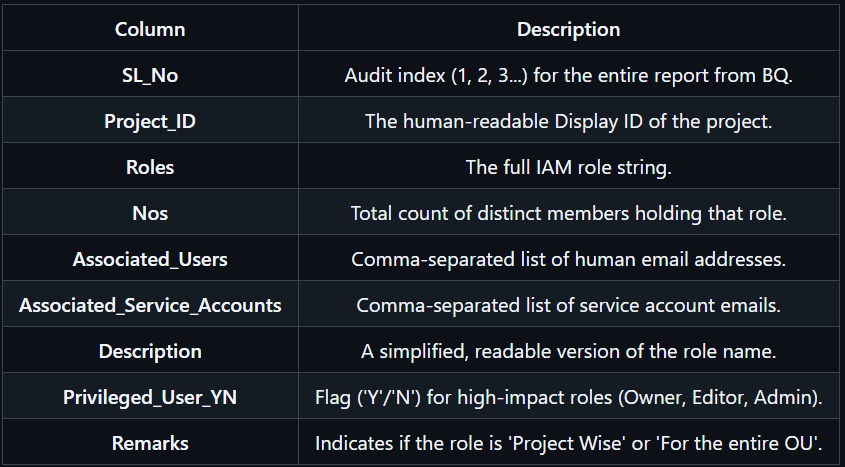
1. The “Privileged User” Flag
The report automatically marks roles like Owner, Editor, or Admin with a ‘Y’. This allows auditors to skip the noise and focus immediately on high-impact permissions.
2. Intelligent Grouping
Nobody wants a row for every single permission. The generator groups users and service accounts separately but associates them with their specific roles and projects, providing a clear count of “Who has what.”
3. Least Privilege by Design
The automation doesn’t run as a “Super Admin.” It uses a custom Service Account (iam-auditor-sa) with specific, limited roles. Security-first, always.
Setting it Up
If you want to deploy this yourself, I’ve open-sourced the entire implementation.
Step 1: Prerequisites & Permissions
Before deploying, you need to set up a custom Service Account (iam-auditor-sa). To ensure the principle of least privilege, grant it the following roles:
- Organization Level: Cloud Asset Viewer and Cloud Asset Insights Viewer
- Project Level (Hosting Project): BigQuery Admin, Storage Admin and Cloud Run Admin
A Note on Hardening: To keep this guide straightforward, I’ve used broader roles like BigQuery Admin, Cloud Run and Storage Admin. However, if you’re working in a high-security environment, I definitely recommend tightening these down even further to meet your specific compliance requirements.
Step 2: The “Quick Start”
- Clone the Repo: Grab the code from my GitHub.
- Prep the Resources: Create your BigQuery dataset and GCS bucket in your preferred region (I used asia-south1).
- Deploy: Use the gcloud CLI or console to push the Cloud Run function.
- Schedule: Set your cron expression (e.g., 0 0 1 * *) and walk away.
The Result
Now, on the first of the month, I get a clean CSV in a bucket that looks like this:
Check out the full repository here: GCP-IAM-Audit-Report-Generator. Feel free to star it or reach out if you have questions!
I hope this helped you! If so, please give it a few claps 👏 and share it with your fellow Cloud Engineers!
Automating Google Cloud Access Audits: A Serverless Approach was originally published in Google Cloud – Community on Medium, where people are continuing the conversation by highlighting and responding to this story.
Source Credit: https://medium.com/google-cloud/automating-google-cloud-access-audits-a-serverless-approach-a21ff802c4a4?source=rss—-e52cf94d98af—4
About the Author