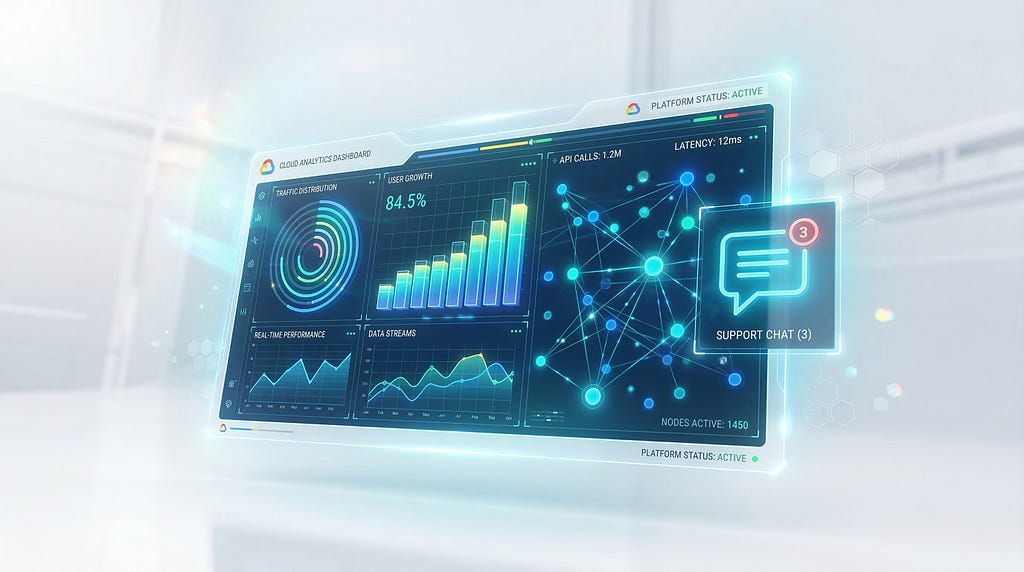
How ObjectRef, BQML functions, and smarter agents are turning BigQuery into an AI-powered data analyst you can actually talk to
You know that feeling when a business user walks over to your desk (or pings you on Slack at 4:47 PM on a Friday) asking, “Hey, can you quickly pull last quarter’s sales numbers broken down by region… oh, and can you also check if there’s anything weird in the January data?”
You sigh. “Quickly” never means quickly. There’s SQL to write, tables to join, maybe some anomaly detection model to dust off. Forty-five minutes later, you’ve got the answer — and three more follow-up questions waiting in your inbox.
What if that business user could just… ask the data directly?
That’s exactly where BigQuery’s Conversational Analytics is heading, and the latest batch of updates (currently in Preview) makes the whole experience dramatically more powerful. We’re talking about chatting with images stored in Cloud Storage, running predictive forecasts with a simple prompt, and even having the agent suggest your next question for you.
Let me walk you through all six updates, why they matter, and how you can start using them today.
A Quick Primer: What Is Conversational Analytics in BigQuery?
Before we dive in, let’s set some context. Conversational Analytics in BigQuery was unveiled in preview in January 2026, bringing a sophisticated AI-powered reasoning engine directly into BigQuery Studio. It’s powered by Gemini for Google Cloud.
But here’s what makes it different from slapping a chatbot on top of a database: it uses your business metadata and production logic to build trust between the user and their data. When you ask a question, the agent doesn’t just blindly generate SQL. It goes through a multi-stage workflow — reasoning, generating SQL, executing, visualizing, and summarizing — grounded in your actual schema, metadata, and custom instructions.
You create Data Agents in the Agent Catalog within BigQuery Studio. Each agent connects to specific knowledge sources (tables, views, UDFs) and can be configured with custom instructions, verified queries (golden queries), and glossary terms. Once published, these agents can be accessed through BigQuery Studio, the Conversational Analytics API, and even Looker Studio Pro.
Now let’s look at what’s new.

1. ObjectRef Support: Your Unstructured Data Just Joined the Conversation
This one’s a big deal. Until now, conversational analytics worked great with structured, tabular data — rows and columns, the stuff BigQuery was born for. But what about the PDFs sitting in your Cloud Storage bucket? The product images? The scanned invoices?
BigQuery introduced the ObjectRef data type — a reference to any object in Cloud Storage with a URI and additional metadata — that lets you integrate unstructured data like images, documents, and audio directly into BigQuery tables.
Now, conversational analytics can work with these ObjectRef references. You can ask questions about data that lives in PDFs and images alongside your structured data, all from the same chat interface.
How ObjectRef Works Under the Hood
An ObjectRef value is a STRUCT containing object storage and access control metadata, including the Cloud Storage URI, object version, an authorizer (Cloud resource connection), and details like content type and file size.
There are three key functions you’ll use:
- OBJ.MAKE_REF — Creates an ObjectRef value that points to a Cloud Storage object
- OBJ.FETCH_METADATA — Fetches the Cloud Storage metadata for an ObjectRef
- OBJ.GET_ACCESS_URL — Generates secure, time-limited signed URLs for reading or writing the object
Here’s a practical example. Say you have a products table and want to add product images stored in Cloud Storage:
-- Create a table with structured data + ObjectRef for product images
CREATE OR REPLACE TABLE `myproject.retail.products_enriched` AS
SELECT
  p.*,
  OBJ.FETCH_METADATA(
    OBJ.MAKE_REF(
      CONCAT('gs://product-images/', p.product_id, '.jpg'),
      'us-central1.my-gcs-connection'
    )
  ) AS product_image_ref
FROM `myproject.retail.products` p;
Once this is set up, you can ask the conversational analytics agent things like:
“Show me all products in the electronics category and describe what’s in their product images.”
The agent can reason across both the structured product data and the unstructured image data. Behind the scenes, it uses generative AI functions with Gemini models to analyze the referenced objects. Pretty wild, right?
2. BQML Support: Forecasting and Anomaly Detection in Plain English
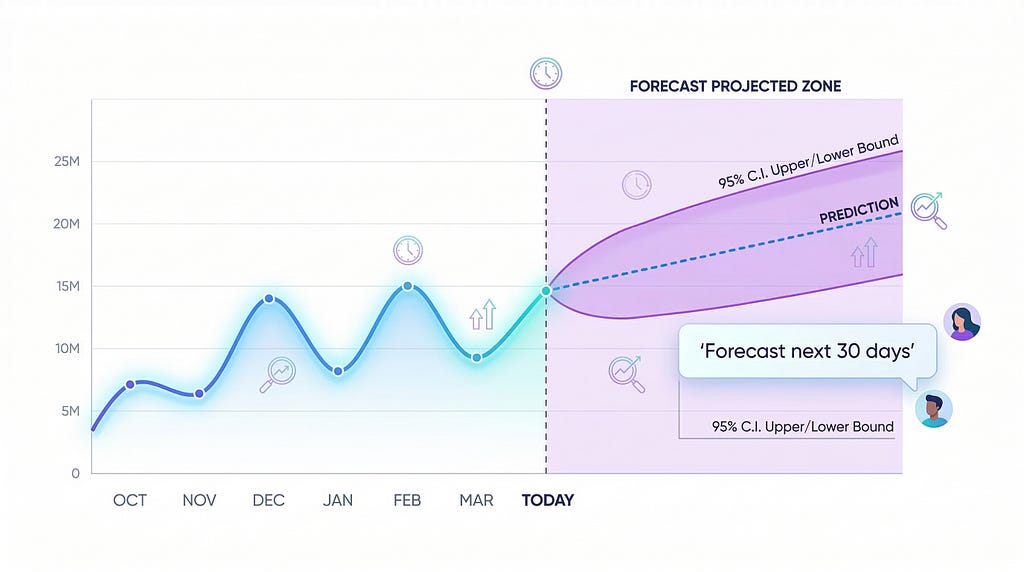
Here’s where things get really interesting. Conversational analytics now supports BigQuery ML functions including AI.FORECAST, AI.DETECT_ANOMALIES, and AI.GENERATE (along with variants like AI.GENERATE_BOOL, AI.GENERATE_INT, and AI.GENERATE_DOUBLE).
What does this mean practically? Instead of writing complex ML queries, you can just ask:
“Forecast our daily revenue for the next 30 days.”
“Are there any anomalies in our website traffic over the past quarter?”
“Generate a sentiment score for each customer review.”
Behind the scenes, the agent uses functions like AI.FORECAST to predict trends or AI.DETECT_ANOMALIES to surface outliers in real-time.
A Real-World Scenario: Inventory Forecasting
Let’s say you’re a retail operations manager. You’ve got historical sales data in BigQuery, and you need to figure out how much stock to order for next month. Previously, you’d need a data scientist to build an ARIMA model, evaluate it, and generate predictions. Now?
Just type into the conversational analytics chat:
“Forecast daily sales of ‘Premium Wireless Headphones’ for the next 14 days based on the last 6 months of data.”
The agent generates and executes something like this behind the scenes:
-- The agent generates this automatically from your natural language prompt
SELECT *
FROM AI.FORECAST(
  (SELECT
     DATE(order_date) AS date,
     SUM(quantity) AS daily_sales
   FROM `myproject.retail.orders`
   WHERE product_name = 'Premium Wireless Headphones'
     AND order_date >= DATE_SUB(CURRENT_DATE(), INTERVAL 6 MONTH)
   GROUP BY date),
  horizon => 14,
  confidence_level => 0.95
);
And for anomaly detection, you could ask:
“Detect any unusual spikes or drops in daily transaction volumes over the past 90 days.”
Which triggers something like:
-- Agent-generated anomaly detection query
WITH daily_transactions AS (
  SELECT
    DATE(transaction_timestamp) AS date,
    COUNT(*) AS transaction_count
  FROM `myproject.payments.transactions`
  GROUP BY date
)
SELECT *
FROM AI.DETECT_ANOMALIES(
  (SELECT * FROM daily_transactions
   WHERE date <= DATE_SUB(CURRENT_DATE(), INTERVAL 30 DAY)),
  (SELECT * FROM daily_transactions
   WHERE date > DATE_SUB(CURRENT_DATE(), INTERVAL 30 DAY)),
  data_col => 'transaction_count',
  timestamp_col => 'date'
);
This takes analytics from the era of model training to the era of conversational analytics, where a forecast that used to require SQL syntax knowledge, ARIMA parameter understanding, and model retraining schedules can now be generated with a single sentence.
3. Chat with BigQuery Results: Your SQL Editor Gets an AI-Partner
This is one of those features that sounds simple but changes your daily workflow. You can now start a conversation directly from query results in BigQuery Studio’s SQL editor.
Just ran a complex query and got back a results table? Instead of writing another query to dig deeper, you can now click to chat with those results. Ask follow-up questions, request different aggregations, or explore the data conversationally — all without leaving the SQL editor.
Think of it like this: you write your initial SQL, get results, and then switch to a conversational mode to explore the data interactively. It bridges the gap between the precision of SQL and the exploratory nature of natural language.
For example, after running a query that returns monthly revenue by product category:
“Which category had the biggest month-over-month decline?”
“Show me a chart comparing the top 3 categories.”
“What percentage of total revenue does electronics represent?”
This is particularly useful for ad-hoc exploration where you don’t want to write a dozen variations of the same query.
4. Enhanced Partitioned Table Support: Faster Queries, Lower Costs
If you’ve been working with BigQuery for any length of time, you know that table partitioning is essential for controlling costs and performance. The conversational analytics agent is now smart enough to take advantage of this.
The agent can optimize SQL queries by using partitioned columns such as date ranges on a date-partitioned table, which can improve query performance and reduce costs.
So when you ask, “Show me last month’s revenue”, the agent doesn’t scan the entire table. It automatically adds the appropriate partition filter to the WHERE clause, potentially saving you significant bytes scanned (and dollars spent).
Here’s what the agent would generate for a date-partitioned table:
-- The agent automatically applies partition pruning
SELECT
  region,
  SUM(revenue) AS total_revenue,
  COUNT(DISTINCT customer_id) AS unique_customers
FROM `myproject.analytics.sales`
WHERE
  -- Agent adds partition filter automatically
  order_date BETWEEN '2026-02-01' AND '2026-02-28'
GROUP BY region
ORDER BY total_revenue DESC;
Without this optimization, the agent might have scanned the entire table, potentially terabytes of data for a query that only needs one month. This is the kind of intelligence that makes conversational analytics practical for production use, not just a cool demo.
5. Labels for Agent-Generated Queries: Finally, Visibility Into What the Agent Is Doing
This update is all about governance, and honestly, it’s one that enterprise teams have been waiting for.
BigQuery jobs initiated by the conversational analytics agent are now labeled in BigQuery Job History, and you can identify, filter, and analyze them by referencing labels like {'ca-bq-job': 'true'}.
Why does this matter? Three key reasons:
Cost monitoring and attribution. When your team is chatting away with data agents, those conversations are running SQL queries under the hood. Now you can track exactly how much compute those agent-generated queries are consuming. This is critical for teams with slot reservations or on-demand pricing.
Auditing agent activity. In regulated industries — finance, healthcare, government — you need to know what queries ran, when, and who triggered them. These labels give you a clear audit trail of all agent-initiated jobs.
Performance analysis. You can now identify slow or expensive agent-generated queries and use that insight to improve your agent’s configuration. Maybe you need to add verified queries for common expensive patterns, or adjust your agent’s instructions.
Here’s how you’d query the job history to analyze agent activity:
-- Find all conversational analytics agent jobs
SELECT
  job_id,
  user_email,
  creation_time,
  total_bytes_processed,
  total_slot_ms,
  query
FROM `region-us`.INFORMATION_SCHEMA.JOBS
WHERE
  EXISTS (
    SELECT 1
    FROM UNNEST(labels) AS label
    WHERE label.key = 'ca-bq-job' AND label.value = 'true'
  )
  AND creation_time > TIMESTAMP_SUB(CURRENT_TIMESTAMP(), INTERVAL 7 DAY)
ORDER BY total_bytes_processed DESC;
This gives you a clear picture of what the agent has been doing, how much it’s costing, and where there might be optimization opportunities.
6. Suggested Next Questions (Clickable): Guided Data Exploration
The last update is about user experience, and it’s surprisingly impactful. The agent now suggests follow-up questions that are directly clickable in the Google Cloud console.
After every response, the agent proposes relevant next questions based on the context of your conversation and the data you’re exploring. Instead of having to think about what to ask next, you can just click a suggestion and keep going.
This is a game-changer for business users who might not know what questions to ask. The agent essentially becomes a guided analytics companion, helping users discover insights they might not have thought to look for.
Imagine you ask about monthly revenue and the agent responds with the data plus three clickable suggestions:
- “How does this compare to the same period last year?”
- “Which product categories drove the most growth?”
- “Are there any anomalies in the recent trends?”
Click, click, click — and you’ve gone from a simple revenue check to a comprehensive business review in under two minutes.
Getting Started: Your First Data Agent in 5 Minutes
Ready to try this out? Here’s the quickest path to getting hands-on:
Step 1: Open BigQuery Studio in the Google Cloud Console and navigate to the Agents tab in the left panel.
Step 2: Click Create Agent in the Agent Catalog. Give it a name and description relevant to your use case.
Step 3: Add your knowledge sources — select the tables, views, or UDFs the agent should have access to.
Step 4: (Optional but recommended) Add custom instructions, glossary terms, and verified queries to improve accuracy.
Step 5: Publish the agent and start a conversation.
For programmatic access, you can also use the Conversational Analytics API with the Python SDK:
from google.cloud import geminidataanalytics_v1alpha
# Initialize the client
client = geminidataanalytics_v1alpha.DataAgentServiceClient()
# Define your data sources
table_refs = geminidataanalytics_v1alpha.DatasourceReferences(
    bq=geminidataanalytics_v1alpha.BigQueryTableReferences(
        table_references=[
            geminidataanalytics_v1alpha.BigQueryTableReference(
                project_id="your-project-id",
                dataset_id="your-dataset",
                table_id="your-table"
            )
        ]
    )
)
# Create the agent context
context = geminidataanalytics_v1alpha.Context(
    system_instruction="You are a sales analytics assistant. "
    "Focus on revenue trends and customer metrics.",
    datasource_references=table_refs
)
# Create the agent
agent = client.create_data_agent(
    parent=f"projects/your-project-id/locations/us",
    data_agent=geminidataanalytics_v1alpha.DataAgent(
        display_name="Sales Analytics Agent",
        context=context
    )
)
print(f"Agent created: {agent.name}")
Practical Applications Across Industries
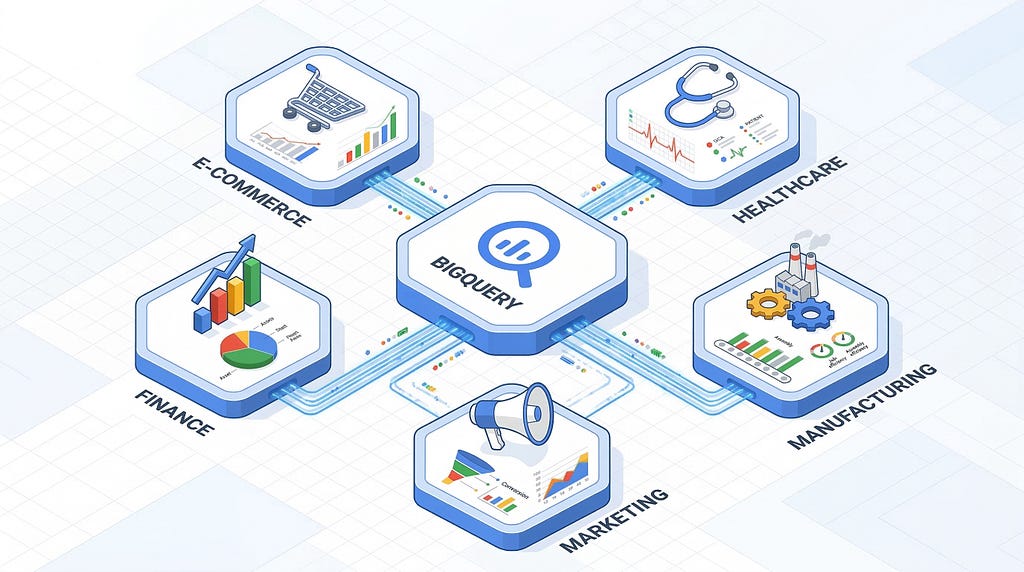
E-Commerce Combine product images (via ObjectRef) with sales data to ask questions like “Which product images correlate with higher conversion rates?” or “Forecast demand for our top 10 SKUs for next quarter.”
Healthcare Reference medical imaging PDFs alongside patient records. Use anomaly detection to identify unusual patterns in lab results or patient admission rates.
Financial Services Detect anomalous trading volumes, forecast cash flow, and let compliance teams audit all agent-generated queries with labeled job history.
Manufacturing Analyze quality control images stored in Cloud Storage alongside defect rate data. Forecast production output and detect equipment anomalies before failures occur.
Marketing Chat with campaign performance data, forecast ROI on upcoming campaigns, and let non-technical marketers explore attribution data with suggested questions.
Wrapping Up
These six updates to BigQuery Conversational Analytics represent a genuine shift in how we interact with data. We’ve gone from “let me write a SQL query for you” to “let me analyze your structured and unstructured data, run predictive models, optimize for cost, track everything for compliance, and suggest what you should explore next.”
The combination of ObjectRef support, BQML integration, and improved governance features makes this something you can actually deploy in a production environment — not just a flashy demo.
If you’re already on BigQuery, there’s really no reason not to spin up a data agent and start experimenting. The worst that happens? You save 45 minutes on that Friday afternoon data pull.
And honestly, isn’t that worth it?
References
- Conversational Analytics Overview — BigQuery Documentation — Comprehensive guide to creating data agents and having conversations
- Conversational Analytics in BigQuery — Google Cloud Blog — Official launch announcement with architecture details
- ObjectRef Data Type — Google Cloud Blog — Deep dive into ObjectRef capabilities
- ObjectRef Functions Reference — Official SQL reference for OBJ.MAKE_REF, OBJ.FETCH_METADATA, OBJ.GET_ACCESS_URL
- AI.DETECT_ANOMALIES Function — Official syntax and examples for anomaly detection
- Build Data Agents with Conversational Analytics API — Tutorial for programmatic agent creation using Python SDK
- BigQuery Release Notes — Latest feature updates and announcements
- Introduction to Conversational Analytics Codelab — Hands-on step-by-step tutorial
Tags: BigQuery, Conversational Analytics, Google Cloud, AI Agents, BigQuery ML, ObjectRef, Generative AI
BigQuery Just Gave Your Data a Voice: 6 Conversational Analytics Updates That Change Everything was originally published in Google Cloud – Community on Medium, where people are continuing the conversation by highlighting and responding to this story.
Source Credit: https://medium.com/google-cloud/bigquery-just-gave-your-data-a-voice-6-conversational-analytics-updates-that-change-everything-a49db2e6614f?source=rss—-e52cf94d98af—4
About the Author