A practical guide to mastering Structured, Semi-Structured, and Unstructured data without leaving SQL.
Most of us use BigQuery for exactly what it is famous for: tables, rows, columns, and fast SQL analytics.
Some of us go a step further. We embrace the flexibility of modern data pipelines and query semi-structured data like JSON logs , using STRUCT, ARRAY, and native JSON functions.
But there is a third frontier that very few data engineers ask about:
Have you ever tried querying unstructured data like images, audio, or videos using BigQuery?
The answer is usually “No, that belongs in Cloud Storage.” But the reality is: Yes, BigQuery can do that too.
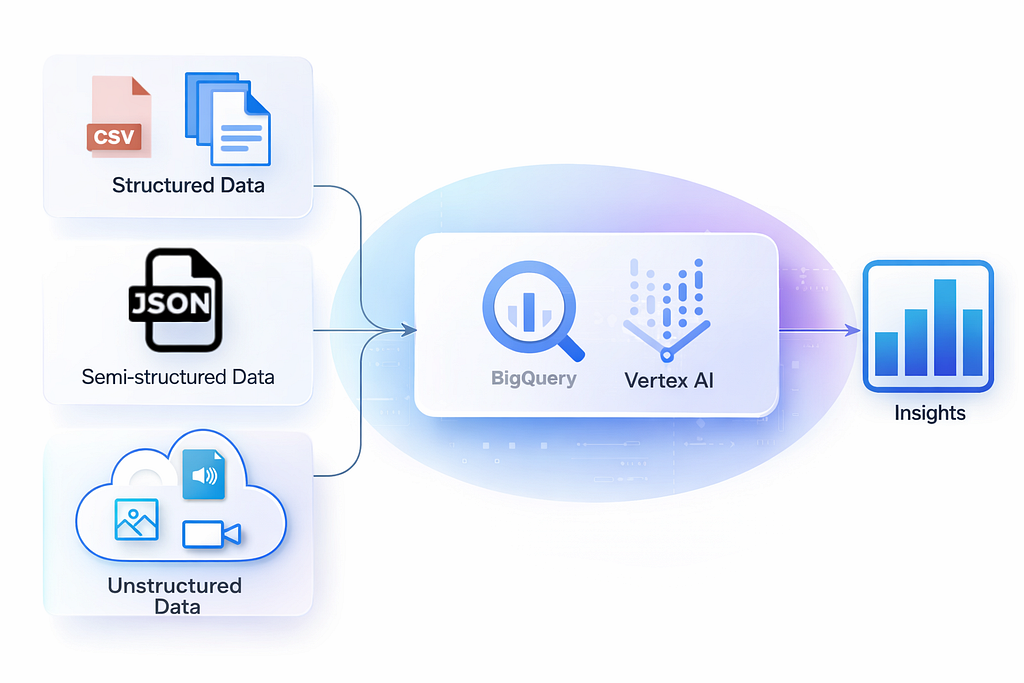
Here is how BigQuery has evolved into a unified analytics engine for all three types of data, with examples of how to build each.
- Structured data — Traditional rows and columns stored in tables
- Semi-structured data — JSON payloads, nested and repeated fields
- Unstructured data — Images, audio, video files, and other binary objects
1. Structured Data: The Foundation
What it is: The comfort zone. Tables with fixed schemas, strong typing, and rigid rows and columns.
Examples: Sales transactions, financial metrics, inventory logs.
This is where BigQuery is unbeatable in terms of speed and cost. You define the schema upfront, and the data must strictly adhere to it.
Step 1: Create the Table
You define strict types (Integer, String, Date) for every column.
CREATE TABLE `my_project.retail.transactions`
(
  transaction_id INT64,
  customer_name STRING,
  purchase_date DATE,
  amount FLOAT64
);
Step 2: Load the Data
You can load CSVs or insert rows manually. If the data doesn’t match the schema (e.g., putting text in an integer field), the load fails.
INSERT INTO `my_project.retail.transactions`
VALUES
  (101, 'Alice Smith', '2023-10-01', 150.50),
  (102, 'Bob Jones', '2023-10-02', 89.99);
Step 3: Query the Data
Standard SQL. Fast, efficient, and predictable.
SELECT customer_name, amount
FROM `my_project.retail.transactions`
WHERE amount > 100;
2. Semi-Structured Data: The Modern Standard
What it is: Schema-on-read or flexible schemas.
Examples: API responses, nested JSON logs, clickstream event data.
Data Engineers often dread flattening JSON files before loading them. BigQuery solves this natively. With the JSON data type, you can ingest raw nested structures without knowing the schema in advance.
Step 1: Create the Table
Instead of defining every single column, we use the JSON data type for the flexible payload.
CREATE TABLE `my_project.app_logs.events`
(
  event_id STRING,
  timestamp TIMESTAMP,
  payload JSON  -- The magic column that holds nested data
);
Step 2: Load the Data
We can insert complex, nested JSON objects directly into the payload column.
INSERT INTO `my_project.app_logs.events`
VALUES
  ('evt_001', CURRENT_TIMESTAMP(), JSON '{"user": {"id": 5, "region": "US"}, "action": "click", "metadata": {"browser": "Chrome"}}'),
  ('evt_002', CURRENT_TIMESTAMP(), JSON '{"user": {"id": 9, "region": "EU"}, "action": "purchase", "cart": [12, 45]}');
Step 3: Query the Data
We use dot notation to access fields inside the JSON. We don’t need joins; we just traverse the object.
SELECT
  event_id,
  payload.user.region, -- Extracts "US" or "EU"
  payload.action
FROM `my_project.app_logs.events`
WHERE JSON_VALUE(payload.user.region) = 'US';
3. Unstructured Data: The Hidden Capability
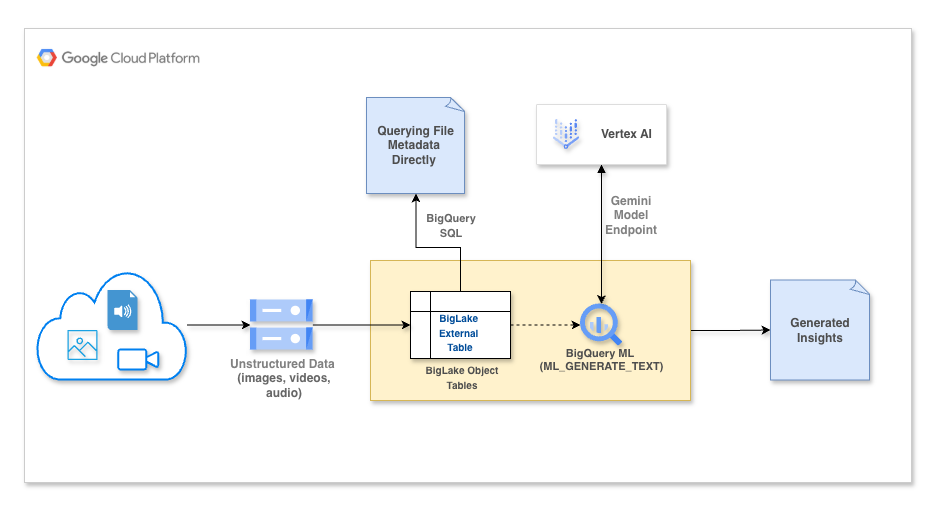
This is where things get interesting. We are talking about data that historically lived completely outside the analytics workflow: Images, Audio, PDFs, and Videos.
Traditionally, you couldn’t “query” a bucket of JPEG images. That gap is now closed with BigLake Object Tables.
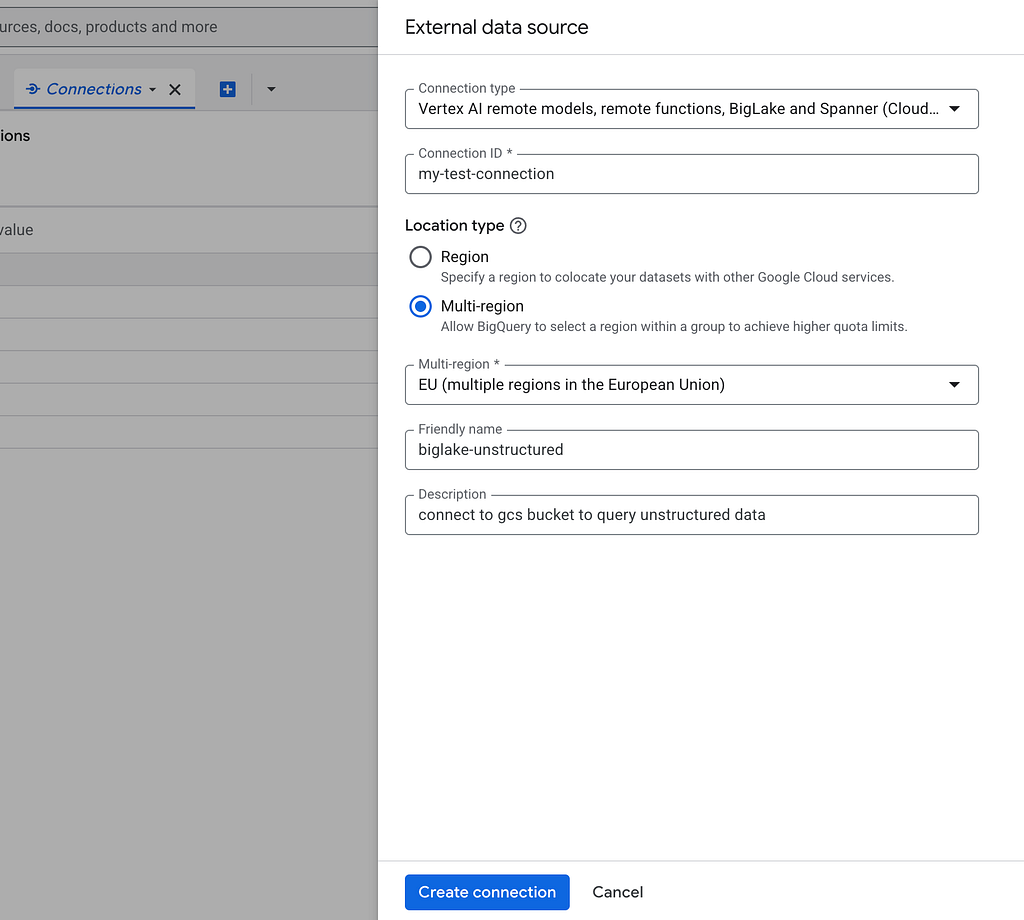
Step 0: The Setup (The Security Handshake)
- Create Connection:
- In the BigQuery Explorer pane, click + ADD > Connection to external data sources.
2. Configure:
- Connection type: Select Vertex AI remote models, remote functions, BigLake and Spanner (Cloud Resource).
- Connection ID: Name it (e.g., my-connection).
- Location: Select your region (e.g., US).
3. Grant Access (Crucial):
- Copy the Service Account ID from the connection details.
- Role 1 (For Files): Go to your Bucket permissions and grant it Storage Object Viewer.
- Role 2 (For AI): Go to IAM & Admin (Project level) and grant it Vertex AI User.
Now, BigQuery has the “identity” required to read your files, and the SQL code in Step 1 will work perfectly.
Step 1: Create the Object Table
Instead of creating a table that holds data, you create a table that points to a Google Cloud Storage bucket.
CREATE EXTERNAL TABLE `my_project.media.images`
WITH CONNECTION `projects/my_project/locations/eu/connections/my-test-connection`
OPTIONS (
  object_metadata = 'SIMPLE',  -- Tells BQ to read file metadata
  uris = ['gs://my-company-images-bucket/*.jpg'] -- Points to your GCS bucket
);
Step 2: Load the Data
There is no load step. This is the beauty of it. You simply upload files to your GCS bucket (gs://my-company-images-bucket/) as you normally would. BigQuery automatically “sees” any new file dropped there immediately.
Step 3: Query the Data (Metadata & Content)
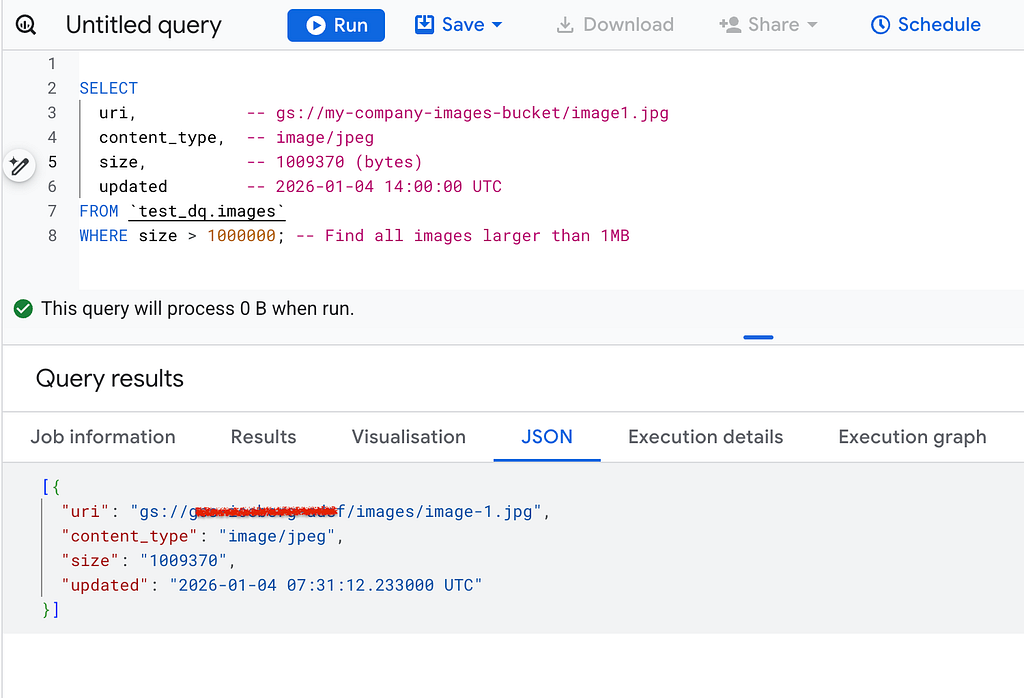
Basic Query (Metadata):BigQuery does not read the pixels yet; it reads the object metadata. This is incredibly fast and allows you to inventory millions of files.
SELECT
  uri,           -- gs://my-company-images-bucket/image1.jpg
  content_type,  -- image/jpeg
  size,          -- 102400 (bytes)
  updated        -- 2023-10-05 14:00:00 UTC
FROM `my_project.media.images`
WHERE size > 1000000; -- Find all images larger than 1MB
Advanced Query (SQL + AI Analysis):
Now for the magic. To actually analyze the content (e.g., “What is in this picture?”), we pass the uri from our Object Table into a BigQuery ML model (like Gemini Pro Vision) along with prompt field in the STRUCT to tell the model what to do.
Note: Before that you must create “Remote Model” in your BigQuery project.
Think of this model as a saved configuration that tells BigQuery: “When I call this model, send the data to Vertex AI’s Gemini 1.5 Flash model and return the results.”
CREATE OR REPLACE MODEL `my_project.media.gemini_vision_model`
REMOTE WITH CONNECTION `projects/my-project/locations/eu/connections/my-test-connection`
OPTIONS (ENDPOINT = 'gemini-2.5-flash');
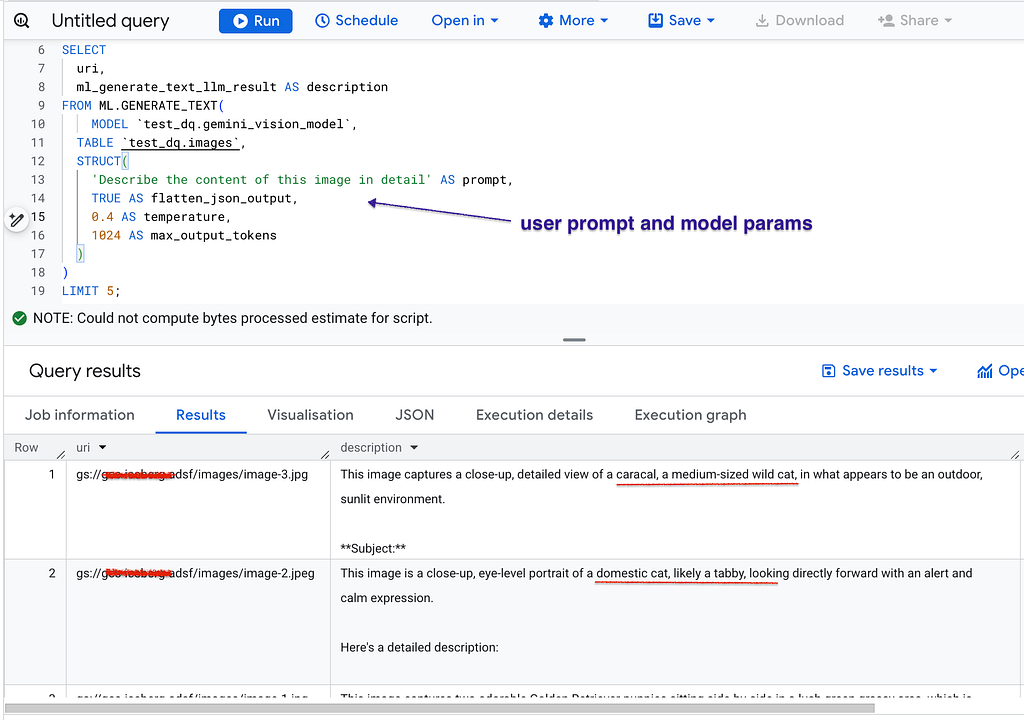
You can now use SQL to read images directly in BigQuery using BigQuery ML functions with the remote models mentioned above.
In this example, Gemini Flash is used as the remote model to generate a description of the image using the ML.GENERATE_TEXT function.
SELECT
  uri,
  ml_generate_text_llm_result AS description
FROM ML.GENERATE_TEXT(
  MODEL `my_project.dataset.gemini_vision_model`,
  TABLE `my_project.media.images`,
  STRUCT(
    'Describe the content of this image in detail' AS prompt,
    TRUE AS flatten_json_output,
    0.4 AS temperature,
    1024 AS max_output_tokens
  )
)
LIMIT 5;
Why This Matters for Data Engineers
This shift changes the definition of an analytics platform. BigQuery is no longer just a warehouse for rows and columns. It is a Unified Analytics Layer.
- No Data Movement: Your heavy unstructured files stay in cheap object storage (GCS).
- No Complex Pipelines: You don’t need to spin up a separate Python environment just to tag images.
- Just SQL: You govern, query, and analyze Structured, Semi-Structured, and Unstructured data using the same language.
Final Thought
If you are using BigQuery only for tables and JSON, you are utilizing only a fraction of its capability.
BigLake Object Tables unlock an entirely new class of use cases from media analytics to AI-driven insights — without ever leaving the SQL console.
BigQuery is far more versatile than most of us realize.
PS if you have any questions, or would like something clarified, you can find me on LinkedIn.
How to Query Images and Video Directly in BigQuery: From JSON to GenAI, The Evolution of BigQuery was originally published in Google Cloud – Community on Medium, where people are continuing the conversation by highlighting and responding to this story.
Source Credit: https://medium.com/google-cloud/how-to-query-images-and-video-directly-in-bigquery-from-json-to-genai-the-evolution-of-bigquery-078724ef7027?source=rss—-e52cf94d98af—4
About the Author