
With the advent of GKE Custom Compute Classes — which empower platform teams to precisely define & configure how and where GKE schedules your workloads — leveraging high-performance compute for your workloads is easier than ever.
With that ease comes the stark reality: high performance compute is popular, and — very likely— not evenly available in all zones. To counter this, Custom Compute Classes provide you the ability to define a number of priorities. You can “prefer” zonal reservations you have secured, and then “failover” to less performant “on demand” instance types (with better availability) to avoid running into the scenario where your workloads just cannot scale up. This is a huge step forward— but with that level of flexibility comes the very real possibility that you end up with a multi-compute, or “asymmetric infrastructure”, architecture for a given workload. How should you account for that?
Let’s unpack this “asymmetry” for a moment. It is obvious that a CPU-bound workload will execute faster on a premium instance family like an N4 compared to a general-purpose E2. But there is a crucial economic angle here: because those premium nodes chew through CPU-intensive operations so much faster, your actual cost per request is often significantly lower on the more “expensive” hardware.
So you proceed to deploy your Custom Compute Class, and select it in your Deployment. However, when you check your observability dashboards, you see a frustrating reality: the workload Pods deployed on less-powerful nodes (those “lower” in your Custom Compute Class priority list) are choking under the load, whilst the Pods deployed on more performant / efficient nodes are barely breaking a sweat…
The culprit behind your frustrating dashboards? Your Application Load Balancer (ALB) is treating every endpoint exactly the same. The ALB’s default routing algorithm does a great job of distributing the requests evenly amongst all of your healthy backend Pods, but since you now have an “asymmetric infra” architecture, your more performant nodes will sit underutilized, effectively sabotaging your ROI (whilst your users’ experience remains— at the very least — suboptimal).
Here we discuss how to optimize: using GKE Gateway API together with Utilization Based Load-Balancing (UBB).
The “Gotcha”: How GCLB UBB Actually Works with NEGs
Before we build the solution, we need to double-click on how UBB actually works to rebalance how the load balancer distributes the incoming requests.
You might be tempted to evenly spread both your performant & more “general purpose” nodes across all zones, and let UBB sort it all out. But here is the architectural gotcha: Google Cloud Load Balancing (GCLB) doesn’t balance across individual Pods. It balances across Zonal Network Endpoint Groups (NEGs).
Since UBB works to rebalance traffic at the Zonal NEG level, it cannot differentiate between two individual pods inside the same Zonal NEG (see “Zone c” in the diagram below); it can only differentiate between different NEGs by comparing their aggregate utilization metrics.
To expect utilization-based (or even capacity-based) load balancing on a per-pod basis, at scale, would be a very expensive operation. Aggregation per NEG is the compromise.
If you co-mingle, say, E2 and N4 pods in the same Kubernetes service & zone, the Zonal NEG reports a diluted, average metric, which can severely limit the value proposition of using UBB.
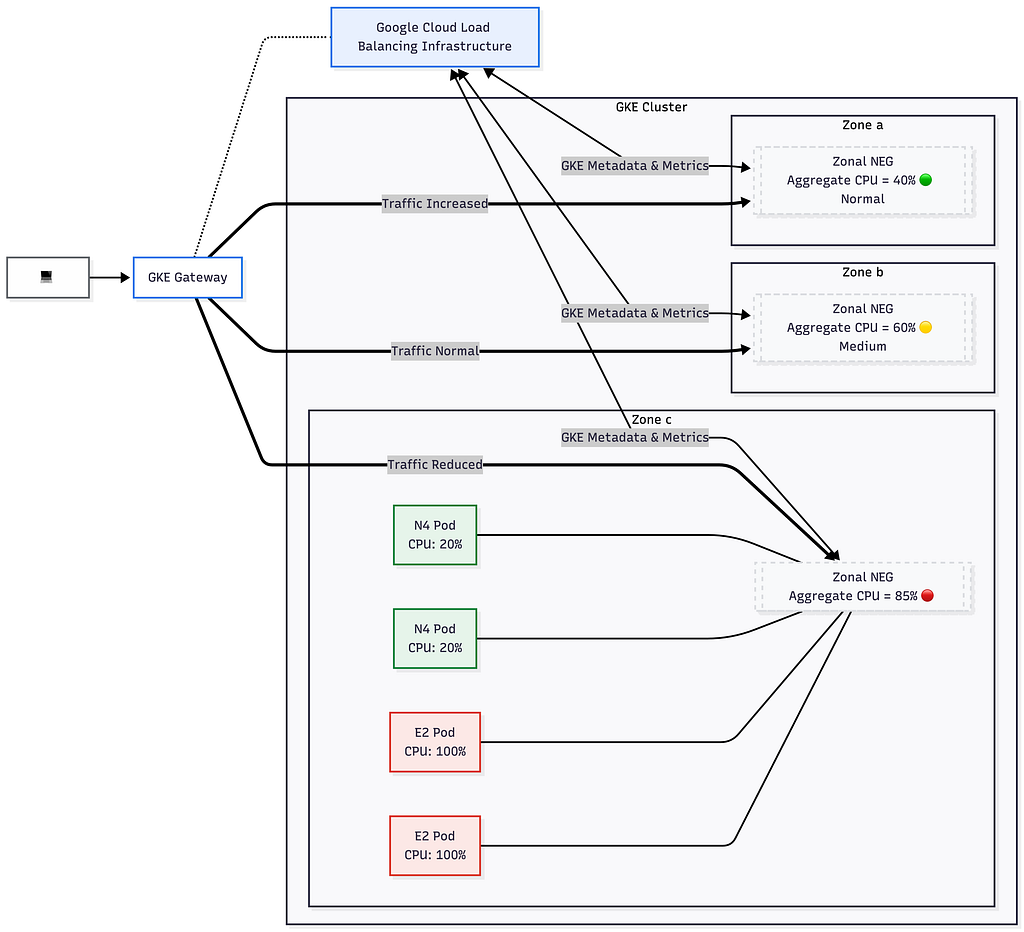
For UBB to have the greatest effect, we may need to consider intentionally separating our high-performance compute and our general-purpose compute into different zones. This is the approach we’ll explore…
Step 1: Setting up the GKE Autopilot Cluster & Namespace
Let’s build this from the ground up. We will start by creating a fresh GKE Autopilot cluster. We will use a DNS-based endpoint to securely access the control plane (we’d consider it a best practice), and (because it is a prerequisite to using utilization-based load balancing) we will explicitly set the Horizontal Pod Autoscaler (HPA) profile to performance.
(Note: If your cluster control plane is running GKE version 1.32.1 or newer, the performance HPA profile is actually enabled by default! We are including it here for clarity and for those on slightly older versions).
# Create the Autopilot cluster with DNS access enabled
gcloud container clusters create-auto ubb-demo-cluster \
  --region us-central1 \
  --enable-dns-access \
  --hpa-profile=performance
# Fetch the kubeconfig credentials using the DNS endpoint
gcloud container clusters get-credentials ubb-demo-cluster \
  --region us-central1 \
  --dns-endpoint
# Create a dedicated namespace for our test
kubectl create namespace ubb-test
Step 2: Defining Asymmetric Compute Classes
To maximize the extent to which UBB can optimize, we will create two distinct ComputeClass resources. We will pin our premium N4 compute to Zone A, and allow our default, general-purpose compute to scale out across Zones B and C.
Note: In the real world we might have a reservation (which are zonal) for the N4 machines, and we’d refer to it in the Custom Compute Class. We won’t do that here but, if you want to know more, see examples here.
# compute-classes.yaml
apiVersion: cloud.google.com/v1
kind: ComputeClass
metadata:
  name: n4-compute-class
spec:
  autopilot:
    enabled: true
  priorities:
  - machineFamily: n4
    location:
      zones: ["us-central1-a"] # Performance compute isolated to Zone A
---
apiVersion: cloud.google.com/v1
kind: ComputeClass
metadata:
  name: default-compute-class
spec:
  autopilot:
    enabled: true
  priorities:
  - location:
      zones: ["us-central1-b", "us-central1-c"] # General compute in B & C
Apply it: (Note: ComputeClasses are cluster-scoped, so we don’t need to specify our namespace here). kubectl apply -f compute-classes.yaml
Step 3: Deploying the Workloads
We will deploy a CPU-heavy application (registry.k8s.io/hpa-example:latest) to simulate load. We are going to deploy 3 replicas targeting our default compute class, and 3 replicas targeting our N4 compute class.
The magic here is that both deployments share the exact same app: cpu-heavy-app label. The load balancer will group all 6 Pods under the same Service, but because of our Compute Classes, they will be neatly separated into distinct Zonal NEGs!
Note: we will not deploy an HPA for these workloads so that we reduce variables in our testing, and focus solely on the benefit from leveraging UBB from an end-user experience (latency & error rate) perspective.
# deployments.yaml
apiVersion: apps/v1
kind: Deployment
metadata:
  name: cpu-heavy-app-default
spec:
  replicas: 3
  selector:
    matchLabels:
      app: cpu-heavy-app
  template:
    metadata:
      labels:
        app: cpu-heavy-app
    spec:
      nodeSelector:
        cloud.google.com/compute-class: default-compute-class
      containers:
      - name: app
        image: registry.k8s.io/hpa-example:latest
        ports:
        - containerPort: 80
        resources:
          requests:
            cpu: "250m"
          limits:
            cpu: "500m" # Caps the CPU so the node doesn't crash
---
apiVersion: apps/v1
kind: Deployment
metadata:
  name: cpu-heavy-app-n4
spec:
  replicas: 3
  selector:
    matchLabels:
      app: cpu-heavy-app
  template:
    metadata:
      labels:
        app: cpu-heavy-app
    spec:
      nodeSelector:
        cloud.google.com/compute-class: n4-compute-class
      containers:
      - name: app
        image: registry.k8s.io/hpa-example:latest
        ports:
        - containerPort: 80
        resources:
          requests:
            cpu: "250m"
          limits:
            cpu: "500m"
Apply it: kubectl apply -f deployments.yaml -n ubb-test
Step 4: Exposing via Gateway API
Next, we create a Kubernetes Service that selects all of our backend pods, and expose that Service using standard GKE Gateway API resources. This will default to GCLB’s standard WATERFALL_BY_REGION distribution without accounting for the Pod’s CPU utilization metrics.
Best Practice Note: Typically, you would deploy the Gateway (infrastructure) and HTTPRoute (application routing) in separate namespaces to maintain clean boundaries between platform administrators and developers. For the sake of brevity in this tutorial, we will keep them together in ubb-test.
# gateway.yaml
apiVersion: v1
kind: Service
metadata:
  name: cpu-heavy-service
spec:
  selector:
    app: cpu-heavy-app
  ports:
  - port: 80
    targetPort: 80
---
apiVersion: gateway.networking.k8s.io/v1
kind: Gateway
metadata:
  name: external-gateway
spec:
  gatewayClassName: gke-l7-global-external-managed
  listeners:
  - name: http
    protocol: HTTP
    port: 80
---
apiVersion: gateway.networking.k8s.io/v1
kind: HTTPRoute
metadata:
  name: cpu-heavy-route
spec:
  parentRefs:
  - name: external-gateway
  rules:
  - backendRefs:
    - name: cpu-heavy-service
      port: 80
Apply it: kubectl apply -f gateway.yaml -n ubb-test
Step 5: The Baseline Load Test (Without UBB)
Let’s test the default load balancer behavior. Grab your Gateway IP and use Vegeta to send a steady stream of traffic at 15 requests per second for 6 minutes.
export GATEWAY_IP=$(kubectl get gateway external-gateway -n ubb-test -o jsonpath='{.status.addresses[0].value}')
echo "GET http://$GATEWAY_IP/" | vegeta attack -duration=6m -rate=15 | vegeta report
Run this, and note your results. At this point, the Pods running on the default Autopilot compute class will hit their 500m CPU limits and will aggressively start to queue connections.
Step 6: Enabling UBB
To fix this, we create a GCPBackendPolicy targeting our Service. We tell the load balancer to monitor gke.cpu and set maxUtilizationPercent to 70% (the default, if we do not specify, is 80%). Be sure to explicitly set dryRun: false so the policy is actively enforced.
# ubb-policy.yaml
apiVersion: networking.gke.io/v1
kind: GCPBackendPolicy
metadata:
  name: ubb-cpu-policy
spec:
  default:
    balancingMode: CUSTOM_METRICS
    customMetrics:
    - name: gke.cpu
      dryRun: false
      maxUtilizationPercent: 70
  targetRef:
    group: ""
    kind: Service
    name: cpu-heavy-service
Apply it: kubectl apply -f ubb-policy.yaml -n ubb-test
Step 7: The Utilization-based Shift
You can validate that the GCPBackendPolicy is attached by viewing the output of: kubectl describe gcpbackendpolicy ubb-cpu-policy -n ubb-test
Let’s run the exact same Vegeta test to see the difference:
echo "GET http://$GATEWAY_IP/" | vegeta attack -duration=6m -rate=15 | vegeta report
With the UBB policy applied and our workloads isolated by zone, the Google Cloud Load Balancer immediately realized that the Zone A Zonal NEG (housing our premium N4 nodes) had a massive amount of CPU headroom. It dynamically shifted the bulk of our 15 RPS traffic over to that premium compute, ensuring that the E2 nodes in Zones B & C were never overwhelmed.
The Results
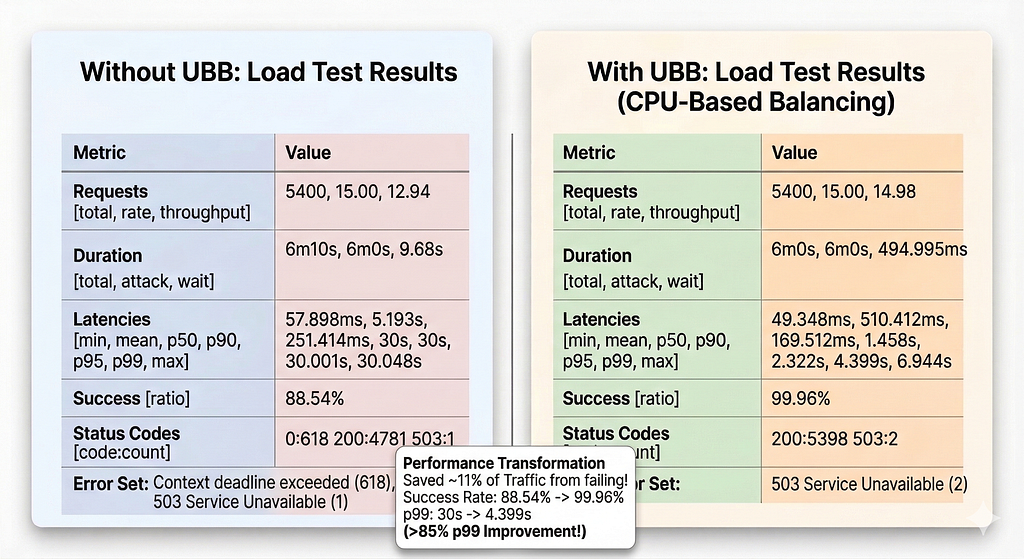
When we pushed the load to 15 requests per second for 6 minutes, the results were staggering. The standard, default-routed setup simply broke. It dropped over 11% of all traffic due to client-side “context deadlines exceeded” errors (the requests were waiting so long that Vegeta simply gave up) and 503 errors.
The UBB setup, however, absorbed the exact same heavy load with a near-perfect 99.96% success rate, cutting the p99 tail latency by over 85%.
The Conclusion
Implementing Utilization Based Balancing is an easy win for GKE workloads, especially when navigating asymmetric hardware availability across regions. By carefully aligning your Zonal NEGs with isolated Custom Compute Classes and attaching a GCPBackendPolicy, you can achieve a significantly improved User Experience (UX) characterized by lower and more predictable tail latencies. You get maximum ROI on your powerful compute nodes, and your users don't get stuck waiting behind an overloaded container.
Other than UBB rebalancing occuring at the Zonal NEG level, there are other caveats to be aware of. If your traffic pattern is very spikey, then — since rebalancing takes up to 30 seconds from when a Pod reaches its maximum utilization— UBB may not be able to react quickly enough.
With that said, all limitations are documented here.
What’s Next?
Whilst utilization-based balancing by CPU is a fantastic feature, Google Cloud is actively expanding this space. You can now expose your own application-specific custom metrics (queue depth, active connections, etc.) to the load balancer (and actually to the Autoscaler too)! To read more about setting up load balancing based on custom workload metrics (currently in preview), check out the official documentation here: Expose custom metrics for load balancers.
Supercharge your GKE Gateway: Introducing Utilization Based Load Balancing (UBB) was originally published in Google Cloud – Community on Medium, where people are continuing the conversation by highlighting and responding to this story.
Source Credit: https://medium.com/google-cloud/supercharge-your-gke-gateway-introducing-utilization-based-load-balancing-ubb-d7f4011cc8e6?source=rss—-e52cf94d98af—4
About the Author