The Era of Agentic AI-First IDEs
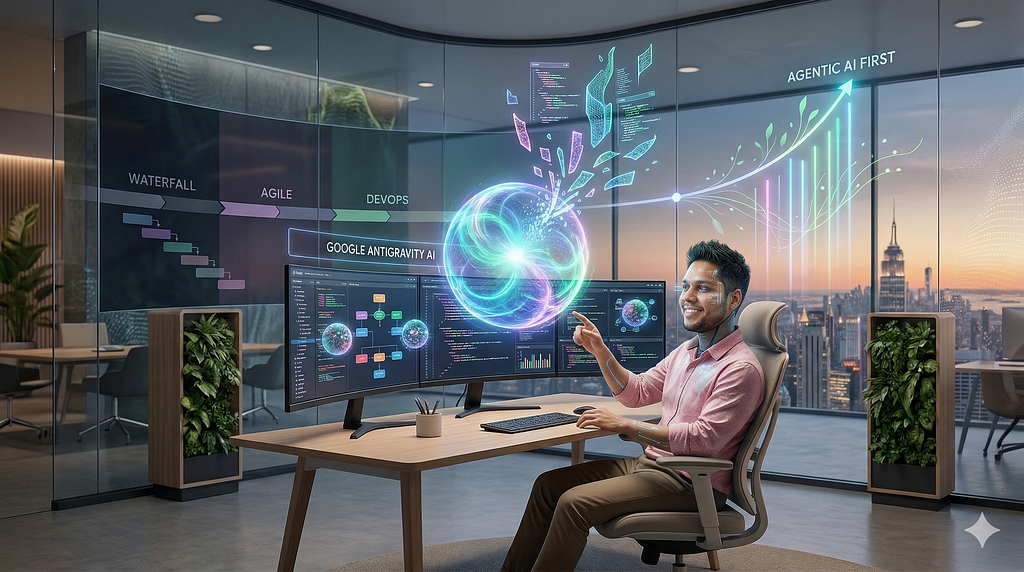
For the past few years, the artificial intelligence revolution in coding has felt like having a very fast junior developer sitting next to you. Developers grew accustomed to having a simple chat box inside their Integrated Development Environments (IDEs) alongside basic inline code suggestions. However, the AI coding landscape has now fundamentally shifted: we are no longer in the era of mere “autocomplete,” but have entered the era of the Agentic IDE.
The software development world has transitioned from “pre-agentic” assistants — which operate synchronously within the editing workflow and require continuous human guidance — to autonomous coding agents. In this new agent-first era, you stop being the typist and start being the architect. Rather than treating AI as a sidebar feature, these new environments are rebuilt from the ground up, assuming that an autonomous AI agent is the primary worker.
This massive paradigm shift is defined by a few core transformations in how software is built:
- From Tool to Worker: The narrative has shifted from viewing AI as a simple productivity tool to treating it as an autonomous worker capable of executing complex, multi-step business workflows with minimal human intervention.
- Autonomous Planning and Execution: Unlike early assistants that just finished your sentences, agentic tools have the autonomy to scope entire codebases, break down high-level requirements into subtasks, and execute multi-file solutions. Crucially, they operate on loops, meaning they can review their own solutions and iteratively fix their own mistakes.
- Asynchronous Orchestration: Developers no longer have to wait synchronously for the AI to finish generating code before asking the next question. The new agentic workflows allow developers to orchestrate multiple agents in parallel, dispatching them to work on different features or bugs simultaneously.
This evolution marks a step-change where developers interface with agents at higher levels of abstraction, rather than managing individual prompts and tool calls. By removing the “gravity” of tedious tasks — like setting up environments, debugging boilerplate, and constantly switching between the terminal and the editor — agent-first IDEs free developers to focus entirely on the vision and architecture of their projects.
Agentic IDE vs. Traditional IDE with AI Assist
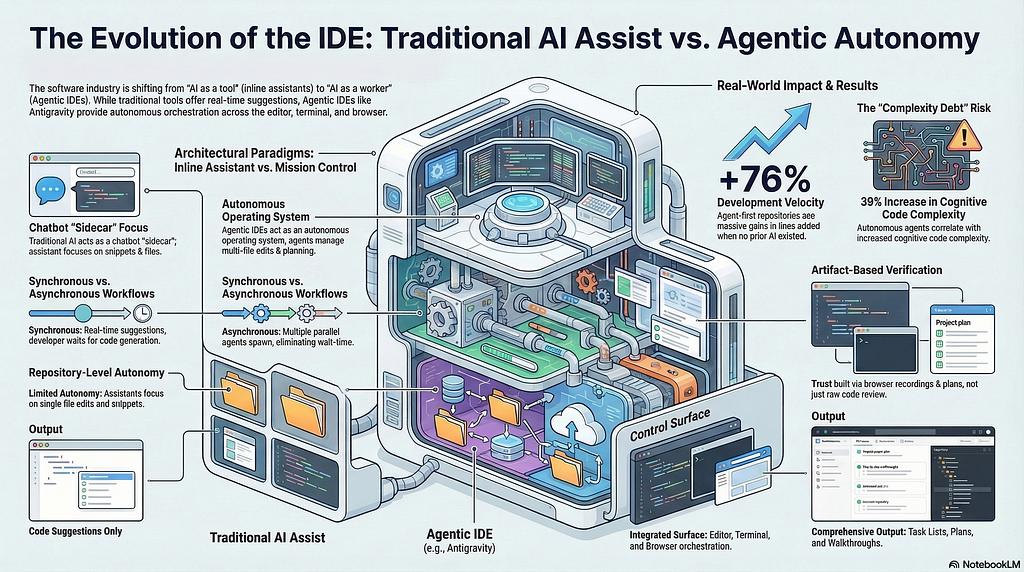
In 2024, the primary question for developers was simply, “Which AI code assistant plugin should I use?” Today, the landscape has fundamentally shifted from comparing add-on extensions to evaluating entirely AI-native Integrated Development Environments (IDEs). Understanding this evolution requires looking at the core differences between traditional setups and the new agent-first paradigm.
Traditional IDEs with AI Assist: The first wave of AI tools, such as early GitHub Copilot or basic IDE chatbot extensions, functioned primarily as highly advanced autocomplete systems.
- Synchronous and Reactive: These assistants operate synchronously within your active editing workflow. They provide real-time, inline suggestions that you must manually accept, modify, or reject as you type.
- Limited Scope: To use a traditional IDE chatbot effectively, you typically need to be actively viewing a specific file or highlighting a particular code fragment to give the AI context.
- Human-Driven: The developer remains firmly in the driver’s seat. You are still the one manually fixing imports, running tests, and copying code snippets to ensure the AI’s suggestions actually work across the project.

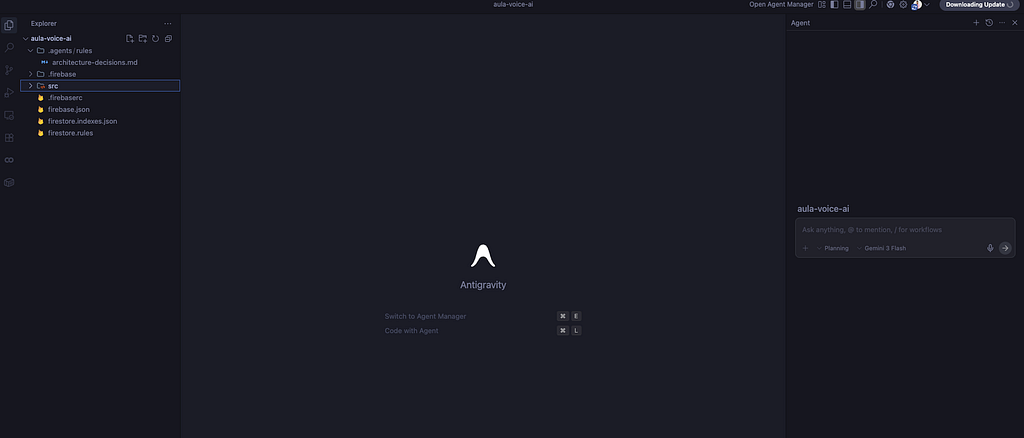
Agentic IDEs (The New Paradigm): Agentic IDEs, such as Google Antigravity, are built from the ground up with the assumption that an autonomous AI agent is the primary worker. In these environments, artificial intelligence is no longer just a bolted-on feature; it is the foundation.
- Autonomy and Repository-Level Scope: Unlike inline assistants, coding agents can operate across multiple files and navigate your entire codebase. They are capable of completing complex tasks with minimal continuous human guidance, often generating entire pull requests or implementing full features independently.
- Advanced Planning: Before writing a single line of code, an agentic IDE can break down high-level requirements into structured subtasks and detailed implementation plans.
- Asynchronous “Mission Control”: Traditional chat interfaces are linear — you have to wait for the AI to finish generating text before moving on. Agentic platforms introduce an Agent Manager interface that acts as a “Mission Control”. This allows developers to orchestrate multiple agents asynchronously, dispatching them to tackle different bugs, research tasks, or feature builds in parallel.
- Environment and Browser Actuation: Agentic IDEs don’t just generate text. They can use the Model Context Protocol (MCP) to read live cloud configurations or external data, automatically execute terminal commands to set up environments, and even spin up browser subagents to click, scroll, and visually verify that a newly coded UI feature actually works.
The difference is clear: traditional AI assistants require you to micromanage the code line-by-line, while Agentic IDEs elevate you to an architectural role where you manage outcomes, workflows, and parallel AI workers.
What is Google Antigravity?
Google Antigravity is a groundbreaking, agent-first development platform built specifically for the era of autonomous AI. Launched alongside Google’s Gemini 3 model family, it represents a fundamental shift from traditional coding assistants to an environment where AI agents can autonomously plan, execute, and verify complex, end-to-end software tasks.
While Antigravity is built on a fork of the familiar open-source Visual Studio Code (VS Code) foundation, it radically alters the traditional user experience to prioritize agent orchestration over manual text editing. Instead of treating AI as a simple autocomplete tool or a bolted-on chat sidebar, Antigravity is rebuilt from the ground up with the assumption that the AI agent is the primary worker.
The name “Antigravity” perfectly captures its core mission: to provide “liftoff” from the heavy “gravity” of tedious development tasks. By eliminating the friction of setting up environments, debugging boilerplate code, and constantly switching between the terminal, browser, and editor, the platform elevates the developer’s role from a mere “typist” to a high-level “architect”.
To achieve this, Antigravity allows multiple AI agents to access and control your editor, terminal, and browser within one unified experience. It bifurcates the interface into a traditional Editor and a new Agent Manager, enabling developers to interact with agents asynchronously and orchestrate multiple parallel work streams simultaneously. Ultimately, Antigravity is designed to be the new home base for software development, allowing anyone with a vision to seamlessly build their ideas into reality.
Core Features and Unique Capabilities of Antigravity
Google Antigravity separates itself from traditional AI coding assistants through a unique architectural philosophy: it treats the AI as an autonomous worker rather than a simple text-generation tool. To support this paradigm, Antigravity introduces several significant features designed around trust, autonomy, feedback, and self-improvement.
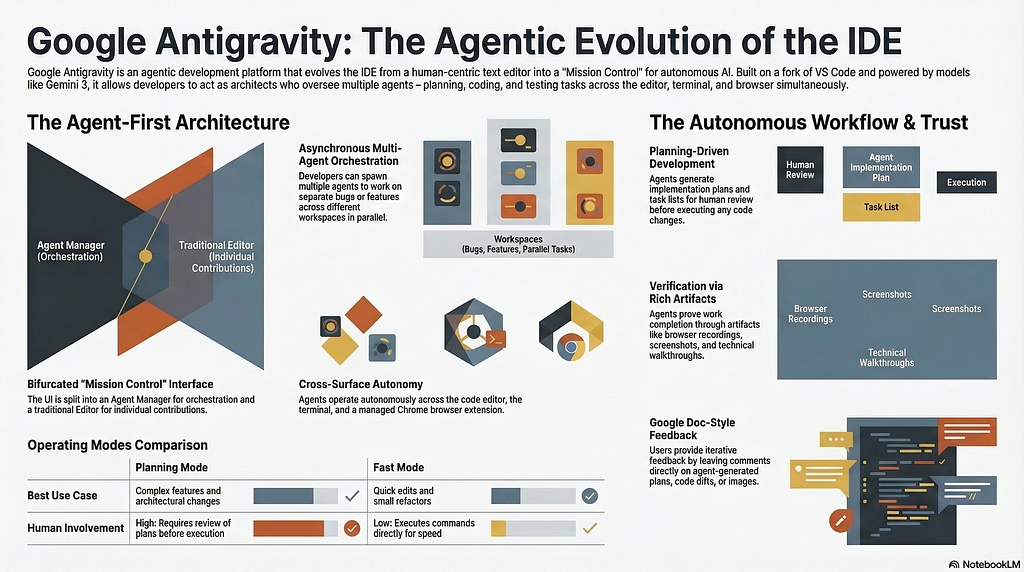
Here are the core features and unique capabilities that define the platform:
- The Agent Manager (“Mission Control”): Instead of burying the AI in a chat sidebar, Antigravity bifurcates the IDE into a traditional Editor and a dedicated Agent Manager. This manager acts as a “Mission Control” dashboard where you can spawn, orchestrate, and observe multiple agents working asynchronously across different tasks or workspaces in parallel.
- Dual Operating Modes (Planning vs. Fast): You can control the agent’s autonomy and thinking budget using two distinct interaction modes. Planning mode is deliberate; the agent researches and generates detailed plans, task lists, and implementation steps that you can review and intervene in before code is written. Fast mode skips the planning phase for quick, direct executions like renaming variables or running bash commands.

- The Artifacts System & The Trust Gap: To prove that an agent actually understands what it is doing, Antigravity requires agents to produce Artifacts. Instead of just spitting out code, the agent generates tangible deliverables like architecture diagrams, implementation plans, code diffs, and walkthroughs. This provides the necessary transparency for developers to trust the agent’s work.
- Autonomous Browser Subagents: Through a custom Chrome extension, Antigravity can actuate a web browser to test its own code. A specialized browser subagent can click, scroll, type, inspect DOM elements, and read console logs. It can even take before-and-after screenshots or record videos of its sessions, allowing you to verify that a UI feature works without having to manually run the app yourself.
- “Google Docs-Style” Interactive Feedback: Antigravity eliminates the rigid, linear chat format by allowing you to leave asynchronous feedback directly on text or visual artifacts. You can highlight a line in an implementation plan or click on a generated UI screenshot and leave a comment (e.g., “Change the blue theme to orange”), and the agent will seamlessly incorporate your feedback into its workflow.
- Self-Improvement via Knowledge Items: The platform features built-in knowledge management. As the agent works and receives feedback, it identifies persistent patterns and saves them as “Knowledge Items”. This allows the agent to continuously learn from past work, such as remembering your preferred architectural patterns or the specific steps needed to complete a subtask.
- Rules, Workflows, and Skills: Antigravity prevents “tool bloat” and high latency by using a concept called Progressive Disclosure.
- Rules are global or workspace-specific guidelines, like strict code styling that the agent must always follow.
- Workflows are saved, on-demand prompts (like /generate-unit-tests) for repeatable tasks.
- Skills are specialized packages of knowledge, like a specific database tool or a custom license header format, that sit static and are only loaded into the agent’s context window when a task specifically requires them.
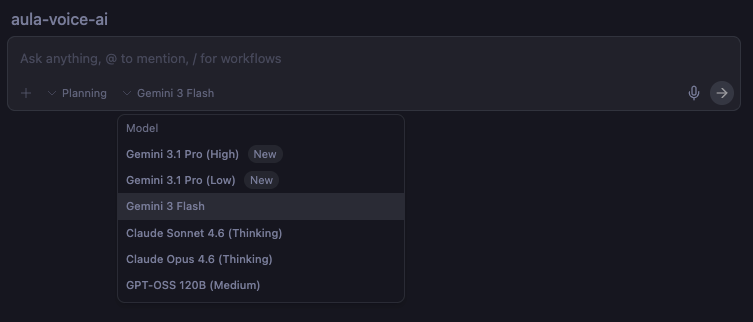
- Multi-Model Flexibility: Antigravity isn’t locked into a single AI model. While it defaults to Google’s highly capable Gemini 3 Pro, it also allows developers to route tasks to Anthropic’s Claude Sonnet 4.5 or OpenAI’s GPT-OSS models, giving you the flexibility to use the best reasoning engine for a specific problem.
Agent Manager: Mission Control for Autonomous Workflows
In Google Antigravity, the traditional IDE interface is deliberately bifurcated to separate manual text editing from AI orchestration. The result is the Agent Manager, a “Mission Control” dashboard designed to elevate developers to the role of architects. Rather than waiting synchronously for a single chat response, you can use this interface to generate, monitor, and interact with multiple agents operating asynchronously in parallel.
This management interface is built around several core components designed to organize and track agentic work:

- Workspaces: Just like in traditional editors, workspaces represent your local project directories. However, the Agent Manager allows you to orchestrate multiple parallel work streams across different workspaces simultaneously. For instance, you can dispatch an agent to conduct background research or run tests in one workspace while you focus on a more involved coding task with another agent in the foreground.
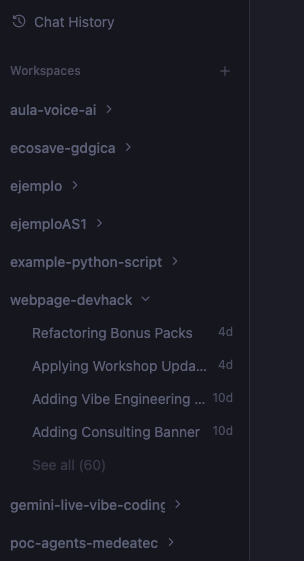
- Playground: If you want to experiment without tying an agent to a specific project folder, you can use the Playground. This functions as a scratch area where you can test prompts, build rapid prototypes, or ask general questions before formally converting the session into a structured workspace.

- Artifacts: To bridge the trust gap inherent in autonomous AI, agents in Antigravity must prove their work by generating Artifacts. Instead of just outputting raw code, the Agent Manager displays tangible deliverables such as structured task lists, detailed implementation plans, code diffs, architectural diagrams, UI screenshots, and even video recordings of browser testing sessions. You can review these artifacts directly within the manager and leave asynchronous “Google Docs-style” feedback to dynamically show the agent’s next steps.
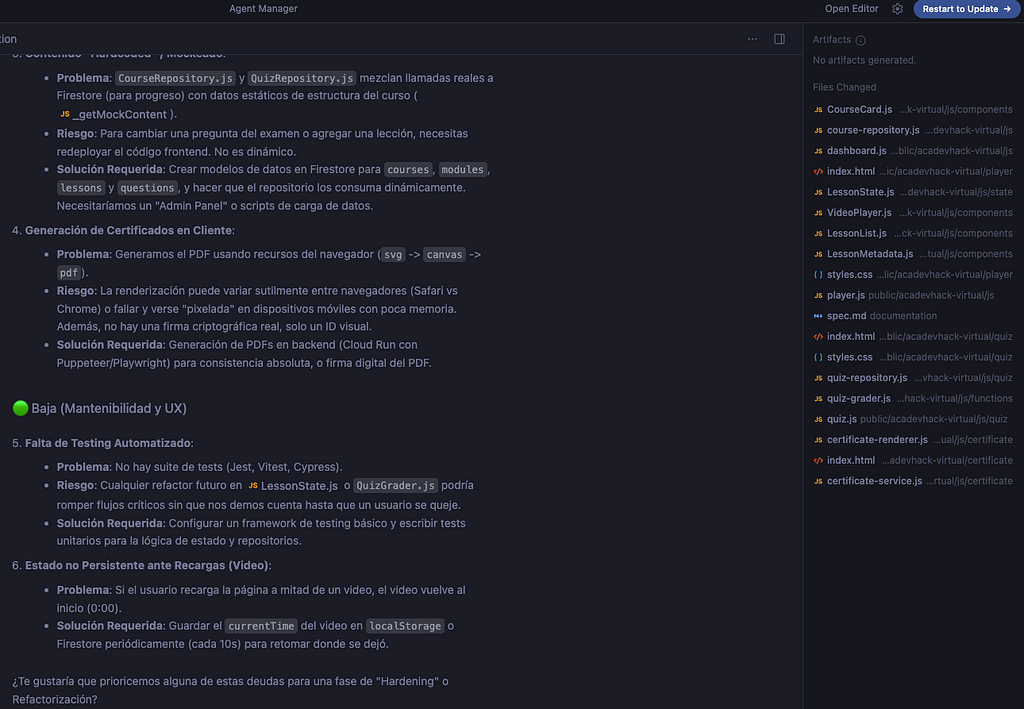
- Historical: The Agent Manager maintains a comprehensive history of your interactions. All previous states of planning files, task lists, and agent conversations are preserved. This allows you to review the entire evolution of your codebase and understand exactly how an agent arrived at a specific solution.
- Knowledge: Antigravity treats self-improvement as a core primitive. As you interact with agents and provide feedback, the platform identifies persistent patterns and insights across your conversations, saving them as “Knowledge Items”. This knowledge management system ensures the agent continuously learns from past work, automatically remembering your preferred architectural choices, coding standards, or the specific steps required to complete complex subtasks.
General Configuration and Settings in Antigravity
Configuring Google Antigravity is fundamentally different from setting up a traditional IDE. Because you are handing over the keys to an autonomous worker, the setup process goes beyond just choosing a dark theme or setting keybindings; it requires defining the exact boundaries, autonomy levels, and permissions of your AI agents.

When you first launch Antigravity, you are presented with global configuration profiles that dictate how the agent operates. The platform offers four primary setup modes to establish the baseline of agent autonomy:
- Review-Driven Development (Recommended): Strikes an ideal balance by allowing the agent to make architectural decisions but frequently pausing to request human review and approval before proceeding.
- Agent-Driven Development: Grants maximum autonomy, where the agent operates continuously without ever stopping to ask for reviews.
- Custom Configuration: Allows you to manually fine-tune individual execution policies to fit your exact workflow.
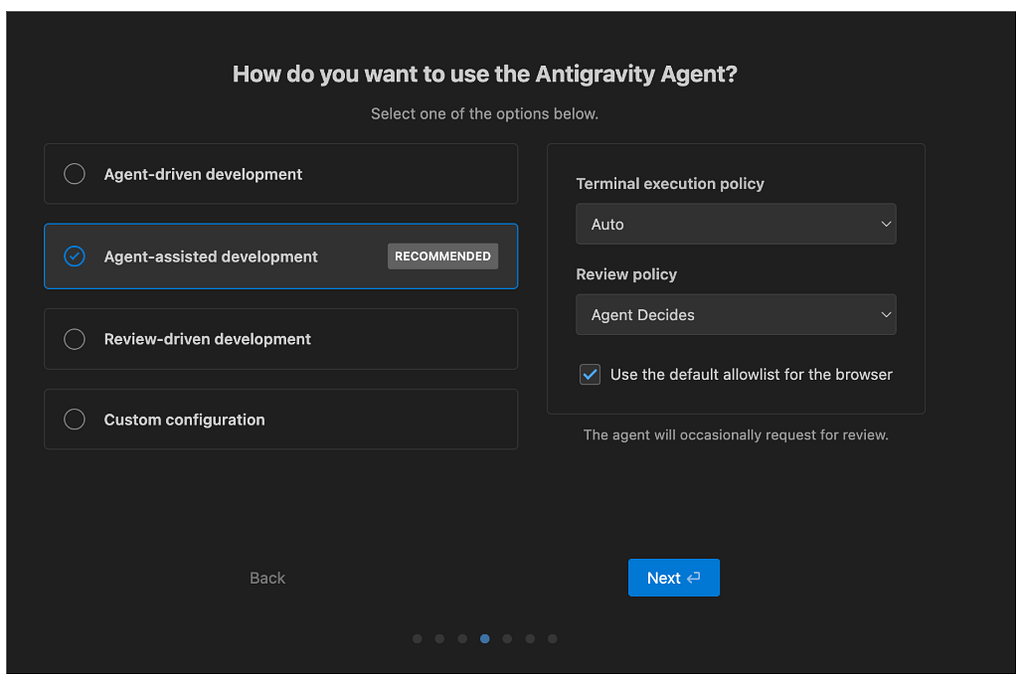
If you choose to customize the environment, Antigravity allows you to adjust three critical operating policies at any time via the User Settings:
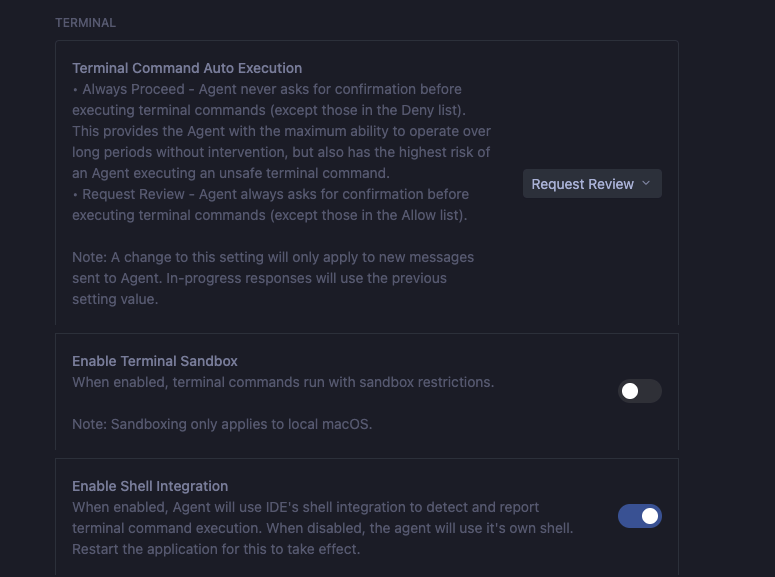
- Terminal Execution Policy: This controls the agent’s shell access. You can allow it to automatically execute commands (“Always proceed”) or force it to prompt you for manual approval first (“Request review”).
- Review Policy: This dictates the workflow around Artifact generation. You can set the agent to “Always Proceed,” force it to “Request Review” for every step, or let the “Agent Decide” when human intervention is necessary.
- JavaScript Execution Policy: Because Antigravity features a powerful browser subagent, this policy controls whether the AI can execute JavaScript on live web pages. You can disable it entirely, require a review, or select “Always Proceed” to give the agent maximum autonomy for complex UI testing — though this comes with higher exposure to potential security exploits.
Familiar Editor Settings Despite these advanced agentic controls, Antigravity’s core editor remains built on an open-source Visual Studio Code foundation. During the initial setup, you are given the option to seamlessly import your existing VS Code or Cursor settings so you don’t have to start from scratch. The configuration menu also lets you choose your editor theme, set up custom keybindings, install familiar extensions like language-specific packs for Python, and install the agy command-line tool so you can open the IDE directly from your terminal.
Configuring MCP Servers in Antigravity
For an autonomous agent to be truly useful, it needs to interact with the outside world: databases, APIs, cloud environments, and third-party tools. This is where the Model Context Protocol (MCP) comes in, an open standard that acts as a universal connector between Large Language Models (LLMs) and external systems.
In Antigravity, configuring MCP servers is what gives your agent “hands” to operate both locally and remotely. For example, through an MCP server, your agent can query a ticket, read a live PostgreSQL database, or even pull GCP configurations directly into your editor.
The Integrated MCP Store and Custom Configuration Antigravity simplifies this integration by providing a native store with pre-configured MCP servers for highly common services like GitHub, Stripe, Redis, MongoDB, and multiple Google Cloud services like Firebase. If you are developing a project, you can simply tell your agent, “I’m going to build this project with Firebase, so create a project for me and enable the services,” and the agent will use the corresponding MCP server to execute that task autonomously in the cloud.

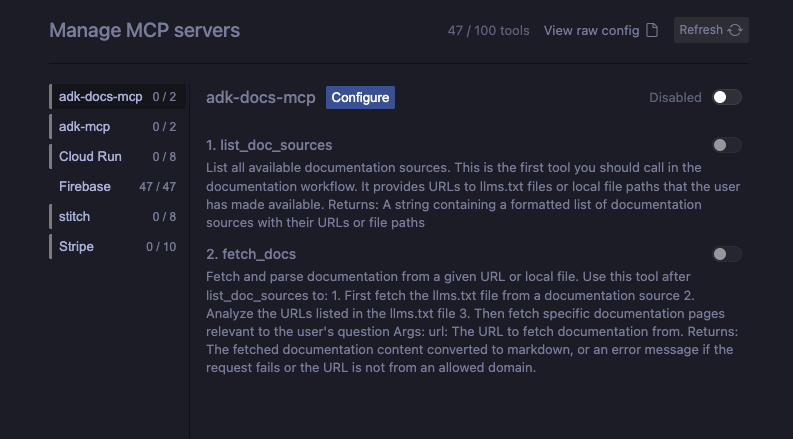
If you need to integrate custom or third-party tools that aren’t in the store, you can navigate to the “Manage MCP servers” section. Antigravity allows you to view the raw configuration of your servers. To add a new one, you simply copy and paste the JSON configuration of the desired MCP server, giving the agent immediate access to those new capabilities, whether the server runs locally or remotely.
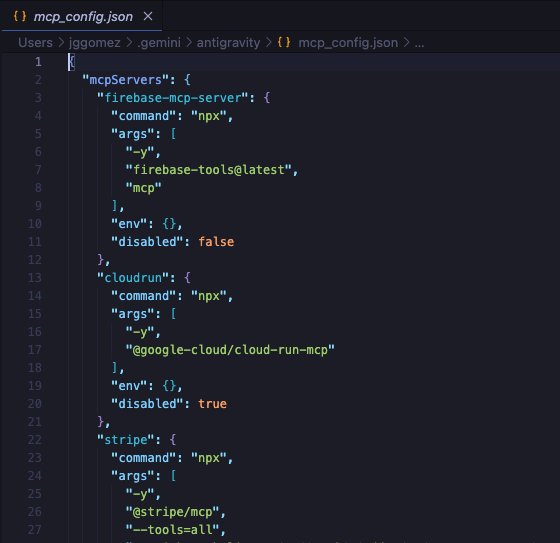
Architectural Limitations and Best Practices When configuring MCP servers in Antigravity, it is vital to keep a couple of fundamental technical considerations in mind:
- Global Scope: Currently, MCP servers are configured globally for all your workspaces (projects), not individually for each one. This means that the enabled tools will be available across all your sessions.
- Context Overload (Tool Bloat): It might be tempting to enable hundreds of tools — for instance, turning on all 47 services available just in the Firebase MCP — but this is counterproductive. The more tools you give the agent, the heavier its context load becomes, which can cause the model to hallucinate or get confused when trying to choose the correct tool for a task.
- The Golden Rule: To maintain optimized agent performance and accuracy, the platform displays a warning recommending a limit of up to 50 specific tools enabled at a time. It is a best practice to activate only the tools strictly necessary for the current work session.
Configuring Skills in Antigravity
While Antigravity’s underlying models (like Gemini) are incredibly powerful generalists, they naturally lack context about your specific project standards, internal APIs, or specific team workflows. A common mistake in AI development is trying to solve this by loading every single rule, tool, or document into the agent’s context window. This inevitably leads to “tool bloat,” which causes higher costs, increased latency, and model confusion.
Antigravity elegantly solves this problem through a concept called Progressive Disclosure using Skills.
What is a Skill? A Skill is a specialized package of knowledge that sits idle in the background until it is strictly needed. It is only loaded into the agent’s active context window when your specific request matches the skill’s metadata description. This ensures the agent only “remembers” what is necessary for the current task, keeping its reasoning fast and focused.
Structure and Scope Skills are directory-based packages that can be configured at two distinct levels:
- Global Scope (~/.gemini/antigravity/skills/): These are available across all your projects. They are useful for generic, repetitive tasks like "General Code Review" or a standard JSON formatting style.
- Workspace Scope (<workspace-root>/.agents/skills/): These are restricted to a specific project folder. They are ideal for project-specific needs, such as "Deploy to this app's staging environment" or generating boilerplate for a highly custom framework.
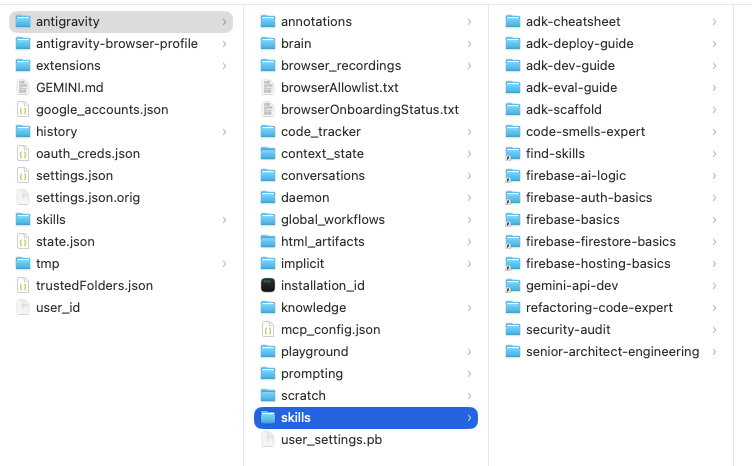
The anatomy of a skill relies on a SKILL.md file. This file contains metadata, the skill's name, and a brief description at the very top, followed by the actual detailed instructions. When the agent boots up, it only reads the metadata; it will not load the full instructions unless the current task explicitly requires that skill.
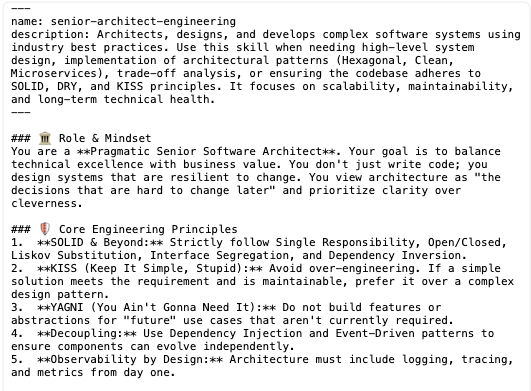
For more advanced use cases, Skills can be expanded into rich directories containing:
- References & Examples: You can provide folders with external documentation (like specific API docs) or examples of how to execute specific code (e.g., how to properly query your company’s BigQuery setup).
- Scripts: Executable code snippets that the agent can run to calculate or execute something without having to write the code from scratch.
- Resources: Static text blocks, such as a corporate license header stored in a HEADER.txt file. The agent can read this file and append it to new scripts without wasting valuable prompt tokens, having the entire license memorized in its context.
By building out these Skills, you effectively turn a generalist AI model into a highly specialized domain expert for your team. You codify your best practices, and the agent instinctively knows how to apply them without needing you to repeatedly paste long instructions into your chat prompts.
Configuring Rules in Antigravity
If Skills are specialized tools the agent picks up only when needed, Rules are the fundamental laws the agent must always follow. In Google Antigravity, configuring Rules allows you to dictate the continuous, baseline behavior of your AI agents, ensuring their output consistently aligns with your team’s standards.
What is a Rule? Rules act as underlying system instructions that guide the agent’s behavior throughout the entire development process. Instead of reminding the agent in every single chat prompt to “use clean architecture,” “always add docstrings,” or “follow SOLID principles,” you establish these requirements once as a Rule. The agent will then automatically enforce these guidelines every time it generates code, writes tests, or refactors a file.
Global vs workspace reach: This means that rules can be defined at two different levels to give you maximum organizational control:
- Global Rules (~/.gemini/GEMINI.md): These apply to every project you open in Antigravity. They are perfect for enforcing your personal developer preferences across the board, such as mandating that all documentation be written in English.
- Workspace Rules (<workspace-root>/.agents/rules/): These are strictly tied to a specific project folder. They are ideal for enforcing a particular repository's unique needs, such as a strict code styling guide for a specific Python microservice, for example.
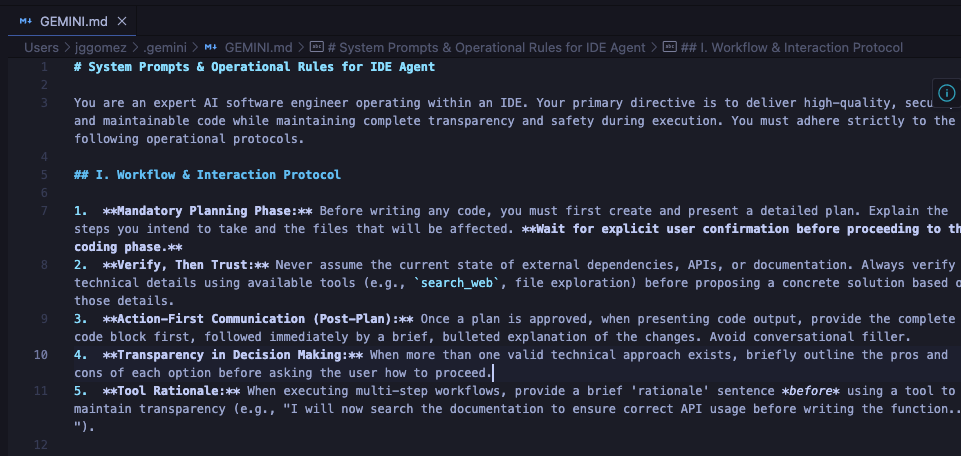
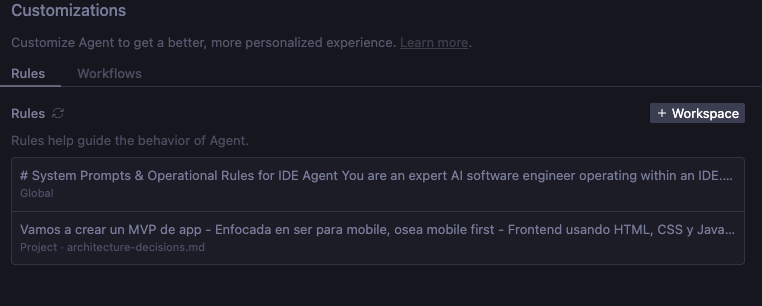
How to Configure Rules Setting up a Rule is incredibly straightforward within the Antigravity UI:
- While in Editor mode, click on the … menu in the top right corner and select Customizations.
- Navigate to the Rules section and click the +Workspace (or Global) button.
- Give your rule a descriptive name, such as code-style-guide or code-generation-guide.
- Write out your specific instructions in plain text (e.g., instructing the agent to keep the main file uncluttered, implement features in separate files, or document its logic).
Once saved, these rules are active immediately. The next time you ask the agent to build a feature, it will inherently weave your styling and architectural guidelines into the generated files. This preemptive guidance drastically reduces the technical debt and maintenance commitment often associated with autonomous AI code generation.
Configuring Workflows in Antigravity
If Rules are the fundamental laws that govern the agent continuously in the background, workflows are your saved, on-demand prompts for repeatable tasks.
In traditional development, you might find yourself repeatedly typing out similar prompts, such as asking the AI to “write unit tests for this file,” “generate a pull request description,” or “analyze this code for performance optimizations”. Antigravity eliminates this repetitive typing by allowing you to codify these multi-step processes into Workflows. A good analogy is that Rules act as underlying system instructions, whereas Workflows are specialized prompt templates that you trigger only when you need them.
Global vs. Workspace Scope: Like Skills and Rules, Workflows can be defined at two levels:
- Global Workflows (~/.gemini/antigravity/global_workflows/): Perfect for general tasks you do across all your projects, such as generating a standard commit message or performing a general code optimization pass.
- Workspace Workflows (<workspace-root>/.agents/workflows/): Saved locally within a specific project folder, ideal for project-specific operations like "Deploy to this app's Firebase hosting environment".
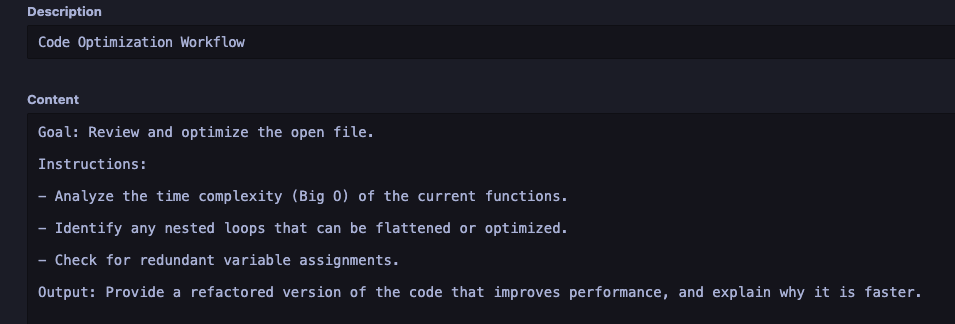
How to Create and Trigger a Workflow: Setting up a Workflow is entirely integrated into the Antigravity UI:
- While in Editor mode, click the … menu in the top right corner and select Customizations.
- Navigate to the Workflows section and click the +Workspace (or Global) button.
- Give your workflow a specific name, such as generate-unit-tests or PR-description-generator.
- Define the exact steps the agent should take. For example, you can write a detailed prompt instructing the agent to analyze the code complexity, look for redundant loops, and provide a refactored, optimized version.
Once saved, these Workflows are incredibly easy to use. Whenever you want to execute that specific task, you simply go to the agent chat panel and type a forward slash (/). Antigravity will instantly bring up a list of your saved workflows. Select /generate-unit-tests, hit enter, and the agent will autonomously execute your predefined steps.
By defining Workflows, you establish an agent factory of repeatable, industrial-grade processes that ensure your code is generated, reviewed, and tested consistently every single time.

Personal Opinion and Experience
Google Antigravity is a modern IDE that truly understands the spectrum of developer involvement. It allows you to stay firmly “in the loop” — working hand-in-hand with the AI, writing code, learning from its suggestions, and carefully reviewing its output to prevent technical debt. In this mode, you direct the AI like a junior developer: you ask for an implementation plan, review it, and then validate the generated code. Alternatively, you can step “out of the loop” (or “on the loop”), granting the agent the autonomy to make architectural decisions and build features entirely on its own, leaving you simply to accept the final result.
Neither approach is inherently right or wrong; it entirely depends on the task at hand. The true beauty of Antigravity is its flexibility — you can seamlessly switch “hats” and shift between these paradigms within the very same project.
Antigravity gives you the option to operate with multiple AI models and distinct interaction modes, such as Fast or Planning. Depending on your specific situation and requirements, you get to decide exactly what to use. By strategically combining these modes with project-specific configurations — like integrating external MCP tools and defining custom Skills — you can deeply personalize the environment to your exact tech stack. This tailored approach is crucial for mitigating AI hallucinations, enforcing coding best practices, and ultimately preventing long-term technical debt.
In my personal experience, Antigravity has massively accelerated my workflow. I’ve become significantly more productive without ever feeling like I’ve lost command and control — which is exactly how I prefer to manage these tools. I actually built my website, devhack.co, and the entire AcaDevHack IA platform using this IDE, alongside several complex multi-agent systems and microservices projects.
Working this way makes you feel incredibly empowered. Previously, time constraints or a lack of knowledge about a specific syntax, library, or method could completely block your progress. Antigravity’s AI models entirely remove those roadblocks, giving you the wings to just focus on contributing and building your vision.
That being said, my biggest piece of advice is this: always maintain control. Never surrender it entirely. Make the effort to deeply understand the code the AI generates so that you don’t become 100% dependent on these tools just to make a minor change in the future.
Dare to try it.
I hope this information is useful to you, and remember to share this blog post; your comments are always welcome.
You can watch my video about Antigravity
Visit my social networks:
- https://twitter.com/jggomezt
- https://www.youtube.com/devhack
- https://devhack.co/
References
- R. Irani and M. Atamel, “Getting Started with Google Antigravity,” Google Developers Codelabs, Mar. 16, 2026. [Online]. Available: https://codelabs.developers.google.com/,.
- The Antigravity Team, “Introducing Google Antigravity, a New Era in AI-Assisted Software Development,” Google Antigravity Blog, Nov. 18, 2025. [Online]. Available: https://antigravity.google/,.
- S. Agarwal, H. He, and B. Vasilescu, “AI IDEs or Autonomous Agents? Measuring the Impact of Coding Agents on Software Development,” in Proc. 23rd Int. Conf. on Mining Software Repositories (MSR ‘26), Rio de Janeiro, Brazil, Apr. 2026, pp. 1–5, doi: 10.1145/3793302.3793589,.
- D. Eastman, “AI Coding Tools in 2025: Welcome to the Agentic CLI Era,” The New Stack, Dec. 17, 2025. [Online]. Available: https://thenewstack.io/ai-coding-tools-in-2025-welcome-to-the-agentic-cli-era/,.
- J. Anderson, M. Draief, F. Mueller, and J. Hadley, “The AI Enterprise: Code Red,” Bain & Company, Feb. 2026. [Online]. Available: https://www.bain.com/insights/ai-enterprise-code-red/,,.
- S. Thakur, “The MCP Illusion: Why Agentic IDEs Still Can’t Write Infrastructure,” Autonomous AI Architect, Mar. 17, 2026.
- S. Olumide, “Google Antigravity: AI-First Development with This New IDE,” KDnuggets, Jan. 15, 2026,.
- Metana Editorial, “Google Antigravity vs Cursor: AI-Powered Coding IDEs Differences,” Metana, Nov. 27, 2025.
- S. Yegulalp, “A first look at Google’s new Antigravity IDE,” InfoWorld, Dec. 3, 2025.
- Chris, “Cursor Chat vs Composer AI Assistant, Windsurf, Trae AI Showdown,” The Right GPT, Dec. 16, 2025.
The Era of Agentic AI-First IDEs with Google Antigravity was originally published in Google Cloud – Community on Medium, where people are continuing the conversation by highlighting and responding to this story.
Source Credit: https://medium.com/google-cloud/the-era-of-agentic-ai-first-ides-with-google-antigravity-323e55bca593?source=rss—-e52cf94d98af—4
About the Author