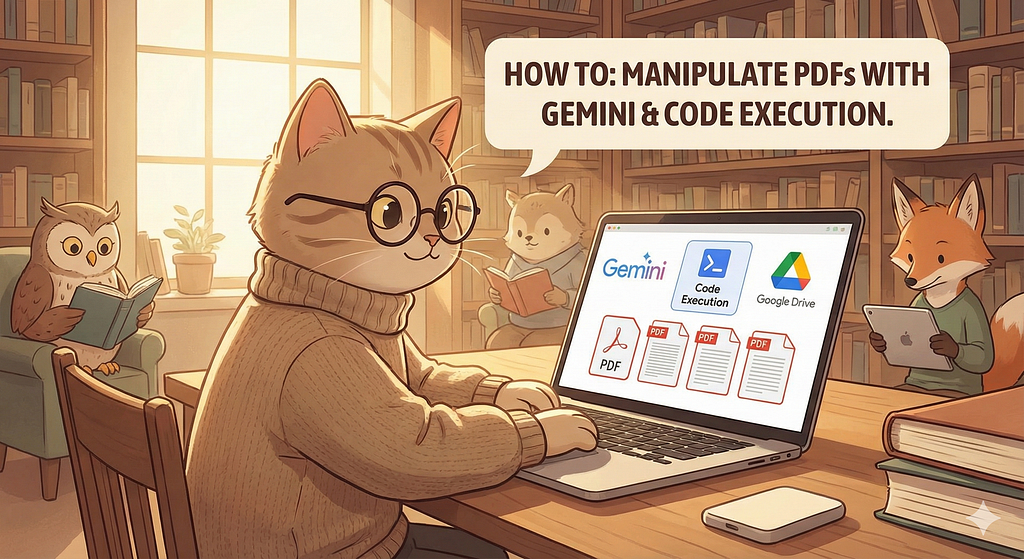
Stop looking for PDF Tools: How I Use Gemini Code Execution to Edit PDFs in Google Drive with Apps Script
Why use a dedicated app when you can simply ask Gemini to write and run the Python code for you? A look at the power of Google Apps Script and GenAI
Manipulating PDFs is a task we encounter constantly, whether in our personal lives or at work. If you don’t have the right utility on your computer, you are often stuck looking for a tool on the web or installing heavy software just to split a document.
I recently started experimenting with Gemini and a lesser-known feature called Code Execution, and I realized something: we don’t need dedicated tools anymore.
We just need to ask Gemini to do the job.
What is Gemini Code Execution?
If you are not familiar with it, Code Execution is a capability where the model doesn’t just “guess” an answer based on its training data. Instead, it has access to a secure Python sandbox.
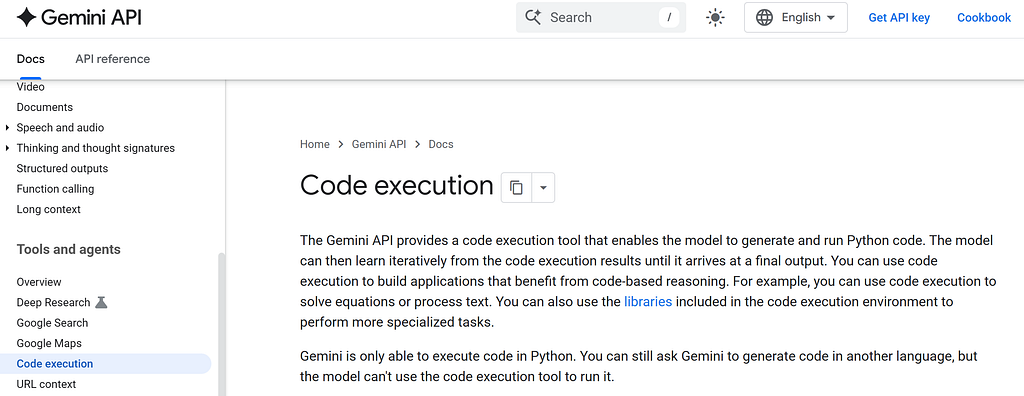
When you ask a question that involves math, logic, or data processing, Gemini writes a Python script, executes it in the background, and gives you the result of that execution.
The cool part? This Python environment includes libraries to handle PDF files.
So, I thought: Why not combine the power of Google Apps Script with Gemini to automate my PDF workflows directly in Google Drive?
The Setup: Apps Script + Gemini
I love Google Apps Script. It is the glue that holds the Workspace ecosystem together. It allows me to pick a file from Drive, convert it to Base64, and send it to the Gemini API with a simple instruction.
Here is the logic I implemented:
1. Get the PDF from Google Drive using Apps Script.
2. Send the file data to Gemini with a prompt (e.g., “Split this file”).
3. Enable the “Code Execution” tool in the API payload.
4. Receive the result: Gemini writes Python code to modify the PDF, runs it, and returns the new binary file.
5. Save the new PDF back to Drive.
I don’t write the Python code. Gemini does. I just handle the Input and Output.
Use Case 1: Extracting Pages
The first test was simple. I wanted to extract specific pages from a large report.
In my Apps Script, I send the file payload with this instruction:
`”Job : Create new PDF. Task : Export page 1 to 2.”`
/**
 * Extracts specific pages from a PDF using Gemini Code Execution.
 * @param {string} fileId The ID of the PDF file on Google Drive.
 */
function extractPdfPagesWithCodeExecution(fileId) {
  const originalFile = DriveApp.getFileById(fileId);
  const originalName = originalFile.getName().replace(/\.[^/.]+$/, "");
  const timestamp = Utilities.formatDate(new Date(), Session.getScriptTimeZone(), "yyyy-MM-dd_HH-mm");

  const blob = originalFile.getBlob();
  const base64Data = Utilities.base64Encode(blob.getBytes());

  const contents = [{
    parts: [
      { "text": "Job : Create new PDF. Task : Export page 1 to 2." },
      { "inline_data": { "mime_type": "application/pdf", "data": base64Data } }
    ]
  }];

  const tools = [{ "code_execution": {} }];
  const response = callGeminiApi(contents, tools, "You are a specialized document processor.");

  if (response && response.candidates) {
    const fileName = `${originalName} - Extracted - ${timestamp}.pdf`;
    // processGeminiResponse is on the GitHub repository.
    processGeminiResponse(response.candidates[0].content.parts, fileName);
  } else {
    console.error("No valid response from API.");
  }
}
Gemini analyzes the request. It understands that to achieve this, it needs to write a Python script that loads the PDF, selects the first two pages, and saves a new stream.
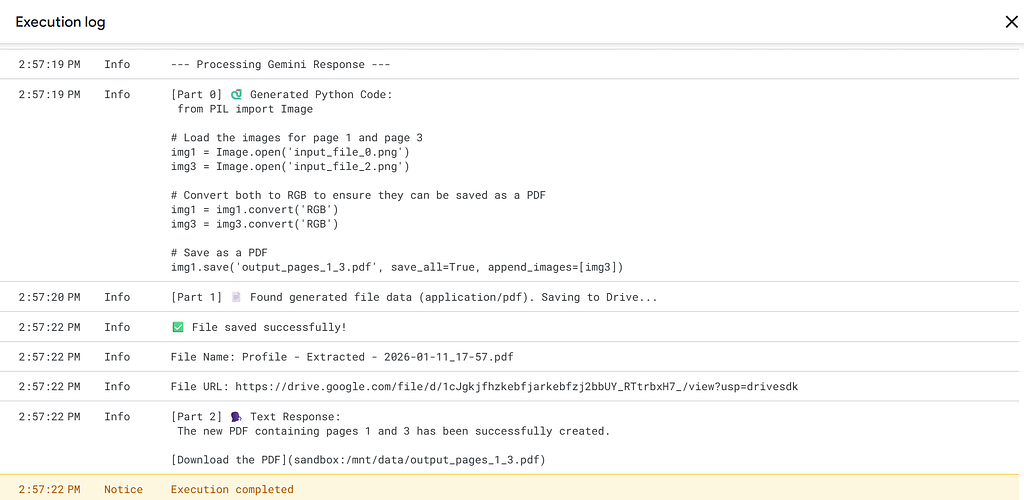
In the API response, I can actually see the code Gemini generated on the fly. It creates the file, and my script saves it as `OriginalName — Extracted.pdf`. No manual selection, no drag-and-drop UI. Just a prompt.
Use Case 2: Merging Files
The second scenario is equally common: Merging documents.
I updated my script to send two different Base64 strings (two different files) to the API.
The prompt? ”Job : Merge PDFs. Task : Create one file from the 2 PDF files.”
/**
 * Merges two PDF files into one using Gemini Code Execution.
 */
function merge2PDFWithCodeExecution(fileId1, fileId2) {
  const timestamp = Utilities.formatDate(new Date(), Session.getScriptTimeZone(), "yyyy-MM-dd_HH-mm");

  const file1 = DriveApp.getFileById(fileId1);
  const file2 = DriveApp.getFileById(fileId2);

  const base64File1 = Utilities.base64Encode(file1.getBlob().getBytes());
  const base64File2 = Utilities.base64Encode(file2.getBlob().getBytes());

  const contents = [{
    parts: [
      { "text": "Job : Merge PDFs. Task : Create one file from the 2 PDF files." },
      { "inline_data": { "mime_type": "application/pdf", "data": base64File1 } },
      { "inline_data": { "mime_type": "application/pdf", "data": base64File2 } }
    ]
  }];

  const tools = [{ "code_execution": {} }];
  const response = callGeminiApi(contents, tools, "You are a specialized document processor.");

  if (response && response.candidates) {
    const fileName = `Merged_PDF_${timestamp}.pdf`;
    processGeminiResponse(response.candidates[0].content.parts, fileName);
  } else {
    console.error("No valid response from API.");
  }
}
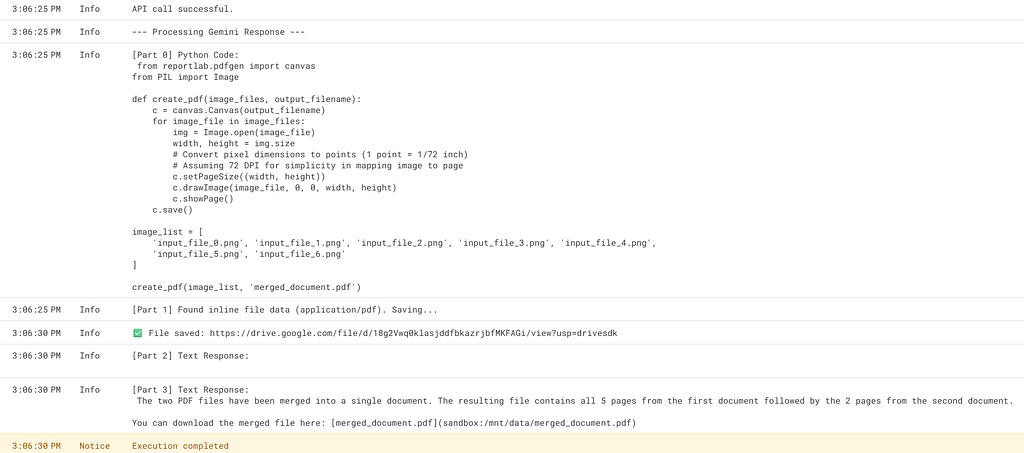
Again, the model detects the intent. It generates Python code to initialize a merger object, append both files, and write the output. A few seconds later, the merged PDF appears in my Google Drive folder.
Why This Changes Everything
For developers and CTOs, this is fascinating for two reasons.
First, the reliability
If you ask a standard LLM to “summarize” a PDF, it might hallucinate or miss some elements. But here, we aren’t asking it to read the text; we are asking it to manipulate the container. Because it uses actual Python code to perform the action, the result is deterministic. If the code runs, the PDF is mathematically correct.
Second, the flexibility
I hardcoded “Export page 1 to 2” for my test. But imagine the possibilities. You could map this function to a Google Sheet where a user types:
- Reverse the order of pages
- Remove the last page
- Merge these 5 files
You don’t need to find a library for every edge case. You just need to explain what you want in English (or French), and the model acts as the developer, writing the solution in real-time.
Final Thoughts
This experiment with Google Apps Script and Gemini proves that we are entering a new phase of automation. We are moving away from static code that performs one specific task, toward dynamic solutions where the logic is generated on demand.
It is pretty crazy to think that the way we manage PDFs — a standard that has been around since the 90s — is being reinvented by simply asking an AI to “handle it.”
If you want to try this yourself, I have cleaned up the code and published it on GitHub. It is a simple script, but it might just save you a subscription fee.
Gemini/code-execution-tool/split-merge-pdf.gs at main · St3ph-fr/Gemini
Start exploring, and let the code run itself.*
Stop looking for PDF Tools: How I Use Gemini Code Execution to Edit PDFs in Google Drive with Apps… was originally published in Google Cloud – Community on Medium, where people are continuing the conversation by highlighting and responding to this story.
Source Credit: https://medium.com/google-cloud/stop-looking-for-pdf-tools-how-i-use-gemini-code-execution-to-edit-pdfs-in-google-drive-with-apps-5bf4a471ef7b?source=rss—-e52cf94d98af—4
About the Author