Building Data Analytics Agent made easy
BigQuery has built open source Agentic AI Tools for powering Data Analytics AI agents. Google’s Agent Starter Pack simplifies creating a production-ready agent and deploying it to production. They can be combined to quickly turn up a data analytics agent in production.
Introduction
This post walks through how to quickly set up, build, locally test and deploy a data analytics agent to Vertex AI Agent Engine (AE). This AI agent can interact with BigQuery (BQ) in natural language, utilizing the Agent Starter Pack (ASP) and the Agent Development Kit (ADK).
ADK: A model-agnostic, deployment-agnostic framework for developing and deploying AI agents.
ASP: Simplifies the journey from prototype to a robust, reliable, production-ready agent.
AE: a set of services that enables developers to deploy, manage, and scale AI agents in production.
In this exercise we leverage a pre-existing BigQuery agent sample from the ADK repo to create an agent project. We would test this agent locally and then deploy to the cloud. The final result is a BigQuery Data Analytics agent ready for use.
Prerequisites
To follow this guide, you will need:
- A Linux machine/cloud shell
- APIs enabled in your Google Cloud Project (GCP)
– BigQuery — for BigQuery analytics
– Vertex AI — for deploying agent to Agent Engine
– Cloud Storage — for staging the agent for deploying to Agent Engine - Gemini API Key
Step-by-Step Guide
Follow these steps to set up and run your BigQuery Agent locally.
Get Agent Starter Pack
Set up your machine with agent-starter-pack https://googlecloudplatform.github.io/agent-starter-pack/guide/installation. I chose to get a zero setup Cloud Shell to save on steps.
Create the Agent project from the sample agent
Use the agent-starter-pack create command to generate a new agent project based on the ADK’s BigQuery sample agent.
uvx agent-starter-pack create my-bq-agent -a https://github.com/google/adk-python/tree/main/contributing/samples/bigquery
I picked all default options on the prompts, which means Vertex AI Agent Engine as the production environment for the deployed agent.
=== Google Cloud Agent Starter Pack 🚀===
Welcome to the Agent Starter Pack!
This tool will help you create an end-to-end production-ready AI agent in Google Cloud!

Fetching remote template: https://github.com/google/adk-python/tree/main/contributing/samples/bigquery

> Please select a deployment target:
1. Vertex AI Agent Engine - Vertex AI Managed platform for scalable agent deployments
2. Cloud Run - GCP Serverless container execution

Enter the number of your deployment target choice (1):

> Please select a CI/CD runner:
1. Simple - Minimal - no CI/CD or Terraform, add later with 'enhance'
2. Google Cloud Build - Fully managed CI/CD, deeply integrated with GCP for fast, consistent builds and deployments.
3. GitHub Actions - GitHub Actions: CI/CD with secure workload identity federation directly in GitHub.

Enter the number of your CI/CD runner choice (1):

Enter desired GCP region (Gemini uses global endpoint by default) (us-central1):
> Verifying GCP credentials...

> You are logged in with account: 'default'
> You are using project: 'Unknown'
> Do you want to continue? (The CLI will check if Vertex AI is enabled in this project) [Y/skip/edit] (Y):
> Testing Vertex AI connection...
> ⚠️  Unexpected response from metadata server: service account info is missing 'email' field.
> Continuing with template processing...
ℹ️  Adding 'app' object to bigquery/agent.py for backward compatibility

> Success! Your agent project is ready.

📖 Project README: cat my-bq-agent/README.md
   Online Development Guide: https://goo.gle/asp-dev

💡 Once ready for production, run: uvx agent-starter-pack enhance

🚀 To get started, run the following command:
   cd my-bq-agent && make install && make playground
Set the environment
Create a .env file to configure the ADK agent to use the Gemini API for LLM integration and set the Gemini API Key (replace YOUR_GEMINI_API_KEY with your own key).
cat << EOF > my-bq-agent/.env
GOOGLE_GENAI_USE_VERTEXAI=FALSE
GOOGLE_API_KEY=YOUR_GEMINI_API_KEY
EOF
Also, for the BigQuery Agent to work in ADC mode:
gcloud auth application-default login
Install Dependencies and Launch the Local Playground
Now execute the command suggested by agent-starter-pack in the agent project creation step to install dependencies and start the local ADK web server.
cd my-bq-agent && make install && make playground
...
INFO:     Started server process [5537]
INFO:     Waiting for application startup.

+-----------------------------------------------------------------------------+
| ADK Web Server started                                                      |
|                                                                             |
| For local testing, access at http://127.0.0.1:8501.                         |
+-----------------------------------------------------------------------------+

INFO:     Application startup complete.
INFO:     Uvicorn running on http://127.0.0.1:8501 (Press CTRL+C to quit)
Test the Agent
- Click on the link provided by the server output (e.g., http://127.0.0.1:8501). If you are using Cloud Shell, this will open a new tab targeting your application (Example: https://8501-cs-REDACTED-default.cs-us-west1-vwey.cloudshell.dev/dev-ui/).
- In the top left, select “bigquery” from the “Select an agent” dropdown menu.
- Start conversing with the agent. The agent will now interact with BigQuery using your credentials stored on the Cloud Shell VM.

Deploy the Agent
Now that you are satisfied with the functioning of your agent, follow https://googlecloudplatform.github.io/agent-starter-pack/guide/deployment.html for deploying it to the Agent Engine.
Note: In this exercise, the cloud shell environment is very close to the prospective Agent Engine (both within Google Cloud), so we expect the user interactions with the deployed agent to be similar to what we tested locally.
For a quick deployment, first set the target GCP project in your local environment (replace YOUR_GCP_PROJECT_ID with your GCP project id):
gcloud config set project YOUR_GCP_PROJECT_ID
Next, deploy the agent:
make deploy
This could take a few minutes, doing the work behind the scenes.
    ╔═══════════════════════════════════════════════════════════╗
    ║                                                           ║
    ║   🤖 DEPLOYING AGENT TO VERTEX AI AGENT ENGINE 🤖         ║
    ║                                                           ║
    ╚═══════════════════════════════════════════════════════════╝

📋 Deployment Parameters:
  Project: YOUR_GCP_PROJECT_ID
  Location: us-central1
  Display Name: my-bq-agent
  Min Instances: 1
  Max Instances: 10
  CPU: 4
  Memory: 8Gi
  Container Concurrency: 9

🌍 Environment Variables:
  GOOGLE_CLOUD_AGENT_ENGINE_ENABLE_TELEMETRY: true
  GOOGLE_CLOUD_REGION: us-central1
  NUM_WORKERS: 1
  OTEL_INSTRUMENTATION_GENAI_CAPTURE_MESSAGE_CONTENT: true
INFO:root:Importing app.agent_engine_app.agent_engine

🚀 Creating new agent: my-bq-agent
🚀 Deploying to Vertex AI Agent Engine (this can take 3-5 minutes)...
INFO:vertexai_genai.agentengines:Creating in-memory tarfile of source_packages
INFO:vertexai_genai.agentengines:Using agent framework: google-adk
INFO:vertexai_genai.agentengines:View progress and logs at https://console.cloud.google.com/logs/query?project=YOUR_GCP_PROJECT_ID&query=resource.type%3D%22aiplatform.googleapis.com%2FReasoningEngine%22%0Aresource.labels.reasoning_engine_id%3D%223641781522798739456%22.
INFO:vertexai_genai.agentengines:Agent Engine created. To use it in another session:
INFO:vertexai_genai.agentengines:agent_engine=client.agent_engines.get(name='projects/476297540060/locations/us-central1/reasoningEngines/3641781522798739456')
INFO:root:Agent Engine ID written to deployment_metadata.json

✅ Deployment successful!
Service Account: service-YOUR_GCP_PROJECT_NUMBER@gcp-sa-aiplatform-re.iam.gserviceaccount.com

📊 Open Console Playground: https://console.cloud.google.com/vertex-ai/agents/locations/us-central1/agent-engines/3641781522798739456/playground?project=YOUR_GCP_PROJECT_ID
In the end it gave you a link to the Vertex AI Agent Engine playground page, where you can start interacting right away.
Pro-Tip: It also printed the service account that is the identity of this agent, on which you may need to provision any additional IAM roles to support your interaction, such as “BigQuery Job User” for running queries in your choice of project, and “BigQuery Data Viewer” for accessing the data in the project.
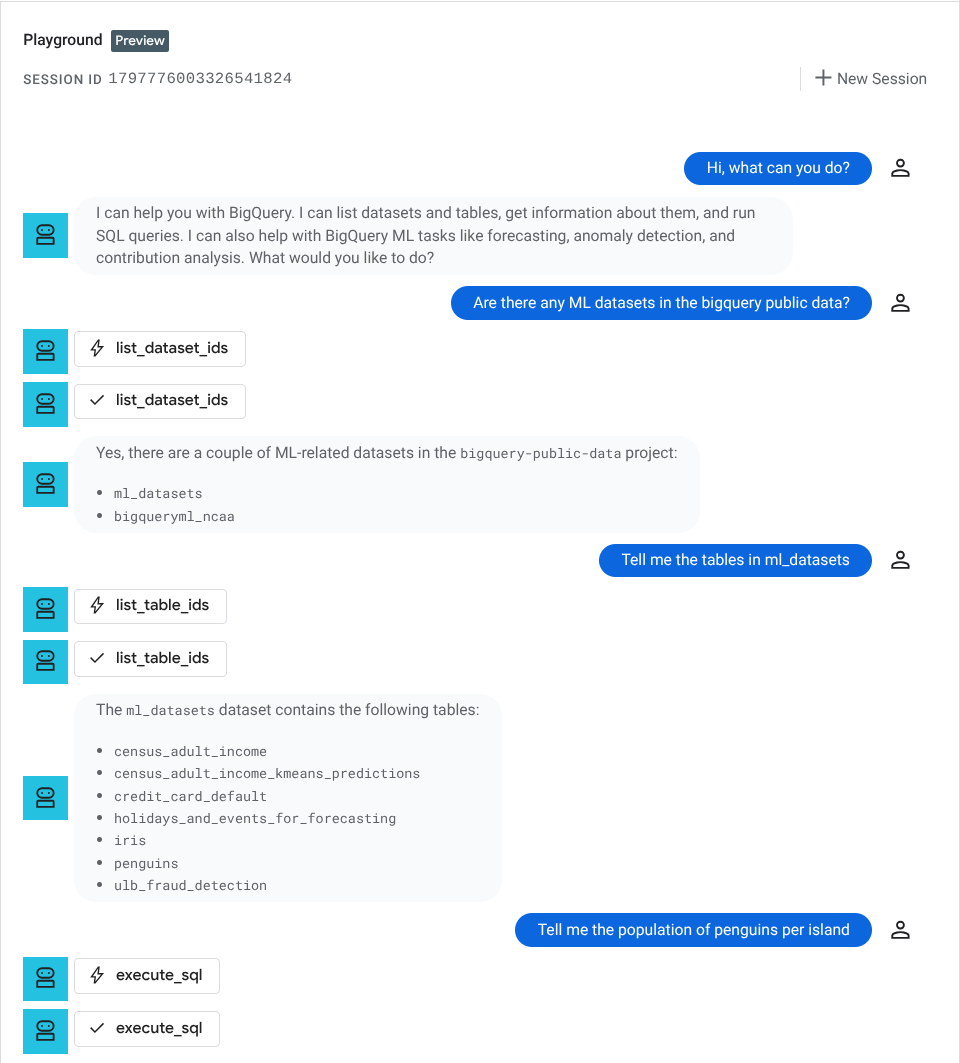
There you have it, a Data Analytics agent deployed to Vertex AI Agent Engine in Google Cloud.
Observe the Agent
Refer to https://googlecloudplatform.github.io/agent-starter-pack/guide/observability.html for utilizing the full suit of observability.
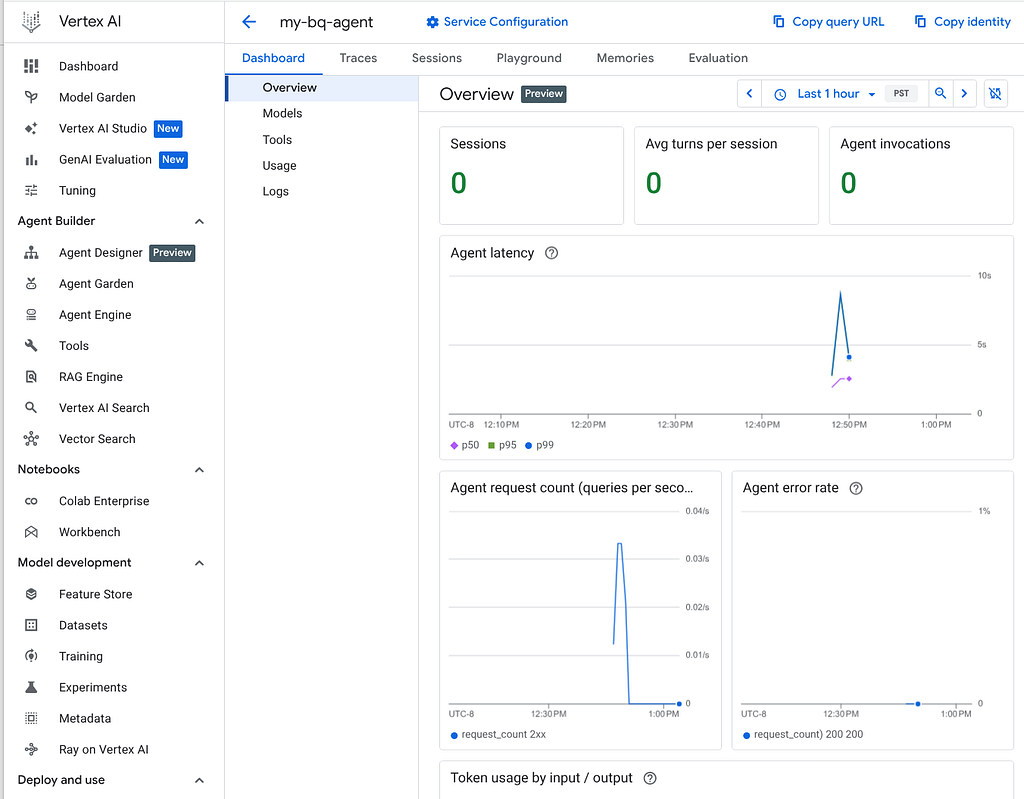
You could also complement the operational observability with the analytical intelligence by leveraging ADK Agent Analytics plugin, with just one line change to your agent code (in my-bq-agent/bigquery/agent.py), and having the agentic events flow directly to a Google BigQuery table for in-depth agent behavior analysis.
Conclusion and Feedback
The BigQuery Agentic Tools Team and the Agent Starter Pack Team would love to hear from you. You could create a discussion/issue on the respective github repositories https://github.com/google/adk-python and https://github.com/GoogleCloudPlatform/agent-starter-pack.
Jumpstart production grade BigQuery Agent with Agent starter pack was originally published in Google Cloud – Community on Medium, where people are continuing the conversation by highlighting and responding to this story.
Source Credit: https://medium.com/google-cloud/jumpstart-production-grade-bigquery-agent-with-agent-starter-pack-503a34fd921c?source=rss—-e52cf94d98af—4
About the Author