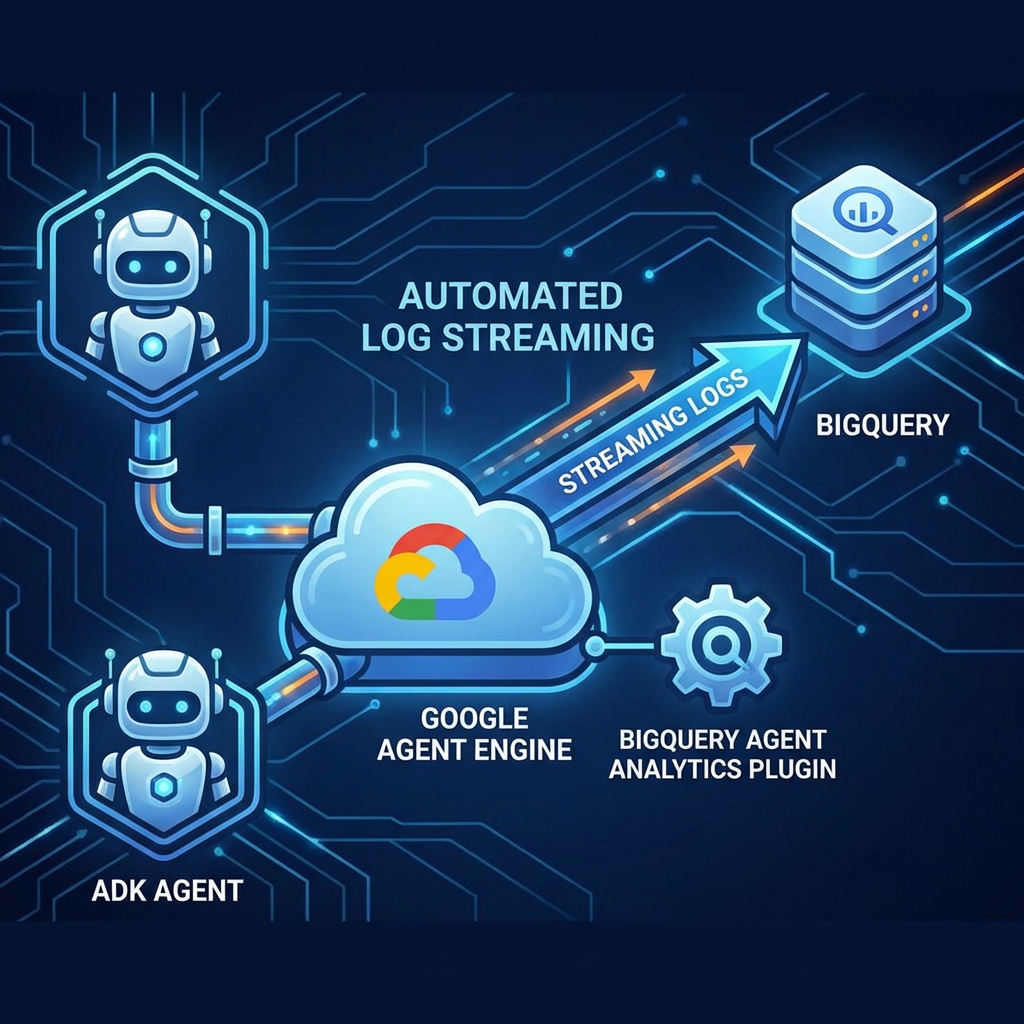
Building an agent is one thing; observing, scaling, and managing it is another. By combining the Agent Development Kit (ADK) with Vertex AI Agent Engine, you get a managed environment that handles the heavy lifting of infrastructure. Add in the BigQuery Agent Analytics Plugin, and you’ve got an observability stack that streams every prompt, tool call, and token count directly into BigQuery for analysis.
In this guide, we’ll walk through how to bundle these components together and deploy them.
There’s already an ample amount of documentation but that’s exactly the issue we want to help address. What we will do here is consolidate all of that into one little neat blog you can follow along with all you need to know!
The Power Trio: ADK, Agent Engine, and BigQuery
Before we dive into the code, let’s look at the roles each component plays:
- Agent Development Kit (ADK): A modular framework designed to help you build sophisticated agents using Gemini. It handles the orchestration of models and tools with ease.
- Vertex AI Agent Engine: The “runtime” for your agents. It provides a managed, scalable environment where your ADK agents can live, complete with session management and versioning.
- BigQuery Agent Analytics Plugin: A turn-key lightweight plugin for ADK and LangGraph that streams operational logs to BigQuery in real-time. No more hunting through fragmented logs — everything you need for cost and performance analysis is in one table.
– It doesn’t block agent responses and uses BigQuery Storage Write API for high performance.
– It respects the project’s IAM permissions — a critical requirement for many enterprises.
Implementation Guide
We’re going to build a data assistant that uses the BigQuery Toolset to answer questions and the Analytics Plugin to log its behavior.
1. Project Setup
First, we initialize the environment and the vertexai client. This ensures our ADK agent knows where to route its requests and where Agent Engine should store its staging files.
import os
import shutil
import google.auth
import vertexai
import logging
from vertexai import agent_engines
from google.adk.agents import Agent
from google.adk.models.google_llm import Gemini
from google.adk.plugins.bigquery_agent_analytics_plugin import BigQueryAgentAnalyticsPlugin
from google.adk.tools.bigquery import BigQueryCredentialsConfig, BigQueryToolset
# Configuration
PROJECT_ID = "your-project-id"
REGION = "us-central1"
STAGING_BUCKET = "gs://your-staging-bucket"
DATASET_ID = "agent_logs_dataset"
BQ_TABLE_ID = "agent_production_logs"
# Initialize Vertex AI
vertexai.init(project=PROJECT_ID, location=REGION, staging_bucket=STAGING_BUCKET)
client = vertexai.Client(project=PROJECT_ID, location=REGION)
2. Creating the Agent with BigQuery Tools
Now, we define our agent. We’ll equip it with the BigQueryToolset so it can interact with your data warehouses. This is just so our agent actually has a purpose, you can equip whatever or design it to be whatever you need.
Note: The BigQueryToolSet is a toolset that helps with the agentic use of BigQuery (i.e. it helps the agent with the use of BigQuery related usage). The BigQuery Agent Analytics Plugin is a plugin that helps with logging of your agent.
# Setup Credentials & Tools
credentials, _ = google.auth.default(scopes=["https://www.googleapis.com/auth/cloud-platform"])
bq_creds_config = BigQueryCredentialsConfig(credentials=credentials)
bigquery_toolset = BigQueryToolset(credentials_config=bq_creds_config)
# Initialize Gemini & Agent
llm = Gemini(model="gemini-2.5-flash")
root_agent = Agent(
model=llm,
name="bq_data_assistant",
instruction="You are a data assistant. Use BigQuery tools to answer user questions about datasets.",
tools=[bigquery_toolset],
)
3. Adding the BigQuery Agent Analytics Plugin
This is where the magic happens. We initialize the BigQueryAgentAnalyticsPlugin and wrap it along with our agent into an AdkApp.
As long as the dataset exists, the plugin will automatically create the table with the necessary schema on the first run. You don’t need to manually create the table.
bq_logger_plugin = BigQueryAgentAnalyticsPlugin(
  project_id=PROJECT_ID,
  dataset_id=DATASET_ID,
  table_id=BQ_TABLE_ID,
  )
# Bundle into an AdkApp
app_to_deploy = agent_engines.AdkApp(
  agent=root_agent,
  plugins=[bq_logger_plugin]
  )
4. Handling Local Dependencies
In production, you might be using a specific version of the ADK or custom internal libraries. To ensure these are available in the Agent Engine environment, we’ll package them as “extra packages.”
This section creates a directory, copies your local wheel file, and ensures Agent Engine uploads it during deployment. This isn’t strictly necessary but we’re providing it here as an example and to control the version being used in Agent Engine.
Note before you do this — you may need to pull the wheel down.
For example:
curl -L -O https://files.pythonhosted.org/packages/py3/g/google_adk/google_adk-1.23.0-py3-none-any.whl
local_whl_source = "./google_adk-1.23.0-py3-none-any.whl"
dep_dir = "./adk_dependencies"
whl_basename = os.path.basename(local_whl_source)
# Prepare the dependency folder
if os.path.exists(dep_dir): shutil.rmtree(dep_dir)
  os.makedirs(dep_dir)
shutil.copy(local_whl_source, os.path.join(dep_dir, whl_basename))
print(f"Prepared local dependency: {whl_basename}")
5. Deploying to Agent Engine
Finally, we call client.agent_engines.create. Notice the extra_packages argument, which tells the engine to install our local wheel.
print("Deploying agent to Vertex AI Agent Engine…")
remote_app = client.agent_engines.create(
agent=app_to_deploy,
config={
  "display_name": "adk-bq-analytics-v1",
  "staging_bucket": STAGING_BUCKET,
  "requirements": [
  "google-cloud-aiplatform[agent_engines]",
  f"adk_dependencies/{whl_basename}", # Reference local wheel
  "google-cloud-bigquery",
  "db-dtypes",
  "pyarrow",
  ],
  "extra_packages": [dep_dir], # Upload dependency folder
  },
)
print(f"Success! Agent deployed at: {remote_app.api_resource.name}")
After you’ve written the code, you can simply deploy it by calling the agent python script.
## Make sure to have your dependencies installed
python agent.py
Once the agent is deployed, the output will provide a resource name string similar to the following:
projects/{PROJECT}/locations/us-central1/reasoningEngines/{AGENT_ENGINE_ID}
The {AGENT_ENGINE_ID} represents your unique agent engine identifier. You will need to use this ID in your subsequent scripts to programmatically call and interact with your agent.
6. Testing the Agent
Test it out by writing another Python script to call the agent. We use the asyncio method here to help illustrate how to handle streaming events.
import asyncio
import os
import vertexai
from vertexai import agent_engines
# Configuration pulled from environment with defaults
PROJECT_ID = os.environ.get("PROJECT_ID", "your-project-id")
LOCATION = os.environ.get("REGION", "us-central1")
RESOURCE_ID = os.environ.get("AGENT_ENGINE_ID")
USER = 'testuser'
vertexai.init(project=PROJECT_ID, location=LOCATION)
resource_name = f"projects/{PROJECT_ID}/locations/{LOCATION}/reasoningEngines/{RESOURCE_ID}"
remote_app = agent_engines.get(resource_name)
async def call_agent(query, session_id, user_id):
  async for event in remote_app.async_stream_query(
    user_id=user_id,
    session_id=session_id,
    message=query,
    ):
    print(event)
# Initialize session and call agent
session = asyncio.run(remote_app.async_create_session(user_id=USER))
asyncio.run(call_agent(
"Tell me more about BigQuery's Weather NOAA public dataset",
session.get("id"),
USER
))
7. Analyzing your data in BigQuery
Now to reap the rewards… of the automatically collected data!
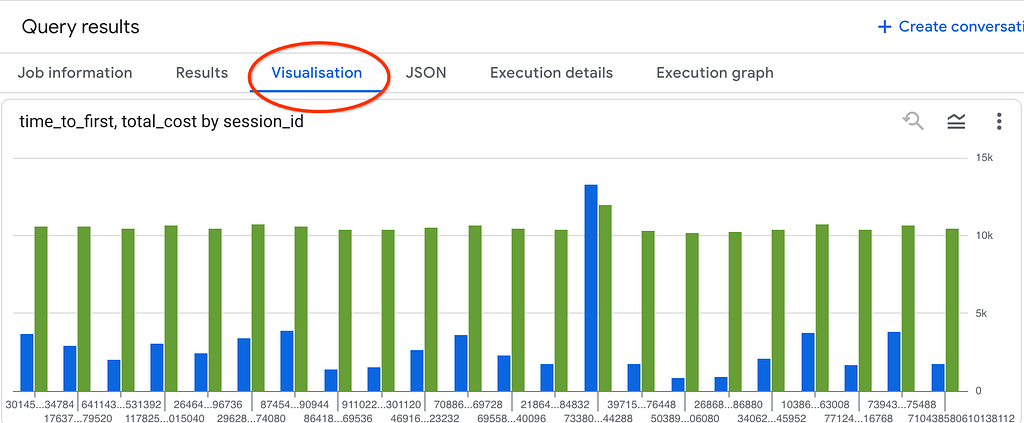
Navigate to BigQuery studio — you can take a look at the average time a session took to first respond and also how many tokens a session consumed with the following query.
SELECT
session_id,
AVG(CAST (JSON_VALUE(latency_ms, '$.time_to_first_token_ms') AS INT64)) as time_to_first,
SUM(CAST(JSON_VALUE(attributes, '$.usage_metadata.total_token_count') AS INT64)) as total_cost
FROM `memorybank_test.0123_invocation_logs_complex`
WHERE event_type = "LLM_RESPONSE"
GROUP BY 1
As an added bonus, you can quickly visualize this in BigQuery Studio by clicking on the visualization tab.
There are some more neat queries you can check out here at the ADK BigQuery plugin documentation link. Follow this codelab to learn more.
Why This Matters
By deploying this way, you’ve moved from a script running on your laptop to a managed service.
- Low Latency: The plugin uses the BigQuery Storage Write API, so logging doesn’t slow down the agent’s response time.
- Scale: Agent Engine manages the traffic, so whether you have 1 user or 1,000, your infrastructure responds.
- Insights: You can now open BigQuery and run a simple SQL query to see exactly how many tokens were used in a specific session or which tool calls are taking the longest providing you unified analytics across your agentic platform. You can also take it further by generating embeddings and seeing how your users are engaging with the agents.
You don’t need all of the steps here but this is one of the more explicit ways to ensure things are going to plan.
Try this out with the code sample here.
Streamlining Agent Observability with the ADK BigQuery Plugin was originally published in Google Cloud – Community on Medium, where people are continuing the conversation by highlighting and responding to this story.
Source Credit: https://medium.com/google-cloud/streamlining-agent-observability-with-the-adk-bigquery-plugin-30c197b8f4db?source=rss—-e52cf94d98af—4
About the Author