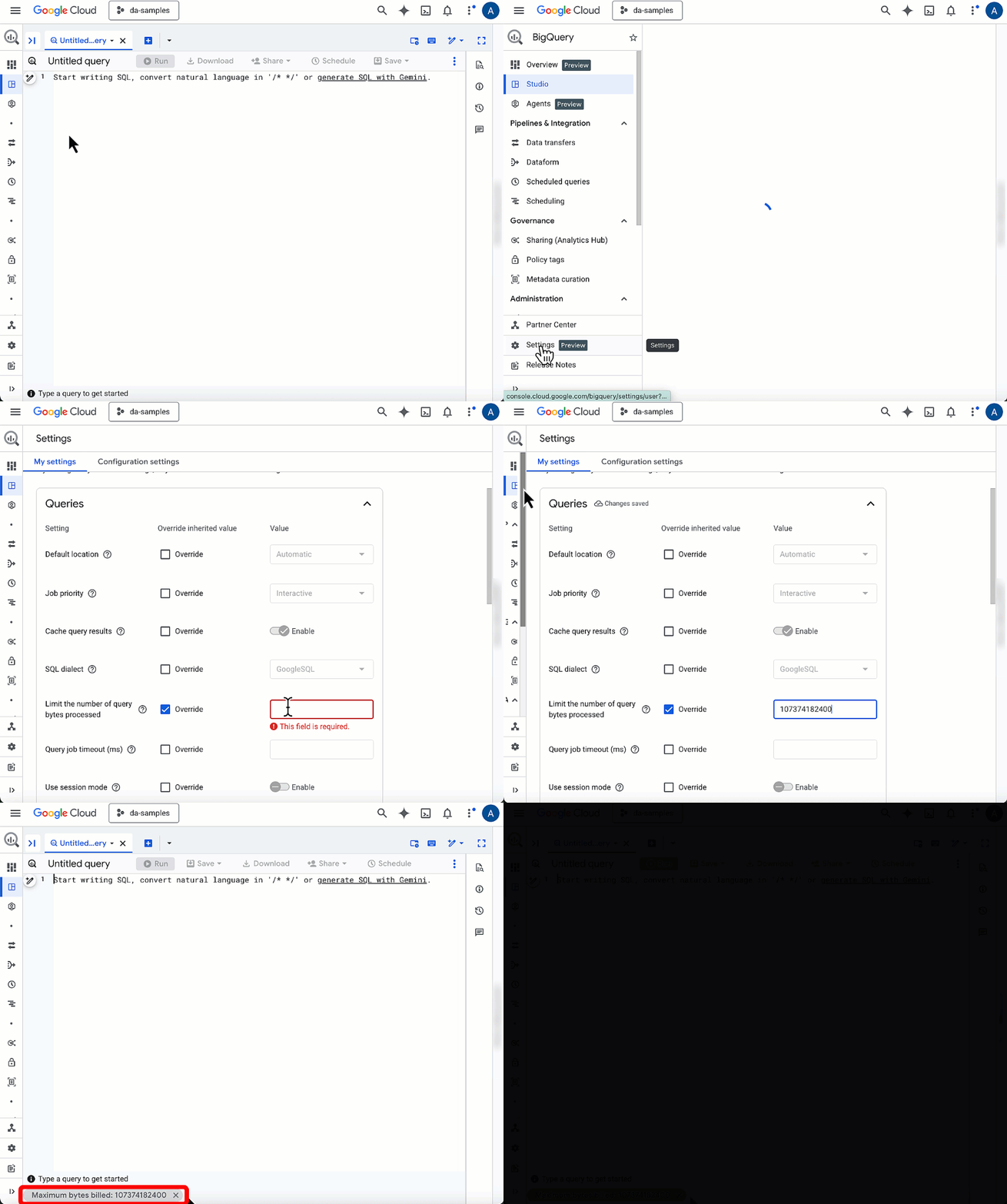
In my post last year about setting limits on BigQuery costs, I walked through how to use custom quota to keep your project’s monthly budget on track. But as I mentioned in that post’s “wishlist,” I really wanted the option to set some personal limits without being a project owner or quota admin.
Well, this setting is now a reality! You can now set a maximum bytes billed that automatically applies to your queries run in the BigQuery Console, and it’s tucked in the new BigQuery Settings menu.
The “personal” query limit
While you have been able to set a limit on a single query via the “Query Settings” menu, there is now a more persistent version in your BigQuery Studio Settings. If you navigate to Settings > My Settings in the BigQuery console, you’ll find a toggle to “Limit the number of query bytes processed”.
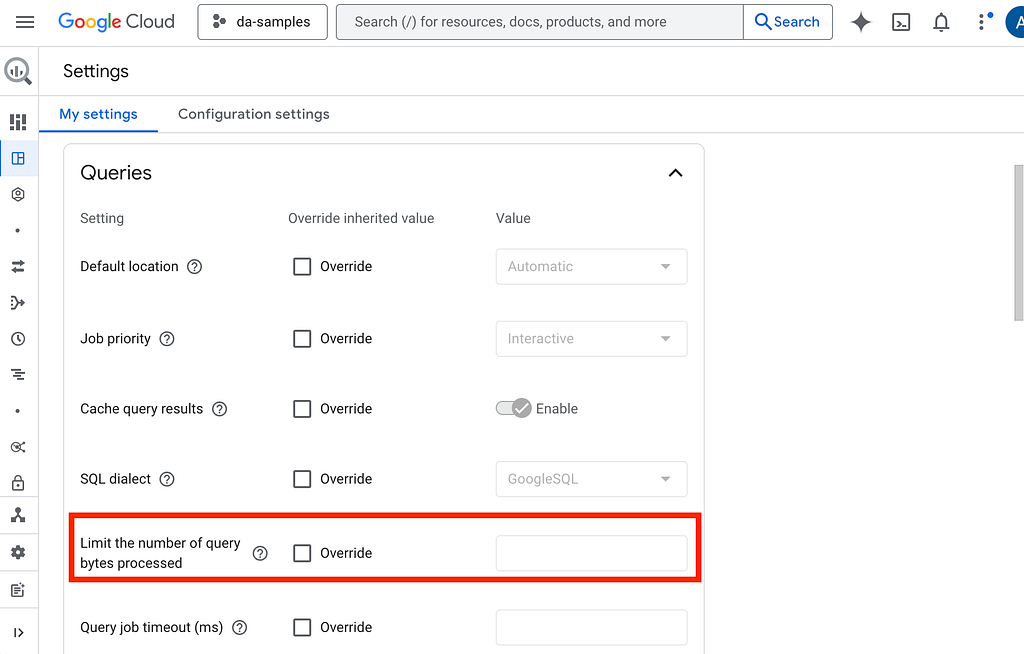
One of the most important things to know about this setting is that it follows your user profile, not the project. This means your safety net stays active even if you switch projects in the picker. The good news is that (in my testing) you don’t need any sort of special IAM permissions to choose this setting for your logged in username.
For many of you, this could be the ideal setup. However, if you regularly jump between different sized datasets in different projects, you’ll want to be mindful that this single limit applies across them all. If you set it too low, you might find yourself having to change the settings, or manually overriding the limit for each query when you are working on your larger datasets.
Putting it into practice
Imagine you’re exploring a new table. You might write a query like this just to get a feel for the data:
SELECT
  content
FROM
  `bigquery-public-data.github_repos.contents`
LIMIT 10;
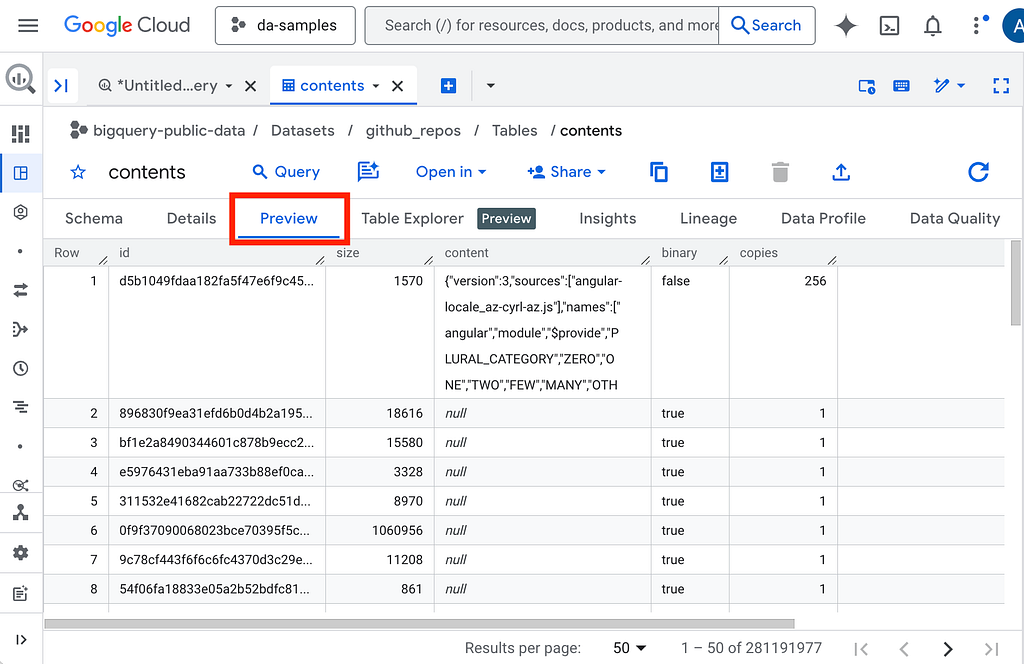
Turns out this is quite a large table, and the query validator estimates a 2.42TiB data scan.
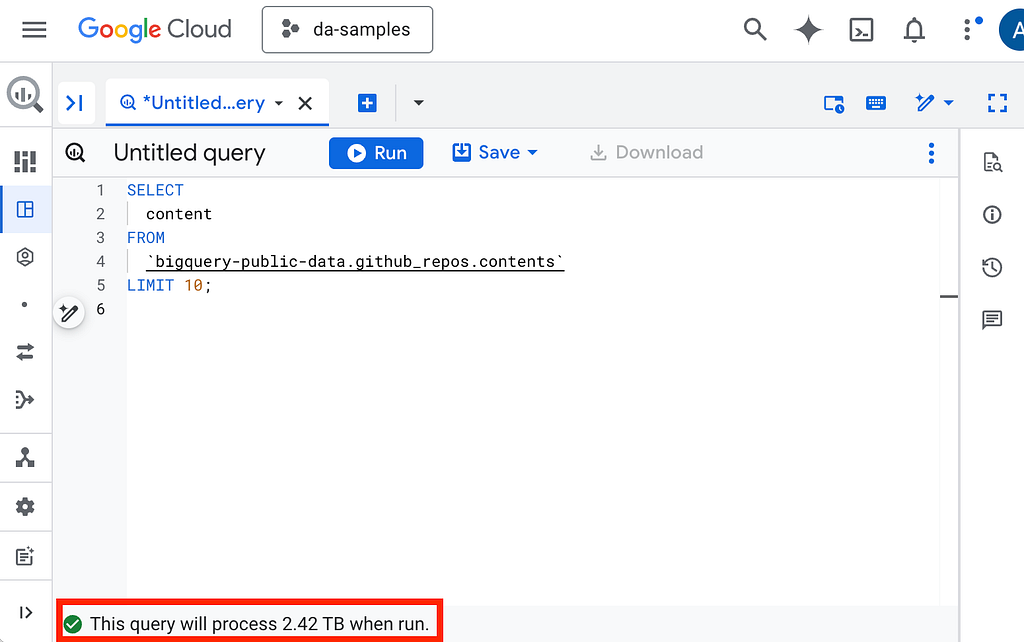
Instead of relying on catching this detail before clicking run, let’s set up a maximum bytes billed to provide a more robust fail-safe when running a query of this size.
Setting a user-level query maximum
In this example, we’ll set up a limit on queries that scan 100GiB or more (on-demand pricing is measured in TiB).
- Open BigQuery Studio.
- In the left-hand navigation, click on Settings (the gear icon) and make sure you are in the My Settings tab.
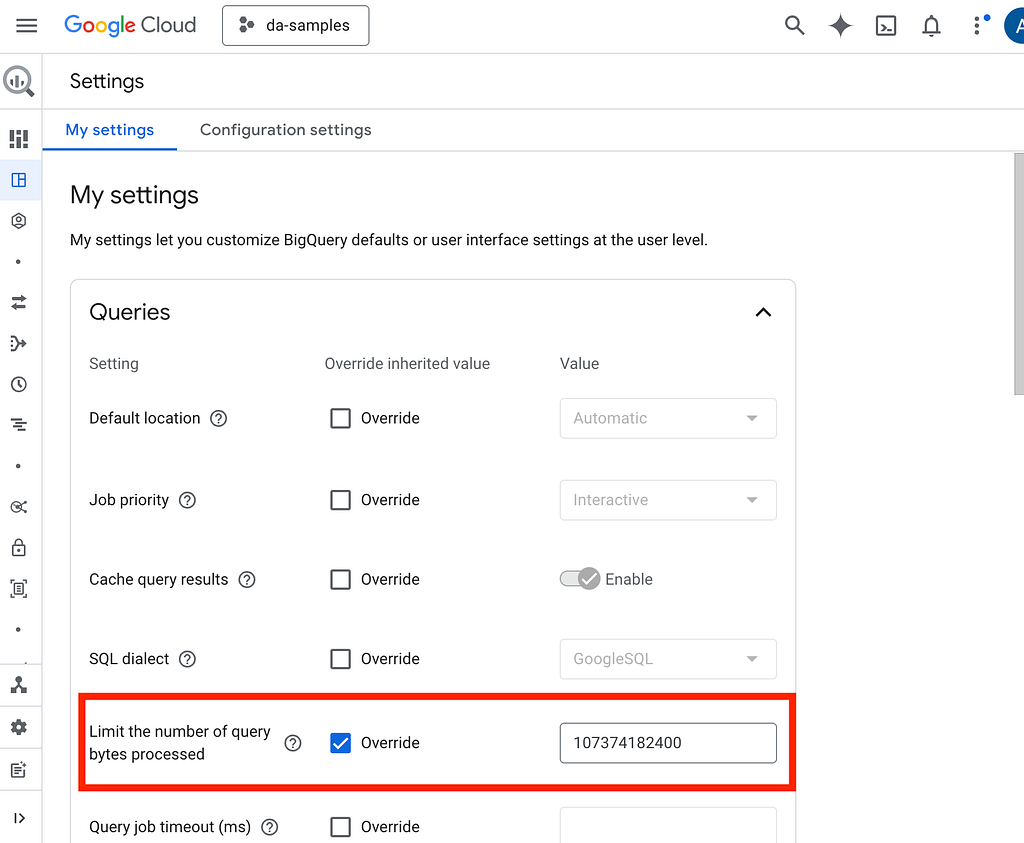
- Check the Override box next to Limit the number of query bytes processed.
- Enter your limit in bytes. For this case, 100GiB is 107374182400 bytes (thanks Gemini!).
Now going back to the query editor, you’ll see that the maximum bytes billed is listed at the bottom.
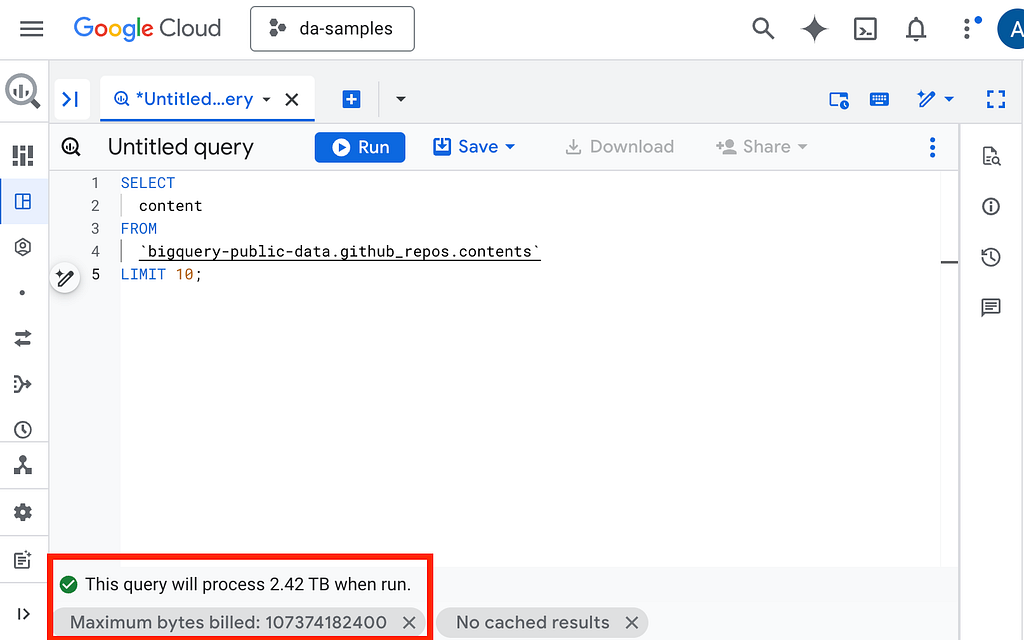
Now that you’ve enabled your 100GiB limit, BigQuery won’t let this query run. Before the job even starts, you’ll see an error message telling you exactly how many bytes the query would have scanned.
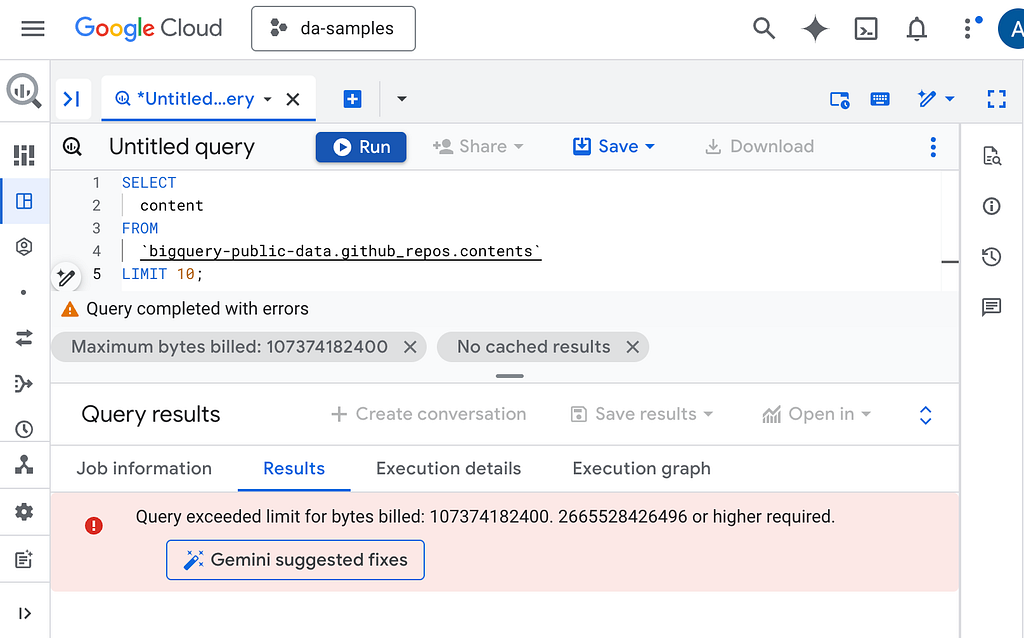
If you do want to run this query, it’s easy to click the “X” in the maximum bytes billed bubble, which will remove the limit for this specific query and allow it to run. However, anytime you open a new query window, you will see that maximum will be set.
However, before you click that “X”, it’s even better to see if you can pivot from running raw table scans to smarter queries that meet your needs while respecting your personal safety nets. I recommend reading more in the BigQuery documentation about optimizing query computation and best practices for estimating and controlling costs. The best practices include how to explore table data without using LIMIT, manually “prune” your scan by strictly selecting only the columns you need, and use partitioned tables when it makes sense for your data. These techniques can help bring more of your queries within your budget protections.
Know the limits (of the limit)
It’s important to remember that this specific setting is a Console preference. It works beautifully for your manual data exploration, but it won’t affect queries sent via the bq CLI or SDKs. For those, you’ll still want to use explicit flags in your code or rely on the daily custom quotas we discussed previously.
Final thoughts
Whether you prefer a universal limit that follows you everywhere or a project-specific one, I think anyone can be a fan of BigQuery expanding its list of tools that help keep you safe. For me, this new personal limit feature in the console brings a new level of confidence to exploring data, knowing that a simple typo in a WHERE clause won’t result in a surprise bill.
Ready to set your own controls? Think about what maximum byte value would work for you and add it to your settings today!
Want to keep up with my BigQuery posts? Follow me over on LinkedIn.
Setting a personal safety net for BigQuery costs was originally published in Google Cloud – Community on Medium, where people are continuing the conversation by highlighting and responding to this story.
Source Credit: https://medium.com/google-cloud/setting-a-personal-safety-net-for-bigquery-costs-16aba096c8ac?source=rss—-e52cf94d98af—4
About the Author