When you ask an AI assistant a question, you have two choices: hope its training is current, or burn through tokens reading documentation. What if you could give your agent the right answer, right away?
That’s the power of Agent Skills. Skills are reusable packages of knowledge that extend what your agent can do without overwhelming its context window. Defined with a SKILL.md file, they allow you to teach your agent how to accomplish tasks consistently. Instead of forcing an agent to process an entire library’s worth of documentation at once, Skills act as on-demand expertise.
You can learn more about the open standard at Agent Skills and discover community capabilities at skills.sh.
In this post, we’ll explore how to manage these skills in the Gemini CLI, a powerful terminal-native AI assistant, and Antigravity, an advanced agentic coding assistant.
Installing skills
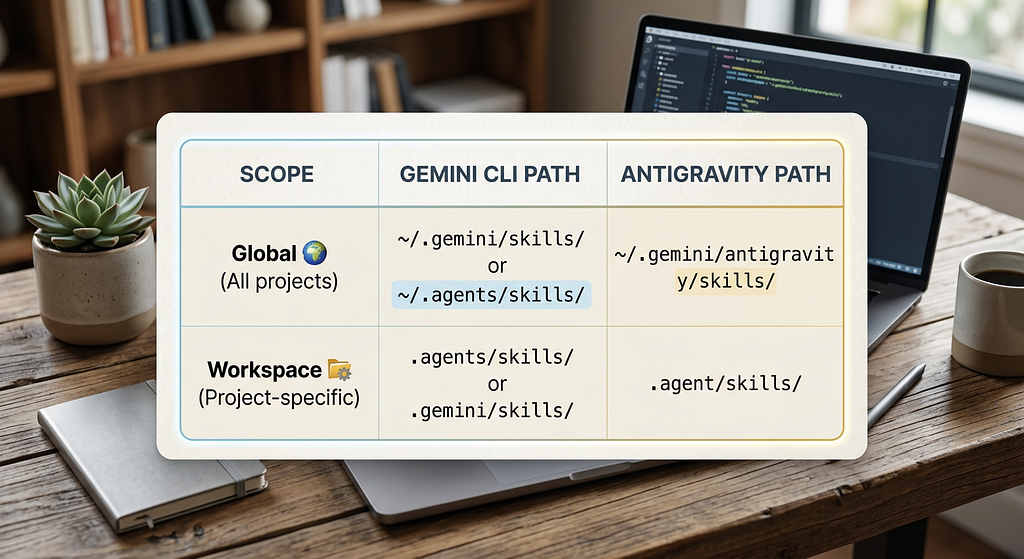
Both the Gemini CLI and Antigravity access skills by reading them from standard directories on your local machine. To add new skills, you can drop them into these locations:
Managing Skills in Gemini CLI
Gemini CLI offers built-in skill management. You can use either interactive slash commands during a session, or terminal commands:
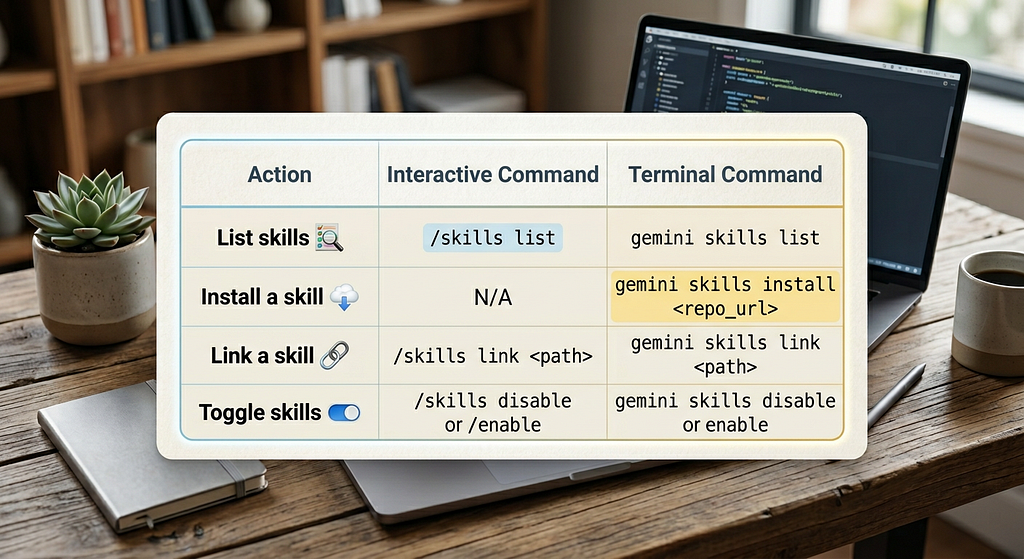
These commands makes it easy to pull in skills from a Git repository or local directory, and manage whether they are active for your current project.
For example, if you want to install a specific skill located inside a subdirectory of a larger repository (like Firebase’s firebase-ai-logic-basics), you can use the –path flag:

gemini skills install https://github.com/firebase/agent-skills.git — path skills/firebase-ai-logic-basics
To audit which skills are currently loaded into your agent’s context, you can run:
gemini skills list
This command provides a clear overview of all discovered skills across your workspace and global environments, showing their descriptions and file locations so you know exactly what expertise your agent has access to.
Unified management with the skills tool
While Gemini CLI has robust built-in tools, what if you want to manage skills across both Gemini CLI and Antigravity simultaneously? Managing them by hand across the different ~/.gemini/skills/ and ~/.gemini/antigravity/skills/ directories can get tedious.
That’s where the open-source CLI tool from vercel-labs/skills shines. It uses a symlink approach to easily install, update, and remove skills centrally, sharing them across multiple agents without duplicating files.
Getting Started with skills
The easiest way to begin with the unified CLI is by using the add command. You can add the -a or –agent parameter for each client you’d like to add the skill to.
For example, suppose you want to equip your agent with deep knowledge of Firebase to help build full-stack apps. You could run:
npx skills add firebase/agent-skills -a gemini-cli -a antigravity

⚠️ Note that the skill will be added to the Gemini CLI even without the -a parameter, as it supports the default ~/.agents/skills global directory. The extra parameter provided here for clarity to show both clients in one command.
This installs the skill and instantly makes it available to both Gemini and Antigravity. By adding firebase/agent-skills, your agents can reliably build and deploy apps with Firebase Auth, Firestore, and more. For more details on how this skill works, read Introducing Agent Skills for Firebase.
If you’re looking for skills related to a specific technology, you can search for them directly from your terminal. For instance, if you’re building a mobile app, you might want to find capabilities related to Flutter. You can use the find command to discover relevant skills:
npx skills find flutter

This command searches the community skills registry and returns a list of matching capabilities, displaying the most popular ones first alongside their installation commands. You can quickly copy those commands to add the expertise directly to your active agents.
Keeping your agent’s context clean
It’s easy to get excited and install dozens of skills. While progressive disclosure means your agent isn’t reading the entire instruction manual for every skill on every prompt, simply loading the names, descriptions, and metadata of 50 different skills can still clutter the initial context window, leading to confusion or degraded performance.
To keep your agents focused and efficient, make sure to keep your essential skills up-to-date with your chosen tool’s update commands. More importantly, if you find you aren’t using a skill anymore, take a moment to disable or remove it (e.g., /skills disable <name> in Gemini CLI or npx skills remove <name>) to free up that precious context space.
By managing skills in Gemini CLI and Antigravity with the skills CLI, you can tailor and organize your environment to your liking. To get more hands-on experience building skills, you can try out the Agent Skills codelab.
Have you built any interesting workflows using Agent Skills? I’d love to hear how you’re extending your agents. Share what you’ve built with me on LinkedIn, X, or Bluesky!
https://medium.com/media/b618688fb5b29aff4b2c9bb3372d4137/href
Skills Made Easy with Google Antigravity and Gemini CLI was originally published in Google Cloud – Community on Medium, where people are continuing the conversation by highlighting and responding to this story.
Source Credit: https://medium.com/google-cloud/skills-made-easy-with-google-antigravity-and-gemini-cli-5435139b0af8?source=rss—-e52cf94d98af—4
About the Author