Editor: Jenna Inouye
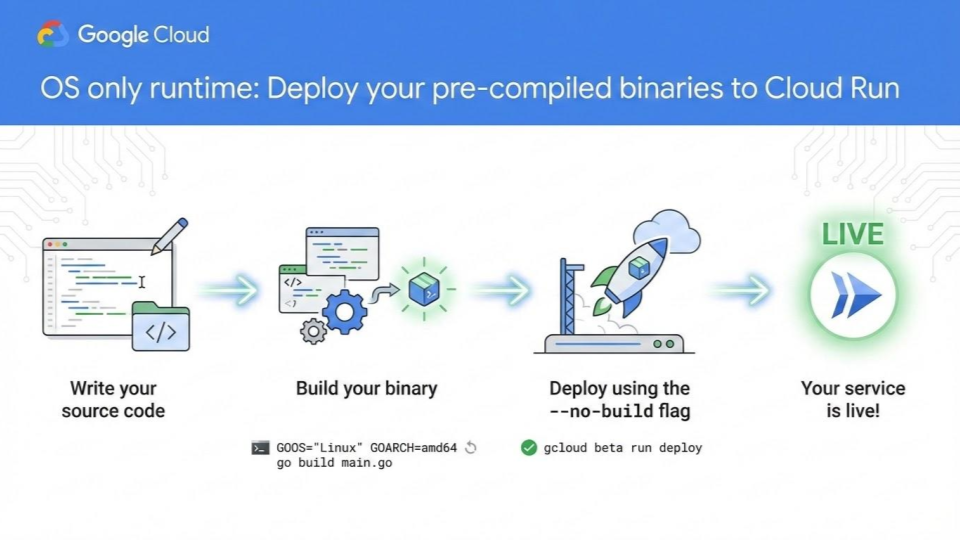
Deploying to Cloud Run just got faster and more flexible. With the new osonly24 runtime, you can now deploy pre-compiled binaries (Go, Rust, Dart, etc.) directly to Cloud Run using a secure, Google-maintained base image.
⚙️ Why does this matter?
Previously, developers had to choose between the “magic” of full buildpacks (which handles language detection and dependencies) or the manual effort of writing a Dockerfile.
By using the new no-build method to upload a local binary (e.g. Go, Rust, Dart, etc.), and skipping the container build entirely, the OS only runtime eliminates the friction of maintaining complex Dockerfiles while keeping your deployment pipeline lean. When you use this method to deploy your binary, make sure you include all the dependencies. Unlike full buildpack deployments where Cloud Build automatically fetches dependencies for you, the OS only runtime assumes your binary is self-contained or that all required assets are present in the directory you are deploying.
The OS only runtime enables automatic base image updates for Cloud Run. This means your application automatically receives operating system-level security patches and updates, even when you don’t use a specific supported language runtime. For more information, see the OS only runtime docs.
⚡ The fastest way to deploy: Compiled binaries
The most significant workflow improvement in Cloud Run is the ability to deploy your pre-compiled binary directly, completely bypassing the container build process. This is a game-changer for your pre-compiled artifacts.
Instead of waiting for a build pipeline to package your code into an image, Cloud Run now allows you to upload your pre-compiled binary directly to a managed base image.
The OS only runtime is available on the google-24 stack.
How it works
- Write your source code and prepare your binary. Ensure it is compiled for Linux (amd64).
- Deploy directly to Cloud Run: let Cloud Run build your source for you, or upload your pre-compiled binary to skip the build entirely.
Prerequisites
- Enable the Cloud Run Admin API. After the Cloud Run Admin API is enabled, the Compute Engine default service account is automatically created.
- To get the permissions that you need to deploy to Cloud Run, ask your administrator to grant you: the Cloud Run Source Developer (roles/run.sourceDeveloper), Service Usage Consumer (roles/serviceusage.serviceUsageConsumer) roles on your project, and the Service Account User (roles/iam.serviceAccountUser) role on the Cloud Run service identity.
📝 Write your source code and build your binary
Cloud Run source deployments use the Artifact Registry to store built containers. If your project doesn’t already have an Artifact Registry repository with the name cloud-run-source-deploy in the region you are deploying to, this feature automatically creates an Artifact Registry repository with the name cloud-run-source-deploy. Follow these steps to build your binary from source:
- Create a new directory named helloworld and change the directory into it:
mkdir helloworld
cd helloworld
2. Initialize a go.mod file from the project directory to declare the Go module:
go mod init github.com/GoogleCloudPlatform/golang-samples/run/helloworld
3. Create a new file named main.go and paste the following code into it:
// Sample run-helloworld is a minimal Cloud Run service.
package main

import (
 "fmt"
 "log"
 "net/http"
 "os"
)

func main() {
 log.Print("starting server...")
 http.HandleFunc("/", handler)

 // Determine port for HTTP service.
 port := os.Getenv("PORT")
 if port == "" {
  port = "8080"
  log.Printf("defaulting to port %s", port)
 }

 // Start HTTP server.
 log.Printf("listening on port %s", port)
 if err := http.ListenAndServe(":"+port, nil); err != nil {
  log.Fatal(err)
 }
}

func handler(w http.ResponseWriter, r *http.Request) {
 name := os.Getenv("NAME")
 if name == "" {
  name = "World"
 }
 fmt.Fprintf(w, "Hello %s!\n", name)
}
4. Build the binary targeting a Linux OS, such as linux/amd64, by running the following command:
GOOS="linux" GOARCH=amd64 go build main.go
✅ Deploy to Cloud Run
You can deploy your binary to Cloud Run using the gcloud beta run deploy command.
To deploy a pre-compiled Go binary (like the one we created above) to Cloud Run, run the following command. Specify the base image (for example, osonly24):
gcloud beta run deploy helloworld \
--source . \
--no-build \
--base-image=osonly24 \
--project YOUR_PROJECT_ID \
--allow-unauthenticated \
--command ./main
Use the –command flag to configure your entrypoint, for example, ./main arg1 arg2.
Cloud Run takes your local binary and assets, zips them, uploads the files to Cloud Storage, and overlays them onto the osonly24 (Ubuntu 24.04) base image. Your app is live as soon as the upload finishes!
🚀 Why should I use this runtime?
With the OS only runtime you have the benefits of:
- Lower complexity and faster cold starts: Smaller images with fewer layers mean your instances spin up quicker.
- Google-managed patching: Even though you provide the binary or source code, Google still manages and patches the underlying OS.
Ready to modernize? Check out the resources below to begin your journey:
- Deep Dive: Understand how to configure the OS only runtime. For more information about the available OS only runtime versions, and the support schedule, see the Runtime lifecycle.
- Practical Steps: Explore different methods to deploy to Cloud Run from source and supported runtimes.
Modernize your apps with the new Cloud Run universal OS only runtime was originally published in Google Cloud – Community on Medium, where people are continuing the conversation by highlighting and responding to this story.
Source Credit: https://medium.com/google-cloud/modernize-your-apps-with-the-new-cloud-run-universal-os-only-runtime-d183aa236424?source=rss—-e52cf94d98af—4
About the Author