OK — because you’re here I’m assuming you’ve already read the overview for this tutorial. If not, give it a read and come back. Good? Ok, let’s go.
For reference, what you’re going to set up is a pair of gRPC-based services (a frontend and backend service) that are both based on whereami, a service I wrote a few years back that can run either in HTTP mode or gRPC mode, and all it does is reply with the environmental details of where it’s running.
It’ll reply with details like the pod name, its namespace, the cluster name, etc. What it can also do is call another service when you call it, so what we’re going to do is chain two deployments of whereami together to simulate a multi-service application.
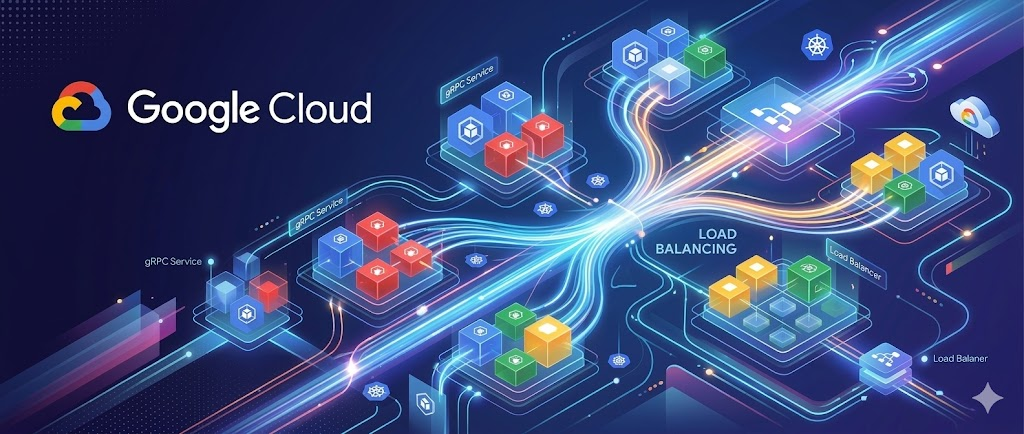
The call chain will look like this:
grpcurl client (you!) -> google cloud application load balancer -> whereami frontend grpc service -> whereami backend grpc service (as a headless service)
Getting hands-on
From here on out, you’ll need a GKE cluster up and running, and if you’re using a GKE Standard cluster (i.e. not Autopilot), you’ll need to make sure the GKE Standard cluster has the Gateway controller enabled. You also need grpcurl installed in your terminal.
I’ve set up a GitHub repository for you to use that contains all the YAML and commands we’ll need to get going. Clone this repo — all the commands and code examples from here on out assume you’re running from the root of this repository.
The sample YAML heavily uses Kustomize to adapt the configuration to our needs.
First, create the namespaces — there are 3:
- gog-gateway will host the spec for the managed application load balancer
- gog-frontend will host the resources for the frontend service, as well as the httproute and health check needed to integrate with the application load balancer
- gog-backend will host the resources for the backend service, a headless service so that frontend can directly talk to the backend pods (using DNS as the name resolution approach in the frontend client)
kubectl apply -f namespaces/
Because external-facing Google Cloud ALBs require TLS when using HTTP/2 (which gRPC runs on top of), we’re going to create a dummy self-signed certificate that the ALB will use to terminate TLS when grpcurl calls it.
# create dummy cert so grpcurl client can use TLS to talk to the managed load balancer
openssl req -x509 -nodes -days 365 -newkey rsa:2048 \
-keyout tls.key \
-out tls.crt \
-subj “/CN=example.com/O=MyOrganization”
kubectl -n gog-gateway create secret tls tls-cert-secret \
— cert=tls.crt \
— key=tls.key
Now you can create the managed load balancer via GKE Gateway. This next step will create the load balancer as well as a gRPC health check and HTTPRoute (with path matching based on the frontend service name and method) to send traffic from the load balancer to the frontend service.
# deploy load balancer resources
kubectl apply -f gateway/
A few things to note here:
- This configures a load balancer using the gatewayClass of gke-l7-global-external-managed — this means it will deploy a public-facing load balancer (with a public IP address, of course). If you’re trying to do this for internal traffic, use a gatewayClass that creates an internal load balancer instead.
- If you are attempting to set this up in a Shared VPC environment, it is likely that the gateway controller will lack the necessary permissions to create the required firewall rules to enable both traffic flow to the service(s) the load balancer needs to talk to as well as the traffic flows for health checks by default. Refer to this doc, or create the firewall rules manually.
For reference, the health check looks like this:
spec:
targetRef:
group: “”
kind: Service
name: whereami-grpc-frontend
default:
config:
type: GRPC # see here: https://cloud.google.com/load-balancing/docs/health-check-concepts#criteria-protocol-grpc — TLS support is in preview
grpcHealthCheck:
port: 9090 # The port your gRPC service is running on.
#grpcServiceName: “” # The name of the gRPC service to check. “” for the overall server.
timeoutSec: 10
checkIntervalSec: 15
healthyThreshold: 1
unhealthyThreshold: 3
And, you can see how the gateway object is set up to reference the required gatewayClass and TLS certificate like so:
spec:
gatewayClassName: gke-l7-global-external-managed
listeners:
— name: https
protocol: HTTPS
port: 443
tls:
mode: Terminate
certificateRefs:
— name: tls-cert-secret # Must match the Secret name above
allowedRoutes:
namespaces:
from: Selector
selector:
matchLabels:
kubernetes.io/metadata.name: gog-frontend
The reconciliation of (and corresponding creation for) the load balancer resources will take a few minutes, so in the meantime let’s set up the workloads.
Deploy the backend service and then the frontend service using the following commands:
# deploy backend service
kubectl apply -n gog-backend -k backend/
# deploy frontend service
kubectl apply -n gog-frontend -k frontend/
Something to note about the configuration of the frontend service is that the YAML for frontend is set up to tell the ALB (managed load balancer) to use HTTP/2 over cleartext (aka H2C) via a flag (appProtocol) in the service spec:
spec:
type: ClusterIP
ports:
— port: 9090
protocol: TCP
targetPort: 9090
name: grpc
appProtocol: kubernetes.io/h2c # using HTTP2 cleartext over TCP
We need to use HTTP/2 since it’s gRPC, but we also need to specify H2C because our frontend service doesn’t terminate TLS. If your gRPC service *does* terminate TLS, then the appProtocol field should be set to HTTP2.
One more thing you should be aware of is that, for communication between the frontend and backend service, the frontend will use client-side load balancing. Note the service spec for backend uses a headless service to enable that:
spec:
type: ClusterIP
clusterIP: None
Once all the resources have been deployed, we can now query the workloads using grpcurl. In the root of the repo is the required proto file, which we’ll reference in the command. Before all that, however, we want to capture the VIP of the public load balancer to an environment variable:
export GATEWAY_IP=$(kubectl get gateway external-http -n gog-gateway -o jsonpath=’{.status.addresses[0].value}’)
Now, with the proto file and the VIP of the load balancer, we can call the workloads with a simple grpcurl command:
grpcurl -insecure -proto whereami.proto $GATEWAY_IP:443 whereami.Whereami.GetPayload
Remember that, because we created a dummy self-signed certificate, we have to include the insecure flag to let grpcurl accept that cert. The output should look like this:
$ grpcurl -insecure -proto whereami.proto $GATEWAY_IP:443 whereami.Whereami.GetPayload
{
“backendResult”: {
“clusterName”: “cluster-1”,
“metadata”: “grpc-backend”,
“nodeName”: “gke-cluster-1-default-pool-07b01e29-fzcq”,
“podIp”: “10.8.0.138”,
“podName”: “whereami-grpc-backend-5894bb944f-kt6gw”,
“podNameEmoji”: “👨🏾❤💋👨🏼”,
“podNamespace”: “gog-backend”,
“podServiceAccount”: “whereami-grpc-backend”,
“projectId”: “e2m-private-test-01”,
“timestamp”: “2026–03–09T06:37:50”,
“zone”: “us-central1-a”,
“gceInstanceId”: “5707465120830056388”,
“gceServiceAccount”: “603904278888-compute@developer.gserviceaccount.com”
},
“clusterName”: “cluster-1”,
“metadata”: “grpc-frontend”,
“nodeName”: “gke-cluster-1-default-pool-b8a56cee-7dk4”,
“podIp”: “10.8.2.130”,
“podName”: “whereami-grpc-frontend-5b446d49d9-tn977”,
“podNameEmoji”: “👱🏽♀”,
“podNamespace”: “gog-frontend”,
“podServiceAccount”: “whereami-grpc-frontend”,
“projectId”: “e2m-private-test-01”,
“timestamp”: “2026–03–09T06:37:50”,
“zone”: “us-central1-c”,
“gceInstanceId”: “4588183329093749978”,
“gceServiceAccount”: “603904278888-compute@developer.gserviceaccount.com”
}
Notice that the backend service’s payload is nested in the response under the backendResult field. As long as you see something similar, that means you’ve now configured a multi-service gRPC on GKE workload that demonstrates both server-side load balancing (for frontend) and client-side load balancing (for frontend -> backend). Well done!
gRPC on GKE for Fun & Profit Part 2— The Walkthrough was originally published in Google Cloud – Community on Medium, where people are continuing the conversation by highlighting and responding to this story.
Source Credit: https://medium.com/google-cloud/grpc-on-gke-for-fun-profit-part-2-the-walkthrough-2adfaf218342?source=rss—-e52cf94d98af—4
About the Author