Bulk media files inference in minutes with BigQuery Knowledge Catalog
Welcome to a new 5-part series where we are building a complete, end-to-end Agentic Data Cloud system! We are going to take a messy, real-world business scenario and transform it into a cutting-edge, AI-driven multi-agent application.

Here is what we are building over the next few days:
- Part 1 (You are here): Converting bulk unstructured media data (PDFs) into structured data using BigQuery, Knowledge Catalog, and Datascan services.
- Part 2: Setting up a transactional user system with AlloyDB, federating warehouse data in real-time without duplicating storage.
- Part 3: Building a multi-agent application to run the business operations on top of our data layer.
- Part 4: Building an Agent Evaluation pipeline to test the validity, accuracy, and performance of our agentic system.
- Part 5: Creating an insightful dashboard to forecast trends and perform conversational analytics directly in BigQuery.
Let’s dive into Part 1!
Part 1: Turning dark data into structured gold
Introduction
We all know the pain of “dark data.” It’s the PDFs, images, and text files sitting in cloud storage buckets, completely invisible to your SQL queries and BI dashboards. Traditionally, unlocking this data required complex OCR pipelines, manual data entry, or fragile custom scripts.
Not anymore.
In this blog, I am going to show you how to convert 400 unstructured PDF files — spanning text, tables, and images — into cleanly structured BigQuery tables with relationships automatically inferred between them. And we are going to do it in minutes using BigQuery Knowledge Catalog and Dataplex.
The Use Case: The Froyo Franchise Dilemma
To make this real, let’s look at a fictional business: a fast-growing Frozen Yogurt franchise.
Imagine you manage the data for this Froyo business. You have hundreds of recipes and supplier spec sheets, all saved as PDFs. The business leaders want to launch an AI agent to help store managers and customers query product details.
Here is the nightmare scenario: A customer asks, “I’m really interested in your Midnight Swirl froyo. Are there any allergens in it?”
To answer this, your system would normally have to:
- Find the “Midnight Swirl” recipe PDF.
- Read the ingredients (e.g., “Cocoa Powder”, “Dairy Base”, “Emulsifier X”).
- Search through dozens of Supplier PDFs to find the spec sheets for those specific ingredients.
- Check the supplier sheets for hidden allergens tied to those ingredients.
Trying to build an AI agent that does this on the fly by reading 400 raw PDFs at runtime is slow, expensive, and prone to hallucination. Instead, we are going to use semantic inference to extract all of this into a relational database first, making our future AI agent lightning-fast and 100% grounded in factual SQL data.
Let’s start building!
Step 1: Create your Google Cloud Project and enable Billing
- In the Google Cloud Console, on the project selector page, select or create a Google Cloud project.
- Make sure that billing is enabled for your Cloud project. Learn how to check if billing is enabled on a project.
Step 2: Activate Cloud Shell
Cloud Shell is a command-line environment running in Google Cloud that comes preloaded with necessary tools.
- Click Activate Cloud Shell at the top of the Google Cloud console.
- Once connected to Cloud Shell, verify your authentication:
gcloud auth login
3. If your project is not set as expected, set it:
export PROJECT_ID=<YOUR_PROJECT_ID>
gcloud config set project $PROJECT_ID
Step 3: Enable APIs
Run this command to enable all the required APIs:
gcloud services enable \
    dataplex.googleapis.com \
    datacatalog.googleapis.com \
    discoveryengine.googleapis.com \
    bigqueryconnection.googleapis.com \
    bigquery.googleapis.com \
    aiplatform.googleapis.com \
    cloudresourcemanager.googleapis.com \
    serviceusage.googleapis.com \
    storage.googleapis.com
Step 4: Google Cloud Storage Bucket Setup
In this section, you create an organizational structure within BigQuery to store Froyo recipe and supplier data, specifically for Froyo product details. It also establishes a Cloud Resource Connection, which acts as a secure “bridge” allowing BigQuery to read files from external sources like Cloud Storage.
Before you begin:
This repository contains recipes, suppliers PDF files we’ll use in this project. Make sure you download these files. To download the files, do the following:
In the Cloud Shell, run the following command:
git clone --depth 1 --filter=blob:none --sparse https://github.com/GoogleCloudPlatform/next-26-keynotes.git
Navigate into the newly created folder:
cd next-26-keynotes
Pull the data-cloud-demo folder
git sparse-checkout set genkey/data-cloud-demo
After the checkout is complete, navigate to the data-cloud-demo folder and extract the ZIP files to access the codelab assets.
Create bucket and upload the Froyo (recipes & suppliers) pdf files
- In the Google Cloud console, go to the Cloud Storage Buckets page.
- Click Create.
- On the Create a bucket page, enter your bucket information. After each of the following steps, click Continue to proceed to the next step:
- In the Get started section, enter the bucket name. Eg.: froyo_data
- In the Choose where to store your data section, select Region and then enter your region. us-central1
- In the Choose how to control access to objects section, clear the Enforce public access prevention on this bucket checkbox.
- Click Create.
- In the list of buckets, click the bucket you created.
- In the Objects tab for the bucket, click Upload > Upload folders.
- Select the recipes folder that you extracted in the Before you begin section of this codelab.
- Click Upload.
- Repeat the upload process for the suppliers folder.
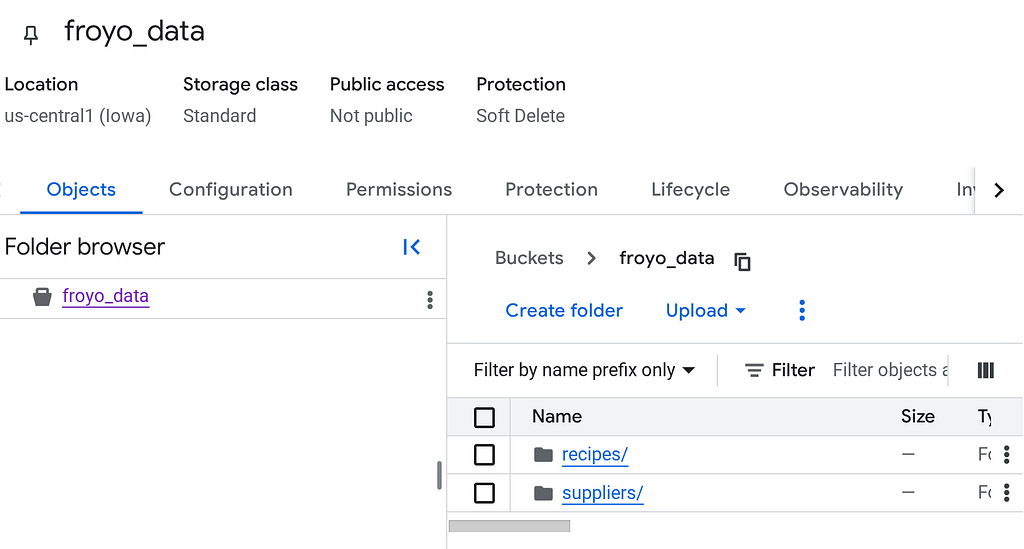
Once uploaded, your bucket structure should look like (whatever the bucket name is):
Step 5: BigQuery Connection Setup
Create a Cloud Resource Connection. This generates a unique Service Account that acts as BigQuery’s “ID card” to access external files.
- Go to the BigQuery page.
- In the left pane, click Explorer. If you don’t see the left pane, click Expand left pane to open the pane.
- In the Explorer pane, expand your project name, and then click Connections.
- On the Connections page, click Create connection.
- For Connection type, choose Vertex AI remote models, remote functions, BigLake and Spanner (Cloud Resource).
- In the Connection ID field, enter the connection ID name:
bq-connection. Make sure to note this ID as you'll need it when you set up the data scan later in this codelab. - Set Location type to Region and then select a region. For example, us-central1. The connection should be located in the same region as your other resources such as datasets.
- Click Create connection.
- Click Go to connection.
- In the Connection info pane, copy the service account ID for use in a later step. The service account looks similar to bqcx-**********-qn3a@gcp-sa-bigquery-condel.iam.gserviceaccount.com.
Step 6: Permissions Setup
- Grant the necessary permissions to the BigQuery connection for accessing Cloud Storage objects and the Knowledge Catalog.
Go to the IAM & Admin page and in the View by Principals section, click Grant access button, add a principal by pasting the service account you copied in the last step. In the roles section, add the names of the following roles one by one and save:
- roles/storage.objectUser
- roles/storage.objectViewer
- roles/bigquery.user
- roles/bigquery.dataEditor
- roles/aiplatform.viewer
- roles/agentplatform.user
- roles/storage.admin
- roles/dataproc.serviceAgent
- roles/dataplex.discoveryPublishingServiceAgent
- roles/dataplex.serviceAgent
- roles/dataplex.securityAdmin
2. Grant Dataplex Service Account permissions to access the Cloud Storage Bucket.
Go to IAM & Admin page and in the View by Principals section, click Grant access button and add a principal by typing Dataplex into the New principal text bar. From the list that auto completes, select the Dataplex Service Account principal that looks similar to this:
service-*********@gcp-sa-dataplex.iam.gserviceaccount.com
Grant the following roles to this Service Account:
- roles/storage.objectUser
- roles/storage.objectViewer
- roles/storage.viewer
- roles/dataplex.discoveryBigLakePublishingServiceAgent
Step 7: Knowledge Catalog Setup
Build a Knowledge Catalog to unify the unstructured data and automate the discovery of unstructured files (such as PDF recipes and PDF suppliers).
- Create the DataScan through curl
You can create this job from the console too but in this section, we will create scans for the Cloud Storage bucket by adding the datascan_ID and pointing it to the BigQuery datasets. After that Knowledge Catalog will automatically create entries for your PDFs in BigQuery.
Run the below set of commands from the Cloud Shell Terminal in your current active project of interest:
# 1. Set your variables
PROJECT_ID="<PROJECT_ID>"
REGION="<REGION>"
ENV_SUFFIX="stg1"
DATASCAN_ID="froyo-data-${ENV_SUFFIX}"
BUCKET_NAME="<BUCKET_NAME>"

# 2. Set this to the Name of the connection you created in Step 7
CONNECTION_ID="<CONNECTION_ID_NAME>"

# 3. Define the API Endpoint
DATAPLEX_API="dataplex.googleapis.com/v1/projects/${PROJECT_ID}/locations/${REGION}"

# 4. Create the DataScan via CURL
echo "Creating Dataplex DataScan: ${DATASCAN_ID}..."

curl -X POST "https://$DATAPLEX_API/dataScans?dataScanId=${DATASCAN_ID}" \
-H "Authorization: Bearer $(gcloud auth print-access-token)" \
-H "Content-Type: application/json" \
-d '{
"data": {
   "resource": "//storage.googleapis.com/projects/'"${PROJECT_ID}"'/buckets/'"${BUCKET_NAME}"'"
   },
"executionSpec": {
   "trigger": {
      "on_demand": {}
   }
},
"dataDiscoverySpec": {
   "bigqueryPublishingConfig": {
      "tableType": "BIGLAKE",
      "connection": "projects/'"${PROJECT_ID}"'/locations/'"${REGION}"'/connections/'"${CONNECTION_ID}"'"
   },
   "storageConfig": {
      "unstructuredDataOptions": {
      "entity_inference_enabled": true
      }
   }
   }
}'
Replace the values of placeholder Variables above in order to get the command to run successfully. Remember this just creates the job, does not run it.
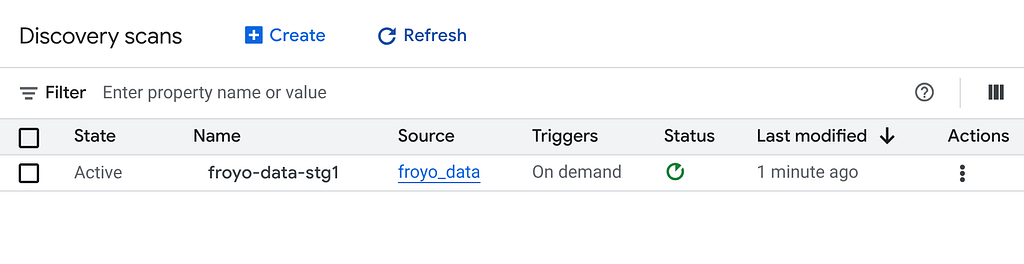
2. After a minute or 2, in the Google Cloud console, go to the Metadata curation page.
3. In the Cloud Storage discovery tab, click the Name of the discovery scan item (remember not to click the source link which might be a tempting choice, but it will open storage).
**4. CRITICAL STEP:
Edit the job and make sure “Enable semantic inference” checkbox is checked. If not, check it, enter project id and region and then click save.
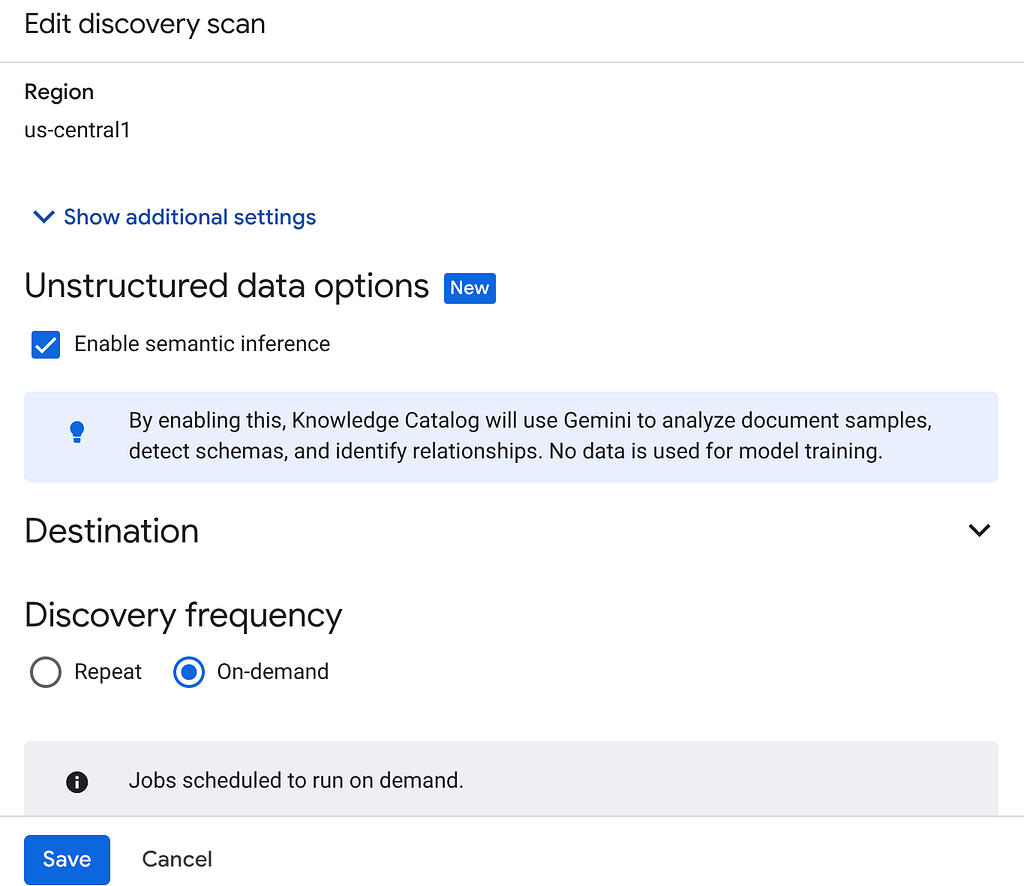
Once done, you can either run the following command from Cloud Shell Terminal or clickthe Run now button in the Cloud Storage Discovery page:
gcloud dataplex datascans run $DATASCAN_ID --location=$REGION
5. It will take some time to complete the scan job. Once the job finishes, check if the Published dataset is present. To check the job status, you can check in the Metadata curation page, in the Cloud Storage discovery tab, click the name of the discovery scans of the recent run. you should see the published dataset as seen below:

If you run into errors in the scan step, just give it some time and then retry (it takes a few minutes to get the job created and complete execution).
You can view the table in BigQuery by clicking and navigating to the froyo_data dataset. Click the table id in BigQuery and run the below query in the Query Editor tab:
SELECT count(*) FROM `agent-data-cloud.froyo_data.froyo_data` LIMIT 1000;
This results in 400 (if not you can go back and run the Datascan job again).
Step 8: Semantic Data Extraction
Great!! Now lets extract the inference for these unstructured objects using Knowledge Catalog.
We will use the Insights feature to generate SQL statements to extract structured data from the unstructured table
- In the Google Cloud console, go to the Knowledge Catalog Search page.
- Search for the dataset table that you want to view insights for. In the search bar, enter the dataset / table name from previous step: “froyo_data” and hit enter
- From the result list, click the TABLE entry (not the dataset one)
- You should see the INSIGHTS tab. Click that (if it requires you to enable any API, follow along and just enable APIs).
If you ended up enabling APIs at this point, you have to re-run the scan job again.
5. In the INSIGHTS tab, you will see the EXTRACT button drop-down. Click that and select “Extract with SQL” option.
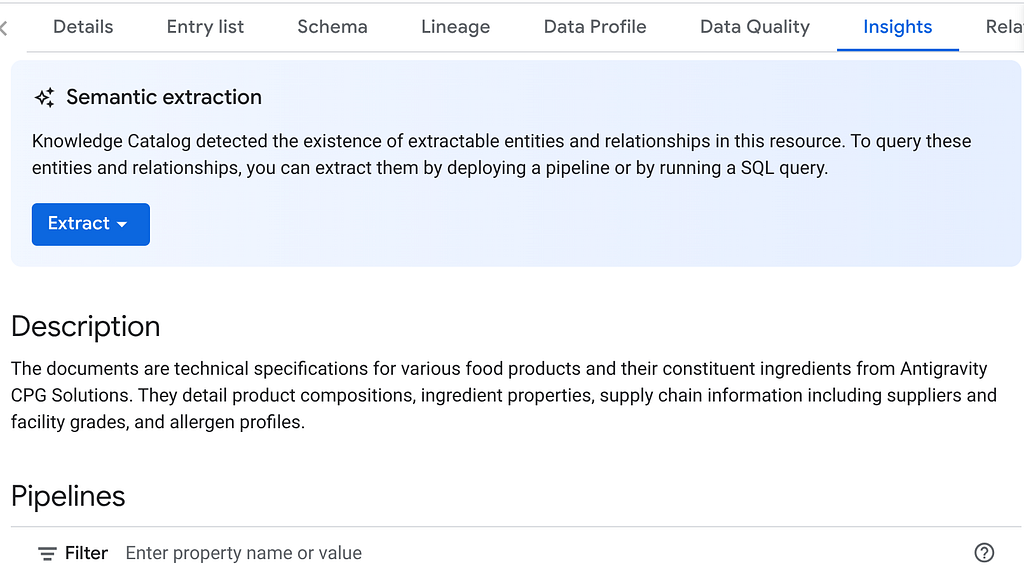
In the “Extract with SQL” dialog pop up, set the DESTINATION dataset as the one that you saw in the result of the Datascan job. Start typing its name and it should show up in auto complete. Click “Extract” button. Alternatively you can create a new dataset at this point and extract.
This should open BigQuery Query Editor with a tab open populated with extracted SQL from the data scan inference.
Step 9: SQL Validation & Schema Creation
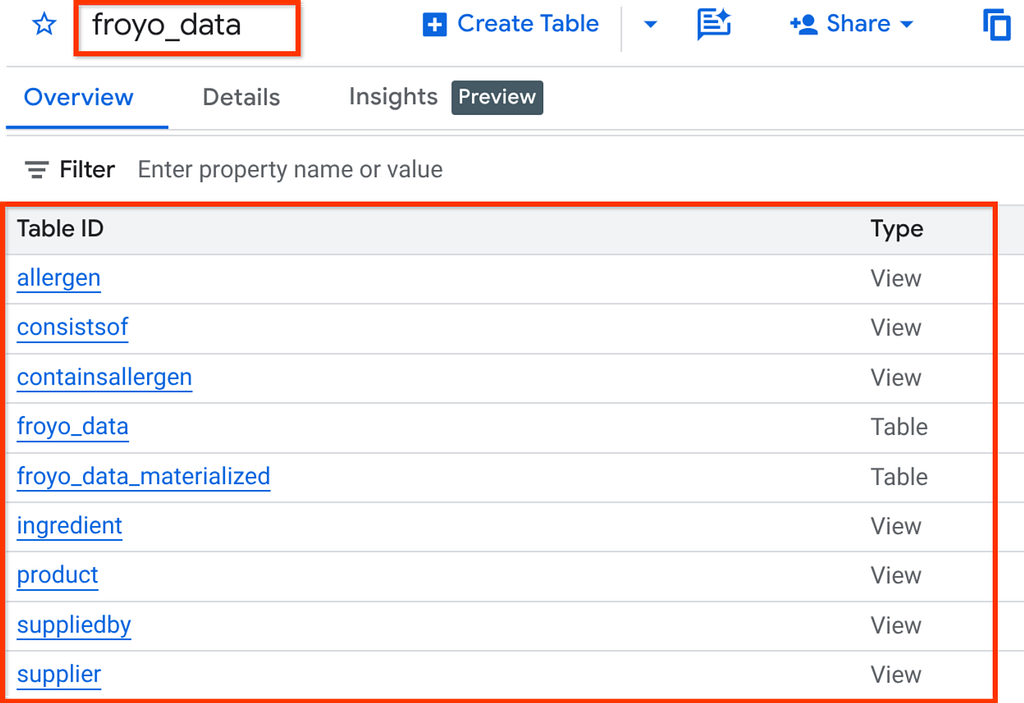
If the generated query seems all good, and semantically relevant to your unstructured data, go ahead and run it by clicking the Run button on the query editor. It will take a few minutes to create the schema required for the structured storage of your unstructured media.
Once done, you should be able to verify the schema by expanding the dataset in the explorer pane of the BigQuery Studio as seen below:
Alright!!! It was so sweet that we did all those database things really fast. Now it’s time for the ultimate test!
Step 10: The Ultimate Test!!!
Let’s say I want my agent to respond to the user questions with real, complete and well orchestrated information grounded in facts. I am going to ask a question that the agent would only be able to answer by referring to multiple media files and references from my source.
Here is my user question:
I’m really interested in your Midnight Swirl froyo. Are there any allergens in it?
Now generic search or an LLM search will say “Zero ingredients”. But we built a full semantic inference converting all our unstructured media into structured data. So here it goes, with a simple SQL that will fetch this information:
SELECT p.product_name, i.ingredient_name, a.allergen_name, category, stability
FROM froyo_data.consistsof c
INNER JOIN froyo_data.product p
  ON c.product_id = p.product_id
INNER JOIN froyo_data.ingredient i
  ON c.ingredient_id = i.ingredient_name
LEFT OUTER JOIN froyo_data.containsallergen a
  ON i.ingredient_id = a.ingredient_id
WHERE
  UPPER(p.product_name) LIKE '%MIDNIGHT%SWIRL%'
  AND allergen_name IS NOT NULL
Woohoo! Look at the result:
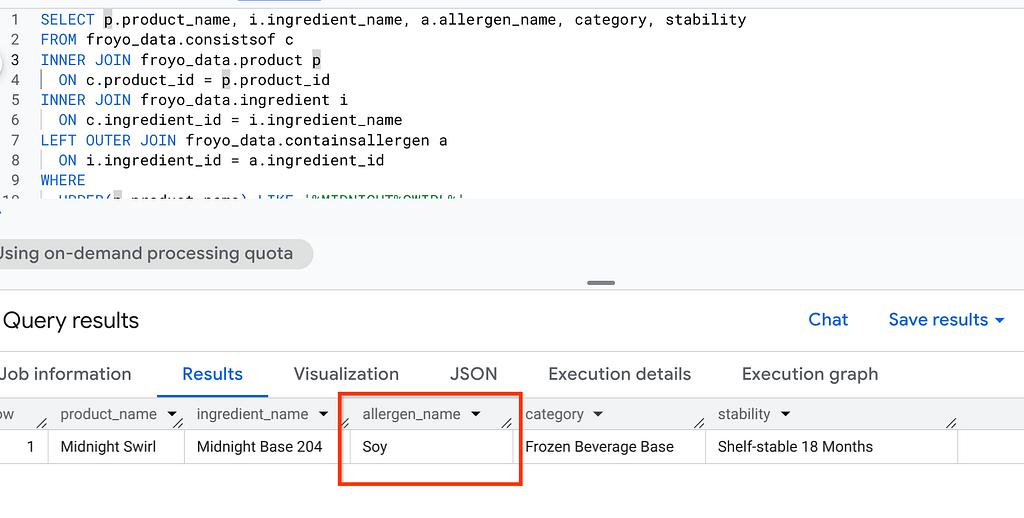
Our implementation was successfully able to identify the hidden allergen. No more dark data, people!!! Head to Google Cloud right now!
Now that we have set up the data warehouse for this business, the next phase of this project is to build out the transactional layer where the user interacts with the day to day data and our system federates information from the warehouse without physically storing it in multiple places. Tune in for next episode of this season.
Sign up for Code Vipassana if you wish to practice this hands-on with us virtually:
Code Vipassana
How I turned dark data into structured gold! was originally published in Google Cloud – Community on Medium, where people are continuing the conversation by highlighting and responding to this story.
Source Credit: https://medium.com/google-cloud/how-i-turned-dark-data-into-structured-gold-456b2c8c4f4f?source=rss—-e52cf94d98af—4
About the Author