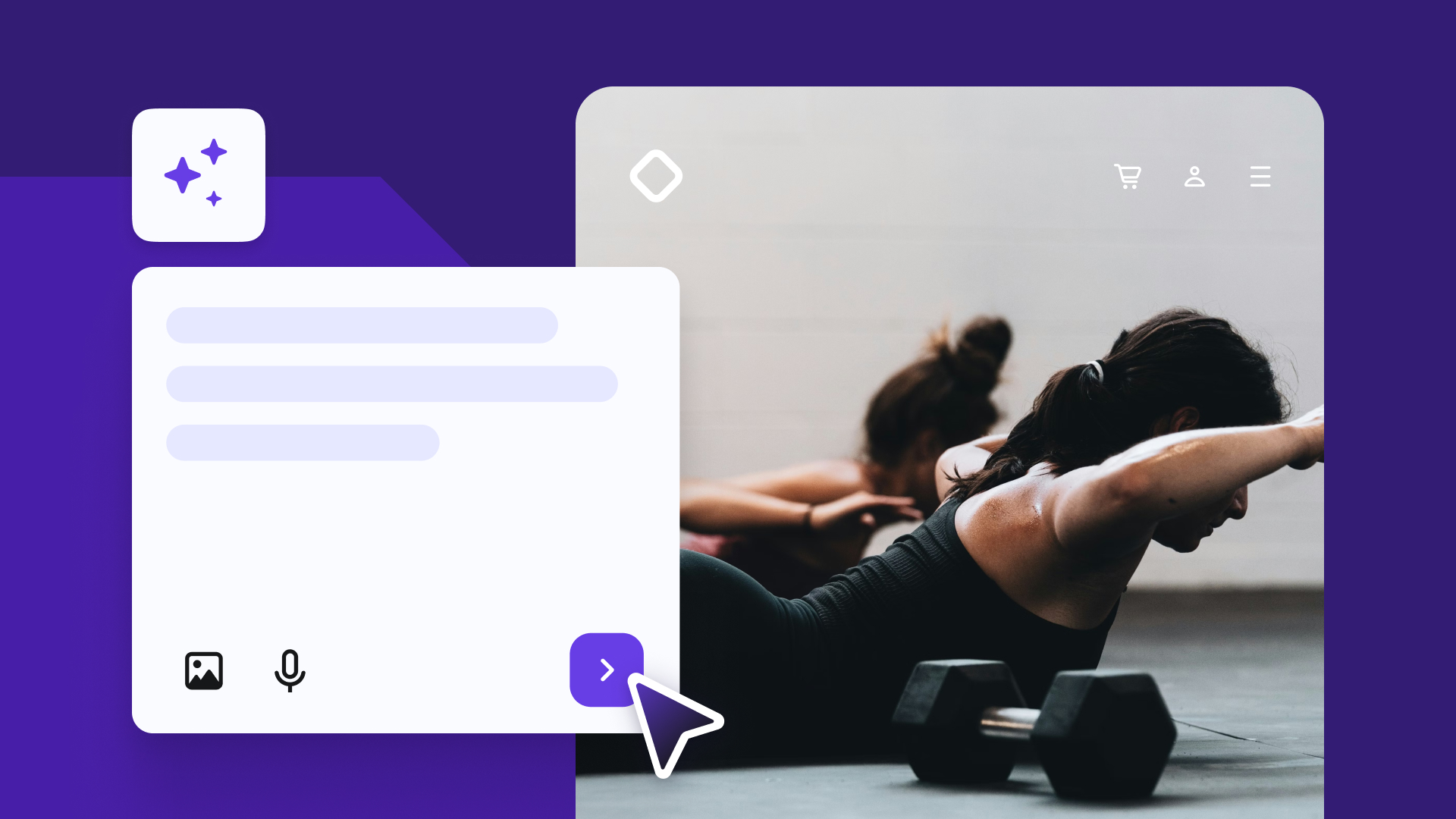
Vibe coding is an AI-assisted approach to building websites: you describe what you want in plain language, and an AI-powered builder generates a working site from your prompts.
The AI handles layout, styling, and responsive design across screen sizes automatically – no manual coding or wrestling with CSS breakpoints.
To get started, choose a builder, define your visual direction, and write your first prompt. From there, refine the design, swap in real content and images, test across devices, and publish to a live URL with a custom domain.
Vibe coding tools are no-code platforms that let you build a website without coding by translating your prompts into real pages, complete with layout, styling, and interactive elements.
Popular options include Bolt.new, Lovable, and Replit. Bolt.new and Replit lean toward users who want more control over the underlying code, while Lovable focuses on product and app interfaces.
The Hostinger Horizons vibe coding platform is a strong choice for building both websites and apps. It is designed for users who want to go from prompt to published site with the least friction, combining AI generation with built-in hosting and deployment in one place.
You describe what you want, see the result immediately, and keep tweaking until it feels right.
There are other options out there too, and they differ in design flexibility, editing capabilities, and whether they include built-in hosting. See how the most popular vibe coding tools compare across these factors before committing.
Whatever you choose, look for a platform that gives you real-time preview, prompt-based editing, and ideally one-click deployment so you’re not stitching together three different services just to get a site online.
When evaluating any tool, pay attention to how it handles iteration. The best vibe coding experience is when you can say “make the hero section taller” or “swap to a dark color scheme” and see the change reflected instantly.
2. Define the vibe of your site
Before you write a single prompt, get clear on the website design aesthetic you’re going for. This step shapes every decision that follows, from the words you use in your prompts to how you evaluate the AI’s output.
Start with the purpose of your site. Are you showcasing a portfolio to attract clients? Selling a product? Generating leads for a service? The answer influences everything from layout density to color choices, so it’s worth being specific.
For example, a portfolio that needs to feel creative and personal calls for very different decisions than a SaaS landing page that needs to convert visitors quickly.
With that purpose in mind, pick a few descriptive words that capture the feel you want. Minimalist? Futuristic? Warm and organic? Playful? Corporate and polished?
These adjectives become your north star when you’re making decisions about colors, typography, spacing, and imagery.
It helps to build a quick reference list. Pull together a few websites, screenshots, or color palettes that represent the visual identity you’re aiming for. You don’t need a formal mood board, just enough reference material that you can point to and say “this is the direction.”
Having a basic understanding of UI design principles can help you make those decisions with more confidence.
3. Prompt the AI builder
With your visual direction in mind, you can write a much more effective first prompt – translating the decisions you just made into instructions the AI can act on.
Think of your prompt as a creative brief. Include the type of website (landing page, portfolio, online store), the general layout you’re imagining, key sections you need, the visual direction you defined, and any functionality like contact forms or pricing tables.
Learning how to write clear prompts will save you a lot of back-and-forth later.
Here’s an example of a solid first prompt:
Create a modern SaaS landing page for a project management tool with a clean layout, blue color palette, hero section with CTA, feature blocks, and pricing table.
That single sentence gives the AI builder enough to generate a website with AI that actually resembles what you had in mind. Compare that to a vague prompt like “make me a website for an online store” and you’ll see why specificity matters.
A few tips for writing better AI builder prompts:
- Name the website type. “Portfolio for a freelance photographer” is much better than “a personal site.”
- Mention layout preferences. If you want a single-page scroll layout or a multi-page structure, say so.
- Specify functionality. Contact forms, image galleries, pricing tables, testimonial sections. If you need them, include them.
- Reference your visual style directly. Feed in the adjectives and color choices from step 2. “Minimalist with lots of whitespace and a navy-and-white palette” gives the AI a clear direction.
You’ll almost certainly iterate with prompts multiple times before the output feels right, and that’s completely normal. Each round of refinement gets you closer to what you’re envisioning, and understanding prompt engineering fundamentals will help you get there faster.
4. Review the first version
Once you’ve run your prompt, the AI will generate a full website prototype. Before you start changing things, take a structured look at the output. Scroll through the full page and evaluate a few specific things.
First, check the visual hierarchy. Is it clear what visitors should look at first? The hero section should command attention, followed by supporting sections that guide the eye downward. If everything feels equally weighted, the layout needs work.
Next, look at the section flow. Do the sections tell a logical story? For a SaaS page, that usually means hero, features, social proof, pricing, CTA. For a portfolio, it might be introduction, selected work, about, contact.
If the AI placed your pricing table above your feature blocks, you’ll want to fix that.
Finally, check alignment with your visual direction. Compare the output against what you defined. Does the color palette match? Is the typography in the right ballpark? Does the overall density and spacing feel like what you described?
If the structure, section order, and general feel are close, move on to refining the details.
If the foundation is fundamentally off (wrong layout type, clashing style, missing key sections), it’s usually faster to rewrite your prompt and regenerate from scratch rather than trying to fix a direction that doesn’t match what you had in mind.
This whole stage is essentially rapid software prototyping, where the goal is to get something workable on screen quickly so you can react to it and decide whether to keep or restart.
5. Refine visuals
With a solid foundation in place, you can start fine-tuning the design through targeted prompts. This is where the website starts to feel like yours rather than a template.
Start with the big-picture elements. If the colors aren’t quite matching your branding design direction, be specific:
Change the primary color from blue to a deep teal. Make the CTA buttons a warm orange that contrasts with the teal. Keep the background white.
That’s much more useful than “make the colors warmer,” because it names specific colors and explains the relationship between them.
Then move into component-level UI customization. This is where prompt-based editing really shines, because you can make sweeping changes in one instruction:
Give all card components rounded corners, a subtle drop shadow, and more internal padding. Remove the border lines. Make section headings larger and semi-bold instead of bold.
Most tools also offer visual editing panels alongside prompt-based changes. Use whichever feels faster for the task at hand.
Changing a single button color might be quicker by clicking, while asking “make all section headings larger and bolder across the entire page” is faster as a prompt.
Throughout, keep things visually consistent. If you chose rounded corners for one card, use them for all cards. If your headings are a specific weight, hold that weight across every section. Consistency is what separates a professional-looking site from one that feels cobbled together.
6. Add content and images
Most vibe coding tools generate text for you through prompts. You describe the tone, audience, and purpose, and the AI produces draft copy that you can refine with follow-up instructions.
Start with the hero section, since that’s the first thing visitors see. Instead of generic instructions, give the AI context about your audience and goals:
Rewrite the hero headline and subtext for a project management tool aimed at freelancers. Keep the tone confident but approachable. The headline should be under 8 words.
Once the hero copy feels right, work your way down into the supporting sections with the same level of detail:
Generate three feature descriptions for these features: time tracking, client invoicing, and task boards. Each should be two sentences. Emphasize simplicity and saving time.
Some platforms give you more control than just prompting. In Hostinger Horizons, for example, you can edit the output by hand, so if a headline is almost right but needs a small tweak, you don’t have to write another prompt to change a single word.
When writing (or generating) your content, keep the tone consistent with the visual style you’ve established. A playful, casual site shouldn’t suddenly have stiff corporate language on the pricing page. Everything should feel like it belongs together.
Knowing the difference between copywriting and content writing helps you match the right style to each part of the site.
For images, you have a few options. Many builders include AI image generation, or you can upload your own photos, illustrations, and graphics.
If you’re using generated images, make sure they match the overall design direction. A photorealistic hero image next to a flat-illustration feature section creates a visual disconnect that’s hard to ignore. You can prompt the builder for help here, too:
Replace the placeholder hero image with an AI-generated illustration of a clean workspace with a laptop, notebook, and coffee cup. Use a flat illustration style with the same teal and orange color palette as the rest of the site.
Pay attention to image sizing and placement, too. Large hero images should be high resolution but optimized for the web. Icons and illustrations should share a consistent style.
Every visual element should reinforce the website’s purpose and speak to the audience you’re trying to reach.
7. Test the website
Your site looks good in the editor, but that’s not where your visitors will experience it. Before you publish anything, open the website preview and go through every page, section, and interaction as if you’re seeing it for the first time.
Start with the basics. Click every button, fill out every form, and follow every navigation link. Make sure nothing is broken or pointing to a dead end.
Then switch to mobile preview mode and do it all again. Responsive design is handled automatically by most AI builders, but that doesn’t mean every section will look perfect on every screen size without some adjustment.
Check for visual issues. Look for inconsistent spacing, text that’s too small on mobile, images that get cropped awkwardly, or sections that feel too cramped or too empty. These small details matter for the overall quality of a vibe-coded website.
When you spot issues, just describe them and what you want instead:
The hero headline is too large on mobile and gets cut off. Scale it down on smaller screens and keep the subtext visible without scrolling.
Performance is worth checking. If pages load slowly, oversized images are usually the culprit. Make sure your builder has optimized the assets, or manually compress images that feel heavy.
Finally, get a second opinion. Share the preview link with a friend or colleague and ask them to click around. Fresh eyes catch things you’ve been staring at for too long.
8. Publish the website
You’ve built, refined, and tested the site. Now it’s time to put it in front of real people – and how smooth this step is depends on which tool you chose at the start.
Some builders require you to export your code and set up hosting separately, which adds complexity. Hostinger Horizons keeps everything in one place: one-click deployment, built-in hosting, and custom domain connection are all handled from the same dashboard, so you go from finished design to live site without jumping between services.
For any serious project, you’ll want a custom domain rather than a generic builder URL. If your platform supports it natively, this usually takes a few clicks.
Otherwise, you’ll need to point your domain’s DNS records to your hosting provider manually, though most platforms walk you through it step by step.
After publishing, visit the live URL yourself and do one final check. Make sure everything loaded correctly, links work, forms submit properly, and the site looks the same as it did in preview.
Occasionally, small differences show up between preview and production, so this last pass is important.
Website vibe coding best practices
The biggest factor in getting good results is how you communicate with the AI. Clear, specific prompts that describe layout, style, and functionality will always outperform vague instructions that send you into dozens of revision cycles.
Work in small, focused steps rather than trying to get everything right at once. Instead of one massive prompt covering layout, colors, typography, content, and animations, break it into stages – get the structure right first, then dial in the visuals, then add content.
Each round of changes should target one layer of the design so you can evaluate results clearly and backtrack easily if something doesn’t land.
Keep your design system consistent from the start. Pick your colors, fonts, and component styles early and hold them across every page and section. If you’re working on a larger site, consider writing a reference prompt that describes your full design system – colors, spacing, font weights, corner radius – and pasting it at the start of each editing session so the AI stays on track.
Finally, always validate usability before publishing. Test on multiple screen sizes, click through every interaction, and make sure the site works for someone who’s never seen it before.
These habits, along with other vibe coding best practices around structured workflows, make a real difference in the quality of the finished site.
How to reduce vibe coding security concerns
To reduce vibe coding security concerns, pay attention to how your site handles user data, be selective about third-party integrations, and build on a platform you trust.
Forms are one of the most common areas to watch. If your site collects email addresses, contact information, or any user data, make sure submissions are handled securely.
Verify that form data is stored or transmitted using encryption, and avoid connecting forms to insecure third-party endpoints without understanding where the data goes.
API integrations and third-party services are another area to be mindful of. If your builder connects to external services for payments, analytics, or email marketing, review what permissions those integrations require.
Only grant the access that’s actually needed, and use trusted services.
Choosing a reputable platform goes a long way. Established builders with built-in security features, automatic SSL certificates, and regular updates handle many website security risks at the infrastructure level, so you’re not left patching things yourself.
For sites that collect sensitive data or process payments, it’s worth reviewing the full picture of vibe coding security considerations before you go live.
All of the tutorial content on this website is subject to
Hostinger’s rigorous editorial standards and values.
Apply for Premium Hosting
Source Credit: https://www.hostinger.com/in/tutorials/how-to-vibe-code-website
About the Author