Introduction
We had a few big announcements from Google I/O 2026 in the AI space. One was the announcement of Gemini Flash 3.5, which went straight to general availability (GA). Another was the launch of the Google Antigravity (aka “Agy”) ecosystem.
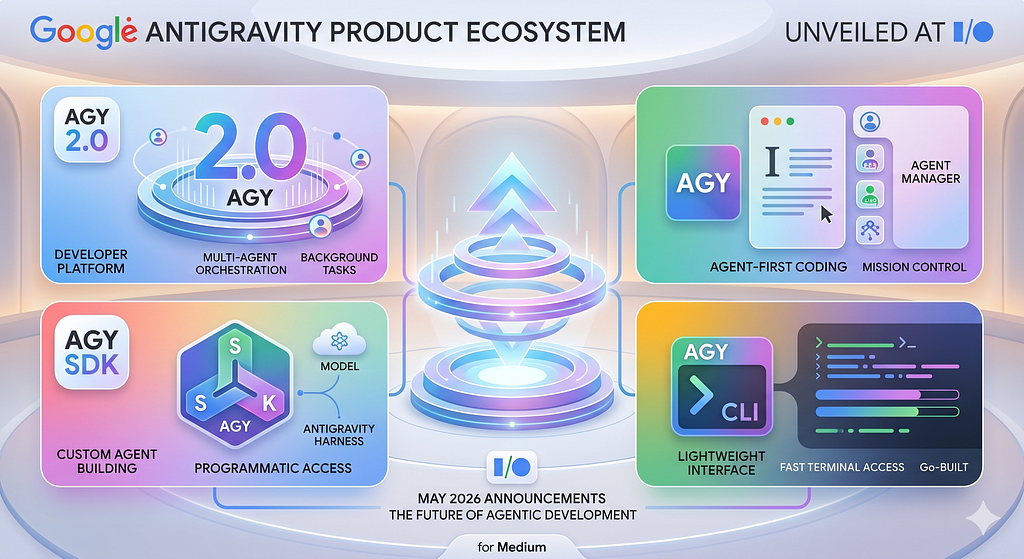
The Agy suite supports and enables Gemini 3.5 from day 1 and is made up of a number of products:
- Antigravity 2.0, which is now the dedicated agent-first “builder” environment on your desktop. Notably, it doesn’t itself include an IDE. Instead, we now interact only with the agent manager. This surface aims to usher in the era of idea to product using agents, without concerning ourselves over the code.
- Antigravity IDE, which gives us the more familiar VS Code-esque coding environment, supported by the Antigravity agent harness.
- Antigravity SDK, which gives you the harness and tools that power Antigravity, but exposed as a Python Agent SDK. By importing from google.antigravity we can programmatically leverage Antigravity’s capabilities.
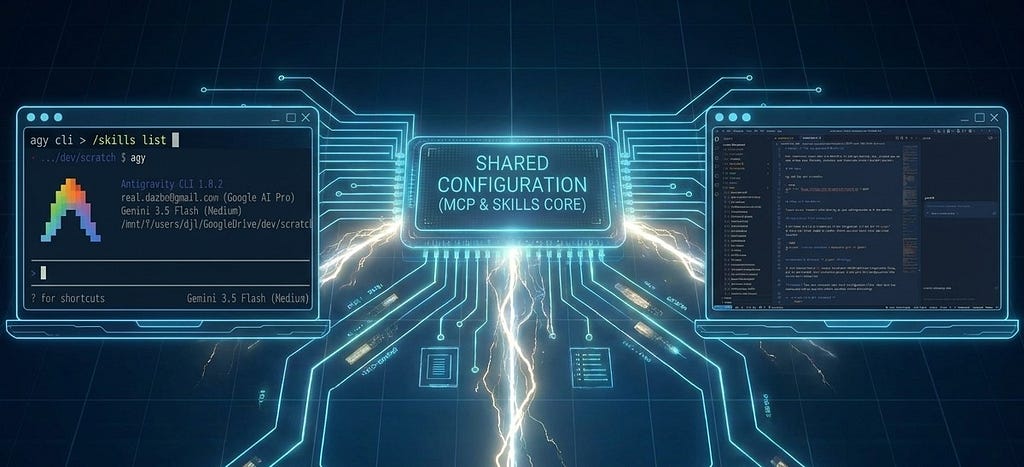
- Antigravity CLI, which — somewhat controversially — replaces the hugely popular and open-source Gemini CLI. It’s still a terminal-first environment for interacting with Gemini models. But the new Antigravity CLI is built in Go, and you can tell; it feels much faster than Gemini CLI, both during startup and in general use. It leverages the same agent “harness” as Antigravity 2.0 and the IDE, and this allows for common settings and configuration across the Antigravity suite.
I can understand Google’s rationale for bringing Gemini CLI into the Antigravity suite. Previously these products were developed independently and in parallel. As a result they had different standards and approaches for configuration (such as MCP servers), and where to put things… like skills. This creates a certain amount of friction for users. Now, in theory, we only need to configure in one place.
There’s already a bunch of articles in the Google Cloud Publication describing how to get started with the Antigravity suite.
Here I’m going to briefly share my experience in configuring MCP servers and skills.
This is literally day 1 of me experimenting with these things in Agy, so there’s a lot I need to discover. And I expect we’ll continue to see a lot of bug fixes across the Agy suite too. But I wanted to share this with you ASAP, as I’ve been getting a lot of folks asking me questions about this. I hope it’s useful for you.
Global Configuration
As before, we have a .gemini folder in our home directory. But now it looks like this:
.gemini
├── antigravity/
├── config/
│   ├── plugins/          # Global / shared plugins
│   ├── projects/         # Approved project folders
│   └── mcp_config.json   # Global / shared MCP config
├── antigravity-cli/
│   ├── mcp/              # Dynamically generated from shared MCP config
│   └── settings.json     # CLI settings
├── antigravity-ide/
│   ├── mcp/              # Dynamically generated from shared MCP config
│   ├── plugins/          # Symlinked from global config
│   └── installation_id
├── skills/               # Global / shared skills
│   └── {skill_name}/
│       └── SKILL.md
└── GEMINI.md
Some things to note about this:
- At the time of writing, the official Antigravity documentation says that to configure skills “globally”, you need to put them here: ~/.gemini/antigravity/skills/<skill-folder>/
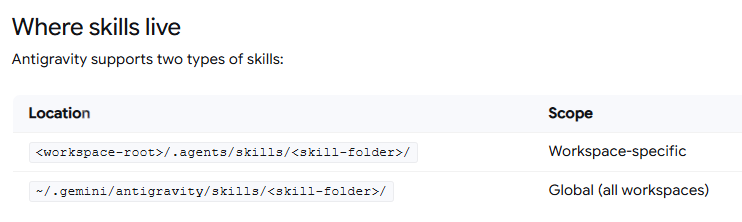
- But my experience is that this is incorrect. Antigravity tools do not pick up skills placed in this location. Instead, you should put your skills folder at the top of your .gemini folder. We can confirm this by running the /skills command from inside Agy CLI:
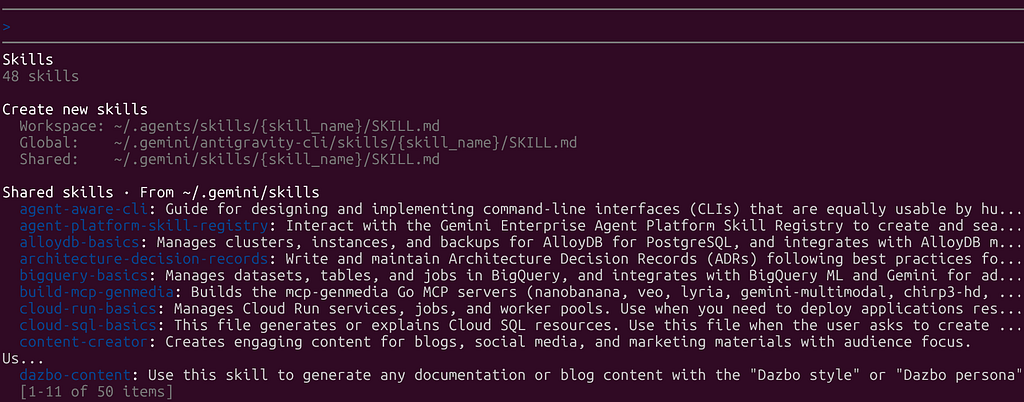
- You can see that “global” skills — meaning those available to all workspaces when running Agy CLI only — should go in ~/.gemini/antigravity-cli/skills, whereas “shared” skills — meaning those available to all workspaces running any Antigravity tools — should go in ~/.gemini/skills.
- If we want to share MCP server configurations across Antigravity tools, you need to create mcp_config.json file and place it in the new ~/.gemini/config folder. (This is where “shared” extensions — now called “plugins” go also.)
MCP Configuration
Here’s what my new ~/.gemini/config/mcp_config.json currently looks like:
{
  "mcpServers": {
    "lyria": {
      "command": "mcp-lyria-go",
      "env": {
        "MCP_SERVER_REQUEST_TIMEOUT": "55000",
        "GENMEDIA_BUCKET": "my-bucket-name",
        "PROJECT_ID": "my-google-project",
        "LOCATION": "europe-west1"
      },
      "disabled": true
    },
    "avtool": {
      "command": "mcp-avtool-go",
      "env": {
        "MCP_SERVER_REQUEST_TIMEOUT": "55000",
        "PROJECT_ID": "my-google-project",
        "GENMEDIA_BUCKET": "my-bucket-name",
        "LOCATION": "europe-west1"
      }
    },
    "chirp3-hd": {
      "command": "mcp-chirp3-go",
      "env": {
        "MCP_SERVER_REQUEST_TIMEOUT": "55000",
        "GENMEDIA_BUCKET": "my-bucket-name",
        "PROJECT_ID": "my-google-project"
      }
    },
    "gcloud": {
      "command": "npx",
      "args": [
        "-y",
        "@google-cloud/gcloud-mcp"
      ]
    },
    "notebooklm-mcp": {
      "command": "uvx",
      "args": [
        "--from",
        "notebooklm-mcp-cli",
        "--with",
        "fakeredis<2.20.0",
        "notebooklm-mcp"
      ],
      "disabled": true
    },
    "StitchMCP": {
      "command": "npx",
      "args": [
        "-y",
        "mcp-remote",
        "https://stitch.googleapis.com/mcp",
        "--header",
        "X-Goog-Api-Key: <my-stitch-api-key>"
      ],
      "env": {}
    },
    "FirestoreMCP": {
      "serverUrl": "https://firestore.googleapis.com/mcp",
      "authProviderType": "google_credentials",
      "oauth": {
        "scopes": [
          "https://www.googleapis.com/auth/cloud-platform"
        ]
      },
      "headers": {
        "X-Goog-User-Project": "dazbo-portfolio"
      },
      "disabled": true
    },
    "remote-github": {
      "serverUrl": "https://api.githubcopilot.com/mcp/",
      "headers": {
        "Authorization": "Bearer <my-github-api-key>",
        "Content-Type": "application/json"
      }
    },
    "google-developer-knowledge": {
      "command": "npx",
      "args": [
        "-y",
        "mcp-remote",
        "https://developerknowledge.googleapis.com/mcp",
        "--header",
        "X-Goog-Api-Key: <my-google-developer-knowledge-api-key>"
      ],
      "env": {}
    },
    "google-cloud-resource-manager": {
      "serverUrl": "https://cloudresourcemanager.googleapis.com/mcp",
      "authProviderType": "google_credentials"
    }
  }
}
A few notes about this MCP JSON file…
- You need to use “serverUrl”, not the older “httpUrl”
- The “timeout” parameter is no longer supported at the top level of each MCP server.
- Inline comments are not supported.
Let’s see if this works…
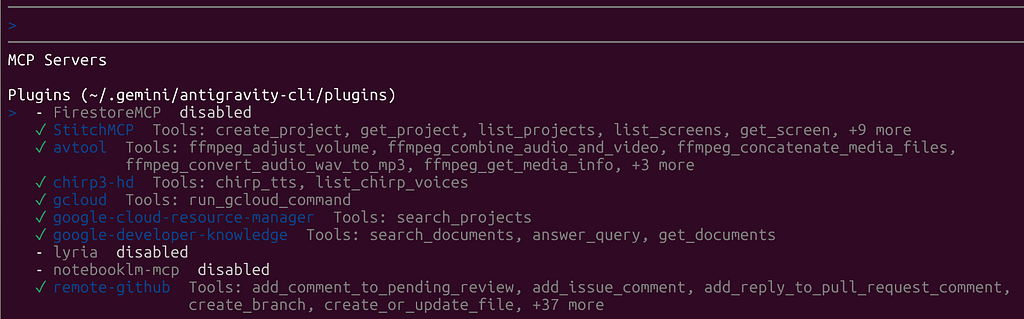
Let’s test one of these.
I say to Agy CLI: “List my public GitHub repos. Present them in a markdown table, along with their summaries, primary technologies, and number of stars. List in desc stars order.”
And Agy CL comes back with:
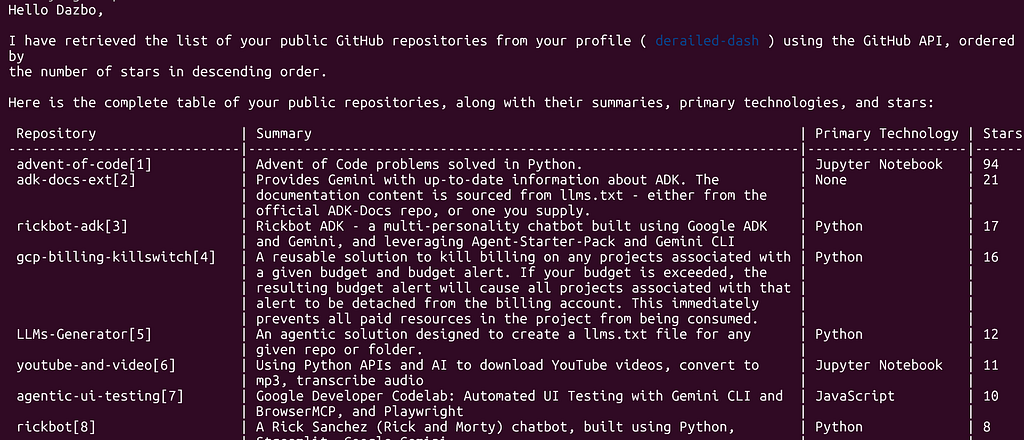
So that worked fine.
But what about in Agy IDE? Let’s just ask the agent, “What MCP servers do we have?”
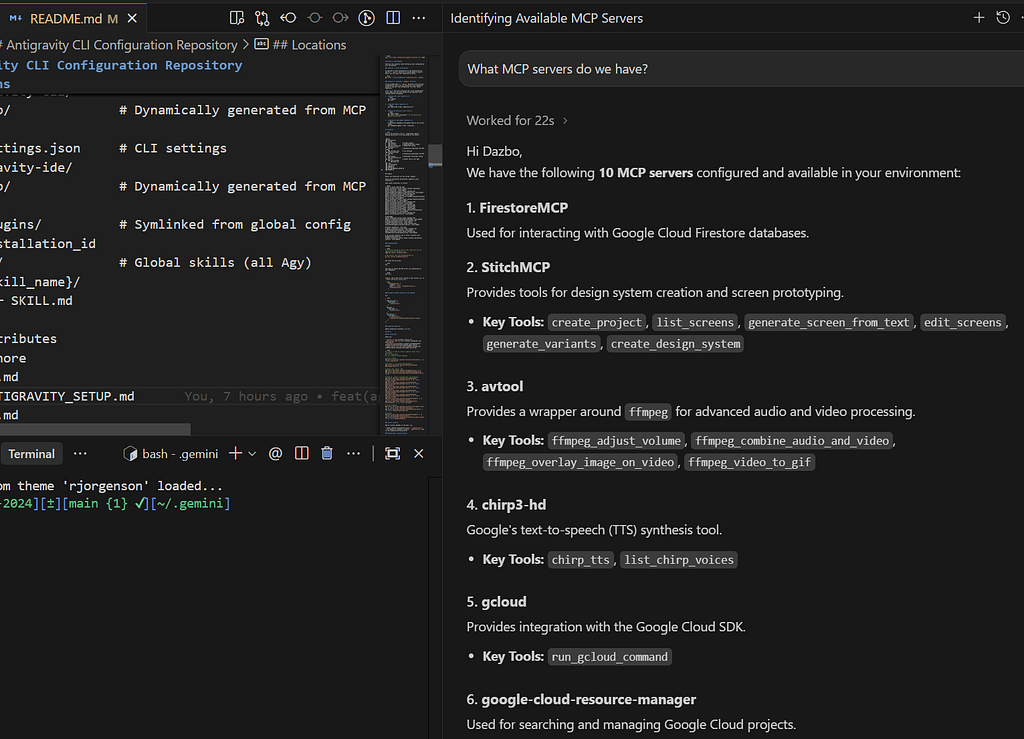
So you can see that Agy IDE has picked up the same MCP configuration. Hurrah!
I did discover one issue… In my old Gemini CLI MCP server configurations, I was able to pass in environment variables, e.g. for API keys. In Agy CLI / IDE, this isn’t working for me and I’ve had to hard-code these keys into my mcp_config.json file. I hope this will get fixed soon.
Skills Configuration
I started by downloading and installing a number of skills in the usual way; i.e. via npx, like this:
# Skills related
npx skills add https://github.com/vercel-labs/skills -y -g --skill find-skills

# My skills - e.g. project-documentation
npx skills add https://github.com/derailed-dash/dazbo-agent-skills -y -g

# Agentic dev, Gemini, ADK
npx skills add https://github.com/google/skills -y -g
npx skills add https://github.com/GoogleCloudPlatform/vertex-ai-creative-studio/experiments/mcp-genmedia/skills -y -g

# Research, content, documentation, and marketing
npx skills add https://github.com/shubhamsaboo/awesome-llm-apps/awesome-agent-skills -y -g --skill deep-research
npx skills add https://github.com/shubhamsaboo/awesome-llm-apps/awesome-agent-skills -y -g --skill fact-checker
npx skills add https://github.com/shubhamsaboo/awesome-llm-apps/awesome-agent-skills -y -g --skill strategy-advisor
npx skills add https://github.com/shubhamsaboo/awesome-llm-apps/awesome-agent-skills -y -g --skill technical-writer
npx skills add https://github.com/wshobson/agents -y -g --skill architecture-decision-records
npx skills add https://github.com/coreyhaines31/marketingskills -y -g --skill seo-audit

# UI and frontend
npx skills add https://github.com/vercel-labs/agent-skills -y -g --skill vercel-react-best-practices
npx skills add https://github.com/remotion-dev/skills -y -g --skill remotion-best-practices
These commands install skills to your ~/.agents/skills folder. But I want them to be in ~/.gemini/skills. As mentioned previously, this location is picked up by all Agy products. So, go ahead and move the skills you’ve installed. Or you can run a script like this to do it for you:
for d in ~/.agents/skills/*/; \
do [ -d "$d" ] && rm -rf "$HOME/.gemini/skills/$(basename "$d")"; \
done && mv ~/.agents/skills/* ~/.gemini/skills/
By the way, I’ve actually created a skill that does this for me. I.e. it helps with installing any skill, and then relocating it to the appropriate location for Antigravity. It’s called deploy-skills-in-antigravity and you can check it out here. After installing it, I can say to Agy:
“please install the skill seo-audit from https://github.com/coreyhaines31/marketingskills”
Agy then activates my skill and uses the correct commands to install and move the newly installed SEO skill.
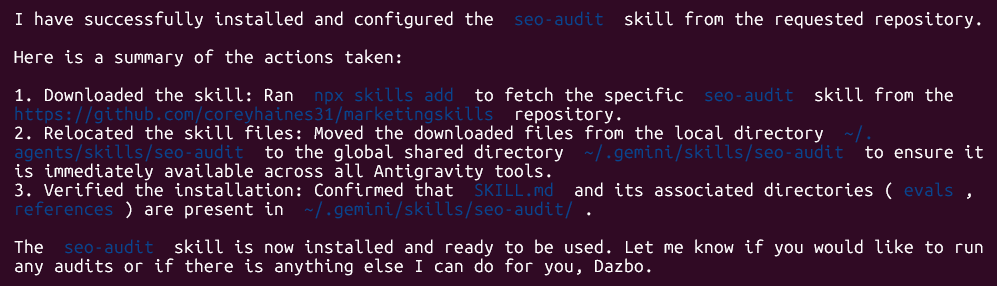
(If you like this skill, please add a star to my repo!)
When we start Agy CLI, these skills are all available. Let’s check in Agy IDE too. I ask Agy IDE: “What skills do we have installed?”
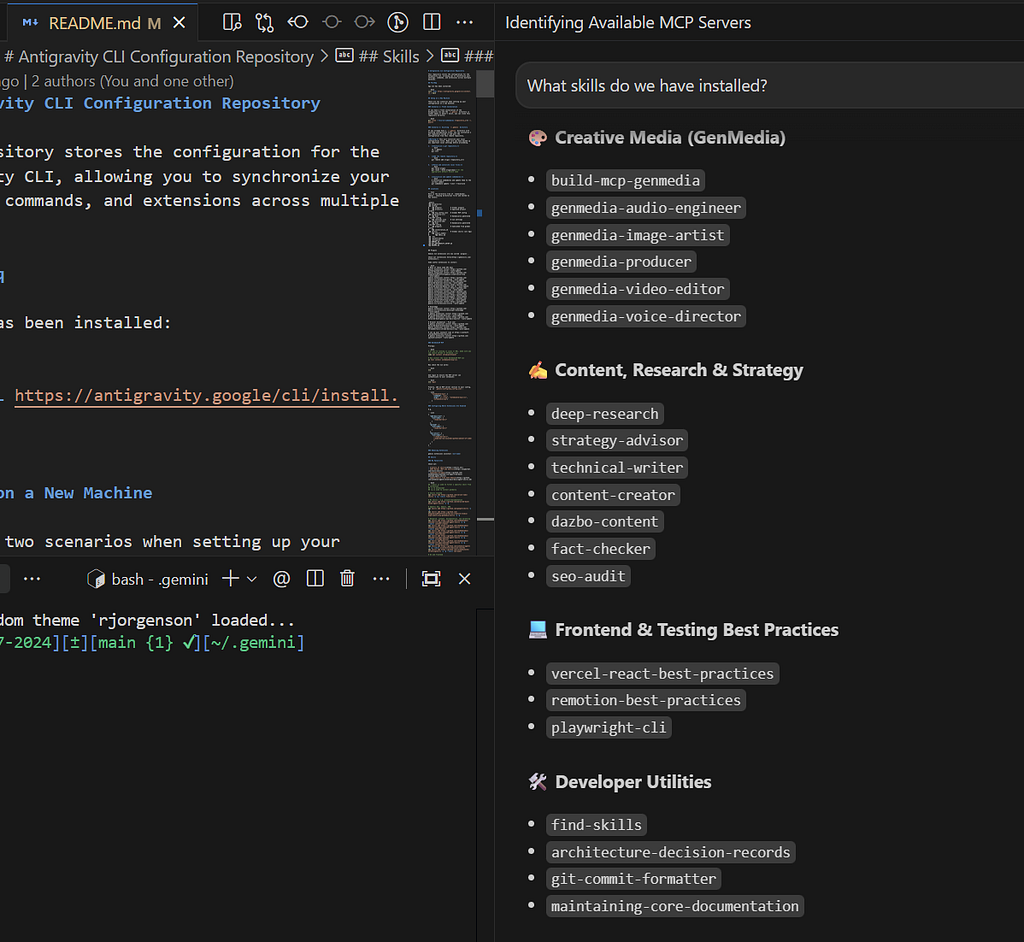
So we can see the skills are detected in Agy IDE, as required.
If I ask the Agy agent to “Perform a core documentation review,” we can see that it uses the required skills automatically:
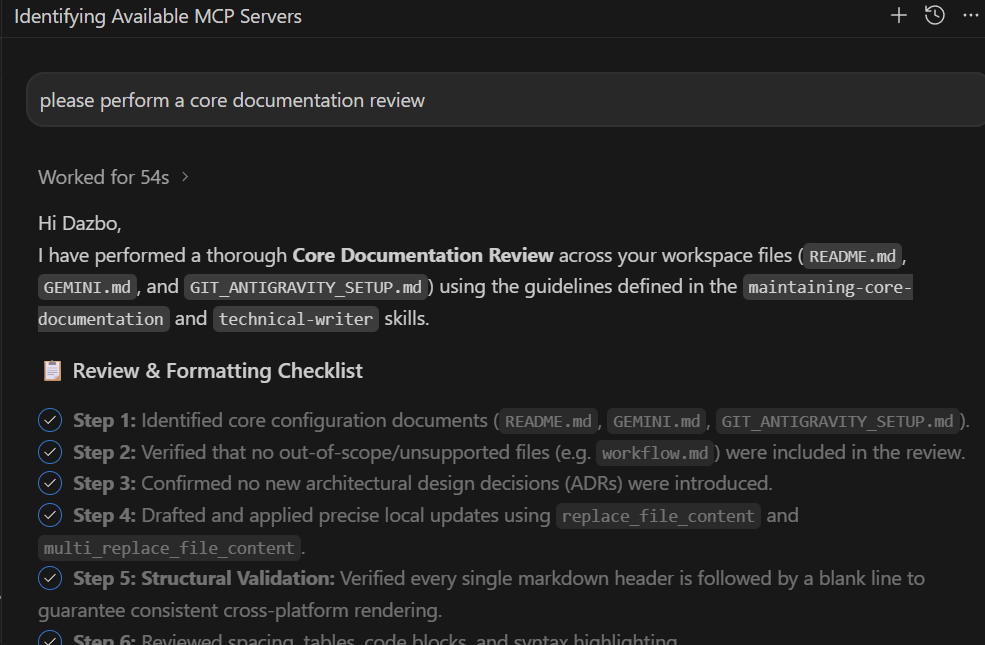
(If you’re interested in this documentation review skill, then you can obtain it here. Please add a star to the repo, if you find it useful!)
Wrap-Up
So, where does that leave us?
Migrating from the old Gemini CLI to the new Antigravity ecosystem does require a bit of mental rewiring when it comes to folder structures. But having a single, unified source of truth for your MCP servers and skills is a leap forward. No more duplicating configurations or wondering why a custom skill works in your terminal but fails in your IDE. (Hopefully!)
Is it perfect? Not yet. We still have some day-one paper cuts — like that frustrating environment variable bug in the global MCP configuration that forces us to hardcode API keys for now. But given the sheer startup speed of the new Go-based CLI and the potential of the shared agent harness, the foundation is incredibly solid.
Hopefully, this guide saves you some time scratching your head over directory discrepancies. Let me know if you run into any other teething ssues!
Now, if you’ll excuse me, I think it’s time to put on a Hawaiian shirt, mix up a piña colada, and go enjoy a bit of sunshine.
Until next time, happy building!
Before You Go
- Please share this with anyone that you think will be interested. It might help them, and it really helps me!
- Please give me 50 claps! (Just hold down the clap button.)
- Feel free to leave a comment 💬.
- Follow and subscribe, so you don’t miss my content.
Useful Links and References
- Google Antigravity
- An important update: Transitioning Gemini CLI to Antigravity CLI
- Antigravity Documentation
- Antigravity CLI Tutorial Series from Romin Irani
- Dazbo-Agent-Skills
- My Portfolio / Blogs / Applications
Configuring MCP Servers and Skills for Antigravity CLI and IDE was originally published in Google Cloud – Community on Medium, where people are continuing the conversation by highlighting and responding to this story.
Source Credit: https://medium.com/google-cloud/configuring-mcp-servers-and-skills-for-antigravity-cli-and-ide-a938c7eebb78?source=rss—-e52cf94d98af—4
About the Author