A practical guide to gcloud run compose up, and the pitfalls nobody tells you about
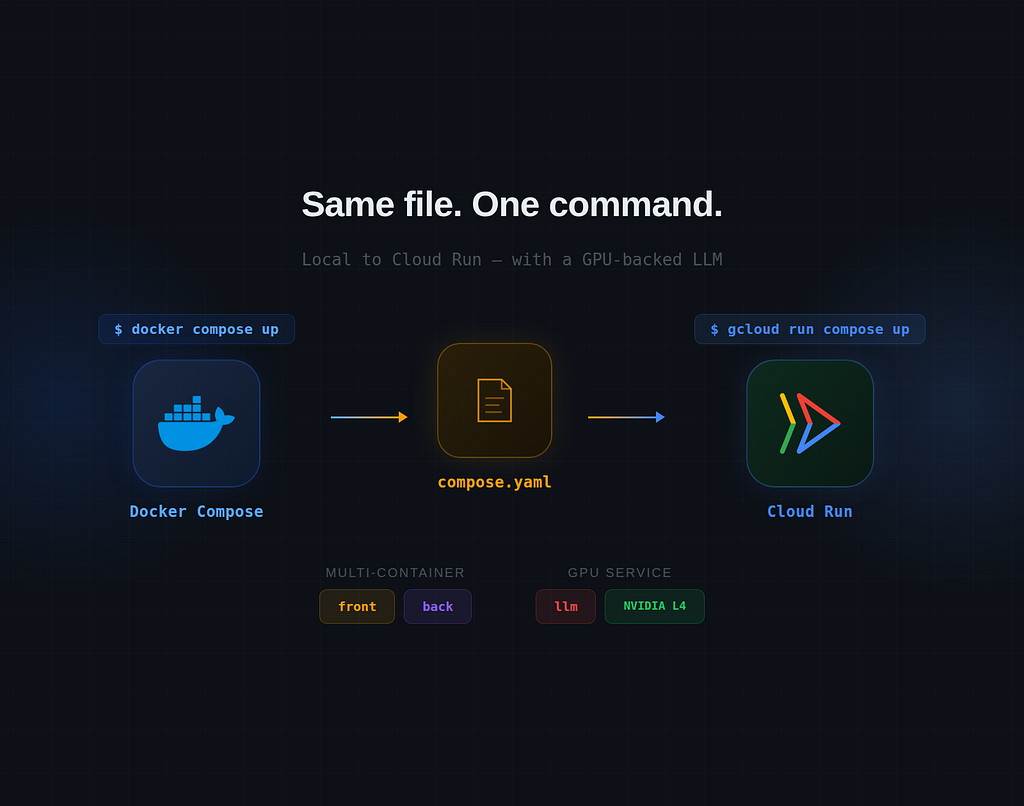
If you’ve ever wished you could go from docker compose up on your laptop to a fully deployed multi-service application on Google Cloud Run with a single command — this article is for you.
docker compose up is a wonderful command for local development. But it stops at your machine. Now imagine replacing docker with gcloud run and getting the same stack running in the cloud, production-shaped, with caveats we’ll cover on the section 5. That's exactly what gcloud run compose up makes possible.
It also breaks in three specific, undocumented ways, which we’ll cover in 5 so you don’t hit them blind.
In this article, we’ll deploy a real-world app to Cloud Run using a single compose.yaml — no Kubernetes YAML, no manual GPU configuration. Along the way, we'll cover the key adaptation points, the gotchas nobody documents, and what actually happens under the hood.
1. Prerequisites and Getting Started
This article assumes you’re comfortable with Docker Compose and have a basic understanding of Google Cloud. You don’t need to know Cloud Run internals — that’s what we’re here to learn.
What you need before starting:
- Google Cloud SDK 564.0.0+ — required for gcloud run compose up. This feature’s launch stage is still evolving, so check the official docs before adopting in production.
- A GCP project with billing enabled and the following APIs activated:
gcloud services enable run.googleapis.com \
    artifactregistry.googleapis.com \
    storage.googleapis.com
- Docker Desktop 4.40+ with Model Runner enabled, if you want to test locally first:
docker desktop enable model-runner --tcp 12434
- Authenticate locally with gcloud auth application-default login(ADC). The credentials need BigQuery Data Viewer and BigQuery Job User roles .
Clone the repo to follow along:
git clone https://github.com/bricefotzo/gcp-release-notes.git
cd gcp-release-notes
💡 The patterns in this article apply to any multi-service compose.yaml. The GCP Release Notes Navigator is just the vehicle — adapt what you learn here to your own stack.
2. The Use Case: A Multi-Service Cloud Run Stack with an LLM
The app we’re deploying is a multi-service stack with three components:
- A Streamlit frontend: search and filter interface
- A FastAPI backend: queries BigQuery and calls the LLM
- Open Weights LLM (ai/llama3.2 ): served by Docker Model Runner for AI-powered summaries
💡 Why Docker Model Runner instead of Ollama?
Both expose an OpenAI-compatible API, so your code is identical either way. The difference is at deploy time: Docker Model Runner uses the models: top-level key in compose.yaml, which gcloud run compose translates directly into a GPU-backed Cloud Run service. With Ollama, you'd need to manage the GPU container yourself. Same dev experience, very different deployment story.
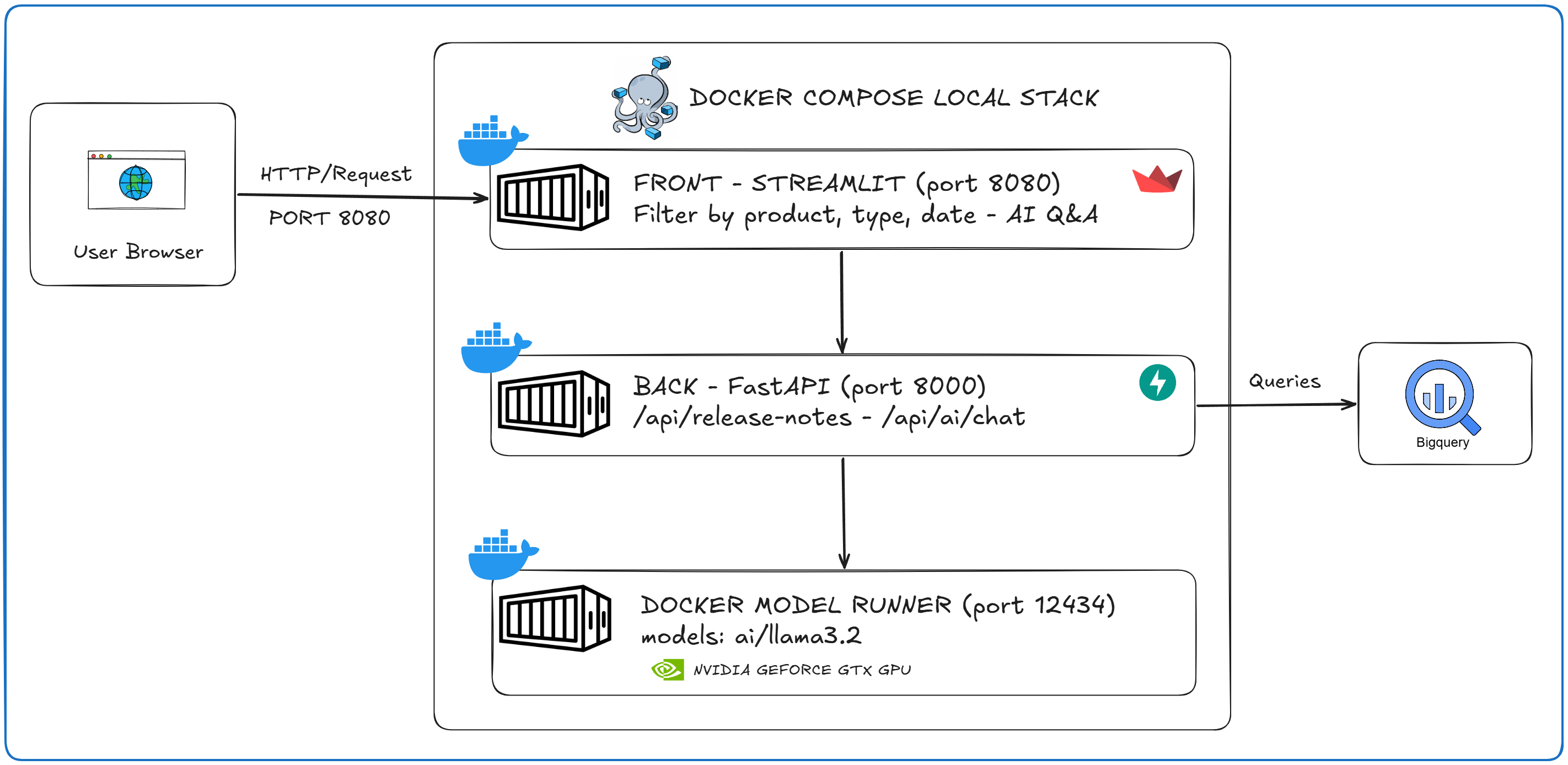
The local architecture looks like this:
After gcloud run compose up, the Cloud Run deployment looks like this:
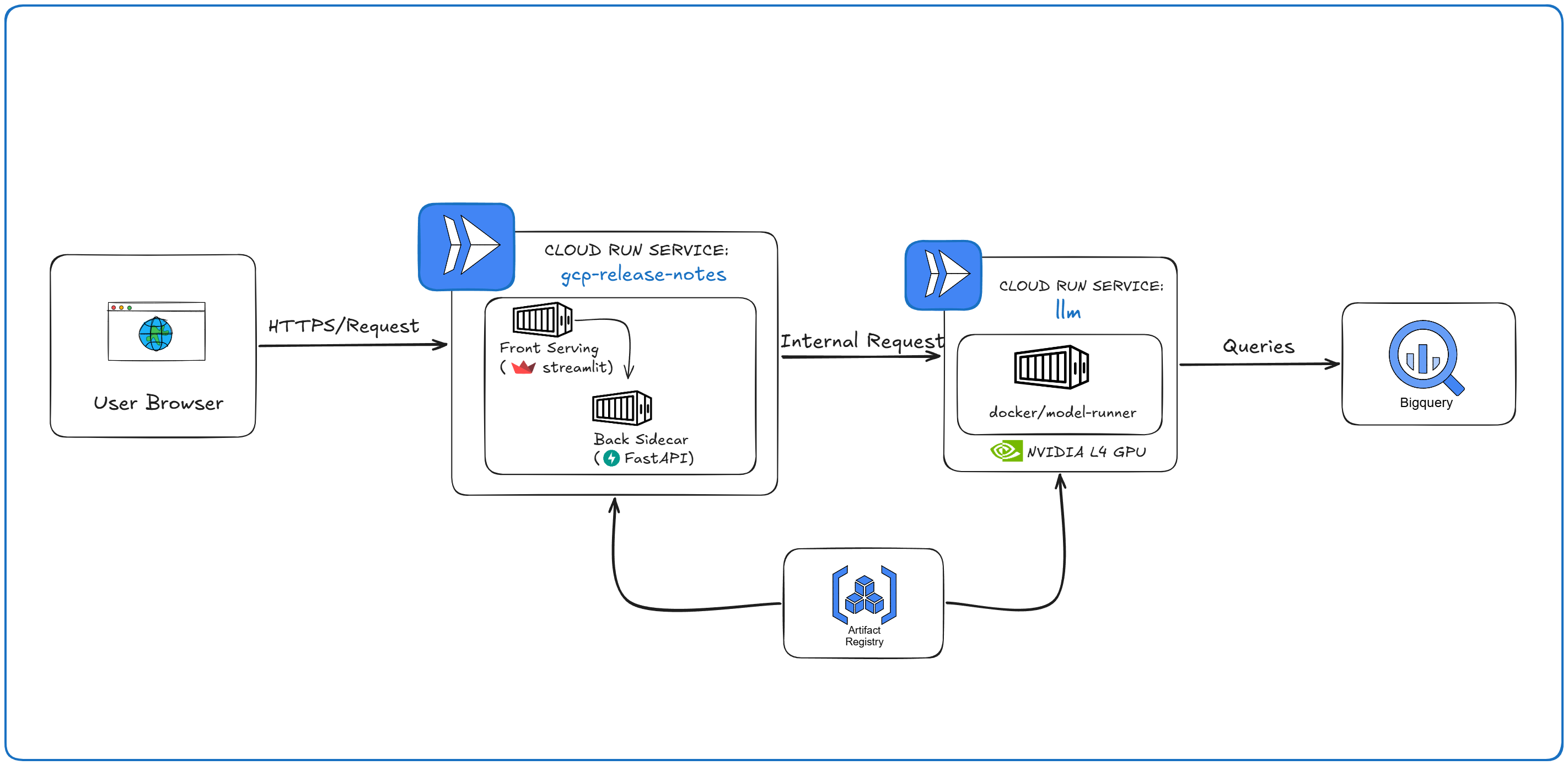
The key shift: locally, the backend calls the LLM at http://model-runner.docker.internal:12434. On Cloud Run, the LLM becomes a separate service with its own HTTPS URL – and LLM_URL is automatically rewritten to point to it.
You don’t need to understand the app’s internals to follow this tutorial. What matters is that it’s a real multi-service stack defined in a single compose.yaml — the patterns here apply to your own projects.
3. The compose.yaml for gcloud run compose up, Annotated
The entire orchestration lives in a single file. Here it is in full — we’ll break it down right after:
services:
  # ── Streamlit frontend
  front:
    build:
      context: ./frontend
    ports:
      - "8090:8080"
    environment:
      - BACKEND_URL=http://back:8000
    depends_on:
      back:
        condition: service_healthy
  # ── FastAPI backend (port 8000)
  back:
    build:
      context: ./backend
    ports:
      - "8000:8000"
    # Docker Model Runner injects LLM_URL and LLM_MODEL automatically
    models:
      - llm
    environment:
      - PROJECT_ID=serial-techos
      - DATA_PROJECT_ID=bigquery-public-data
      - DATASET_ID=google_cloud_release_notes
      - TABLE_ID=release_notes
    healthcheck:
      test: ["CMD", "python", "-c", "import urllib.request; urllib.request.urlopen('http://localhost:8000/health')"]
      interval: 10s
      timeout: 5s
      retries: 5
      start_period: 30s
# ── Docker Model Runner ─────────────────────────────────────────
models:
  llm:
    model: ai/llama3.2
    context_size: 32768
    x-google-cloudrun:
      environment:
        PORT: 12434
        MODEL_RUNNER_PORT: 12434
      run-model:
        inference-container: docker/model-runner
💡 Everything prefixed with x- is a Compose extension. Docker Compose ignores it locally — it's metadata for Cloud Run only. This is what makes the same file work in both environments.
3.1 Frontend — Streamlit
The Streamlit frontend is straightforward, it builds from ./frontend, exposes port 8080 and depends on the backend being healthy.
environment:
  - BACKEND_URL=http://back:8000
depends_on:
  back:
    condition: service_healthy
- BACKEND_URL=http://back:8000 — On Cloud Run, front and back run as sidecars in the same service, sharing a network namespace. This means http://back:8000 resolves via localhost, exactly as it does locally. No change required.
- depends_on — Translated to a Cloud Run container dependency: {"front":["back"]}. Cloud Run won't route traffic to front until back is healthy.
3.2 Backend — FastAPI
models:
  - llm
environment:
      - PROJECT_ID=serial-techos
      - DATA_PROJECT_ID=bigquery-public-data
      - DATASET_ID=google_cloud_release_notes
      - TABLE_ID=release_notes
healthcheck:
  test: ["CMD", "python", "-c", "import urllib.request; urllib.request.urlopen('http://localhost:8000/health')"]
  interval: 10s
  timeout: 5s
  retries: 5
  start_period: 30s
- models: – llm — This is the key that wires back to the LLM service. On Cloud Run, LLM_URL is automatically injected with the HTTPS URL of the deployed llm service. Locally, Docker Model Runner handles this injection directly.
- environment — The variables declared here are injected as Cloud Run environment variables.
For local development, if you chose to use this use case(github), I use ADC for authentication. For this, I use a compose.override.yaml where I define volume mount for authentication in the local container.
services:
  back:
    volumes:
      - ${ADC_PATH:-./adc.json}:/tmp/adc.json:ro
    environment:
      - GOOGLE_APPLICATION_CREDENTIALS=/tmp/adc.json
This second YAML is taken into account when you run docker compose up so that your back container is authenticated using ADC but the command gcloud run compose up ignores it.
3.3 The models: top-level key
models:
  llm:
    model: ai/llama3.2
    x-google-cloudrun:
      environment:
        PORT: 12434
        MODEL_RUNNER_PORT: 12434
      run-model:
        inference-container: docker/model-runner
This is where the local-to-cloud translation happens:
- models: is a top-level Compose key for Docker Model Runner. It declares the LLM as a named dependency, not a traditional service container.
- ai/llama3.2— the model pulled from Docker AI Hub.
- x-google-cloudrun: — the Cloud Run-specific configuration:
- PORT and MODEL_RUNNER_PORT: the port on which the model runner listens
- inference-container: docker/model-runner: the container image used to serve the model on Cloud Run.
On Cloud Run, this block is translated into a standalone Cloud Run service named llm, running docker/model-runner with an NVIDIA L4 GPU attached. No GPU configuration on your side — one key in the YAML, one service in the cloud.
4. Deploying with gcloud run compose up: One Command, Two Services
Before running the command, make sure everything is in place:
✅ APIs enabled (Cloud Run, Artifact Registry, Cloud Storage)
✅ Docker images build locally (docker compose build)
✅ Authenticated with gcloud auth application-default login
Then:
export PROJECT_ID=your-project-id
gcloud run compose up \
  --project=$PROJECT_ID \
  --region=europe-west1
That’s it. The command builds your images, pushes them to Artifact Registry, and creates Cloud Run services — all from the compose.yaml.
4.1 What gets created
This is the most surprising part: you defined three components in your compose file, but Cloud Run creates two services, not three.
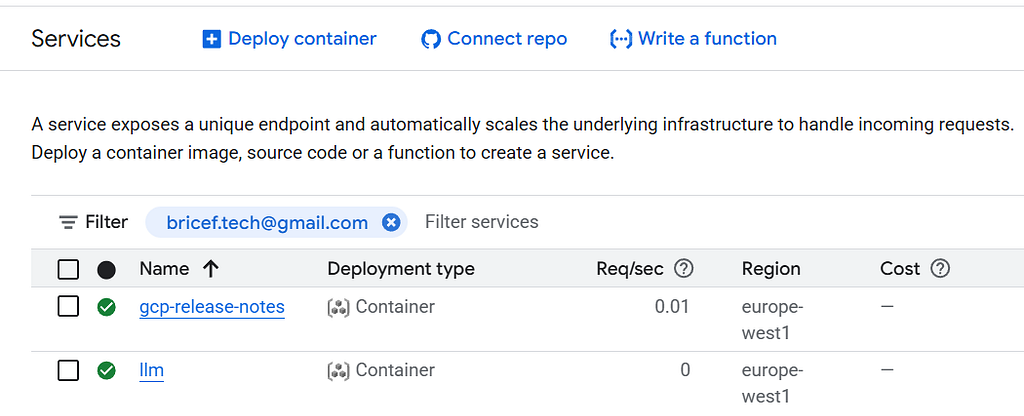
Service 1: gcp-release-notes — front and back are co-located as sidecars in a single Cloud Run service. This is the Cloud Run multi-container pattern. The relevant part of the generated Knative manifest:

Two things to notice here. front is the ingress container (it has ports.name: http1). And LLM_URL has been automatically rewritten from the local Docker Model Runner address to the HTTPS URL of the deployed llm service.
Service 2: llm — The models: key is translated into a standalone Cloud Run service with a real GPU:
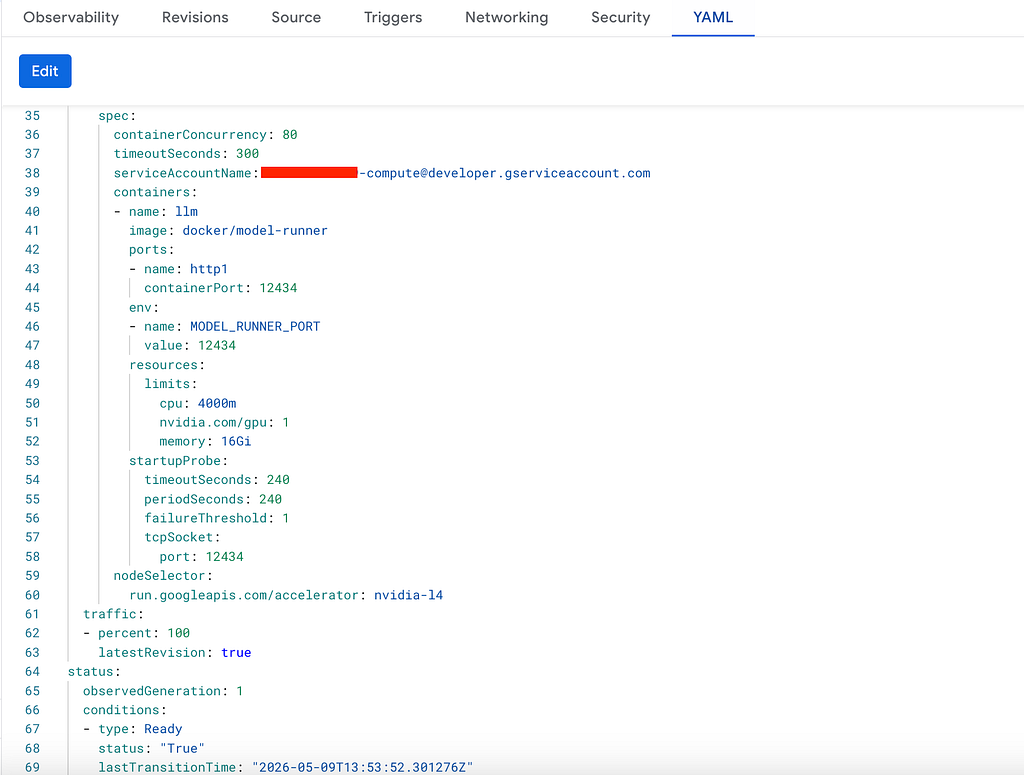
4 vCPUs, 16 GB RAM, one NVIDIA L4 GPU — all provisioned automatically from the models: block in your compose file. CPU throttling is disabled because GPU workloads require consistent CPU availability.
💡 About the L4 — and why you don’t get to pick.
Cloud Run’s models: translation provisions an NVIDIA L4 (24 GB VRAM) by default. It’s the minimum-cost inference GPU on Cloud Run, optimized for 7B–14B parameter models at FP16 or INT8/FP8. Plenty for llama3.2 or gemma3:4b. Not enough for a 70B model, that needs ~35 GB VRAM even at 4-bit and exceeds the L4.
Cloud Run also supports GPUs for bigger models, but gcloud run compose updoesn’t currently expose a GPU-type selector in the models: block. You just get an L4. If you need the Blackwell, you’ll have to fall back to deploying the LLM service manually with gcloud run deploy –gpu-type.
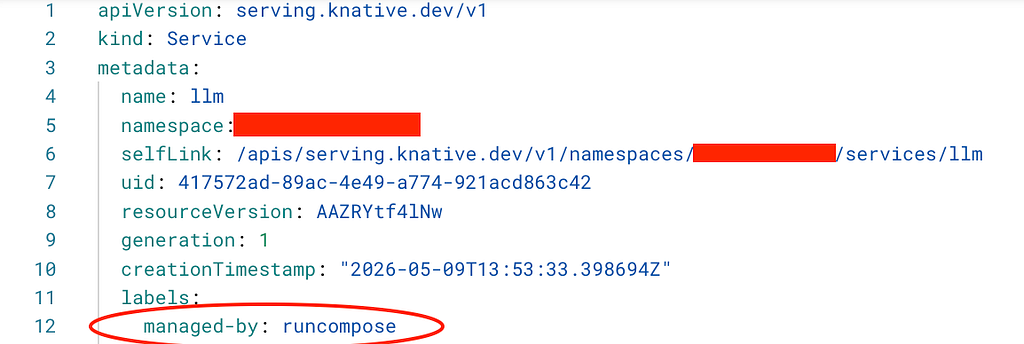
💡 Both services are tagged with managed-by: runcompose. Useful if you need to identify compose-managed resources in a project with other Cloud Run services.
4.2 ⚠️ Models are not pulled at deployment time
The docker/model-runner container starts empty — no model is loaded. After deployment, you must pull the model manually:
curl -X POST https://llm-xxx.europe-west1.run.app/models/create \
  -H "Content-Type: application/json" \
  -d '{"model": "ai/llama3.2"}'
🚨 Do this right after deployment. Until this call is made, any inference request from the backend will hang and eventually time out.
5. gcloud run compose up — Real pitfalls
gcloud run compose is a powerful abstraction, but it's still a young tool. Here are the real issues encountered deploying this project.
⚠️ Pitfall 1 — Why is LLM_URL injected without the /v1 suffix on Cloud Run?
Cloud Run injects LLM_URL pointing to the llm service, but the URL ends at the domain (https://llm-xxx.run.app) without the /v1 path required by the OpenAI-compatible API.
Locally, Docker Model Runner sets LLM_URL to http://model-runner.docker.internal:12434/engines/v1 — full path included. On Cloud Run, the injected value is just the base URL. Calling it directly returns 404 on every inference endpoint.
Fix — detect the environment at runtime:
# backend/src/ai.py
from openai import OpenAI

LLM_URL = os.environ.get("LLM_URL", "")
# Cloud Run injects the base URL without path suffix.
# Locally, Docker Model Runner provides the full path.
LLM_ENDPOINT = f"{LLM_URL}/v1" if "run.app" in LLM_URL else LLM_URL
client = OpenAI(base_url=LLM_ENDPOINT, api_key="not-needed")
⚠️ Pitfall 2— Why doesn’t gcloud run compose up redeploy my llm service?
If you change the model name or configuration under the models: key and re-run gcloud run compose up, the llm service is not updated. The command reports success, which gives the misleading impression that a new revision was created. In reality, the service is untouched.
Changing the context_size for example, has no workaround at the time of writing. If you’ve found one, please drop it in the comments.
⚠️ Pitfall 3 — Why do my pulled models disappear after a Cloud Run restart?
Model data is stored in the container’s local filesystem. If the llm container crashes or is evicted — for example due to a timeout on a large inference request — the pulled model is lost and the pull must be repeated.
A persistent volume would solve this, but since the llm service is generated entirely from the models: key (with no explicit service spec), there is currently no way to attach one via gcloud run compose. This remains an open limitation at the time of writing.
💡 In practice: Pitfalls 2 and 3 are related. The models: key is the most "magic" part of the compose translation — and magic comes with trade-offs. Expect this area to mature in future SDK releases.
⚠️ Pitfall 4 — Heads up: services default to `max_instances=1`
Both Cloud Run services created by gcloud run compose upare deployed with a maximum of one instance. This is a documented default of the Compose deployment path, not a bug — but it’s a silent ceiling. The first deploy works, the demo looks great, then the second concurrent user hits a cold start while the first is mid-request and you start chasing ghost latency.
This applies to both the gcp-realease-notes web service and the `llm` GPU service. For the LLM, this is doubly painful: with max_instances=1, you also can’t survive an instance eviction (see Pitfall 3).
Fix — raise it explicitly after deployment:
# Update the multi-container service
gcloud run services update gcp-release-notes \
 --max-instances=5 \
 --region=europe-west1

# Update the LLM service
gcloud run services update llm \
 --max-instances=2 \
 --region=europe-west1
Keep llm modest — GPU quotas are tight and each instance is an L4. Two is usually enough for a demo or small internal tool.
💡 Nothing in your `compose.yaml` controls this today. Until Compose exposes a `max_instances` knob, the post-deploy `gcloud run services update` is the only path.
Conclusion
gcloud run compose up turns a standard compose.yaml into a fully deployed Cloud Run application. Here's what to remember:
The compose.yaml is the single source of truth. The same file runs locally with Docker Desktop and deploys to Cloud Run with one command. No Dockerfile changes, no Kubernetes manifests.
Two services, not three. front and back are co-deployed as sidecars in a single multi-container service. The LLM becomes its own GPU-backed service.
The models: key is the bridge. It connects Docker Model Runner locally and triggers automatic GPU provisioning on Cloud Run. This is what makes the deployment seamless — and why Docker Model Runner matters over Ollama for this workflow.
Service-to-service communication just works. http://back:8000 resolves via localhost in the sidecar setup. LLM_URL is auto-rewritten to the HTTPS URL of the llm service.
The tool is still young. Model pulls, redeployment of the llm service, and ephemeral model storage are real limitations today. Check section 5 before deploying to production.
Teardown
If a Googler from the Cloud Run team is reading, please implement this command so that we can clean up easily:
gcloud run compose down \
  --project=$PROJECT_ID \
  --region=europe-west1
By the way, for now, you can use the label managed-by: runcompose that all the services created by gcloud run compose up hold.
Run this command:
# Delete them all
gcloud run services list \
  --project=$PROJECT_ID \
  --region=europe-west1 \
  --filter="metadata.labels.managed-by=runcompose" \
  --format="value(metadata.name)" | \
  xargs -I {} gcloud run services delete {} \
    --project=$PROJECT_ID \
    --region=europe-west1 \
    --quiet
Source code
The full source code for the GCP Release Notes Navigator is available on GitHub: github.com/bricefotzo/gcp-release-notes
If you found this article helpful, follow me on Medium for more content on Google Cloud, data engineering, and AI applications.
`gcloud run compose up`: Deploy a Multi-Service GPU Stack to Cloud Run from Docker Compose was originally published in Google Cloud – Community on Medium, where people are continuing the conversation by highlighting and responding to this story.
Source Credit: https://medium.com/google-cloud/gcloud-run-compose-up-deploy-a-multi-service-gpu-stack-to-cloud-run-from-docker-compose-77d650b39972?source=rss—-e52cf94d98af—4
About the Author