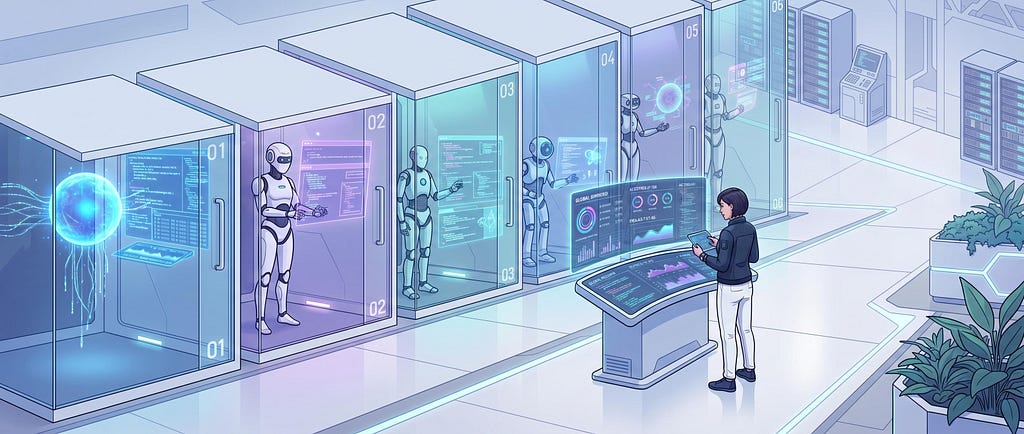
Agentic software development can be fast and furious. It can go even faster if you run multiple agents in parallel. Multiple agents can lead to new challenges, though.
Sometimes, you’re lucky and the agents play nice together. But often, they stomp on each other’s code or confuse each other. Even if they’re working in isolated parts of your codebase, they might get distracted by failing tests created by the other agent. And that productivity improvement goes out the window.
The traditional workaround is git stash. You stash your current changes, switch to a new branch, do the work, switch back, and then run git stash pop to restore what you had before. This isn’t really developing in parallel; you’re just switching back and forth between branches.
Introducing worktrees
There’s a better way. Git worktrees let you work on multiple branches simultaneously without any of that context-switching overhead.
A worktree gives you a separate working directory that ties back to the same underlying repository. Each worktree has its own checked-out branch, but they all share the same local git history, remotes, and configuration.
When you run git clone, Git creates a .git directory containing all your repository’s objects and refs. When you create a worktree, Git doesn’t duplicate those heavy objects. Instead, it creates a lightweight .git file (not a directory) in the new worktree that acts as a pointer back to the main repository’s internal .git/worktrees/ directory.
Because the underlying object database is shared, creating a worktree is nearly instantaneous. You can commit in a worktree, switch back to your main directory, and immediately see that branch and commit in your log.
The sandbox decision: Local vs. Global
If you start generating worktrees randomly across your filesystem, you will lose track of them. You have two primary architectural choices for where these agent sandboxes should live. The Obra Superpowers system offers you both of these choices:
Approach 1: The project-local sandbox (.worktrees/)
The most common approach is to keep the worktrees close to the source by creating a dedicated directory inside your project root. If you choose this path, there’s a non-negotiable rule: you must add it to your .gitignore.
echo ".worktrees/" >> .gitignore
git add .gitignore && git commit -m "chore: ignore local worktrees"
If you skip this step, you risk accidentally committing the entire worktree (and its massive node_modules or .venv folder) into your main repository, destroying the isolation you just built.
Approach 2: The global sandbox
An alternative approach is a centralized, global directory that lives entirely outside of your project (e.g., ~/.config/superpowers/worktrees/<project-name>/).
The advantage here is safety. Because the worktree lives outside the project boundary, there’s zero risk of accidentally tracking it in git. You never have to touch your .gitignore. The trade-off is that you have to remember that your active branches are executing somewhere else in your filesystem.
Example: Full stack development
Imagine you’re working on a complex React frontend bug on your frontend branch. Then, you realize you need a brand new API service deployed on Google Cloud Run to handle a background task.
You could stash your frontend changes, switch branches, and lose your context. Instead, you could spin up a worktree. Let’s walk through what that would look like with the local sandbox approach:
git worktree add .worktrees/api-service -b feature/cloud-run-backend
cd .worktrees/api-service
The worktree is a full checkout, but it won’t have your installed dependencies. If the agent is going to run tests or start a dev server, install them first:
# For a Python project
python -m venv .venv && source .venv/bin/activate && pip install -r requirements.txt

# For a Node project
npm install
From here, you could tell Claude Code to build a Python FastAPI backend, create the Dockerfile, and write the deployment script for Cloud Run.
claude -p "Build a FastAPI backend in this directory. Write a Dockerfile optimized for Google Cloud Run. Then, generate a bash script that uses gcloud to build and deploy the container."
The agent then goes to work: generating the Dockerfile, writing the backend code, and so on. Meanwhile, you can switch back to your frontend branch and finish fixing that React bug.
The agent doesn’t know it’s operating inside a worktree. It just sees a standard git repository. It creates files, stages them, and commits them. Its file modifications are completely isolated from the UI work you are doing in the root directory.
Managing the blast radius
Once the agent finishes, you can verify its work locally inside the worktree before it touches your main branch:
# From the worktree directory, test the backend
cd .worktrees/api-service
python -m pytest

# Or spin it up and hit it from your frontend
uvicorn main:app - port 8080
You can point your frontend at localhost:8080 to integration-test the two pieces together, all while your main branch stays completely untouched.
You can iterate until the agent gets it right. Then, you can integrate the work back into your main branch:
# From your main project directory
git merge feature/cloud-run-backend

# Or if you prefer a clean history
git rebase feature/cloud-run-backend

# Then clean up the worktree
git worktree remove .worktrees/api-service
Managing your worktrees
Once you start spinning up multiple worktrees, you need a way to see what’s active:
git worktree list
This prints every worktree tied to your repository, along with its path and current branch. Get in the habit of running this before creating new ones so you don’t end up with forgotten sandboxes consuming disk space.
There’s one catch to be aware of. Worktrees don’t share node modules or Python virtual environments. When you create a new worktree, you have to run your dependency installation again.
Is the initial setup cost worth the parallel workflow? Yes. The time saved by not fighting with stashed changes, or unwinding an agent’s mistakes, heavily outweighs a two-minute package install.
Native worktree support in AI agents
While managing sandboxes manually is a great practice, the agent ecosystem is already automation this process. Leading development agents and IDEs are building first-class support for git worktrees directly into their toolchains.
If you are using Claude Code, you can simply pass the –worktree flag (or -w) to launch an isolated session natively (detailed in their official documentation). Running claude –worktree backend-api automatically creates a new branch and checks out a worktree located in .claude/worktrees/backend-api/. The agent handles all of the underlying git plumbing, keeping your main context pristine.
Likewise, the Gemini CLI provides built-in experimental support for worktrees. As outlined in the Gemini CLI Git Worktrees docs, you opt-in by running /settings in your session and enabling the feature, or by adding “worktrees”: true to the experimental block in your settings.json. Once enabled, passing gemini –worktree automatically generates a unique directory under .gemini/worktrees/ and isolates the session.
Looking ahead, coding agents will likely manage their own ephemeral worktrees automatically as an invisible standard practice. Until then, whether you use native CLI flags or build your own sandboxes, you need to manage the boundaries yourself.
Let me know how you’re integrating agents into your local workflow. Hit me up on X, LinkedIn, or Bluesky and let’s compare notes.
Run multiple coding agents safely with git worktrees was originally published in Google Cloud – Community on Medium, where people are continuing the conversation by highlighting and responding to this story.
Source Credit: https://medium.com/google-cloud/run-multiple-coding-agents-safely-with-git-worktrees-c2d237dbd6b2?source=rss—-e52cf94d98af—4
About the Author