You know it’s good when a long-time cloud professional gets excited about running something locally. Spanner Omni allows you to run Spanner on-premises and on multiple cloud providers with the same magic as the managed Spanner instances on Google Cloud. This is my experience setting it up on macOS.
Why Spanner Omni?
Allow me to get a little personal and explain why I like this: I’ve been told I have some commitment issues, but the truth is I like to have options. This way, I can choose the best tool for the different problems (professional) life throws at me. Having a managed database at the Spanner scale is my default answer to many of my very intensive transactional challenges. The type of challenge you get with, for example, requiring a highly-scalable database with strong global consistency in industries like banking services or gaming. I know others also like to have choices: teams on other cloud providers like AWS or Azure, organizations requiring data residency compliance, or developers testing local AI agent workflows.
Spanner Omni brings the same capabilities as Cloud Spanner but grants you the freedom to deploy anywhere — on VMs, bare metal, Linux containers, or Kubernetes clusters. It also lets you scale compute and storage separately, preventing costly over-provisioning (I pinky-promise I will share this in a follow-up blog post).
To top it off, Spanner Omni is multi-model. You can store relational, NoSQL, and Graph data in one place. So if you also like to keep your options open, this is great news.
What about the powerful infrastructure that makes Cloud Spanner, Spanner?
As we know, Cloud Spanner uses TrueTime, Google’s globally synchronized clock that keeps time accurate across servers with an atomic clock and GPS receivers. It also uses the almighty Colossus storage system to ensure its distributed power and consistency at planetary scale.
So what happens with that atomic clock that keeps TrueTime in an Omni instance? Let’s nerd out.
Under the hood, the Paxos algorithm maintains consensus across zones by replicating data to be written among a quorum of database nodes to guarantee durability. At the same time, to guarantee chronological consistency (i.e., how do you make sure this transaction in one server came before this other transaction in a different server), Spanner must wait out its clock uncertainty before committing a change. In Cloud Spanner, TrueTime provides this small uncertainty window. In Spanner Omni, a software implementation of TrueTime keeps a reliable time reference and an uncertainty window.
Without physical atomic clocks or GPS receivers, we pivot to a leader-elected time server located in the preferred leader zone or region (actually, for availability, you’ll have multiple time-servers per region who can perform a hot failover if needed). Every node in your Spanner Omni deployment synchronizes with this primary source. Since writes usually target the same leader zone where your time server lives, you get low TrueTime uncertainty which translates to low write latency as long as:
the time Spanner needs to wait to commit (uncertainty commit wait) < time it takes for Paxos to replicate among quorum of database nodes (Paxos Round Trip Time)
As for Colossus — Google’s exabyte-scale storage platform behind Spanner, BigQuery, YouTube, and more — you obviously can’t have that locally. Or can you? Spanner Omni implements an abstraction layer of Colossus. While the infrastructure will be hard to match, this abstraction layer treats the storage as a unified pool that is detached from the compute layer. This means a VM can access the storage of another VM, so the platform can automatically redistribute data shards based on load and capacity to optimize performance without manual intervention.
Enough nerding out, let’s try Spanner locally.
First, System Requirements
Before we start our engines, we need to make sure our machine is beefy enough to run this powerhouse. Spanner Omni is highly optimized, but it still needs room to breathe.
- Linux: your server should have an x86–64 CPU, RHEL 9 or Ubuntu 22, and at least 4 GB of RAM for every vCPU allocated to Spanner, plus 20 GB of disk space.
- macOS: you’ll need macOS 14.7+, Apple Silicon (M1/M2/M3 or later) CPU, 4 GB of RAM, and 10 GB of disk space.
Make sure your system meets these, or your local Spanner deployment might end up more “shattered” than sharded.
Of course, you’ll need to download Docker Engine 24.0+ or Podman 3.0+ AND the Spanner Omni CLI.
Step-by-step instructions
I’m using Docker and macOS for these examples. First, I pulled the image. I recommend copying the command from here so you have the latest version.
- Create a volume
docker volume create spanner
2. Run the container:
You’ll see a slight trick here: ports are mapped manually, unlike the Linux command in the documentation. That’s because Docker on macOS runs in a VM that can’t directly share your host’s network.
docker run -d -p 15000:15000 -p 15026:15026 \
 - name spanneromni \
-v "spanner:/spanner" \
us-docker.pkg.dev/spanner-omni/images/spanner-omni:<<THE TAG YOU PULLED EARLIER>> \
start-single-server
The full string of the container image may look like this: us-docker.pkg.dev/spanner-omni/images/spanner-omni:2026.r1-beta.2
Why those ports? 15000 is for client connection (all the way to 15025) and 15026 is the Spanner Omni console server.
3. Verify that your container is healthy and running:
docker ps
This should say “Up xx time” under “STATUS”.

4. Next, create a sample retail database called customer_db to test things out. If you were in the console, you would find these pre-loaded sample databases after creating an instance. As of the date of this post, the samples are for Finance graph, Banking, Retail, and Gaming. Rumor has it, there are more coming.
docker exec -it spanneromni /google/spanner/bin/spanner \
databases create-sample-db retail - database-name=customer_db
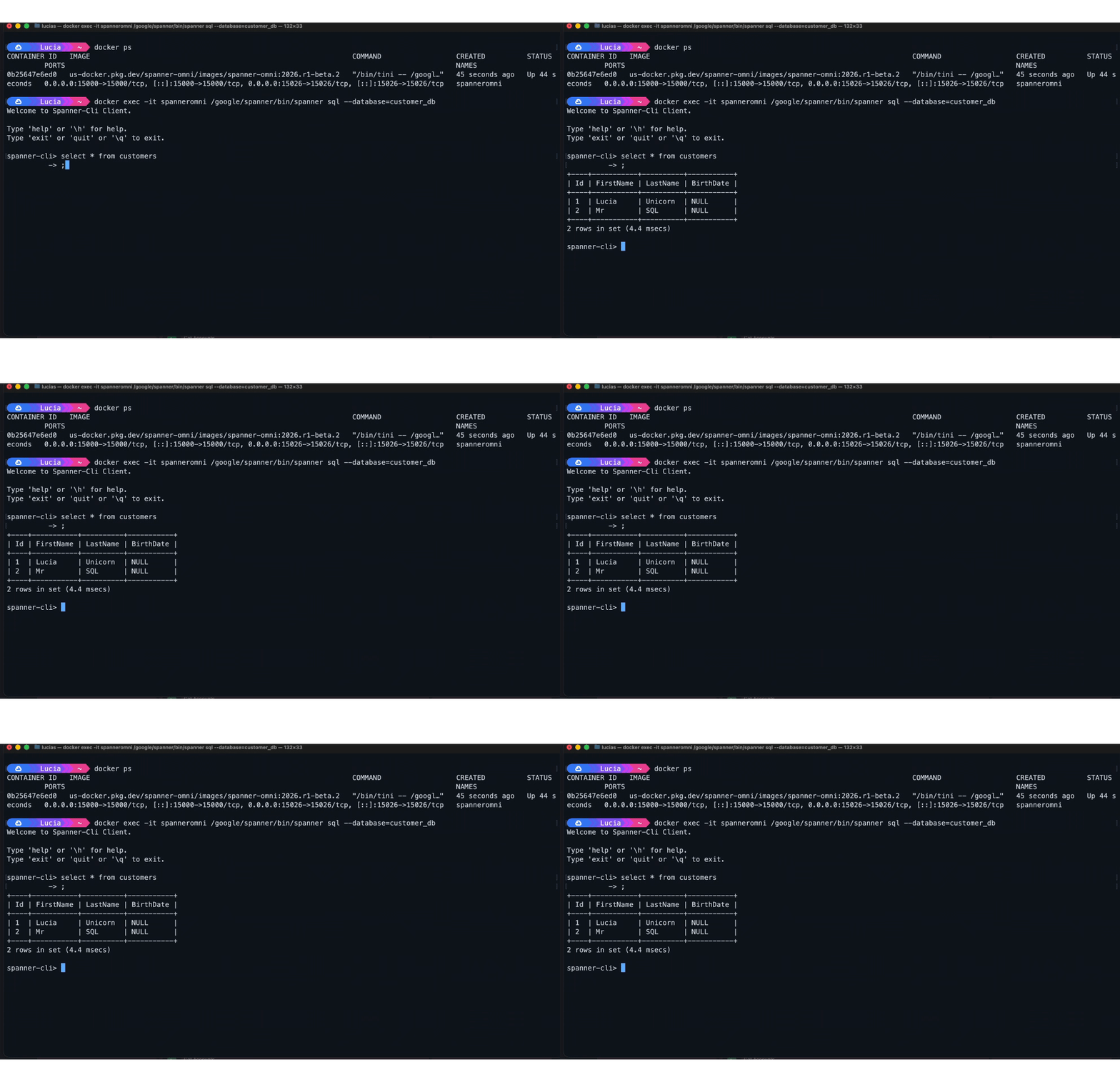
5. To run SQL queries directly on your database, connect using the Spanner SQL shell:
docker exec -it spanneromni /google/spanner/bin/spanner \
sql - database=customer_db
You can exit this CLI with quit or \q
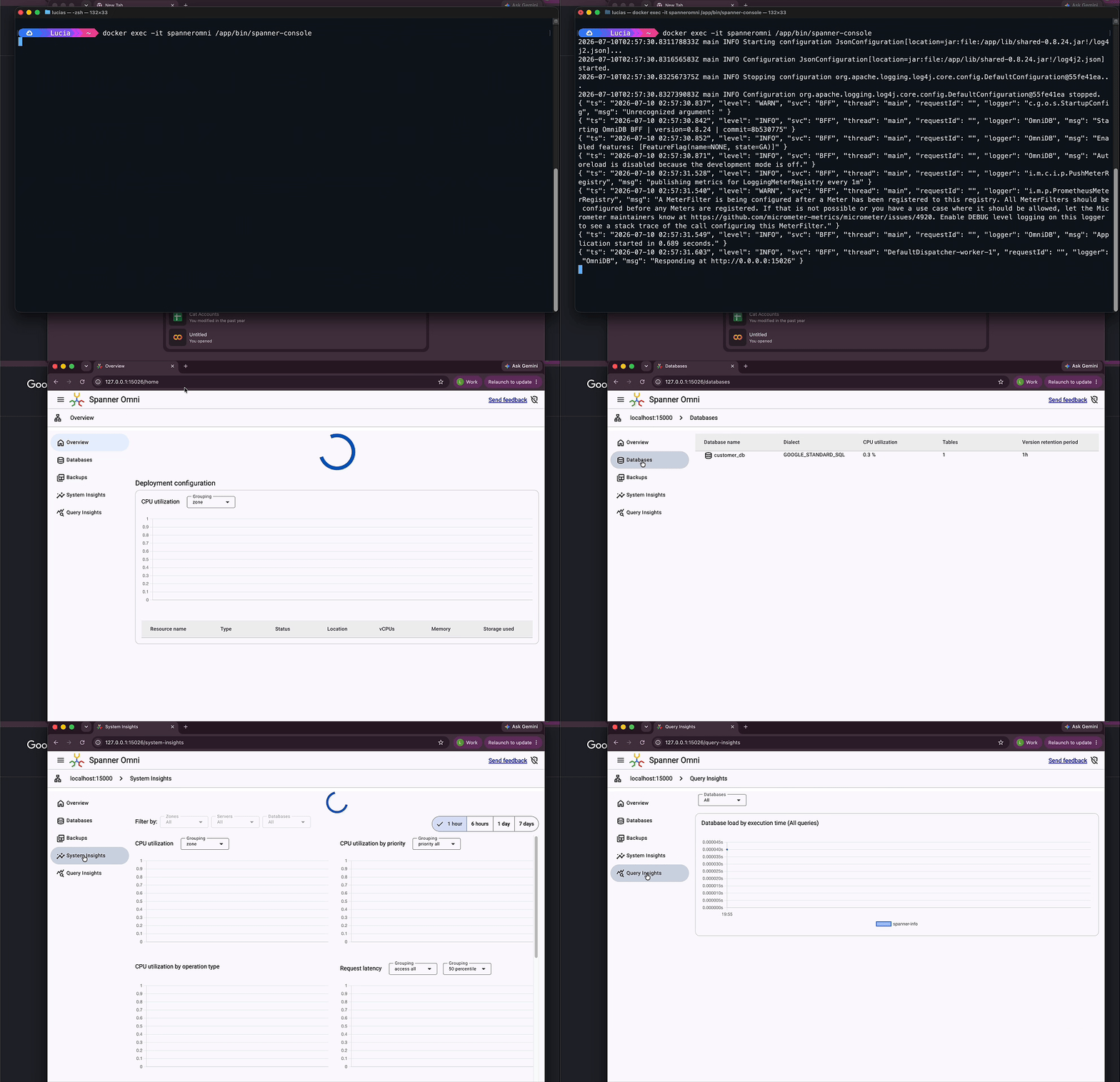
6. If you want a visual interface with the general health of your Spanner Omni, check out the Console:
docker exec -it spanneromni /app/bin/spanner-console
This command will start the Spanner Console server if it’s not running and serve it on port 15026. Open http://localhost:15026 and you’ll get some useful info and fancy graphics on your databases, backups, system and query insights.
If you want to delete the container for any reason, here’s how:
docker stop spanneromni
docker rm spanneromni
As long as you don’t delete the volume, any changes you’ve made to the database itself will stay persisted when you run the new “docker run” command.
There are other handy commands in the docs.
I have to call out the fine-print of the limitations, and I will be sharing more of this journey on Kubernetes and for local development use cases.
Have fun!
Lucia Subatin
LinkedIn, YouTube, TikTok, Instagram
Spanner Omni: Everything, everywhere, all of the time. was originally published in Google Cloud – Community on Medium, where people are continuing the conversation by highlighting and responding to this story.
Source Credit: https://medium.com/google-cloud/spanner-omni-everything-everywhere-all-of-the-time-9eb16849038f?source=rss—-e52cf94d98af—4
About the Author