
In Part 1, we gave our agent a brain. We created its Knowledge Base — its “memory” — by securely ingesting our company’s messy, heterogeneous data (PDFs, docs, and custom databases), so that our agent can now read our company’s “stuff” and provide traceable, accurate answers.
But a brain isn’t enough. Now we need to give it a personality and a purpose. We need to teach it how to talk, what to do, and when to do it.
Welcome to Building Enterprise Agents, a series where we explore the key features needed to build robust, production-ready AI assistants. In this series, we’re covering the entire stack:
- Part 1: 📚 Knowledge Base Management: How to manage, ingest, and ground your agent in your company’s documents, data warehouse, and more.
- Part 2: 🗣️ Conversational Modeling (This Article): How to integrate agents into Gemini Enterprise, to design and control the conversation flow and blend generative and deterministic responses.
- Part 3: 🎨 UX/UI & Accessibility: How to customize the UI of your Gemini Enterprise with custom branding and embed it across your organization.
- Part 4: 📈 Architecture & Monitoring: How to observe and monitor metrics for your agents on Gemini Enterprise.
- Part 5: 🛡️ Integration & Security: How to securely connect your agents to your business data and tools, with personalized authorization.
This article tackles the core of the agent’s logic: Conversational Modeling, where we design the “playbook” that controls how the agents interact with a user.
LLM, Agents, Agentic AI?
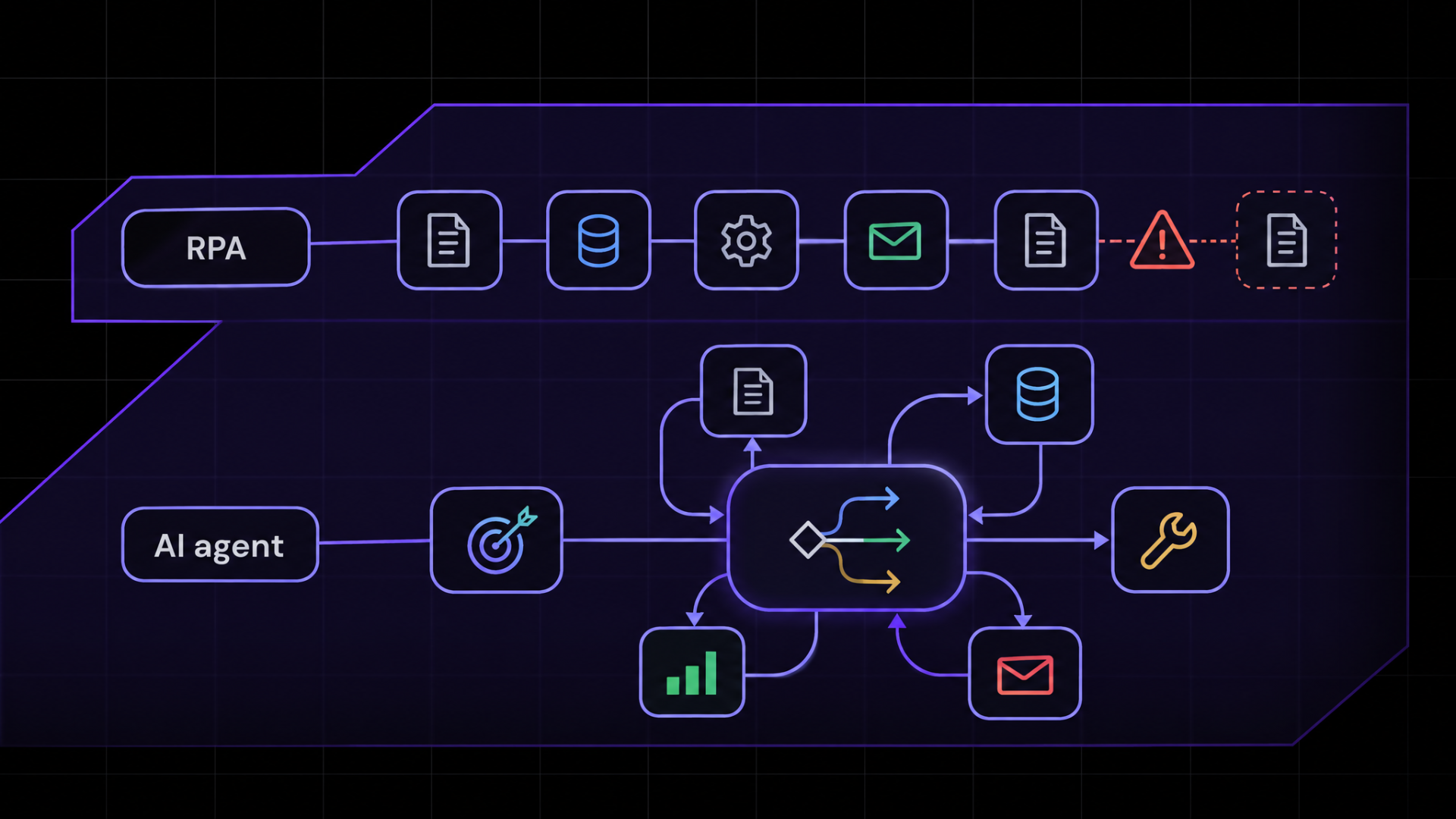
Before we continue, let’s clear up some jargon. The terms in the title are not just synonyms; they describe a specific evolution in capability — from passive text generators to autonomous, collaborative systems.
Evolution of the term “Agent”
- LLM + prompt: It starts with a basic LLM that generates text based on a given prompt.
- LLM + retrieval (RAG): To improve accuracy and access up-to-date or domain-specific information, RAG (Retrieval-Augmented Generation) was added. This allows the LLM to retrieve relevant information from external sources before generating an answer without the need for retraining.
- LLM + retrieval + actions (Tools): The system’s capabilities were further expanded by adding Tools, enabling the LLM to not just retrieve information but also perform actions in the real world (e.g., calling an API, sending an email), moving the system from a passive information processor to an active participant.
- + Many tools and reasoning loop (Agent): This stage represents a significant shift where the system is considered an “Agent” and involves the LLM using multiple tools and a reasoning loop to determine the best sequence of actions to achieve a complex goal, demonstrating a degree of autonomy.
- Multi-agent systems: For even more complex tasks, multiple agents, each potentially specialized, can work together in a coordinated system. This stage may necessitate direct Agent-to-Agent (A2A) interaction if Agents are not hosted in the same environment, allowing agents to hand off tasks or collaborate on sub-problems.
- Remote multi-agent systems: The final stage shows these distributed systems of agents operating remotely, collaborating across different locations or networks. To manage context, coordination, and communication across these distributed environments effectively, robust frameworks — akin to a Model Context Protocol (MCP) and A2A protocol — become essential to ensure scalable and reliable inter-agent operation.
This evolution highlights a shift from a static model to dynamic, autonomous systems capable of reasoning, acting, and collaborating, which is what is now commonly referred to as an “Agent”.
Why This Matters for This Series? Gemini Enterprise and Google Cloud provide the entire stack for this evolution, and you can create and import your agents using: Gemini Enterprise Agent Designer, CX Agent Studio / Conversational Agents (formerly Dialogflow CX), or Agent Development Kit (ADK). In addition, you can also import any Agent that is exposed using an A2A protocol or from the Google Cloud Marketplace.
🔎 Where to find your Agents in Gemini Enterprise?
Now that we have the data, let’s see where you can find the Agents related to your App. Therefore, go to the Agents tab in the left navigation bar (you should already be inside your App).
As you can see, you already have some “Google-made” Agents (such as Deep Research and Idea Generation), and you also have the possibility to click “+ Add agent”.

When you click “+ Add agent”, you can choose from four primary integration paths:
- Google agents: Best-in-class agents already integrated with Gemini Enterprise.
- Custom agent via Agent Engine: Agents built by your organization (e.g., using ADK, LangGraph, or CrewAI) deployed on Deployments in Agent Platform and adhering to internal policies.
- Custom agent via Dialogflow: Deterministic + generative conversational agents built using the Dialogflow CX / Conversational Agents framework.
- Custom agent via A2A: Custom agents deployed anywhere (even outside Google Cloud) that speak the open Agent-to-Agent (A2A) protocol.
- Agents via Marketplace: Third-party or pre-procured agents acquired from the marketplace.
- Agents from Agent Registry: Agents configured inside an internal Agent Gateway registry for the instance, keep in mind that for this you need configure Agent Gateway

Once you have picked the type of agent you want to add, you will get a dedicated configuration page:
- For Custom agent via A2A: You will find a configuration box where you paste your JSON Agent Card and configure authorizations.
- For Custom agent via Dialogflow: You will get a structured form to fill in with your agent’s name, description, Dialogflow agent resource path (projects/<PROJECT>/locations/<LOCATION>/agents/<AGENT>), and tool settings.
- For Custom agent via Agent Engine: You provide the Vertex AI Reasoning Engine resource path (projects/<PROJECT>/locations/<LOCATION>/reasoningEngines/<ID>).
Let’s explore them, checking the UI.
Custom agent via A2A and What Exactly is a “JSON Agent Card”?
Key Takeaway: The JSON Agent Card is NOT the agent itself. It contains no Python code, no LLM weights, and no database logic. It is an Agent Manifest and Contract — a digital “business card” and OpenAPI specification for the autonomous agent era.
Why do we need it? In an enterprise, different engineering teams build agents using different technologies. One team might write an agent in Python using LangChain or ADK; another might write a Go service running on Kubernetes; a partner company might host an agent in another cloud or on-premise.
You do not want to re-write or re-host all those agents inside Gemini Enterprise. Instead, those remote agents expose an HTTP endpoint that speaks the open Agent-to-Agent (A2A) protocol.
To let Gemini Enterprise know that this external agent exists, you give Gemini Enterprise its JSON Agent Card.
What does the Agent Card contain? Think of it like an openapi.json / Swagger specification, but tailored for generative AI reasoning:
{
  "name": "double_click_remote_a2a_agent",
  "description": "Remote supply-chain collaborator speaking the Agent-to-Agent (A2A) protocol. Handles hardware supplier SLA checks.",
  "version": "1.0.0",
  "protocolVersion": "0.2.1",
  "url": "https://a2a-supply-chain-agent.doubleclick.example.com/a2a",
  "capabilities": {
    "streaming": true,
    "pushNotifications": false
  },
  "skills": [
    {
      "id": "check_supplier_bottleneck",
      "name": "Check Supplier SLA & Bottleneck Status",
      "description": "Queries remote supply-chain systems for hardware vendor delays impacting Project Alpha or Acme Corp MSAs.",
      "examples": [
        "Why was Project Alpha delayed by 14 days?",
        "Check supplier status for CloudNet Hardware Ltd."
      ]
    }
  ]
}
How does Gemini Enterprise use it at runtime?
- Registration: You paste this JSON card into Gemini Enterprise →→ + Add agent →→ Custom agent via A2A. Gemini Enterprise stores the manifest in its agent registry.
- Intent Matching: When an employee asks: “Why was Project Alpha delayed by CloudNet Hardware?”, the Gemini Enterprise Primary Assistant analyzes the query against all registered skills and "examples".
- Network Dispatch: The router recognizes that its internal knowledge base lacks real-time supply chain telemetry, but the remote agent at "url" has a matching skill (check_supplier_bottleneck).
- Execution: Gemini Enterprise packages the user prompt into an A2A protocol JSON payload, issues an HTTPS POST request to the remote "url", streams back the answer, and seamlessly renders it to the employee in the chat window.

If needed, the “Agent authorization” tab is designed to establish secure OAuth 2.0 authentication between the platform and the custom or third-party agent being connected.
If the agent is publicly available or if permission for the runtime is already in place, you do not need to configure authentication. You can simply click the Skip & Finish button at the bottom to bypass these authorization settings and complete the setup.
In the top section, administrators enter the core OAuth credentials provided by their identity provider, specifically the Client ID and Client Secret. These credentials serve as the primary identity verification for the agent connection. Authentication can be skipped if the agent is already publicly accessible or if runtime permissions are already established.
The lower section covers specific endpoint configurations and security options. It includes fields for the Authorization URL, Token URL, and specific API Scopes required for the agent to function, such as read or write permissions. Additionally, options for PKCE (Proof Key for Code Exchange) verification and HTTP Basic authentication can be checked to match the security requirements of the underlying OAuth provider. Completing these fields and clicking “Finish” finalizes the setup and integrates the agent into the environment.

Dialogflow & Custom agent via Agent Runtime
Conversely, for Dialogflow, you will simply get a structured form to fill in with your agent’s name, description, Dialogflow agent source resource path (projects/<PROJECT>/locations/<LOCATION>/agents/<AGENT>)

And similarly, if you want to configure a Custom agent via Agent Runtime, you will need to fill in a similar form, but you will need to use a Reasoning Engine Id (projects/<PROJECT>/locations/<LOCATION>/reasoningEngine/<reasoningEngine>), instead of an Dialogflow agent source resource path (projects/<PROJECT>/locations/<LOCATION>/agents/<AGENT>)

Agents via Marketplace & Agent Registry
The last two instead presents a search bar, so that you can search for existing agents in the Marketplace or Agent Registry.

Demystifying the Architecture
When people talk about agents in this series, there is often confusion between the top-level Gemini Enterprise Assistant and the underlying specialized agents. Let’s break down where each one is created and what role it plays:

A. The Top-Level Hub (Gemini Enterprise App):
- Where it is created: Created in Discovery Engine via terraform/discovery_engine.tf (google_discovery_engine_search_engine.gemini_enterprise_app).
- What it does: Acts as the main chat window and intranet assistant. It automatically performs basic RAG search across our Part 1 Knowledge Base (PDFs in GCS and structured rows in BigQuery).
B. The Conversational QA Agent (Dialogflow CX / Conversational Agents):
- Where it is created: Created in the Dialogflow CX / Conversational Agents Console (or automated via terraform/dialogflow_cx.tf as google_dialogflow_cx_agent.double_click_cx_agent in location global).
- Why is it needed if we already have the App? Basic RAG is passive — it just retrieves snippets. Our Conversational QA Agent introduces behavioral steering, conversational guardrails, and compliance workflows. Inside this agent, we create a Generative Task Playbook (google_dialogflow_cx_playbook.double_click_concierge_playbook). The playbook instructs the LLM: 1) “Always identify whether the question is HR, Legal, or Operations.” 2) “Strictly ground answers in the company data stores.” 3) “If the employee asks about Project Phoenix, mandate Security Clearance Level 2 before answering.”
- How it is connected: We copy its resource string (projects/<PROJECT>/locations/global/agents/<ID>) and register it into Gemini Enterprise under + Add agent → Custom agent via Dialogflow.
The Code-First Tool Agent (Vertex AI Agent Engine with ADK):
- Where it is created: Written in Python (agents/adk_double_click_agent/agent.py) using the Google Agent Development Kit (ADK) and deployed to Vertex AI Agent Engine (reasoningEngines) in europe-west1.
- What it does: Handles deterministic calculations that an LLM should not guess (such as calculating the exact 15% discount for Acme Corp renewals or executing live parameterized BigQuery SQL queries).
- How it is connected: We copy its ReasoningEngine resource string (projects/<PROJECT>/locations/<REGION>/reasoningEngines/<ID>) and register it under + Add agent → Custom agent via Agent Engine.

How to interact with your Agents from the UI
Up to now, we haven’t spoken about the end-user interface that your App has. By default, if you go to the Overview page of your Gemini Enterprise App, you can access the web app by clicking on or copying the generated web app link (this is just one of the deployment methods, which we will customize in Part 3):

When you open that URL, you are redirected to an enterprise web interface very similar to the consumer Gemini interface (https://gemini.google.com/), but grounded in your company's data and governed by your organization's security policies.

Now, if you click on the Agents tab in the left sidebar of the web app, you can see the Agent gallery containing all the agents you can interact with within your App. Initially, we see our 2 Google-made options (Deep Research and Gemini Notebook) but you can add more:

If you click on any of these, you get redirected to that specific agent’s workspace (for example, Deep Research):
🔨 Build Agents with the Google Ecosystem
As already mentioned, Google Cloud offers a powerful suite of tools for building advanced AI agents, with ADK, CX Agent Studio / Conversational Agents (formerly Dialogflow CX), and the broader Gemini Enterprise Agent Platform (formerly Vertex AI Agent Builder / Agentspace) being the primary solutions.
These platforms are specifically designed to address the need for a hybrid solution — one that can seamlessly blend deterministic (rule-based, predictable) responses for specific compliance or business topics with generative AI (GenAI) responses for open-ended or less-defined conversations.
- Conversational Agents (formerly Dialogflow CX) is used for building large, complex, and sophisticated virtual agents. It is the state-of-the-art visual platform for deterministic flow management, now powerfully extended with generative AI Playbooks.
- Gemini Enterprise & Agent Engine (formerly Vertex AI Agent Builder) is a comprehensive platform for creating, deploying, and governing enterprise-grade agents, unifying Google AI capabilities for RAG and multi-agent systems. And it supports multiple open agent frameworks including Agent Development Kit (ADK), LangGraph, LangChain, LlamaIndex, CrewAI, and AG2.
Since this article is not a full coding tutorial on how to develop every type of agent from scratch, but rather a guide on how to integrate them into Gemini Enterprise, we will walk through the creation and deployment steps briefly so you understand how to bring your own agents into the platform.
Example 1: CX Agent Studio (formerly Dialogflow CX)

💡 Understanding the Difference: Dialogflow CX vs. CX Agent Studio Google Cloud is currently transitioning between two generations of conversational AI interfaces and backends:
– Dialogflow CX Console (dialogflow.cloud.google.com/cx): Google’s classical, flow-based agent platform built around deterministic state machines (default_start_flow).
– CX Agent Studio / Conversational Agents Studio (ces.cloud.google.com or conversational-agents.cloud.google.com): The next-generation generative AI workspace under Google’s Customer Engagement Suite (CES) where agents are LLM-native and governed by a root Playbook (start_playbook).
To learn how to create a new agent from scratch (using Playbooks or Flows) or import a Pre-built Agent template — making sure to pick the same Location (global, us, or eu) as your Part 1 Data Stores—check the official Google Cloud documentation:
- 📖 CX Agent Studio / Customer Engagement Suite Documentation
- 📖 Dialogflow CX Official Documentation
Find your Agent Resource Name & Add it to Gemini Enterprise
Once your agent is created in CX Agent Studio or Dialogflow CX, you will see it in your Conversational Agents list:

To link it to Gemini Enterprise:
- Click on the 3 dots (Actions) on the right side of the row and click Copy name.
- This copies the resource name string in the format: projects/<PROJECT_ID>/locations/<LOCATION>/agents/<AGENT_ID>
- Paste this resource path into Gemini Enterprise → Agents → + Add agent → Custom agent via Dialogflow (shown earlier). Once added, your users will immediately see it under “From your organization” in their Gemini Enterprise Agent Gallery!
Example 2: Agent Development Kit (ADK) & Deployments in Agent Platform
You can achieve an even more flexible, code-first architecture using the Agent Development Kit (ADK), once your ADK agent is deployed to Agent Platform, integrating it into Gemini Enterprise is just as seamless.

Deployments is the recommended, fully-managed runtime service for scaling ADK agents, abstracting away infrastructure concerns like load balancing, auto-scaling, and persistent session management.
Prerequisites
These instructions assume you have already defined an ADK project (an agent). If you do not have an ADK project yet, see the official ADK Python Quickstart guide, which creates a multi_tool_agent project (used as the example below).
Before starting the deployment procedure, ensure you have the following:
- Google Cloud Project: A Google Cloud project with the Vertex AI API enabled.
- Authenticated gcloud CLI: You need to be authenticated with Google Cloud. Run the following command in your terminal: gcloud auth application-default login
- Google Cloud Storage (GCS) Bucket: Agent Engine requires a GCS bucket to stage your agent’s code and dependencies for deployment.
- Python Environment: A Python version between 3.9 and 3.13.
- Install Vertex AI SDK & ADK: Agent Engine is part of the Vertex AI SDK for Python. Install it via: pip install "google-cloud-aiplatform[adk,agent_engines]>=1.111"
Deploying via the ADK CLI (Option 1)
You can often deploy your ADK agent using a single command via the ADK Command Line Interface (CLI):
adk deploy agent_engine \
    --project=my-cloud-project-xxxxx \
    --region=us-central1 \
    --staging_bucket=gs://my-cloud-project-staging \
    --display_name="My Agent Name" \
    ./multi_tool_agent
Deploying via the Python SDK (Option 2)
Alternatively, you can initialize the Vertex AI SDK and deploy programmatically in a deploy.py script:
import vertexai
from vertexai import agent_engines
from agent import root_agent  # modify this if your agent entry point differs

PROJECT_ID = "your-gcp-project-id"
LOCATION = "us-central1"
STAGING_BUCKET = "gs://your-gcs-bucket-name"
# 1. Initialize the Vertex AI SDK
vertexai.init(
    project=PROJECT_ID,
    location=LOCATION,
    staging_bucket=STAGING_BUCKET,
)
# 2. Wrap the agent in an AdkApp object for Agent Engine compatibility
app = agent_engines.AdkApp(
    agent=root_agent,
    enable_tracing=True,
)
# 3. Deploy to Deployments in Agent Platform
remote_app = agent_engines.create(
    agent_engine=app,
    requirements=["google-cloud-aiplatform[adk,agent_engines]"],
    display_name="My ADK Enterprise Agent",
)
Note: When an AdkApp is deployed to Agent Engine, it automatically uses VertexAiSessionService for persistent, managed session state. This provides multi-turn conversational memory out of the box without any additional database configuration.
After several minutes, you will find your deployed agent listed on the Agent Engine page in the Cloud Console. Click the Copy icon under the Resource name column, and link it in Gemini Enterprise under “+ Add agent” →→ “Custom agent via Agent Engine”!
Note: To get an updated version, please consider reading how to build agents and how to deploy them.
Additionally, if you need a step-by-step guide on ADK 2.0 with a companion branch-by-branch implementation, please consider reading my series “ADK 2.0–101” on Medium and check the companion repo on GitHub.
Example 3: Create an Agent from the UI with Agent Designer (No-Code)
What if business users or admins want to create specialized agents without writing code or leaving the Gemini Enterprise Web App?
Once inside the Agent gallery in the Gemini Enterprise Web App, if your administrator has enabled Agent Designer (which we’ll govern in Part 3), you can create and publish an agent directly from the UI simply by clicking “+ Create agent” and then on “Build Manually”:


This opens the visual Agent Designer studio (https://vertexaisearch.cloud.google.com/eu/home/cid/<appID>/r/agent-builder/<agentbuilderID>), where you can describe your agent in natural language or use the visual flow canvas to connect subagents, models, and enterprise Data Stores—and it is automatically added to your Gemini Enterprise Agent Gallery!

📖 To learn more about configuring instructions, subagents, and tools in the no-code studio, refer to the Official Gemini Enterprise Agent Designer Documentation.
💻 Code & Infrastructure Summary: Automating Part 2 (02-conversational-modeling)
Can we automate the creation of our Conversational Agents, Gemini Enterprise App, and ADK Agent Engine runtime using Terraform and Python? Yes!
On branch 02-conversational-modeling of our companion repository, we build incrementally on top of our Part 1 Knowledge Base using our modular, service-split Terraform files and the same root .env configuration:
- Conversational Agents & Playbooks (terraform/dialogflow_cx.tf): Provisions the Dialogflow CX Agent (google_dialogflow_cx_agent), creates a generative task Playbook (google_dialogflow_cx_playbook) with step-by-step instructions for DoubleClick Enterprise, automatically patches startPlaybook so the agent defaults to Playbook mode, and optionally provisions a next-gen CX Agent Studio (google_ces_app) container.
- Gemini Enterprise App Hub (terraform/discovery_engine.tf): Provisions the double-click-enterprise-app (google_discovery_engine_search_engine with APP_TYPE_INTRANET, SEARCH_TIER_ENTERPRISE, and SEARCH_ADD_ON_LLM) connected to our Part 1 Data Stores, where all custom agents are registered.
- Code-First ADK Agent & IAM (terraform/vertex_ai_agent.tf & agents/adk_double_click_agent/): Provisions the dedicated ADK Service Account (google_service_account.adk_agent_engine_sa) with least-privilege IAM roles, plus our complete Python ADK agent (agent.py and deploy_agent_engine.py) and sample A2A JSON Agent Card (agents/a2a_agent_card/double_click_a2a_agent_card.json—note that the A2A AgentCard schema requires "protocolVersion": "0.2.1" and uses "name" rather than "displayName").
Quick Setup & Testing Commands (Branch 02-conversational-modeling):
# 1. Authenticate with Google Cloud (CLI + Terraform ADC)
gcloud auth login
gcloud auth application-default login

# 2. Checkout the Part 2 branch
git checkout 02-conversational-modeling
# 3. Run the automated verification & unit test suite (tests ADK tools, A2A JSON Card & Terraform)
./scripts/test_infra.sh
# 4. Provision the Part 1 + Part 2 infrastructure
./scripts/setup_infra.sh
# 5. (Optional) Deploy the Python ADK Agent to Deployments in Agent Platform
python3 agents/adk_double_click_agent/deploy_agent_engine.py
👉 For a complete line-by-line walkthrough of dialogflow_cx.tf, vertex_ai_agent.tf, the Python ADK agent code, and how to link them into Gemini Enterprise, read our companion article: Part 2 EXTRA — Automating Conversational Agents, Playbooks & ADK with Terraform & Python or check the Repository README
Conclusion
Conversational Modeling is no longer a simple choice between a rigid rule-based bot and an unconstrained creative AI. The best enterprise agents are hybrids.
With Gemini Enterprise, you can choose the exact entry point that matches your team’s skills and use case:
- Start No-Code with the Agent Designer UI in the web app for an instant, multi-subagent assistant grounded in your Knowledge Base.
- Evolve to the Visual Flow & Playbook Builder (CX Agent Studio / Conversational Agents, formerly Dialogflow CX) to create structured “Action Takers” that follow strict compliance workflows while still querying your Knowledge Base to handle unexpected user questions.
- Go Code-First with the ADK & Deployments in Agent Platform (or A2A for remote agents) to build sophisticated, autonomous multi-agent systems in Python.
We’ve built the brain (Part 1) and the personality (Part 2). But what does it look like to your employees, and how do you govern what features they can access?
Coming up in Part 3: We’ll dive into 🎨 UX/UI & Accessibility. Now that we have a smart, conversational agent, how do we customize its branding, manage end-user features, and embed it across our company apps?
« Part 1: Knowledge Base | Gemini Enterprise Hub | Part 3: UX/UI & Accessibility »
Building Enterprise Agents with Gemini: Part 2 — 🗣️ Conversational Modeling was originally published in Google Cloud – Community on Medium, where people are continuing the conversation by highlighting and responding to this story.
Source Credit: https://medium.com/google-cloud/building-enterprise-agents-with-gemini-part-2-%EF%B8%8F-conversational-modeling-6d860042b840?source=rss—-e52cf94d98af—4
About the Author