Written by: Darren Evans
When managing cloud infrastructure at scale, tracking resource usage and attributing costs can quickly become a complex web of billing exports and custom dashboards. Enter Google Cloud’s AppOptimize API — a powerful building block designed to help developers programmatically retrieve cost and usage data scoped to specific projects or applications.
But like any developer tool, knowing exactly what the API handles out-of-the-box versus what requires your own code is crucial for a smooth integration. Let’s break down exactly what the AppOptimize API supports natively, how to interact with it, and where you’ll need to write complementary code to bridge the gaps.
🤝 The Secret Weapon: Google Cloud App Hub
While you can query the AppOptimize API using a standard Google Cloud Project ID, the API truly shines when paired with Google Cloud App Hub.
App Hub acts as an application-centric registry that groups scattered infrastructure resources (across multiple projects) into logical business applications. Instead of querying the AppOptimize API project-by-project and stitching the billing data together yourself, you can simply pass an App Hub Application ID into the API. AppOptimize will natively retrieve and aggregate the costs for all underlying services and workloads associated with that app — saving you hours of custom coding and complex resource tagging.
🛠️ What is Natively Supported by the AppOptimize API?
The following features, dimensions, and data handling behaviors are built directly into the AppOptimize API. You don’t need to write any extra logic to process these:
- Time Grouping & Defaults: Natively supports grouping by day, hour, and month. If no time length is specified, the API automatically defaults to pulling data for the last 7 days.
- Dimensions & Granularity: Supports a multi-dimensional JSON request body, allowing you to group your data by product, resource, resource_type, project, location, and SKU.
- Cost Output & Currencies: Native support for multiple currencies. Cost data is output in a structured units and nanos format.
- Human-Readable Product Names: No need to cross-reference IDs! The API translates underlying product UUIDs into human-readable product display names directly in the response.
- Comprehensive Cost Attribution: The API ensures every dollar is accounted for by automatically grouping untagged or unregistered resources (e.g., resources not yet in App Hub) into a catch-all bucket, ensuring your total spend always reconciles.
- Cross-Project Support (via App Hub): While the API only accepts a single scope per request, passing an App Hub Application ID as your scope natively retrieves costs across all projects that the specific application spans.
- vCPU Utilization Metrics: Natively provides aggregated vCPU mean and P95 utilization data, eliminating the need for developers to manually join cost data with raw performance metrics from external monitoring tools.
🚀 Enabling the API
Before you can start querying your cloud costs, you need to ensure the AppOptimize API is enabled for your Google Cloud project.
The quickest way to do this is via the Google Cloud CLI (gcloud). Open your terminal or Cloud Shell and run the following commands:
# First, ensure you are targeting the correct project
gcloud config set project YOUR_PROJECT_ID

# Then, enable the AppOptimize API service
gcloud services enable appoptimize.googleapis.com
Alternatively, you can enable it through the APIs & Services dashboard in the Google Cloud Console by searching for “AppOptimize API” and clicking Enable.
💻 The API in Action
Let’s look at how to interact with the API using a standard curl request. In this example, we are asking the API to generate a report grouped by product, project, resource type, and day.
Creating the Report
PROJECT_ID="myproject"

curl -X POST "https://appoptimize.googleapis.com/v1/projects/${PROJECT_ID}/reports?report_id=my-test-report" \
-H "Authorization: Bearer $(gcloud auth print-access-token)" \
-H "Content-Type: application/json" \
-d '{
  "dimensions": [
    "product_display_name",
    "project",
    "resource_type",
    "day"
  ],
  "metrics": [
    "cost"
  ]
}'
Understanding the Output
The API will return a structured JSON array. Notice how the first item shows “Compute Engine” instead of a UUID, and how the unattributed costs at the bottom simply return an empty string.
[
  [
    "compute.googleapis.com/Instance",
    "Compute Engine",
    "projects/1024273941561",
    "2026-01-15",
    {
      "nanos": 884594000,
      "currency_code": "USD",
      "units": "32"
    }
  ],
  [
    "storage.googleapis.com/Bucket",
    null,
    "Cloud Storage",
    "projects/1024273941562",
    "2026-01-15",
    null,
    {
      "nanos": 500685000,
      "currency_code": "USD",
      "units": "14"
    }
  ],
  [
    "",
    "projects/1024273941562",
    "2026-01-15",
    {
      "nanos": 0,
      "currency_code": "USD",
      "units": "5"
    }
  ]
]
💡 Pro Tip on Calculating Costs: The cost is calculated by combining units and nanos: units + (nanos / 1e9). For the compute.googleapis.com/Instance row above, the cost is $32 + 884594000 / 1,000,000,000, which equals $32.88.
Deleting the Report
When you are done with your generated report, you can easily clean it up by passing the report_id directly in the URL path.
curl -X DELETE "https://appoptimize.googleapis.com/v1/projects/${PROJECT_ID}/reports/my-test-report" \
-H "Authorization: Bearer $(gcloud auth print-access-token)"
🧩 What Requires User Code & Custom Implementation?
Because the AppOptimize API is designed as a foundational building block, it purposely avoids adding opinionated, enterprise-specific logic. To achieve the following use cases, developers must write complementary code or leverage external workflows or use the Export Cloud Billing data to BigQuery process where appropriate instead.
- Multi-Project or Hierarchical Scoping: The API accepts exactly 1 Project or 1 Application scope per request. To generate reports across multiple discrete projects, Folders, or an entire Google Cloud Organization, your code must loop through those project IDs and aggregate the API responses yourself.
- Applying Credits and Discounts: Sustained Use Discounts (SUDs), Committed Use Discounts (CUDs), and promotional credits are explicitly excluded. If true cost auditing requires factoring in these discounts, your custom logic must allocate them to the returned line items based on your organization’s internal financial rules.
- Custom Labels and Tags: The API returns standard identifiers (project_id, resource_id) but does not return custom resource labels (e.g., env: production). Your code must cross-reference the returned Resource IDs with Google Cloud’s Asset Inventory to append your custom tag data.
- Specific Resource Metadata: Configuration metadata, like whether a GCE VM is running as a Spot or On-Demand instance, is out of scope. You will need to look up this metadata independently using the resource_id.
- Granular GKE Cost Allocation: The API considers a GKE cluster to be a single resource. To break costs down by Namespace or Pod, you must first manually structure your environment by registering those specific GKE workloads to App Hub applications. Once registered, you can query the API using the Application ID to get granular data.
- Bulk Deletion: The API does not have a DeleteAll method. If you need to clear out multiple stored reports, you must write a loop in your code to iterate through the report IDs and delete them one by one.
⚖️ Choose the best tool for the job
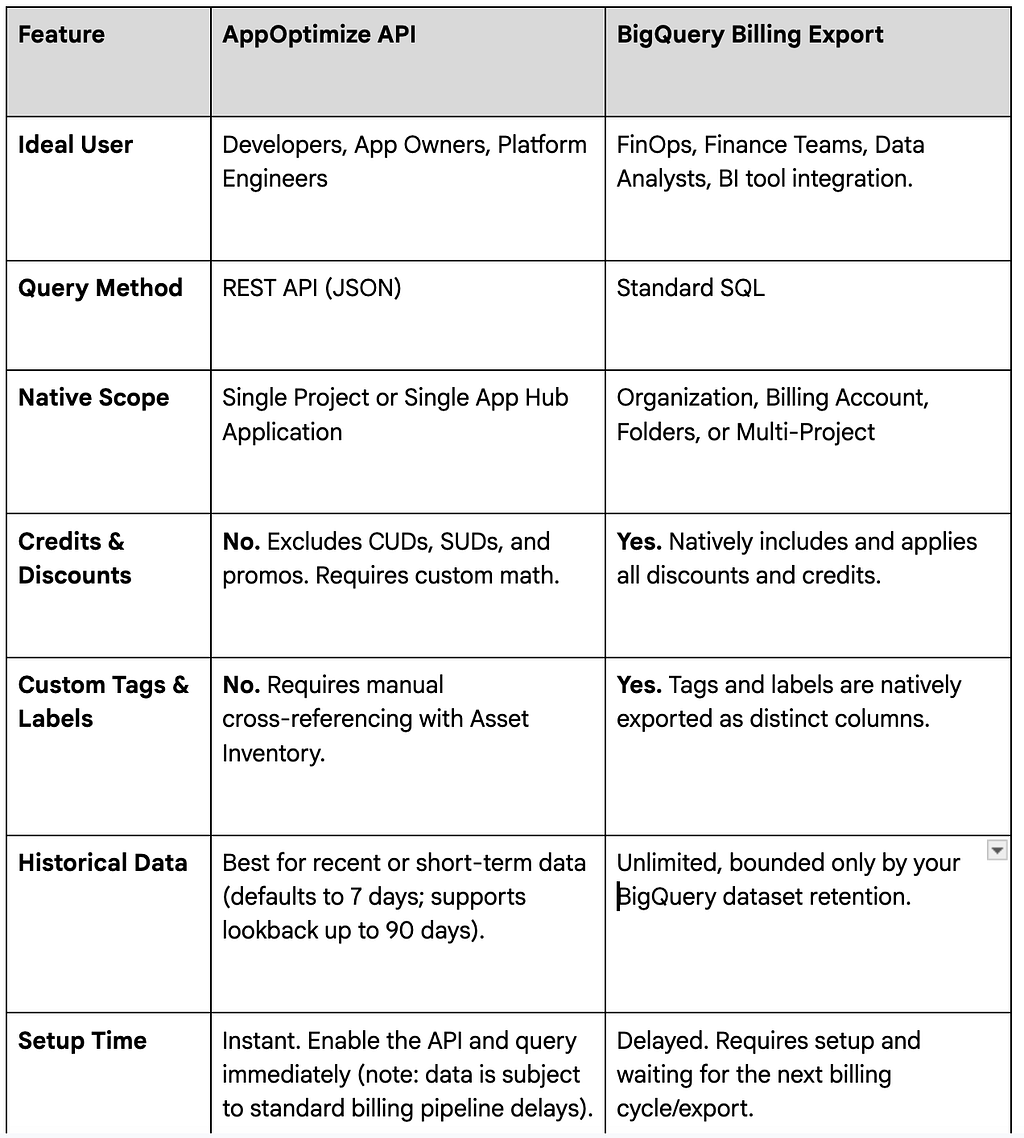
Because the AppOptimize API is a lightweight building block, it intentionally leaves out some of the heavy-duty financial analytics capabilities. If you need deep, organization-wide financial reporting, you should use theCloud Billing export to BigQuery.
Here is a quick breakdown of what the AppOptimize API doesn’t do, and when you should use BigQuery instead:
💡When to use the AppOptimize API
- AI Agents and Conversational Interfaces: Power MCP (Model Context Protocol) servers or Vertex AI agents to answer natural language questions like “What were my GKE costs for the production app last week?” without writing SQL.
- Automated Reporting & CI/CD: Use Cloud Scheduler to trigger daily cost alerts or check the immediate financial impact of a deployment or infrastructure change within your delivery pipeline.
- App-Centric Governance: Use App Hub Application IDs to automatically retrieve and aggregate costs for complex services that span multiple projects, eliminating the need for custom resource tagging or complex billing joins.
- Developer Portals: Fetch and display application-scoped costs and utilization metrics directly within internal developer portals like Backstage.
- Lightweight Automation: Trigger simple Cloud Functions to perform resource optimizations based on daily spend thresholds or utilization trends.
Conclusion
The AppOptimize API takes the heavy lifting out of querying daily cloud costs by standardizing currencies and organizing costs logically under applications, products, and resource types. By understanding what it handles natively versus where you need to inject your own custom logic, you can build highly tailored, automated cost-reporting pipelines that speak the language of your business.
Ready to start building? Check out the official AppOptimize overview documentation to enable the API on your project, explore various ways of integrating the API in your code including the Google Cloud Python SDK, and dive deeper into the report schemas generated by the API.
The AppOptimize API is available for free in Public Preview starting April, 2026.
A Developer’s Guide to the AppOptimize API: Natively Supported vs. Custom Code was originally published in Google Cloud – Community on Medium, where people are continuing the conversation by highlighting and responding to this story.
Source Credit: https://medium.com/google-cloud/a-developers-guide-to-the-appoptimize-api-natively-supported-vs-custom-code-2da4751a4b21?source=rss—-e52cf94d98af—4
About the Author