Event-Driven & HTTP-Driven Architecture
In the era of generative AI, building an agent is only half the battle. The real challenge is deploying it securely, efficiently and saving cost when using it.
In this tutorial, we are going to explore the cutting edge of serverless architecture using the Google Agent Development Kit (ADK). We will build a multimodal “Data Agent” that operates in two completely different scale-to-zero environments:
The Background Worker: An event-driven webhook that wakes up when a meeting transcript is uploaded to Cloud Storage, extracts action items using Gemini 3 Flash, and saves them to a NoSQL database (Firestore).
The Interactive Assistant: A web UI that allows you to chat directly with your agent to query the database.
Let’s dive in and build it.
Prerequisites
- A Google Cloud Project with billing enabled.
- A Gemini API Key.
- Python 3.10+ installed.
Step 1: Before we begin
Before writing any code, we need to prepare our cloud environment and workspace.
Create a project
- In the Google Cloud Console, on the project selector page, select or create a Google Cloud project.
- Make sure that billing is enabled for your Cloud project. Learn how to check if billing is enabled on a project .
- You’ll use Cloud Shell, a command-line environment running in Google Cloud. Click Activate Cloud Shell at the top of the Google Cloud console.
4. Once connected to Cloud Shell, you check that you’re already authenticated and that the project is set to your project ID using the following command:
gcloud auth list
5. Run the following command in Cloud Shell to confirm that the gcloud command knows about your project.
gcloud config list project
6. If your project is not set, use the following command to set it:
gcloud config set project <YOUR_PROJECT_ID>
7. Enable the required APIs via the command shown below. This could take a few minutes, so please be patient.
gcloud services enable \
    run.googleapis.com \
    eventarc.googleapis.com \
    firestore.googleapis.com \
    cloudbuild.googleapis.com \
    cloudresourcemanager.googleapis.com
2. Prepare the Database and Storage
Create Firestore Database
This command initializes the Firestore database in Native Mode within the us-central1 region.
gcloud firestore databases create \
    --location=us-central1 \
    --type=firestore-native \
    --database='(default)'
Create Cloud Storage Bucket
To ensure the bucket name is unique, we will fetch your current Project ID and append it to the name.
# Set a base name and append Project ID for uniqueness
BUCKET_NAME="meeting-transcripts-demo-$(gcloud config get-value project)"

# Create the bucket in us-central1
gcloud storage buckets create gs://$BUCKET_NAME \
    --location=us-central1 \
    --no-public-access-prevention
3. Clone the Project and Create a Virtual Environment
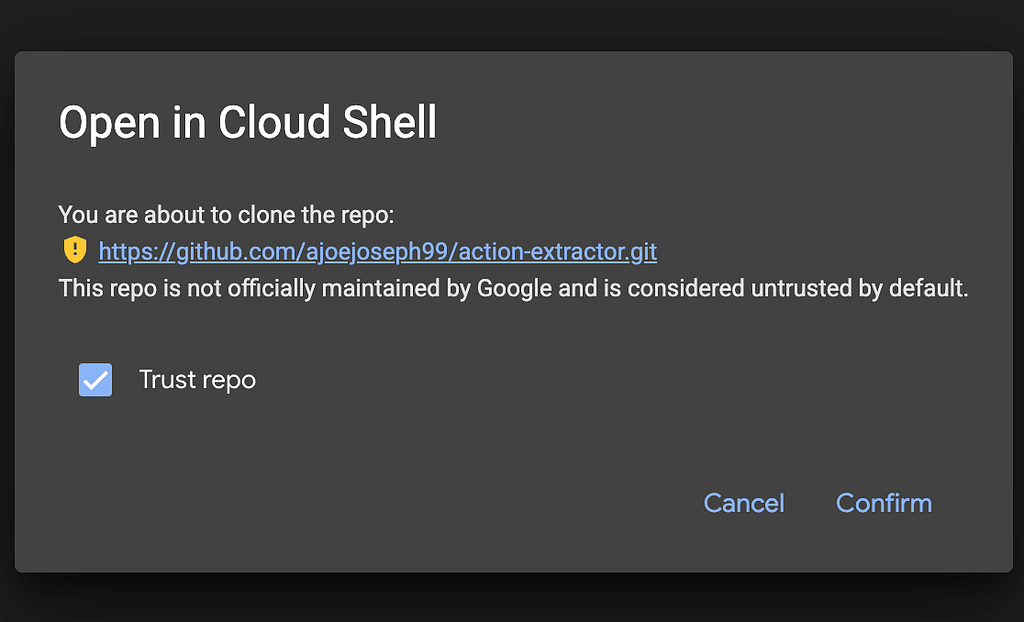
Copy the link below to your browser where you have the Google Cloud Console user logged in.
https://ssh.cloud.google.com/cloudshell/editor?cloudshell_git_repo=https://github.com/ajoejoseph99/action-extractor.git&cloudshell_open_in_editor=README.md
Enable “Trust repo” and click “Confirm”
It is highly recommended to use a Python virtual environment to keep your dependencies isolated!
# Create and activate a virtual environment
python3 -m venv .venv
source .venv/bin/activate
4. Configure Local Secrets
Open the .env file.
If you can’t find your .env file:
1. Press Ctrl+Shift+P (Windows/Linux) or Cmd+Shift+P (macOS) to open the Command Palette.
2. Type “Hidden” into the search bar.
3. Select Explorer: Toggle Hidden Files.
Add your Gemini API key.
You can get your API key from Google AI Studio.
Also replace <<your_project_id_here>> with your project id.
GOOGLE_API_KEY=<<your_actual_api_key_here>>
GOOGLE_CLOUD_PROJECT=<<your_project_id_here>>
Save the file and load it into your environment:
source .env
The project dependencies are present in requirements.txt:
google-adk
google-api-python-client
google-auth
google-cloud-storage
fastapi
uvicorn
google-cloud-firestore
python-dotenv
Run pip install -r requirements.txt to install them.
Step 2: Building the Firestore Tools
Our AI agent needs a way to interact with the outside world. We will give it two custom Python tools: one to write data, and one to read data.
Because we are deploying to Google Cloud Run, we don’t need to hardcode database passwords. The firestore.Client() automatically inherits the secure identity of the environment it runs in!
In tools/firestore_tool.py we define two functions responsible for saving and retrieving tasks to and from firestore:
# File: ./tools/firestore_tool.py
from google.cloud import firestore

# Initialize the client globally so the container reuses the connection
db = firestore.Client()

def save_task_to_firestore(task_title: str, notes: str = "") -> str:
    """Saves an extracted action item to the Firestore database."""
    try:
        # Create a new document in the 'action_items' collection
        db.collection("action_items").add({
            "title": task_title,
            "notes": notes,
            "status": "pending"
        })
        return f"Success: Task '{task_title}' saved to Firestore."
    except Exception as e:
        return f"Error saving to Firestore: {str(e)}"

def get_tasks_by_assignee(assignee_name: str) -> str:
    """Retrieves action items assigned to a specific person from the database."""
    try:
        # Pull all documents from the action_items collection
        docs = db.collection("action_items").stream()
        tasks = []

        for doc in docs:
            data = doc.to_dict()
            # Simple python filter to check if the name is in the title or notes
            if assignee_name.lower() in str(data).lower():
                tasks.append(f"- {data.get('title')}: {data.get('notes')} (Status: {data.get('status')})")

        if not tasks:
            return f"I couldn't find any tasks assigned to {assignee_name}."

        return "\n".join(tasks)

    except Exception as e:
        return f"Error reading from Firestore: {str(e)}"
Python needs to know this folder is a module. In tools/__init__.py we have explicitly exported our tools:
from .firestore_tool import save_task_to_firestore, get_tasks_by_assignee
Step 3: Assembling the LLM Agent
Now we define the “brain” of our architecture. The Google ADK uses strict Pydantic validation, so parameter names must be exact.
In transcript_agent/agent.py we define the agent blueprint:
from dotenv import load_dotenv
load_dotenv()

from google.adk.agents import LlmAgent
from tools import save_task_to_firestore, get_tasks_by_assignee

root_agent = LlmAgent(
    name="action_extractor",
    model="gemini-3-flash-preview",
    tools=[save_task_to_firestore, get_tasks_by_assignee],
    instruction=(
        "You are an AI assistant that manages meeting action items. "
        "1. If given a meeting transcript, extract the action items and use the "
        "`save_task_to_firestore` tool to save them to the database. "
        "2. If a user asks what tasks are assigned to a specific person, use the "
        "`get_tasks_by_assignee` tool to look them up and summarize them."
    )
)
In transcript/__init__.py we add a reference to your agent:
from . import agent
Step 4: Deploying the Background Webhook
To make this agent event-driven, we need a FastAPI server that can catch Eventarc webhooks from Cloud Storage.
- This is what your main.py file looks like:
from fastapi import FastAPI, Request
from google.cloud import storage
from google.adk.runners import InMemoryRunner
from google.genai import types
from transcript_agent.agent import root_agent

# 1. Pure, lightweight FastAPI server
app = FastAPI()

@app.post("/")
async def eventarc_webhook(request: Request):
    """Listens for Cloud Storage file finalization events."""
    headers = request.headers

    # Extract bucket and file name
    bucket_name = headers.get("ce-source").split("buckets/")[1]
    file_name = headers.get("ce-subject").split("objects/")[1]

    # Download the transcript
    client = storage.Client()
    blob = client.bucket(bucket_name).blob(file_name)
    transcript_text = blob.download_as_text()

    # 2. Spin up the AI Runner directly inside the webhook
    runner = InMemoryRunner(agent=root_agent, app_name="transcript_app")

    # 3. Explicitly create a unique session for this specific file
    session_id = f"session-{file_name.replace('/', '-')}"
    await runner.session_service.create_session(
        app_name="transcript_app",
        user_id="webhook_system",
        session_id=session_id
    )

    # 4. Create a strictly typed Google GenAI Content object
    user_message = types.Content(
        role="user",
        parts=[types.Part(text=f"Please process this transcript:\n\n{transcript_text}")]
    )

    # 5. Stream the typed message and print the events!
    async for event in runner.run_async(
        user_id="webhook_system",
        session_id=session_id,
        new_message=user_message
    ):
        # This pushes the AI's internal dialogue and tool errors to your logs
        print(f"ADK EVENT: {event}")

    return {"status": f"Tasks extracted successfully for {file_name}"}
Step 5: Containerize & Deploy
Containerize with Docker
To ensure our code runs exactly the same way in the cloud as it does locally, we will use a Dockerfile. The Dockerfile you cloned has the following configuration:
# Dockerfile
FROM python:3.10-slim
WORKDIR /app
COPY requirements.txt .
RUN pip install --no-cache-dir -r requirements.txt
COPY . .
ENV PORT=8080
CMD ["sh", "-c", "uvicorn main:app --host 0.0.0.0 --port ${PORT}"]
Deploy the agent to Cloud Run. We pass the API key directly from the env file:
# 1. Load the .env file variables into the current shell
source .env

# 2. Deploy using the local shell variable
gcloud run deploy action-extractor-agent \
  --source . \
  --region us-central1 \
  --allow-unauthenticated \
  --set-env-vars="GOOGLE_API_KEY=$GOOGLE_API_KEY"
Step 6: The Eventarc Bridge (The Automation Link)
Google Cloud Storage and Cloud Run are two separate “islands.” To connect them, we use Eventarc. However, because Eventarc acts as a middleman, you must grant three specific permissions to the background service agents before the trigger will work.
- The IAM Pre-flight Checklist Run these in your terminal to authorize the GCS, Pub/Sub, and Eventarc agents:
# Get your project number
PROJECT_NUMBER=$(gcloud projects describe $GOOGLE_CLOUD_PROJECT --format="value(projectNumber)")

# A. Grant GCS permission to publish events
GCS_SERVICE_ACCOUNT=$(gcloud storage service-agent)
gcloud projects add-iam-policy-binding $GOOGLE_CLOUD_PROJECT \
    --member="serviceAccount:$GCS_SERVICE_ACCOUNT" \
    --role="roles/pubsub.publisher"

# B. Grant Pub/Sub permission to create authentication tokens
gcloud projects add-iam-policy-binding $GOOGLE_CLOUD_PROJECT \
    --member="serviceAccount:service-$PROJECT_NUMBER@gcp-sa-pubsub.iam.gserviceaccount.com" \
    --role="roles/iam.serviceAccountTokenCreator"

# C. Initialize Eventarc Identity
gcloud beta services identity create --service=eventarc.googleapis.com

# D. Grant Eventarc its own Service Agent role
gcloud projects add-iam-policy-binding $GOOGLE_CLOUD_PROJECT \
    --member="serviceAccount:service-$PROJECT_NUMBER@gcp-sa-eventarc.iam.gserviceaccount.com" \
    --role="roles/eventarc.serviceAgent"
Pro Tip: Wait about 60 seconds after running these commands. Google IAM takes a moment to propagate these permissions across the global network!
2. Create the Eventarc Trigger:
Now that the permissions are set, run the command to build the bridge. Notice the –location flag; this is mandatory for the Eventarc control plane!
# 1. Dynamically fetch the project ID and store the bucket name
PROJECT_ID=$(gcloud config get-value project)
BUCKET_NAME="meeting-transcripts-demo-$PROJECT_ID"
PROJECT_NUMBER=$(gcloud projects describe $PROJECT_ID --format="value(projectNumber)")

# 2. Create the Eventarc trigger using the variable
gcloud eventarc triggers create action-extractor-trigger \
    --location=us-central1 \
    --destination-run-service=action-extractor-agent \
    --destination-run-region=us-central1 \
    --event-filters="type=google.cloud.storage.object.v1.finalized" \
    --event-filters="bucket=$BUCKET_NAME" \
    --service-account="$PROJECT_NUMBER-compute@developer.gserviceaccount.com"
Test the Event-Driven Flow
Your transcript.txt file at your project root folder contains the following:
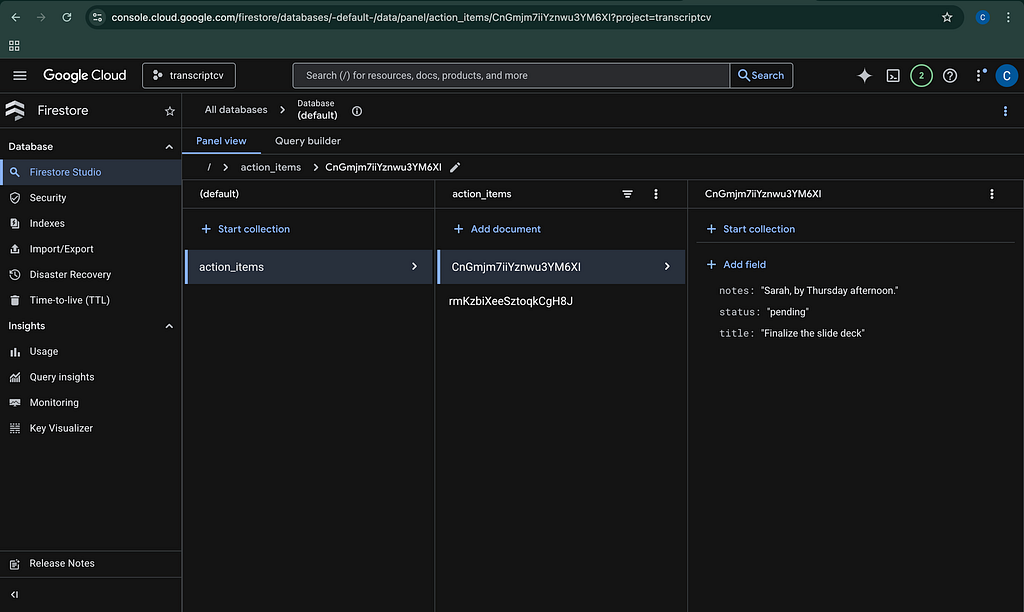
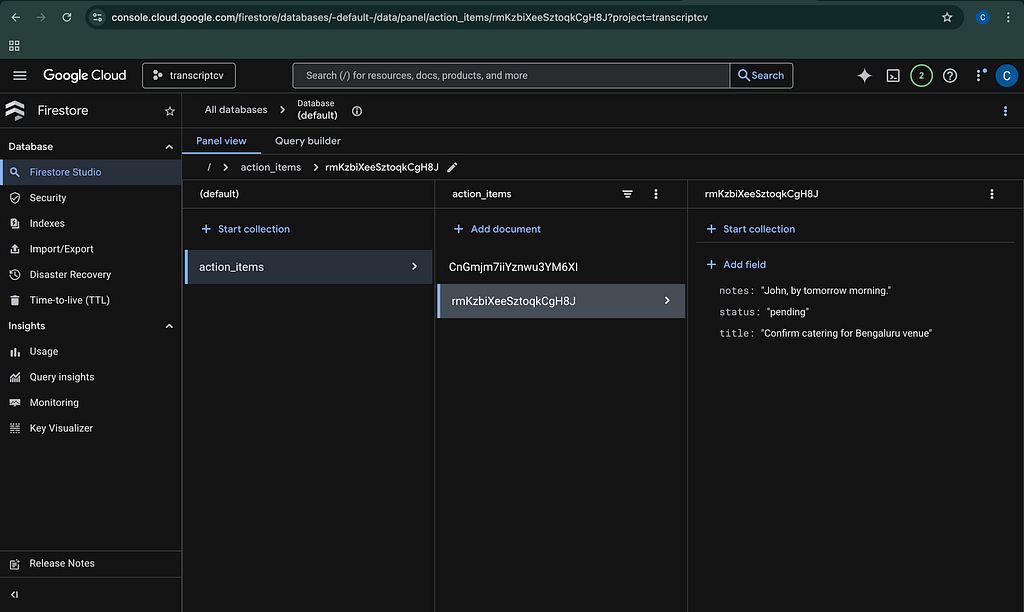
"Hey team. John, please confirm the catering for the Bengaluru venue by tomorrow morning.
Sarah, finalize the slide deck by Thursday afternoon."
Upload it to your bucket:
# 1. Dynamically resolve the bucket name based on the current project
BUCKET_NAME="meeting-transcripts-demo-$(gcloud config get-value project)"

# 2. Copy the file using the resolved variable
gcloud storage cp transcript.txt gs://$BUCKET_NAME/
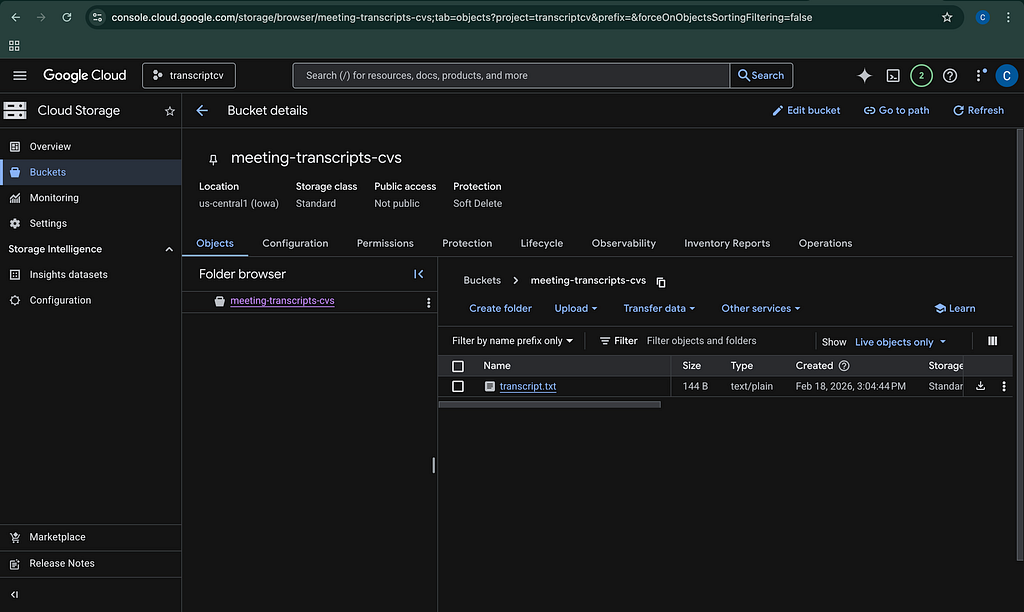
Check your Firestore (default) database in the console. Within 15 seconds, an action_items collection will magically appear containing John and Sarah's tasks!
Step 5: The Interactive UI (Local Scale-to-Zero)
Serverless agents aren’t just for background jobs. Let’s use the exact same code to chat with our database locally.
Crucial Step: When running locally, the Firestore SDK doesn’t have the Cloud Run Service Account identity to rely on. We must authenticate our local terminal using Application Default Credentials (ADC). Make sure your virtual environment is still active, then run:
gcloud auth application-default login
(Log in via the browser and click Allow).
Now, boot up the ADK Web interface:
adk web
Open the localhost URL provided in the terminal. Type the following directly into the chat:
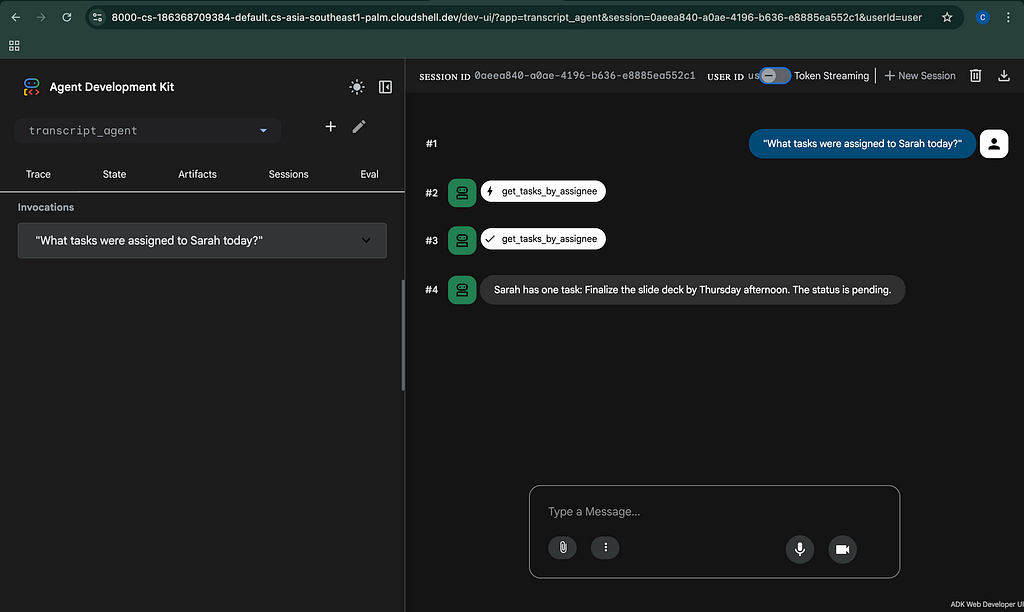
"What tasks were assigned to Sarah today?"
Because your API key is safely loaded via the .env file, and your terminal is authenticated via ADC, the agent will instantly hit Firestore, read the data, and summarize it for you in the chat UI!
The Conclusion
The core takeaway of this architecture is efficiency through event-driven design. By utilizing the Google Agent Development Kit (ADK) and Gemini 3 Flash, we created a “zero-idle” system that remains dormant and cost-effective until the exact microsecond it is needed. We proved that AI agents can be lightweight, modular, and deeply integrated into cloud-native services like Firestore and Eventarc. This workflow is the gold standard for modern asynchronous AI engineering, providing a universal blueprint for any high-performance, scale-to-zero application.
Now, take this code, deploy it to your own project, and start building agents that actually do work while you sleep.
Thank you 🙂
Connect with me here!!
Building a Serverless Data Agent that scales to Zero: was originally published in Google Cloud – Community on Medium, where people are continuing the conversation by highlighting and responding to this story.
Source Credit: https://medium.com/google-cloud/building-a-serverless-data-agent-that-scales-to-zero-88875bdab98e?source=rss—-e52cf94d98af—4
About the Author