The Gemini Code Assist Enterprise Guide to Migrating Billing Accounts, License Distribution, and Getting It Right the First Time
A field-tested reference for Google Cloud admins managing GCA Enterprise subscriptions across billing accounts.
Introduction
If you’ve landed here, you’re probably in one of two situations: either you’re planning a billing account migration for a GCP project that runs Gemini Code Assist Enterprise, or you’re already mid-migration and something doesn’t look right. Either way — you’re in the right place.
Who This Guide Is For
This guide is written for Google Cloud administrators who manage Gemini Code Assist Enterprise subscriptions — whether you’re an internal platform admin, a cloud consultant, or a platform engineer setting up GCA for a client organization.
Why Would You Need to Migrate to a Different Billing Account?
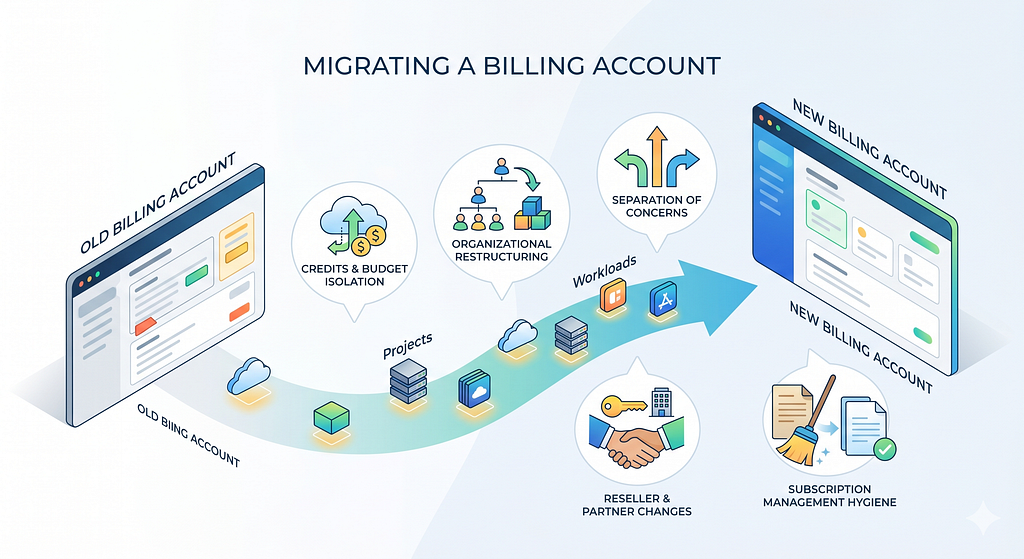
Billing account migrations don’t happen without reason. Here are the most common real-world scenarios where this becomes necessary:
- Credits and budget isolation — A project needs to be moved to a billing account that has Google Cloud credits (promotional, committed use, or partner credits) so that GCA charges are offset rather than charged to a card.
- Organizational restructuring — Teams, projects, or business units get re-organized and need to be consolidated under a different billing account.
- Separation of concerns — You want to isolate GCA billing from general infrastructure billing for cleaner cost attribution.
- Reseller or partner account changes — The Google Cloud reseller or partner managing billing changes, requiring a fresh billing account setup.
- Subscription management hygiene — The old billing account has an expired or mismanaged subscription and you want a clean slate on a new one.
Why This Is Trickier Than It Looks
The core reason billing account migration with GCA is non-trivial is this: your Gemini Code Assist subscription lives on the billing account, not the project. When you move a project, the subscription doesn’t follow it. Add to that the fact that you can’t cancel an active subscription mid-term, and you’ve got a situation where the order of operations genuinely matters.
This guide will walk you through every stage — from understanding how GCA subscriptions work, to purchasing a new one, to handling the lingering active subscription on your old billing account.
Understanding How GCA Enterprise Subscriptions Work
Before touching anything in the console, it helps to have a clear mental model of the GCA subscription architecture. Getting this wrong is usually what leads to confusion mid-migration.
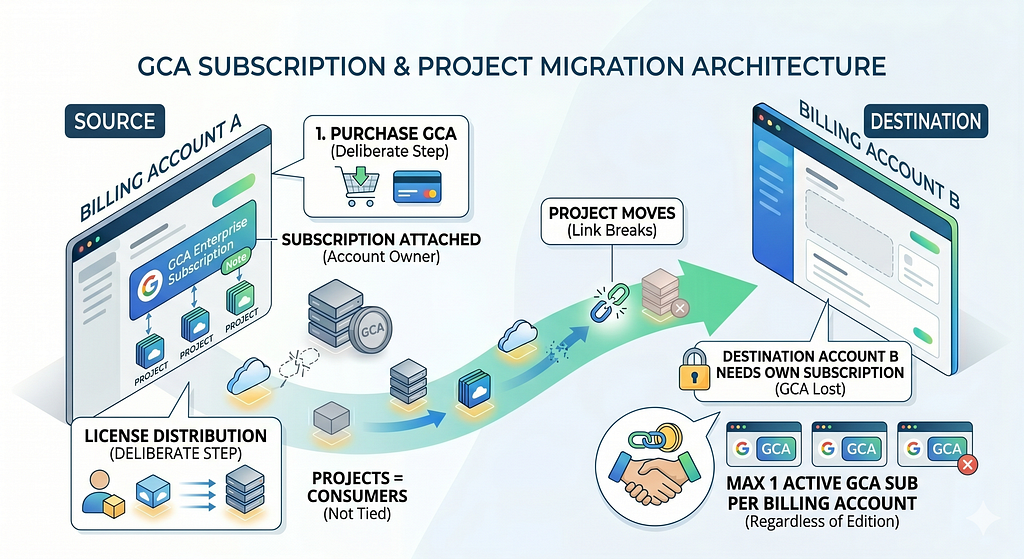
Subscriptions Are Tied to Billing Accounts, Not Projects
When you purchase a Gemini Code Assist Enterprise subscription, it belongs to the billing account — not to any specific GCP project. A project is merely a consumer of the subscription that the billing account holds.
This means:
- Moving a project to a different billing account does not move the subscription with it.
- The moved project immediately loses access to the subscription on the old billing account.
- If the destination billing account doesn’t have its own GCA subscription, users on that project will lose Gemini Code Assist access.
One Subscription Per Billing Account
Google enforces a hard limit of one Gemini Code Assist subscription per billing account. You cannot have two active GCA subscriptions on the same billing account — regardless of edition.
Projects Are Just Consumers
Any project linked to a billing account can be allocated licenses from that billing account’s GCA subscription. License distribution is a deliberate administrative action — it doesn’t happen automatically just because a project is linked to the billing account.
License Distribution Is a Separate Step
Purchasing a subscription and distributing licenses to a project are two distinct operations. Even after you buy a subscription, users won’t have access until licenses are explicitly distributed to the relevant project. Keep this in mind — it’s a common source of “why isn’t GCA working?” support tickets.
Prerequisites and Permissions
Getting the right IAM roles in place before you start saves a lot of frustration.
You need to haveroles/billing.admin (Billing Account Administrator) role to manage subscriptions, link/unlink projects and roles/consumerprocurement.orderAdmin (Consumer Procurement Order Administrator) role to purchase and manage GCA subscription orders.
On the GCP Project
Role Purpose Project Owner or Project Billing Manager Required to change the billing account linked to a project
Additional Requirements
- The destination billing account must be active and in good standing — not suspended, not closed.
- At least one GCP project must already be linked to the destination billing account before you can purchase a subscription. If the project being migrated is the only one, read “A Note on Sequencing” in the following section carefully.
- The Gemini for Google Cloud API (cloudaicompanion.googleapis.com) must be enabled on the project post-migration.
Migrating the GCP Project to the Destination Billing Account
This is the administrative step of moving your project. It has no downtime impact on your running GCP resources — VMs, databases, and applications continue to run uninterrupted. What it does affect is billing attribution and, critically, GCA subscription access.
A Note on Sequencing
Before you proceed, answer this question: Does the destination billing account already have another GCP project linked to it?
This determines whether you buy the new subscription first or move the project first — and getting the order wrong means a gap in GCA access for your users.
- If YES — purchase the new subscription on the destination billing account first (check “Purchasing a New GCA Enterprise Subscription” section), then move the project. This way, the moment the project arrives on the new billing account, it can be granted licenses with no interruption.
- If NO (the project being moved is the only one) — you’ll need to move the project first to establish a foothold on the destination billing account, then immediately purchase the subscription. Existing users will enter a brief gap in access during this window — work through it quickly.
Steps to Change the Billing Account (Google Cloud Console)
- Go to Google Cloud Console → Billing
- Select the current billing account (the one your project is currently linked to)
- In the left navigation, click Account Management
- In the list of projects, locate your project
- Click the ⋮ (kebab) menu next to it → Select “Change billing account”
- In the dialog, select the destination billing account from the dropdown
- Click Set account
Steps to Change the Billing Account (gcloud CLI)
If you prefer the command line:
# Confirm the current billing account for the project
gcloud billing projects describe PROJECT_ID
# List all available billing accounts you have access to
gcloud billing accounts list
# Link the project to the destination billing account
gcloud billing projects link PROJECT_ID \
  --billing-account=DESTINATION_BILLING_ACCOUNT_ID
What to Expect After Moving the Project
- No infrastructure downtime — all resources continue running.
- Unbilled charges from the old billing account — charges incurred but not yet processed (up to 2 days prior to the move) will still be billed to the former billing account. This is expected behavior.
- GCA access is immediately affected — if the destination billing account has no active GCA subscription yet, users will lose Gemini Code Assist access from this point. This is your cue to move to purchasing a new gemini code assist subscription(below) without delay.
Purchasing a New GCA Enterprise Subscription on the Destination Billing Account
If the destination billing account doesn’t have an active GCA Enterprise subscription, you’ll need to purchase one. This applies whether the previous subscription expired or never existed on this billing account.
Step 1 — Open Admin for Gemini
Search for “Admin for Gemini” in the GCP console and open the product page.
Use the project picker at the top of the page to select a project that is linked to the destination billing account. This is important — Admin for Gemini scopes itself to whichever billing account your selected project belongs to.
Step 2 — Initiate the Subscription Purchase
Since there’s no active subscription on this billing account, the page will show a “Get Gemini Code Assist” button. Click it.
Verify that you have the consumerprocurement.orders.place permission on the billing account.
Step 3 — Select the Enterprise Edition
On the “Get Gemini Code Assist subscription” page, under “Select Gemini Code Assist subscription Edition”. You can click “Compare Gemini Code Assist Editions” if you want to review the feature breakdown before committing. Click Continue.
Step 4 — Configure the Subscription
Fill in the following fields:
Field Guidance Subscription name Use a clear, identifiable name (e.g., gca-enterprise-prod-2025) Number of licenses Minimum 10 licenses for Enterprise edition Subscription period Monthly or annual — annual gives a discounted monthly rate Auto-renewal .
Step 5 — Select Billing Account and Location
Confirm the destination billing account is selected in the billing account dropdown. For location, if you have no specific data residency or compliance requirements, select global multi-region — it offers maximum availability and the lowest latency for most teams.
Step 6 — Create and Confirm
Click Create → Confirm. Your new GCA Enterprise subscription is now active on the destination billing account.
Distributing Licenses to the Project
Purchasing the subscription is only half the job. Until you explicitly distribute licenses to your project, users on that project won’t have access to Gemini Code Assist.
Step-by-Step: Distribute Licenses
- Go to Admin for Gemini, scoped to the destination billing account
- Click Manage Gemini Code Assist → Manage Subscription
- In the Gemini Subscriptions table, click your newly created subscription
- In the License Management section, assign and manage the licenses.
Auto vs. Manual License Assignment
After licenses are distributed to the project, you can choose how they get assigned to individual users:
- Automatic assignment (default): A user is automatically granted a license the first time they use Gemini Code Assist in a supported IDE (VS Code, IntelliJ, and other JetBrains IDEs), as long as they’re working within a project associated with the subscription’s billing account. This is the lowest-friction option for most teams.
- Manual assignment: You explicitly control which users get a license. To switch modes, go to Admin for Gemini → Manage Gemini Code Assist → License Management → Manage Automatic License Assignment.
Switching between auto and manual does not affect pre-existing license assignments — only new assignments going forward are affected.
Enable the Gemini for Google Cloud API (if not already done)
If the API isn’t already enabled on the project, run:
gcloud services enable cloudaicompanion.googleapis.com --project PROJECT_ID
Users won’t see Gemini Code Assist in their IDE until this API is active.
Handling the Active Subscription on the Old Billing Account
This is the part that surprises most admins: you cannot cancel a GCA subscription mid-term. There is no cancel button. The only path forward is disabling auto-renewal so the subscription naturally expires at the end of its current term without charging you again.
Why There’s No Cancel Option
Google’s subscription model for GCA is a committed-term contract. When you click “Modify Subscription” and don’t see a cancel option — that’s intentional. The modification flow is only for adjusting licenses, edition, or subscription period.
How to Disable Auto-Renewal
- Go to Admin for Gemini, scoped to a project linked to the old billing account
- Navigate to Manage Gemini Code Assist → Manage Subscription
- Click the Subscription Settings followed by clicking Modify Subscription button.
4. Under “Automatic subscription renewal”, select “No, don’t automatically renew”
5. Click Continue
6. Check “I agree to the terms of this purchase”
7. Click Save changes
What Happens After Auto-Renewal Is Disabled
- The subscription remains active until the end of the current billing term (monthly or annual — whatever you signed up for).
- Once the term ends, all licenses on that subscription become invalid automatically.
- You will not be charged again after the current term ends.
- The subscription cannot be re-enabled after it expires. If you ever need GCA on that billing account again, you’ll need to purchase a new subscription from scratch.
Make a note of the subscription end date so you know exactly when the old billing account stops incurring GCA charges.
Key Takeaways
If you take nothing else from this guide, take these:
- The subscription belongs to the billing account, not the project. Moving a project does not move its GCA subscription.
- Sequence matters. If you have another project on the destination billing account, buy the subscription before moving the project. If you don’t, move the project first and purchase immediately after.
- You cannot cancel a GCA subscription mid-term. The only lever you have is disabling auto-renewal so it doesn’t renew at the end of the current term.
- Always enable auto-renewal on your active subscription. An expired subscription silently revokes access for all users — with no warning other than the end date you may have forgotten.
- License distribution is not automatic. Purchasing a subscription is step one. You still need to distribute licenses to the project and verify user access.
- Unbilled charges follow the old billing account. After migrating a project, charges from up to 2 days prior can still land on the former billing account. Communicate this to finance if billing reconciliation is involved.
- Global multi-region is the right location choice unless you have a specific compliance requirement mandating otherwise.
Hopefully, this guide makes it a one-and-done reference. Bookmark it, share it with your team, and the next time a GCA migration comes up — you’ll know exactly what to do and in what order.
Have a question or ran into a scenario this guide doesn’t cover? Drop a comment — would love to hear how others are managing GCA Enterprise subscriptions at scale.
The Gemini Code Assist Enterprise Guide to Migrating Billing Accounts, License Distribution.. was originally published in Google Cloud – Community on Medium, where people are continuing the conversation by highlighting and responding to this story.
Source Credit: https://medium.com/google-cloud/the-gemini-code-assist-enterprise-guide-to-migrating-billing-accounts-license-distribution-b71781b7d60b?source=rss—-e52cf94d98af—4
About the Author