Imagine you could hire an assistant for every repetitive task on your plate. Now imagine you don’t need to write a single line of code to build them.
That is the power of Agent Designer in Google Cloud’s Gemini Enterprise app. It is a visual, no-code toolkit that lets anyone turn a business idea into an automated AI “agent” using everyday English.
A Real-World Example: The “Customer Email Escalation Handler”
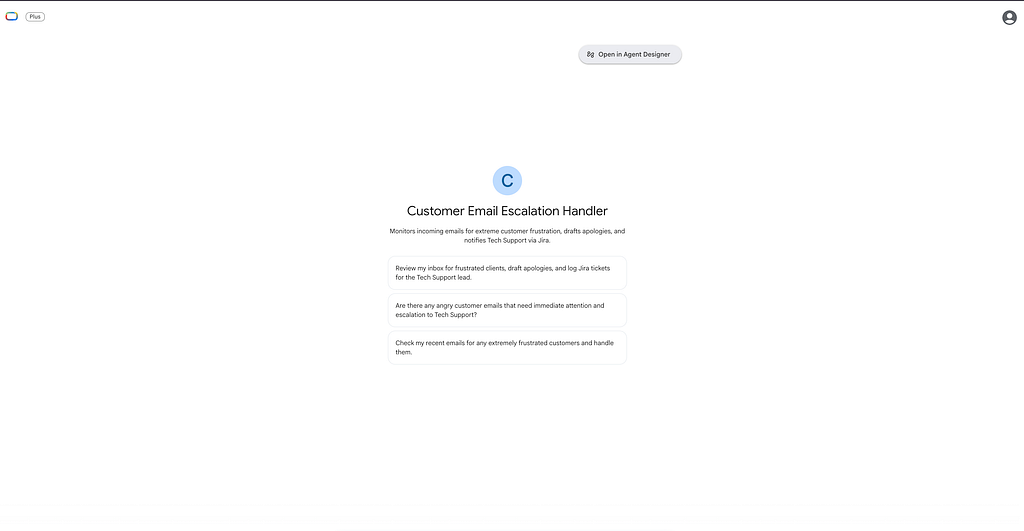
Let’s look at how easy this is to use. Say you run a Customer Success team and want to make sure high-priority, unhappy clients get immediate attention.
Here is how you build an Escalation Agent in minutes:
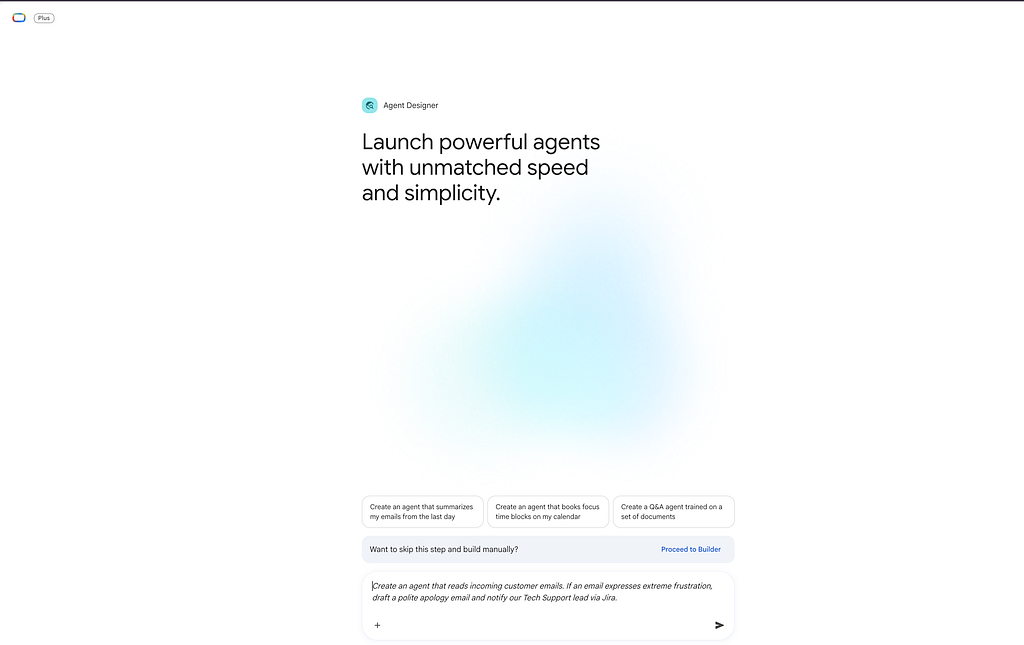
1. The Chat
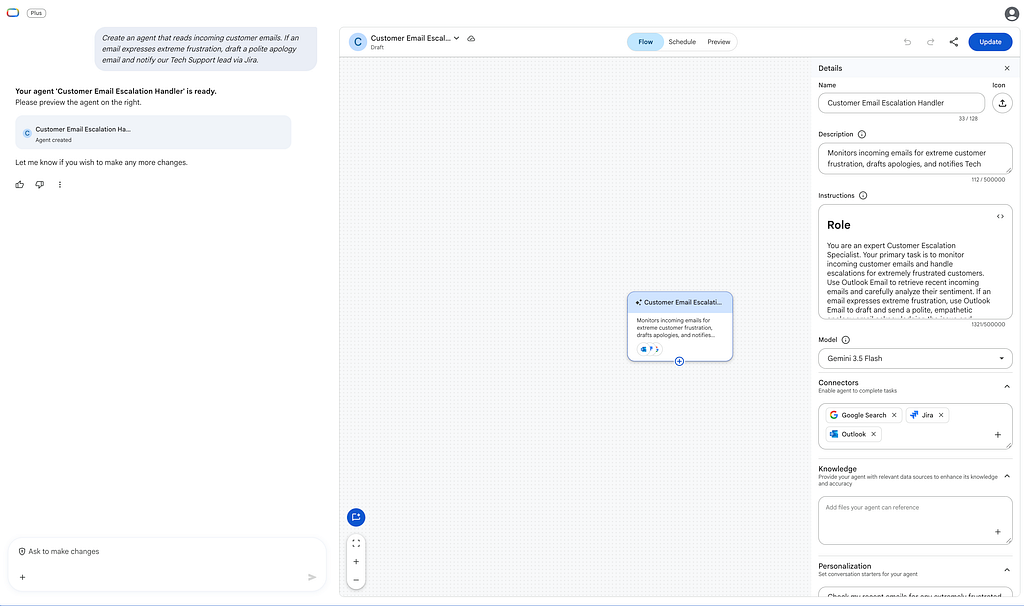
You open Agent Designer and type your intent into the chat box:
“Create an agent that reads incoming customer emails. If an email expresses extreme frustration, draft a polite apology email and notify our Tech Support lead via Jira.”
2. The Blueprint:
Gemini immediately goes to work. It interprets your words and automatically scaffolds the agent’s core parameters right on your screen:
- Name & Description: Dynamically generated based on your goal.
- Instructions: Clear behavioral rules translated into system prompts.
- Model & Personalization: Pre-selected LLMs and optional starter prompts to guide users later.
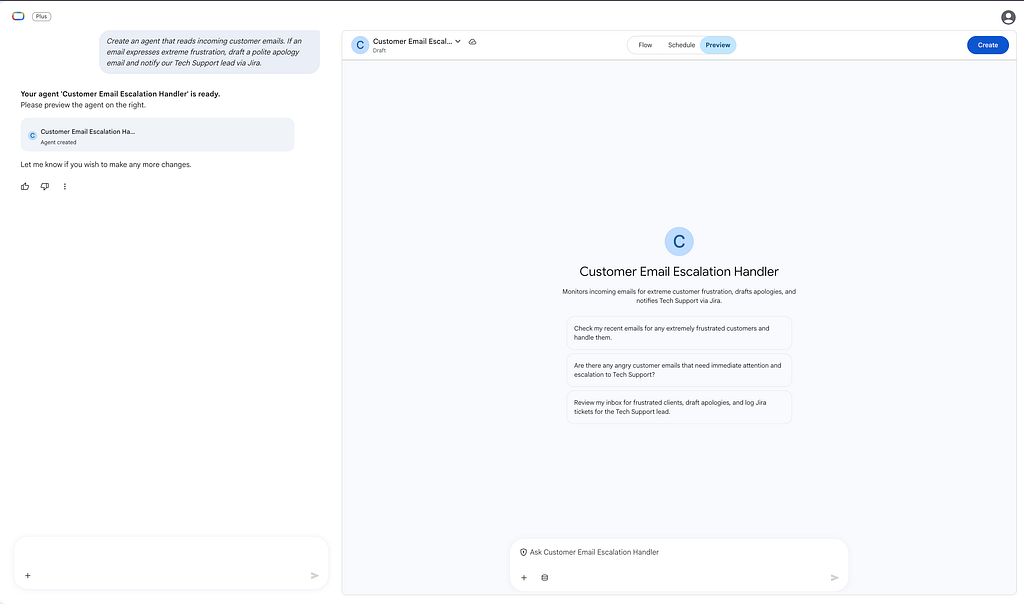
Once the initial draft looks good, click Create to assemble your agent.
3. The Data Connections
Need to inspect or adjust what Gemini built? Click “Open in Agent Designer” to view the full backend configuration.
To make your agent functional, you connect it to your enterprise tools under the Data and Tools section. With just a click, you can grant it scoped access to:
- Outlook: To monitor the team’s support inbox via Outlook.
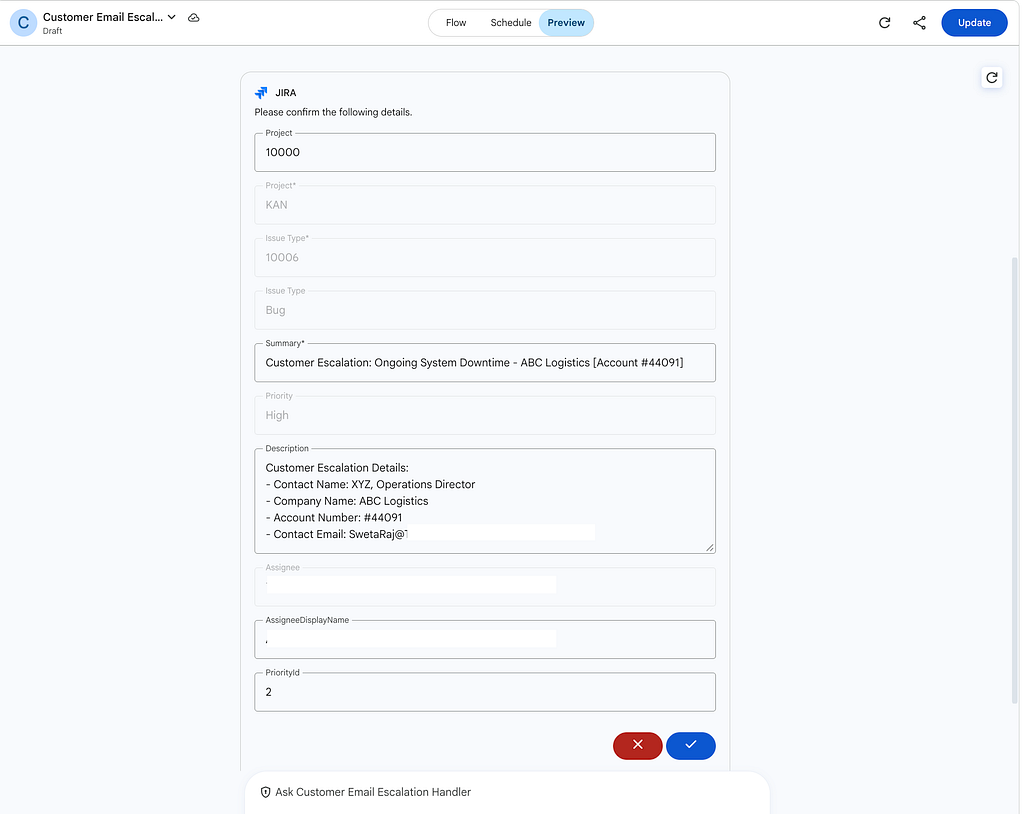
- Jira: To log issues directly onto your Jira ticket dashboard.
4. The Automation (Putting It on Autopilot) 📅
Once your data connections are established, you don’t need to manually trigger the agent every time a customer emails. You put it on autopilot using the Schedule tab.
- Flexible Triggers: You can program the agent to run automatically on a recurring basis — whether that is hourly, daily, weekly, or monthly — tailored to your team’s specific time zone. For our “Angry Customer” saver, setting it to run hourly ensures urgent issues are escalated throughout the day without human intervention.
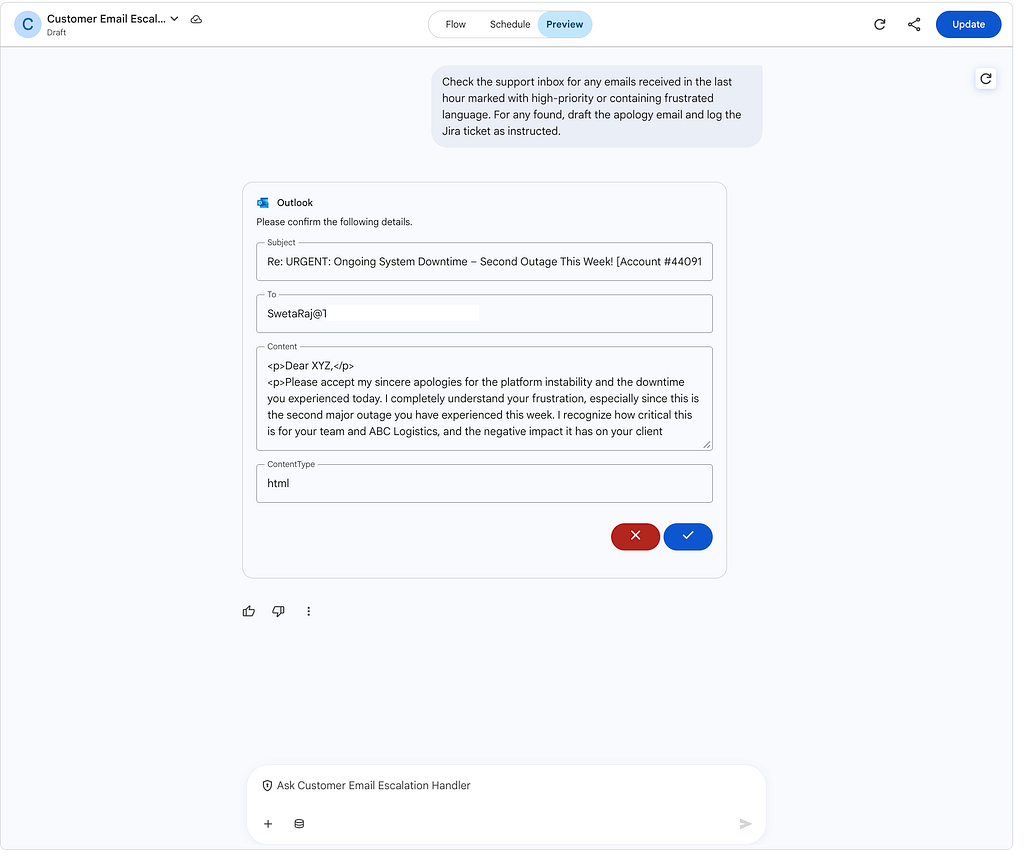
- Smart Guardrails: To protect your business operations, Google builds a critical safety feature into scheduled tasks. While the agent can process data and draft responses automatically in the background, any action that sends an message to an external person will automatically pause and wait for your human review. You get to read and approve the draft before it goes out, ensuring absolute control.
Now, the agent works silently in the background, autonomously triaging crises and updating your dashboards while you focus on strategic work.
5. 🖥️ The Flow Tab: Visually Blueprinting Your Workflow
The Flow tab is a visual node graph that maps out your agent’s decision-making logic.
- Single-Step Agents: If your task is straightforward, it appears as a single node executing a distinct action.
- Multi-Step Agents: For bigger, complex jobs, you can hover over the main coordinator node and click “Add subagent”. This lets you string multiple specialized micro-agents together. For example, the master agent can hand off the email sentiment analysis to Subagent A, while routing the technical ticket logging to Subagent B.
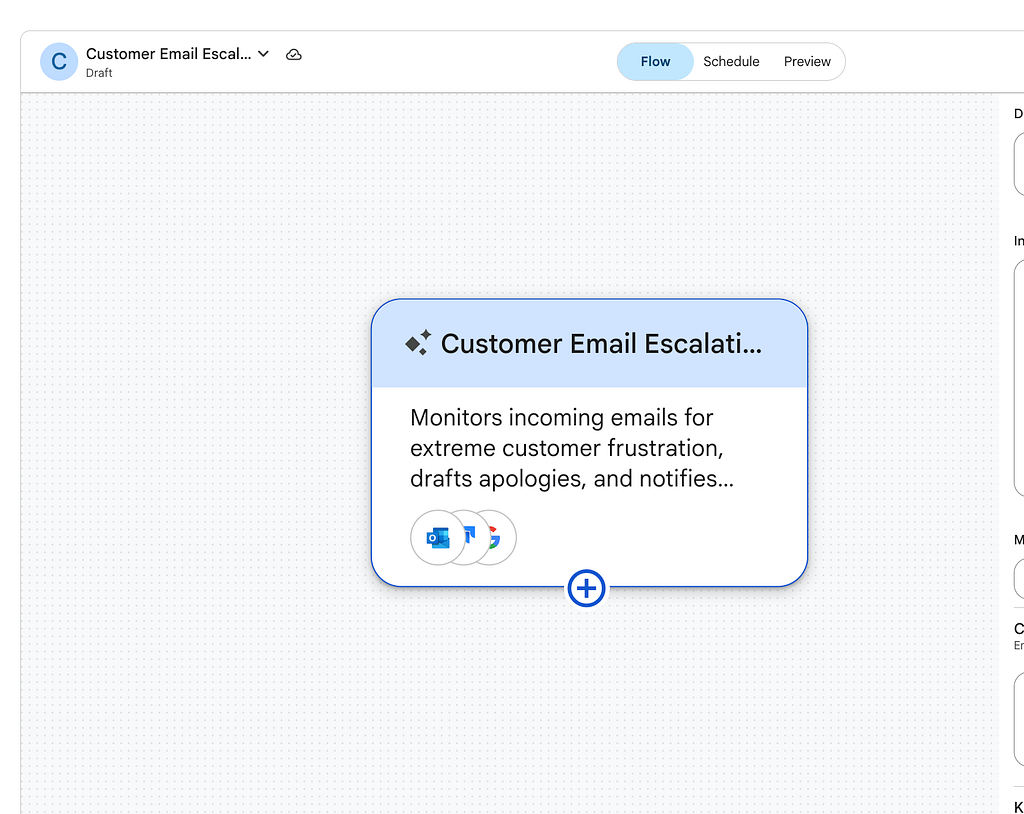
How It Works: The Split-Screen Canvas
The Agent Designer interface keeps things incredibly simple by splitting your screen into two halves:
- The Left Side (Chat Pane): Where you talk to Gemini. If you want to change how your agent behaves (e.g., “Make the apology email sound warmer”), you just type it here.
- The Right Side (Designer Pane): Where you fine-tune the settings. It features three easy tabs:
- Flow: A visual map where you can link multiple “subagents” together for bigger tasks.
- Schedule: Where you tell the agent when to run (hourly, daily, or weekly).
- Preview: A safe playground to test the agent and see exactly how it will reply before turning it live.
Two Ways to Build
Depending on the job, you can build two types of helpers:
- Single-Step Agents: Best for quick, isolated tasks. (Example: An agent that reads a weekly spreadsheet and writes a bulleted summary.)
- Multi-Step Agents: Best for complex operations. A master agent delegates tasks to smaller subagents. (Example: An onboarding agent where Subagent A checks HR paperwork, Subagent B orders a laptop, and Subagent C drafts a welcome email.)
Conclusion
Agent Designer shifts AI from a tool that just answers questions to an assistant that actually does work. Because it lives inside Google Cloud, it is entirely secure, private to your company, and safe for enterprise data.
If you can describe your workflow, you can automate it. Open your Gemini Enterprise app, click + Create Agent, and let your new digital workforce handle the busywork.
Build an AI Helper in 5 Minutes: An Easy Guide to Google Cloud’s Agent Designer was originally published in Google Cloud – Community on Medium, where people are continuing the conversation by highlighting and responding to this story.
Source Credit: https://medium.com/google-cloud/build-an-ai-helper-in-5-minutes-an-easy-guide-to-google-clouds-agent-designer-a47909be15b8?source=rss—-e52cf94d98af—4
About the Author