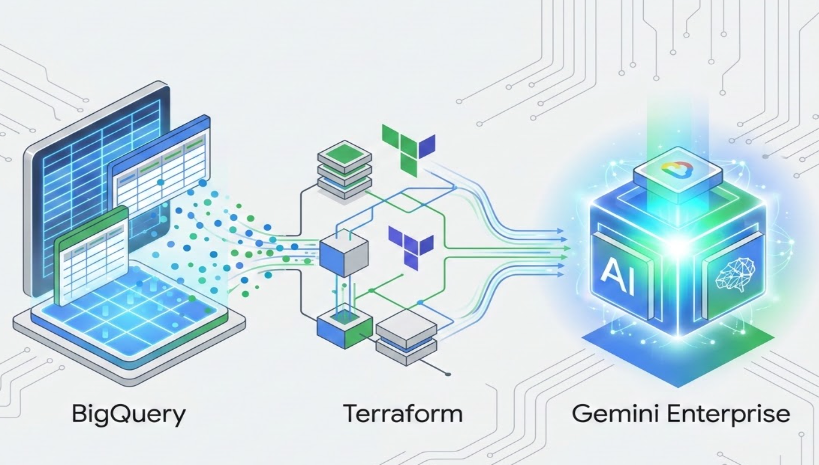
This guide covers the Terraform configuration for One-Time Ingestion to ground a Gemini Enterprise Agent in BigQuery data.
For details regarding Periodic Ingestion (Automated Sync), please refer to the guide available here.
When to Use One-Time Ingestion
One-Time Ingestion is ideal when:
- Your source data in BigQuery is static or rarely changes.
- You want to control exactly when data is refreshed (on-demand) rather than relying on an automated schedule.
- You are testing the integration and want the data to be available immediately without waiting for the 1-hour initial sync delay associated with managed BigQuery Data Connectors.
Prerequisites
Before getting started, make sure you have:
1. Google Cloud Project & APIs
- You must have an active Google Cloud project with the following APIs enabled:
- Discovery Engine API (discoveryengine.googleapis.com): Powers the core search indexing, data store capabilities, and conversational infrastructure required for Gemini Enterprise.
- BigQuery API (bigquery.googleapis.com): Enables Discovery Engine connectors to query, read, and sync tabular data from your BigQuery datasets.
2. Licensing & Tooling
- Gemini Enterprise Subscription: Your Google Cloud project or organization must have an active, purchased Gemini Enterprise subscription tier.
- Your Google Cloud Organization ID
- Terraform v1.3+ installed
3. IAM Permissions
Your identity (or the service account running Terraform) will need:
Project level:
- Discovery Engine Admin (roles/discoveryengine.admin)
- Project IAM Admin (roles/resourcemanager.projectIamAdmin)
- BigQuery Data Viewer (roles/bigquery.dataViewer) access to the target BigQuery dataset and table.
Cross-Project BigQuery Ingestion (If Applicable):
- If you intend to import data from a source Google Cloud project that is different from the project hosting your Gemini Enterprise data store, you must configure cross-project permissions.
- Locate the Discovery Engine service account inside the gemini enterprise data store project:
service-PROJECT_NUMBER@gcp-sa-discoveryengine.iam.gserviceaccount.com
- Grant this service account the following IAM roles in the external project containing your BigQuery data source (source google cloud project):
BigQuery Job User (roles/bigquery.jobUser)
BigQuery Data Editor (roles/bigquery.dataEditor)
Terraform Configuration
We divide the configuration into three files: variables.tf, provider.tf, and main.tf.
variables.tf
To keep our configuration reusable, we define variables for project-specific details.
variable "project_id" {
 type        = string
 description = "The Google Cloud Project ID."
}

variable "location" {
 type        = string
 default     = "global"
 description = "The region for the Discovery Engine (e.g., global, us)."
}

variable "datastore_id" {
 type        = string
 description = "The ID of the Discovery Engine Data Store."
}

variable "bq_dataset_id" {
 type        = string
 description = "The BigQuery dataset ID."
}

variable "bq_table_id" {
 type        = string
 description = "The BigQuery table ID."
}

variable "engine_id" {
 type        = string
 description = "The ID of the Gemini Search Engine."
}
provider.tf
We configure the Google providers. Note that some features of Gemini Enterprise often require the `google-beta` provider.
terraform {
  required_version = ">= 1.0"
  required_providers {
    google-beta = {
      source  = "hashicorp/google-beta"
      version = ">= 5.0.0"
    }
  }
}

provider "google-beta" {
  project               = var.project_id
  region                = var.region
  user_project_override = true
  billing_project       = var.project_id
}
main.tf
Here, we declare our search infrastructure, trigger the immediate data load, and layer the Gemini Enterprise configuration over it. Since this flow is for One-Time Ingestion, we use a standalone `datastore` resource rather than a continuous connector resource. To populate it, we leverage a Terraform provisioner to trigger the ingestion API immediately during deployment. This ensures your search store is populated and ready for queries as soon as the Terraform apply finishes.
Step 1: Create the Data Store & Trigger Ingestion
- We create a standalone google_discovery_engine_data_store.
- To trigger the one-time import, we use a terraform_data resource with a local-exec provisioner. This provisioner executes a curl command to call the Discovery Engine API immediately upon deployment, importing your BigQuery data.
Note: This is a one-time snapshot, it will only re-trigger if you change the target BigQuery table or dataset in your Terraform configuration, not when the data inside the table changes.
Step 2: Create the Gemini Search Agent
- Next, we create the google_discovery_engine_search_engine.
- We set the subscription tier to SUBSCRIPTION_TIER_SEARCH_AND_ASSISTANT to enable advanced Gemini features.
- We link it to the standalone Data Store created in Step 1.
- Crucially, we use depends_on to ensure the search engine is only provisioned after the initial data import has been successfully triggered.
Step 3: Secure the Agent
Finally, we configure the Access Control (ACL) to use Google Workspace (GSUITE) for authentication.
# Access token datasource for the API call
data "google_client_config" "default" {}

# 1. Standalone Data Store
resource "google_discovery_engine_data_store" "bq_data_store" {
 provider              = google-beta
 project               = var.project_id
 location              = var.location
 data_store_id         = var.datastore_id
 display_name          = "BigQuery One-Time Data Store"
 industry_vertical     = "GENERIC"
 content_config        = "NO_CONTENT"
 solution_types        = ["SOLUTION_TYPE_SEARCH"]

 lifecycle {
   ignore_changes = [document_processing_config]
 }
}

# 2. API Trigger for immediate import
resource "terraform_data" "trigger_import" {
 triggers_replace = {
   table_id          = var.bq_table_id
   dataset_id        = var.bq_dataset_id
   datastore_id      = google_discovery_engine_data_store.bq_data_store.data_store_id
   datastore_created = google_discovery_engine_data_store.bq_data_store.create_time
 }

 provisioner "local-exec" {
   command = <<EOT
     curl -f -X POST \
       -H "Authorization: Bearer ${data.google_client_config.default.access_token}" \
       -H "Content-Type: application/json" \
       -H "X-Goog-User-Project: ${var.project_id}" \
       "https://discoveryengine.googleapis.com/v1beta/projects/${var.project_id}/locations/${var.region}/collections/default_collection/dataStores/${google_discovery_engine_data_store.bq_data_store.data_store_id}/branches/default_branch/documents:import" \
       -d '{
         "bigquerySource": {
           "projectId": "${var.project_id}",
           "datasetId": "${var.bq_dataset_id}",
           "tableId": "${var.bq_table_id}",
           "dataSchema": "custom"
         },
         "reconciliationMode": "INCREMENTAL",
         "autoGenerateIds": true
       }'
   EOT
 }
}

# 3. Create the Gemini Search Agent
resource "google_discovery_engine_search_engine" "bq_search_agent" {
 provider      = google-beta
 project       = var.project_id
 engine_id     = var.engine_id
 collection_id = "default_collection"
 location      = var.region
 display_name  = "Gemini BigQuery Search Agent One-Time"
 app_type      = "APP_TYPE_INTRANET"
  # Reference the standalone data store directly
 data_store_ids = [google_discovery_engine_data_store.bq_data_store.data_store_id]
  search_engine_config {
   search_tier                = "SEARCH_TIER_ENTERPRISE"
   search_add_ons             = ["SEARCH_ADD_ON_LLM"]
   required_subscription_tier = "SUBSCRIPTION_TIER_SEARCH_AND_ASSISTANT"
 }

 # Ensure the import starts before the search engine points to the store
 depends_on = [
   terraform_data.trigger_import
 ]

 lifecycle {
   replace_triggered_by = [
     google_discovery_engine_data_store.bq_data_store
   ]
 }
}

# 4. Secure the Agent (ACL Config)
resource "google_discovery_engine_acl_config" "identity_provider" {
 provider = google-beta
 project  = var.project_id
 location = var.region
 idp_config {
   idp_type = "GSUITE"
 }
}
Deployment and Verification
Deploying the configuration:
- Initialize the working directory to pull down the required Google Beta binaries:
terraform init
2. Execute a dry-run verification preview to validate your HCL block syntax against your live GCP environment:
terraform plan
Once your plan step cleanly compiles and outputs `Plan: 3 to add, 0 to change, 0 to destroy`, your code logic is completely pristine.
3. Apply the configuration to provision the backend engines:
terraform apply
Verify Ingestion
The import is triggered immediately during terraform apply. You can monitor the import job status in the Google Cloud Console under Agent Builder > Data Stores > [Your Data Store] > Activity
Test the Agent
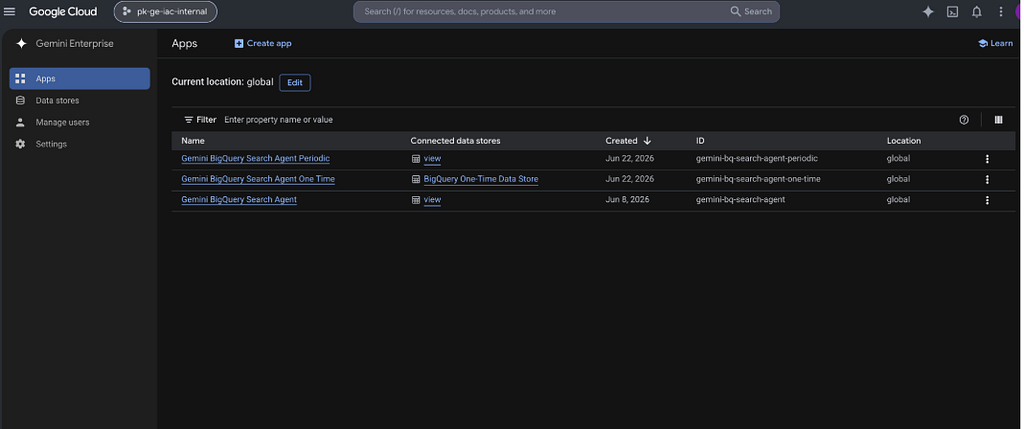
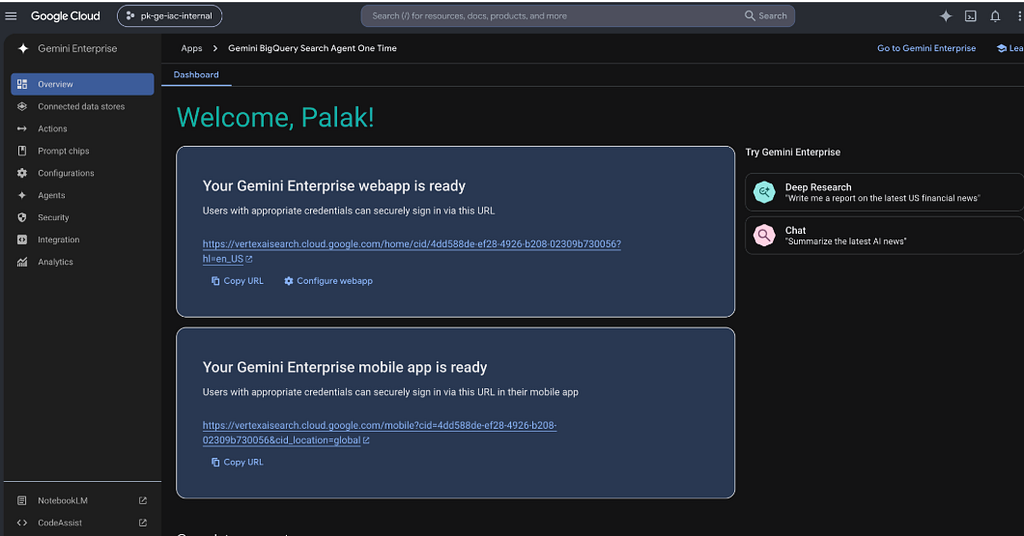
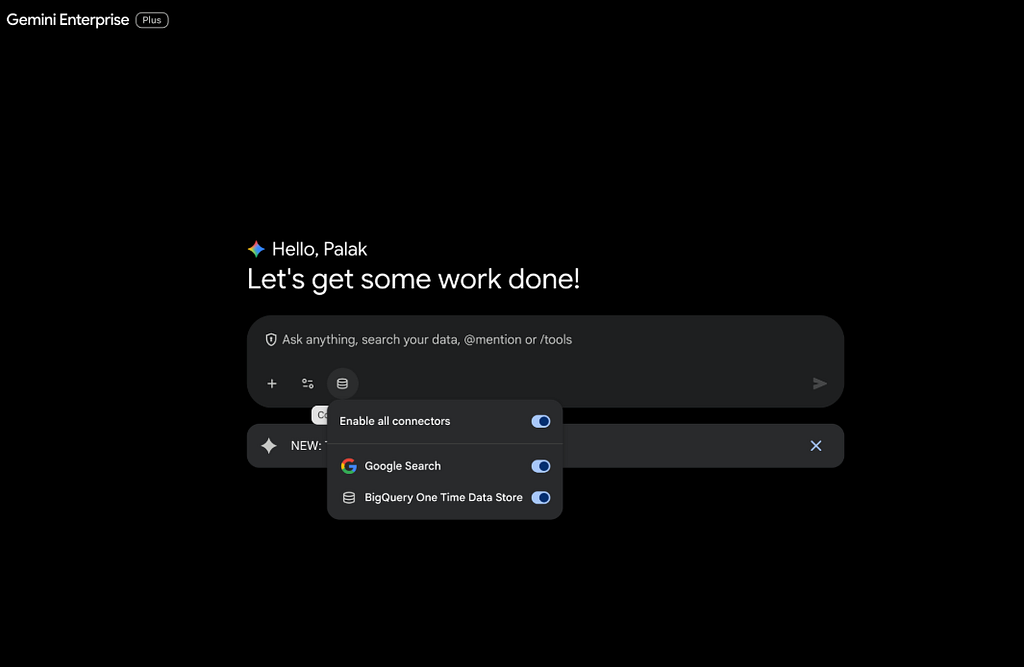
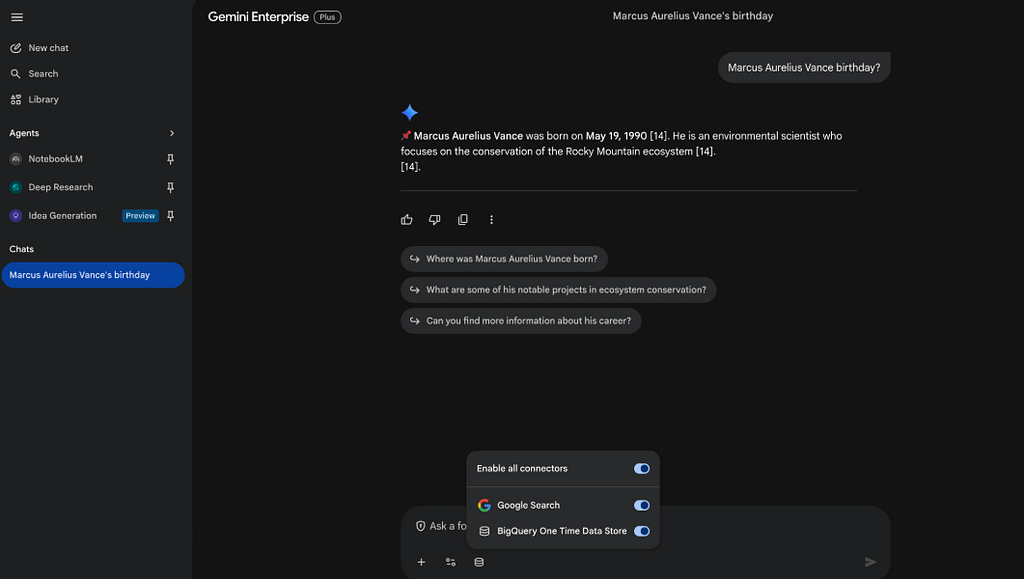
Once the import completes, go to Gemini Enterprise > Apps, select your app, and use the preview link to test the search interface.
Key Considerations and Final Thoughts
- This flow is designed for static data. Terraform triggers the import once during deployment. It will not automatically sync new rows or updates added to your BigQuery table later.
- If your BigQuery data changes and you need to force a refresh of the search index, you can tell Terraform to re-run the import command by replacing the trigger resource:
terraform apply -replace="terraform_data.trigger_import"
- Use this one-time flow for archives, documentation, or static datasets. If your data changes frequently (e.g., daily updates), you should use the Periodic Ingestion flow instead, which handles automatic syncing on a schedule.
Happy building! 🚀
Grounding Gemini: One-Time BigQuery Ingestion with Terraform was originally published in Google Cloud – Community on Medium, where people are continuing the conversation by highlighting and responding to this story.
Source Credit: https://medium.com/google-cloud/grounding-gemini-one-time-bigquery-ingestion-with-terraform-913f1ea49f02?source=rss—-e52cf94d98af—4
About the Author