
As developers, we love building things. We spend hours writing clean code, fixing bugs, and finally getting our application to work perfectly on our local machines. But the moment we want to share our creation with someone else, things get messy.
If you want a colleague, a client, or an open-source contributor to try your application, they usually have to follow a long list of steps:
- Clone the GitHub repository.
- Install the right version of language runtimes (like Node.js, Python, Golang, or Java).
- Install dependencies and set up local environment variables.
- Run the application and hope there are no port conflicts.
This takes time, and often, something breaks along the way.
The other option is to deploy the app to the cloud yourself. But that means managing infrastructure, setting up build pipelines, and dealing with hosting costs even when no one is using the app.
There has always been a missing piece: a way to share a working, live version of your code instantly, without forcing anyone to configure anything; while not having to host the code and maintain it, or bear the hosting cost yourself.
Cloud Run Button to the Rescue
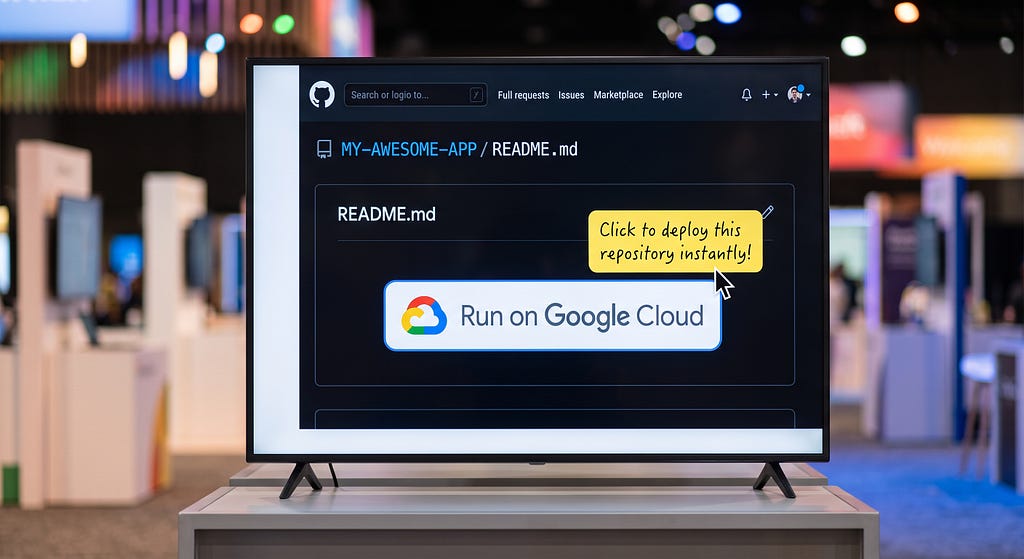
This is exactly where the Cloud Run Button comes in. It is an open-source tool from Google Cloud that you can add directly to your GitHub repository’s README file. It looks like a standard image button that says “Run on Google Cloud”.
When someone clicks this button, a remarkable piece of automation happens:
- It takes the code from your repository.
- It builds it into a secure container completely automatically.
- It deploys it to Google Cloud Run as a live, fully functional web application.
The best part? The person clicking the button doesn’t need to download your code, install tools, or know anything about cloud architecture. They just need a Google Cloud account, and enough permissions to deploy the Cloud Run service. Because it uses Google Cloud Run under the hood, the application automatically scales down to zero when no one is using it. So anyone who needs to try out your application need not think twice before clicking this button and try out your code live. This makes Cloud Run Button the perfect tool for sharing prototypes, open-source projects, and hackathon demos.
Here is a sample repository where Cloud Run Button is integrated: Link. Check out the button on the README document of this repository.
Pre-requisites
Before we add the button, let’s look at the prerequisites. You do not need a complex setup or premium tools. To make this work, you only need the following:
For the code author:
- A public GitHub repository: The Cloud Run Button needs to access your code to build it, so the repository must be public.
For anyone who wants to try out the code:
- A Google Cloud account: Anyone who clicks the button will need a Google Cloud account (with billing enabled) because the application will be deployed directly into their own Google Cloud project. The user should also have permissions to deploy Cloud Run service.
That is it. Your repository can contain almost any type of web application — whether it is written in Node.js, Python, Golang, Java, Ruby, Dotnet or PHP.
Adding the button to your repo
Adding the button to your project takes less than a minute. You just need to copy and paste a small piece of markdown code into your README.md file.
You can use any of the below templates in your markdown file as is:
[](https://deploy.cloud.run)
<a href="https://deploy.cloud.run"><img src="https://deploy.cloud.run/button.svg" alt="Run on Google Cloud" height="40"/></a>
Note that the template can be used as is. There is no need to add the link to the github repository explicitly, it will be handled automatically.
You might notice that the link above (https://deploy.cloud.run) does not include your repository's URL. That is intentional. When a user clicks the button, the browser passes the URL of the GitHub page they were just looking at as a referrer. The tool uses that information to figure out exactly which repository to clone and deploy.
Building your application
Once clicked, the Cloud Run Button looks at your repository and automatically decides how to build your application using one of these methods:
- Dockerfile: If your repo has a Dockerfile in the root folder, it will use that file to build a container image.
- Jib Maven plugin: If the repo uses Maven for the build and it contains the Jib plugin, then the container image will be built with Jib (Jib Spring Boot Sample).
- Cloud Native Buildpacks: If not for the above two, it automatically detects your programming language (like Python or Node.js), and builds the application using Google Cloud's secure, built-in buildpacks.
In short, you do not even need to know how to containerize your app. The button figures it out for you.
Customizing your deployment
While the default one-click deployment works great for simple applications, real-world applications often need configuration. For example, your application might require an API key, a specific database URL, or extra CPU power to run smoothly.
To handle this, you can place a special file called app.json at the root folder of your GitHub repository. This file gives you fine-grained control over how the Cloud Run Button configures your application.
Here is an example of what an app.json file looks like:
{
  "name": "my-custom-app",
  "env": {
    "WELCOME_MESSAGE": {
      "description": "Enter a custom welcome greeting for the landing page.",
      "value": "Hello World!",
      "required": false
    },
    "API_KEY": {
      "description": "Provide your third-party API key.",
      "required": true
    },
    "SESSION_SECRET": {
      "generator": "secret"
    }
  }
}
This file helps you customize your deployment by:
- Asking users for environment variables: In the example above, when a user clicks the button, the deployment screen will pause and ask them to type in their own API_KEY before continuing. You can also provide default values using the value field.
- Generating automatic secrets: If your application needs a random, secure string for session management, setting "generator": "secret" will automatically create a secure token for the user so they do not have to generate one manually.
- Controlling resource limits: You can use this file to explicitly adjust settings like allocated memory or CPU limits to ensure your application has exactly what it needs to perform well.
Behind the scenes
To understand how this all works, it helps to look at what happens the exact moment someone clicks the “Run on Google Cloud” button. The automation relies on a combination of a web redirector and Google Cloud Shell.
Here is the exact sequence of events that triggers in the background:
- The Handshake: When the user clicks the button, they are redirected to https://deploy.cloud.run. The platform checks the web referrer to identify your specific GitHub repository URL.
- Launching Cloud Shell: The platform opens up a temporary, web-based Google Cloud Shell environment inside the user’s own Google Cloud account.
- Cloning the Code: The automation clones your public repository directly into this temporary terminal.
- Reading the Instructions: It reads your app.json file. If you requested environment variables, the terminal pauses the process and displays a clean user interface prompting the user for those details.
- The Container Build: The system triggers a build process using Cloud Build. It wraps your application code into a secure container image using your Dockerfile or a native Buildpack.
- Live Deployment: Finally, it pushes that container image directly to Google Cloud Run and gives the user a live, active URL.
The entire process takes just a couple of minutes, hiding a massive amount of DevOps engineering behind a simple web button.
Conclusion
The Cloud Run Button completely changes how we share our software. Instead of writing long documentation files filled with terminal commands, setup instructions, and troubleshooting tips, you can give your audience a functional web application with a single click.
It acts as a perfect tool for open-source maintainers. You can give potential users capability to try out an instant, live demo of your framework or application directly from your repository’s landing page.
Because Cloud Run charges you only when your application is actively processing requests, your users can test your application in their own environments without incurring any major structural costs.
If you have an open-source project sitting on GitHub, try adding the Markdown snippet to your README today. It takes less than a minute, and it immediately opens up your work for the entire world to experience with zero friction.
Publish your applications to Cloud Run using the Cloud Run Button was originally published in Google Cloud – Community on Medium, where people are continuing the conversation by highlighting and responding to this story.
Source Credit: https://medium.com/google-cloud/publish-your-applications-to-cloud-run-using-the-cloud-run-button-b1bb0c78a747?source=rss—-e52cf94d98af—4
About the Author