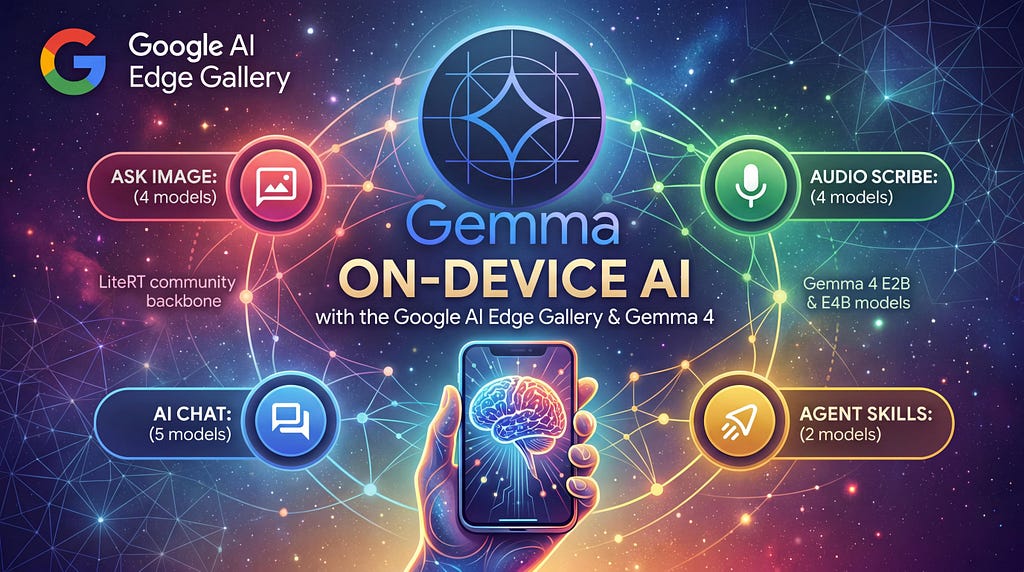
Until recently, running an LLM on your phone meant one thing: chat. You could have a conversation or maybe summarize some text. You were back to the cloud the moment you needed the model to do something more.
The Google AI Edge Gallery app, updated with the release of the Gemma 4 open-weight model family, shows what’s now possible. It can generate structured code and control device settings with natural language, all running offline on your phone. This post covers the Gallery’s key features, walks through building a custom Agent Skill, and shows how to transition to Google Cloud when you’re ready to try larger model variants.
Gemma 4 for Edge AI
Let’s start with a brief introduction to Gemma 4, and how it makes agentic AI at the edge possible.
The Gemma 4 family includes two edge-optimized variants that the Gallery app runs natively: Gemma 4 E2B (Effective 2 Billion parameters) and Gemma 4 E4B (Effective 4 Billion). “Effective” is the keyword: these models use a per-layer embedding architecture that keeps memory footprints tiny, while punching well above their weight class in reasoning benchmarks. All of the Gemma 4 models are fully open-weight, shipping under the Apache 2.0 license.
What makes these models useful beyond chat is a combination of three capabilities. First, they’ve been fine-tuned for structured output. Given a tool schema, they reliably emit parsable JSON. Second, a 128K context window, accelerated locally via LiteRT-LM, gives the model enough memory to handle long conversations and multi-step interactions without losing track of earlier context. Third, multimodal vision lets E2B and E4B process images and output bounding box coordinates for UI elements, opening the door to screen-aware applications.
https://medium.com/media/a3188b154ddd1e6b7f74491256804aa5/href
The Google AI Edge Gallery
The Google AI Edge Gallery is an open-source app designed to showcase what on-device generative AI can actually do. It’s available right now on both major mobile platforms:
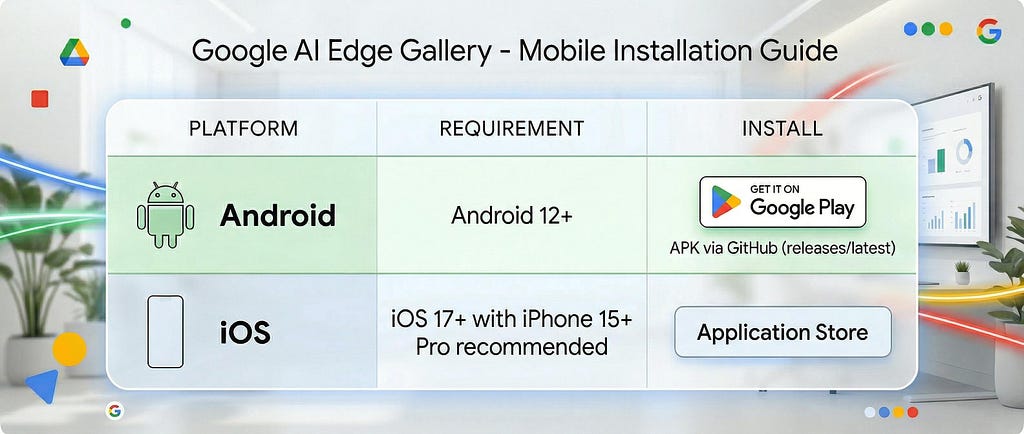
Once installed, you can download Gemma 4 E2B or E4B models directly within the app from Hugging Face and see what a fully offline LLM can do on your hardware. The app is entirely open-source (Kotlin on Android, Swift on iOS), so you can study the implementation, fork it, or use it as a reference for integrating LiteRT-LM into your own mobile apps.
If you want to build function calling into your own Android app, the repo’s Function Calling Guide walks through the Kotlin patterns for cloning the Gallery, defining custom ActionType enums, annotating tools with @Tool and @ToolParam, and wiring up performAction handlers. iOS developers can reference the same architectural patterns with the open-source Swift implementation.
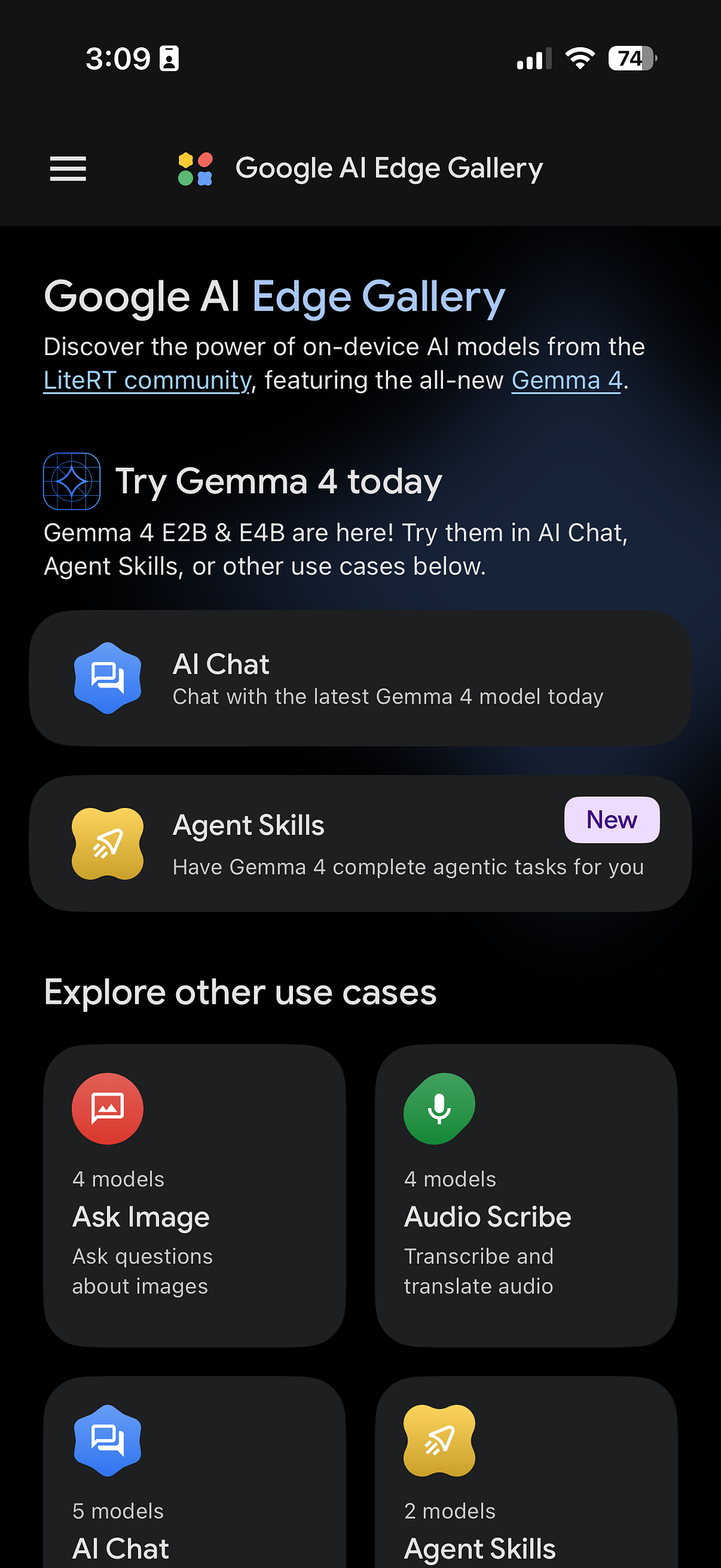
Prompt Lab
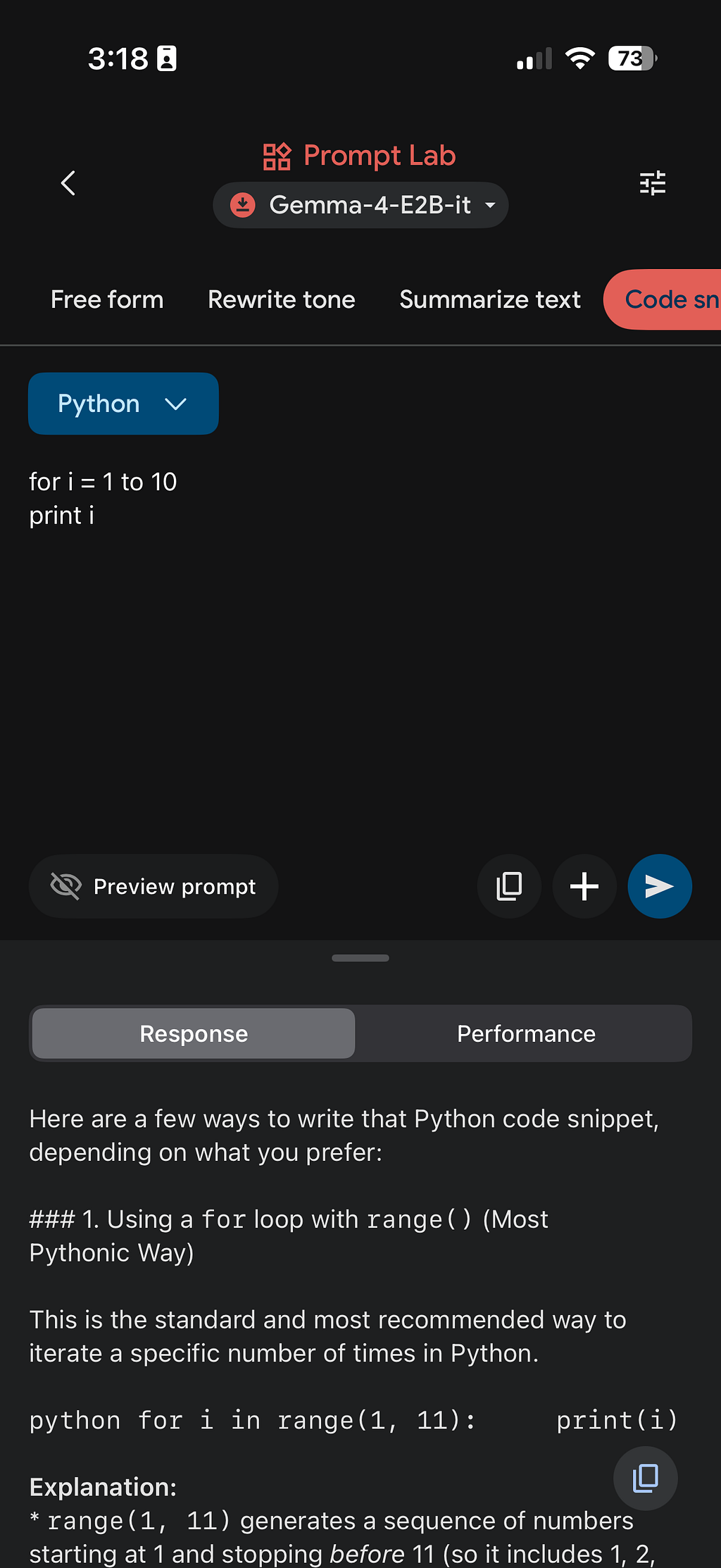
The Prompt Lab gives you single-turn prompt execution with granular control over temperature, top-k, and other generation parameters. It ships with several task templates: Freeform Prompt, Summarize Text, Rewrite Tone, and Code Snippet.
To try it out, select Code Snippet, choose Python, and type: “Print the numbers 1 through 10.” The model generates working code on-device:
for i in range(1, 11):
    print(i)
That’s a trivial example, but the point is what’s happening underneath: the model parsed a natural language instruction, selected the correct language target, and emitted structured, executable output. Swap the prompt for something harder (“Write a function that fetches JSON from a URL and retries with exponential backoff”) and you’ll see the same pattern hold up.
Agent Skills
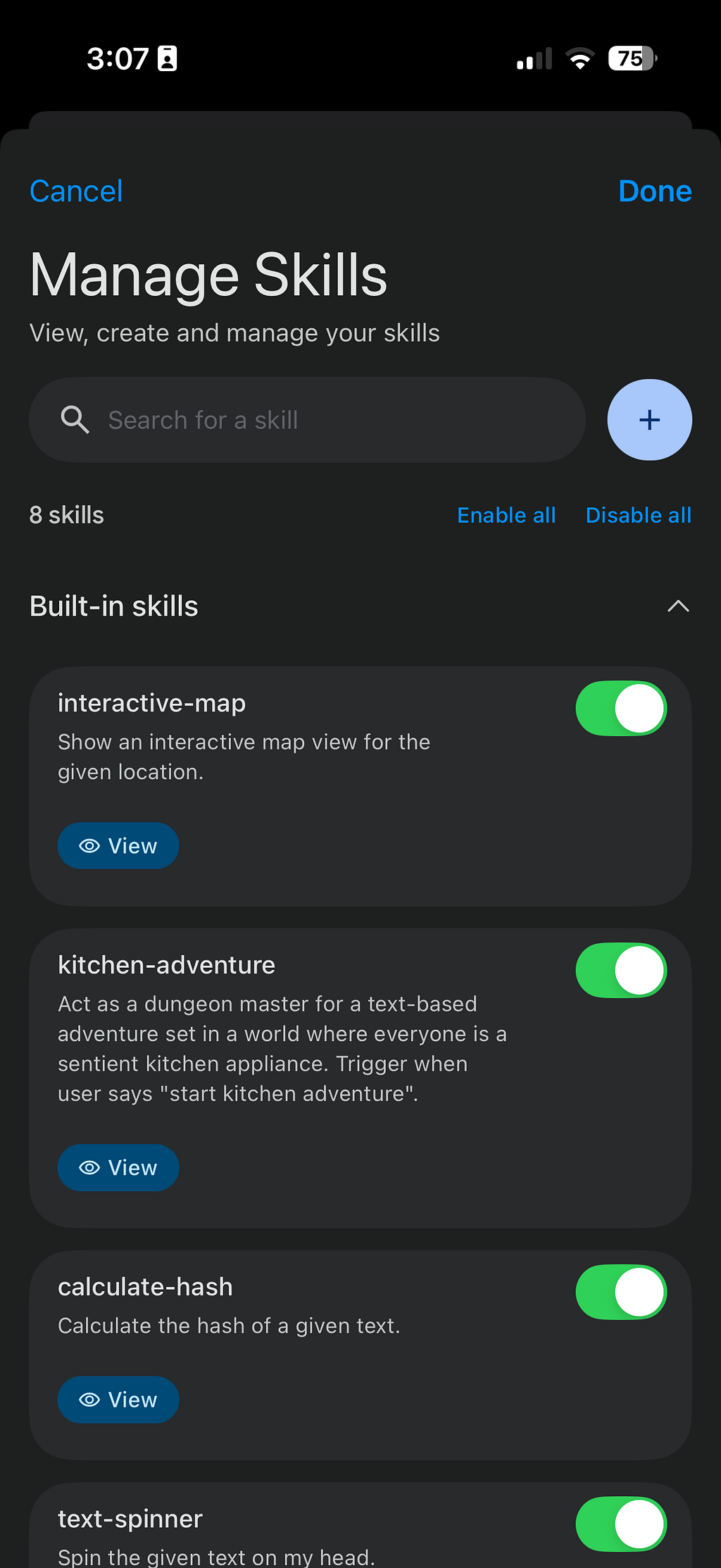
The Agent Skills feature is where things get interesting. Skills are modular tool packages: each one gives the model a new capability without bloating the system prompt with instructions it doesn’t need for the current task.
Each skill is defined by a SKILL.md file containing metadata and instructions. The LLM reviews available skill names and descriptions appended to its system prompt, and if a user’s request aligns with a skill, it invokes it automatically. Built-in skills include Wikipedia lookups, interactive maps, QR code generation, and mood tracking. You can load custom skills three ways: from the community-featured gallery, via a URL, or by importing from a local file.
For developers who want to build their own skills, the architecture supports two execution paths: JavaScript skills (custom logic running inside a hidden webview, with full access to the web ecosystem including fetch(), CDN libraries, and even WebAssembly) and Native App Intents (leveraging built-in OS capabilities — currently sending email and text messages out of the box, with the ability to add more by extending the app’s source code).
Mobile Actions and Beyond
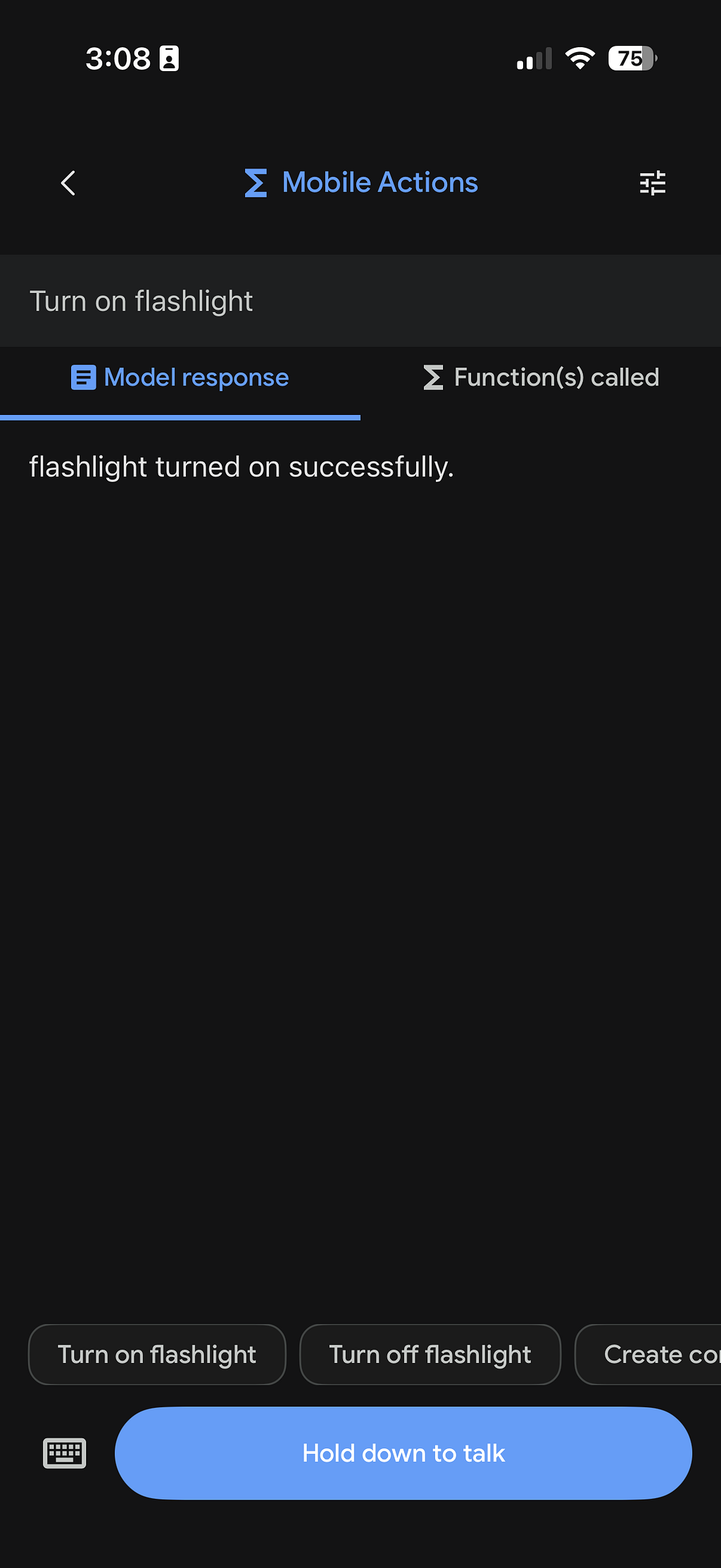
The Gallery also includes Mobile Actions, a feature powered by a fine-tuned FunctionGemma 270M model, that demonstrates offline device controls. These include toggling the flashlight, adjusting volume, or launching apps, all triggered by natural language.
Other workspaces include AI Chat with Thinking Mode (multi-turn conversations where you can toggle the model’s step-by-step reasoning visualization, currently supported for the Gemma 4 family), Ask Image (multimodal object recognition and visual Q&A using your camera or photo gallery), Audio Scribe (on-device voice transcription and translation), and Model Management & Benchmark for profiling how each model performs on your specific hardware.
For a full walkthrough of every feature, check the Project Wiki.
Scaling to the Cloud
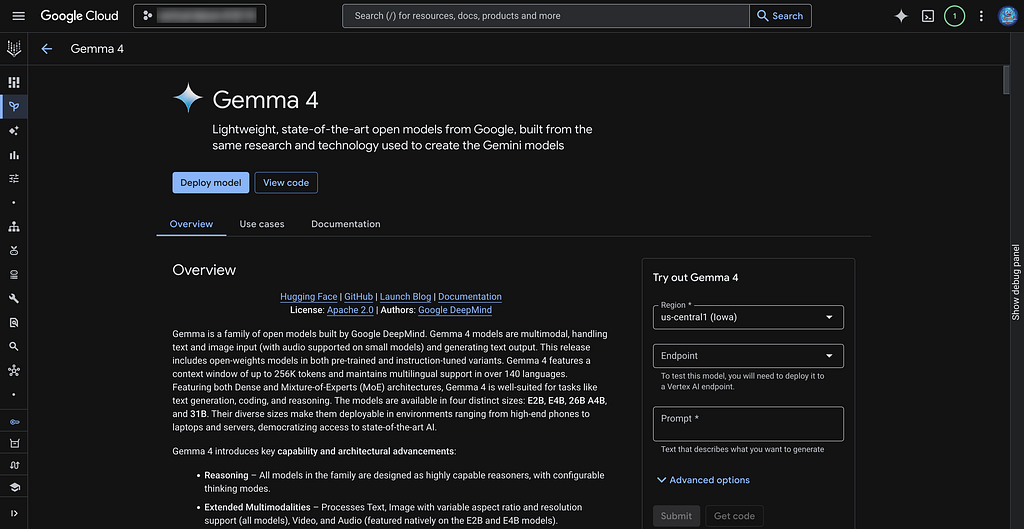
The Edge Gallery shows you what Gemma 4 can do at the edge. When you’re ready for more power, every model in the Gemma 4 family shares the same chat template, tokenizer, and function-calling format. The prompts and skills you develop locally will work the same way with a larger Gemma 4 model running in the cloud.
Google Cloud provides an official guide for deploying Gemma 4 on Cloud Run using a prebuilt vLLM container with GPU support, and Vertex AI offers managed endpoints with fine-tuning capabilities for enterprise deployments. The Agent Development Kit (ADK) provides the orchestration framework for building production agents on top of either target.
Getting Started
On-device AI just got a lot more capable. The Google AI Edge Gallery makes it easy to see for yourself. Here’s my roadmap to get started:
- Download the Google AI Edge Gallery on Android or iOS.
- Try the Code Snippet template in the Prompt Lab.
- Build a custom Agent Skill by following the Skills guide.
- Head to the Google Cloud Console to spin up a larger Gemma 4 variant on Cloud Run or Vertex AI for your backend agent.
If you build something cool with the Google AI Edge Gallery, I’d love to hear about it. You can find me on LinkedIn, X, or Bluesky.
On-Device AI with the Google AI Edge Gallery and Gemma 4 was originally published in Google Cloud – Community on Medium, where people are continuing the conversation by highlighting and responding to this story.
Source Credit: https://medium.com/google-cloud/on-device-ai-with-the-google-ai-edge-gallery-and-gemma-4-1c31a220d3ee?source=rss—-e52cf94d98af—4
About the Author