Beyond Prompts with Gemini CLI Skills
In our previous blog post, the first in the series, we’ve explored using Gemini CLI to help with GKE interactions and operations. Here, we looked at how we can set up the GKE MCP extension to help us interact with our GKE clusters. We set up individual custom commands to automate common operational tasks within our clusters (e.g. job cleanup). We also configured instructions within a GEMINI.md file, which allows us to go beyond individual commands and embed standard operating procedures in an “always-on” mode.
But what about more complex, multi-step operational tasks that you run repeatedly?
This is where Gemini CLI Skills come in. In this post we dive into what Skills are and how they can further enhance GKE operations with Gemini CLI
Skill-up
Think of Skills as on-demand, specialized playbooks that provide Gemini with step-by-step instructions for complex tasks. Unlike the general instructions in GEMINI.md which are always loaded, Skills are loaded only when Gemini determines they are relevant to your request, or when you explicitly invoke them. This on-demand nature is efficient as it conserves space in Gemini’s context window for what’s immediately relevant.
Skills are defined in a directory within ~/.gemini/skills/. Each skill directory will contain a SKILL.md file that contains the information needed for that skill.
Let’s begin setting this up in our GKE environment.
Create a Skill
We are going to set up a troubleshooting skill, to help us diagnose issues with failing or pending pods.
Let’s call this SKILL: gke_pod_troubleshooter
- Create the following directory under the home /.gemini folder
~/.gemini/skills/gke_pod_troubleshooter
2. Create a SKILLS.md file in the directory and copy into it the following content
---
name: gke_pod_troubleshooter
description: >
  A skill to help diagnose issues with failing or pending pods in Kubernetes.
---

# GKE Pod Troubleshooting Guide

Okay, let's figure out what's wrong with the pod.

1.  **Gather Information:** Ask the user for the namespace and the name(s)
    or label selector of the problematic pod(s).

2.  **Check Pod Status & Events:**
    *   Run `kubectl get pods -n <namespace> <pod_name> -o wide`
    *   Run `kubectl describe pod -n <namespace> <pod_name>`
    *   Pay close attention to the `Status`, `Reason`, and `Events` sections.

3.  **Fetch Logs:**
    *   Run `kubectl logs -n <namespace> <pod_name>`
    *   If the pod is crash-looping, try
        `kubectl logs -n <namespace> <pod_name> --previous`

4.  **Check Node:**
    *   Identify the node the pod is on from the `get pods -o wide` output.
    *   Run `kubectl describe node <node_name>` to check for resource
        pressure or node conditions.

5.  **Summarize:** Based on the events, logs, and node status,
    provide a summary of potential issues and next steps.
And that's it. Now lets use the Skill
Using the Skill
Gemini CLI can leverage this new Skill in a couple of ways. Let’s explain each and run our Skill both ways.
Automatic Activation (Implicit):
Gemini constantly evaluates your prompts against the descriptions of available Skills. If your request prompt closely matches what a Skill is designed to do, Gemini should automatically load it and follow the instructions within that Skill’s SKILL.md file.
Example:
In Gemini CLI type something like the example below, with relevant names for the issue in question, like namespace and deployment. For us we have a cart-checkout deployment in the default namespace that is failing, so our prompt will be:
The output below shows that Gemini understands this is a troubleshooting task and returns the following suggestions for next steps for me:

Gemini finds our gke_pod_troubleshooter Skill, and loads the contents of the SKILLS.md file for the next steps.
Before we get results of the troubleshooting, let’s look at the manual invocation
Manual Activation with @ (Explicit):
To ensure a specific Skill is used, you can explicitly invoke it by prefixing the skill directory name with an @ symbol in your prompt.
Example: In Gemini CLI type something like the following, with relevant names for your environment, noting the options becoming available as you type:

And the output is similar to the what we saw with the automatic invocation:
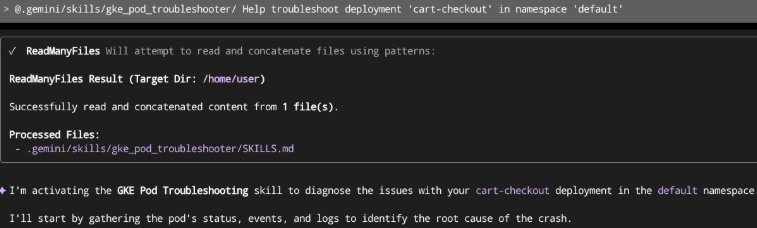
Whatever way we invoke it, Gemini loads the Skill and runs through the steps defined in it. The last step we defined for this Skill was to provide a summary of findings and next steps. Here is what Gemini produced:
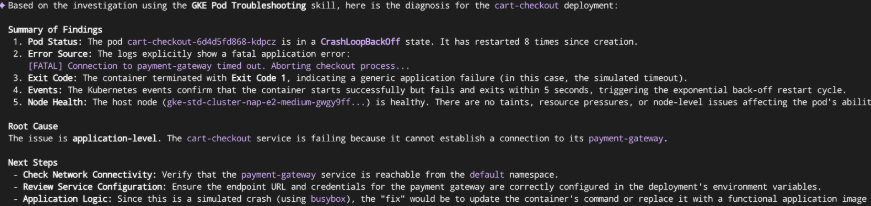
Nice – we have options around what to do next to fix the issue. We could even take this further by defining even more actions based on the output, and extending the system even further. This will be a topic for another post.
Listing Skills
Currently available skills can be checked with the command:
/skills list
GKE Ops Use Cases for Skills
Skills in Gemini CLI can be powerful, and in particular for GKE Ops, allowing you to wrap your team’s runbooks and diagnostic steps into AI-driven, interactive playbooks. Imagine packaging these common GKE Ops workflows into Skills:
1. gke_pod_troubleshooter Skill:
Purpose: Guides the AI through a standard procedure to diagnose failing pods.
Steps might include:
-Ask for namespace and pod name/labels.
-Check pod status and events (kubectl describe pod).
-Fetch logs from current and previous containers (kubectl logs).
-Check node status and resource pressure (kubectl describe node).
-Inspect related Deployment/StatefulSet events.
-Summarize findings and potential causes.
2. gke_security_audit Skill:
Purpose: Perform a basic security checklist on workloads in a namespace.
Steps might include:
-List deployments.
-Check for runAsNonRoot and privileged containers.
-Verify resource requests/limits are set.
-Check for overly permissive NetworkPolicies.
-Look for sensitive information in ConfigMaps/Secrets (basic check).
-Report violations.
3. gke_resource_cleanup Skill:
Purpose: Identify potentially unused resources in a namespace.
Steps might include:
-Find completed Jobs older than X days.
-Identify ConfigMaps not mounted by any current pods.
-Identify Secrets not mounted by any current pods
-Present findings and offer kubectl delete commands for confirmation.
Streamline Your GKE Workflows with Skills
So, as we have seen, by defining Skills in Gemini CLI for your complex GKE Ops, you enable Gemini to consistently and intelligently guide you through complex tasks like troubleshooting, security audits, and resource cleanups, directly within your terminal. This approach standardizes processes and makes deep GKE knowledge more accessible.
Your Turn: Build Your First GKE Skill!
Start codifying your runbooks into Skills and transform how your team interacts with GKE. Pick a common, multi-step GKE task your team performs. And create a Skill for it.
Further Reading
Here are some useful documentation links for further reading on the topics discussed in this article.
Gemini CLI Documentation, Kubernetes Documentation, GKE Best Practices
More GKE Operations with Gemini CLI was originally published in Google Cloud – Community on Medium, where people are continuing the conversation by highlighting and responding to this story.
Source Credit: https://medium.com/google-cloud/more-gke-operations-with-gemini-cli-a7d20a79f8d0?source=rss—-e52cf94d98af—4
About the Author